Remote work in 2026 is no longer an emergency adaptation or a company perk, it is a permanent operating mode for 35% of knowledge workers globally, with another 40% in hybrid arrangements. That is a majority of the professional workforce spending at least part of their week working without a physical office.
The tools designed for that office, the meeting room booking system, the IT helpdesk two desks away, the printer in the hallway, the colleague who answers questions over their shoulder, do not exist at home. Every function they served has to be replaced by software.
The problem is that most remote workers have assembled their home office stack through trial and error, recommendation from colleagues, or defaulting to whatever their employer uses. The result is typically seven to twelve apps that partially overlap, do not integrate cleanly, and collectively cost more than they should.
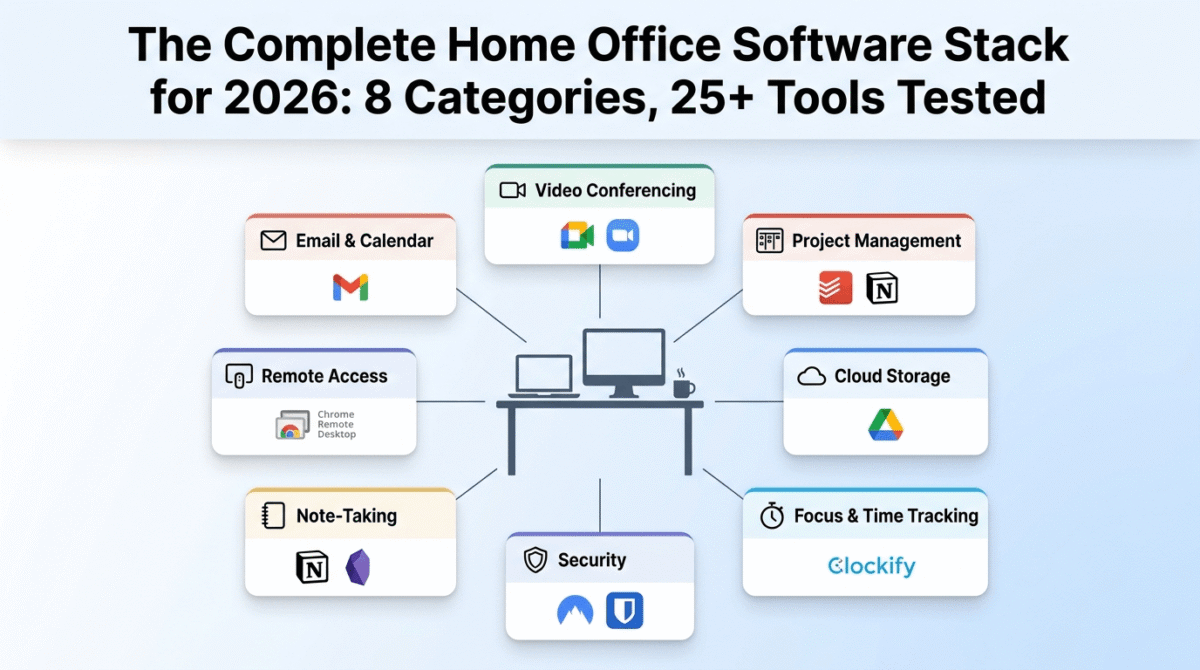
This guide cuts through the noise. It identifies the best tool in each essential Best Tools for Remote Work category: communication, project management, file storage, focus and time tracking, security, video conferencing, note-taking, and remote access, with specific free and paid recommendations, honest pricing assessments, and the tool decisions that most remote workers get wrong.
Every tool in this guide has been used in real remote work scenarios and reviewed in detail elsewhere on this site.
Table of Contents
How We Evaluated These Tools
Every tool was assessed across five criteria:
- Reliability, does it work consistently under the pressure of a real work day, or does it introduce friction at the worst possible moments?
- Integration, does it connect to the other tools in a remote worker’s stack, or does it create data silos that require manual bridging?
- Free tier quality, is the free plan genuinely useful for an individual remote worker, or is it a limited demo designed to force an upgrade?
- Pricing transparency, are the real costs clear, or do per-seat minimums, hidden feature gates, and storage limits obscure the true monthly spend?
- Home office specific value, does the tool address the specific challenges of working from home, or is it built for in-office teams and adapted imperfectly for remote use?
Why the Right Remote Work Stack Matters More Than Hardware
Most remote work productivity advice focuses on hardware, the right desk, monitor setup, ergonomic chair, ring light. These matter, but the research is clear: software friction causes more lost productivity for remote workers than any hardware limitation.
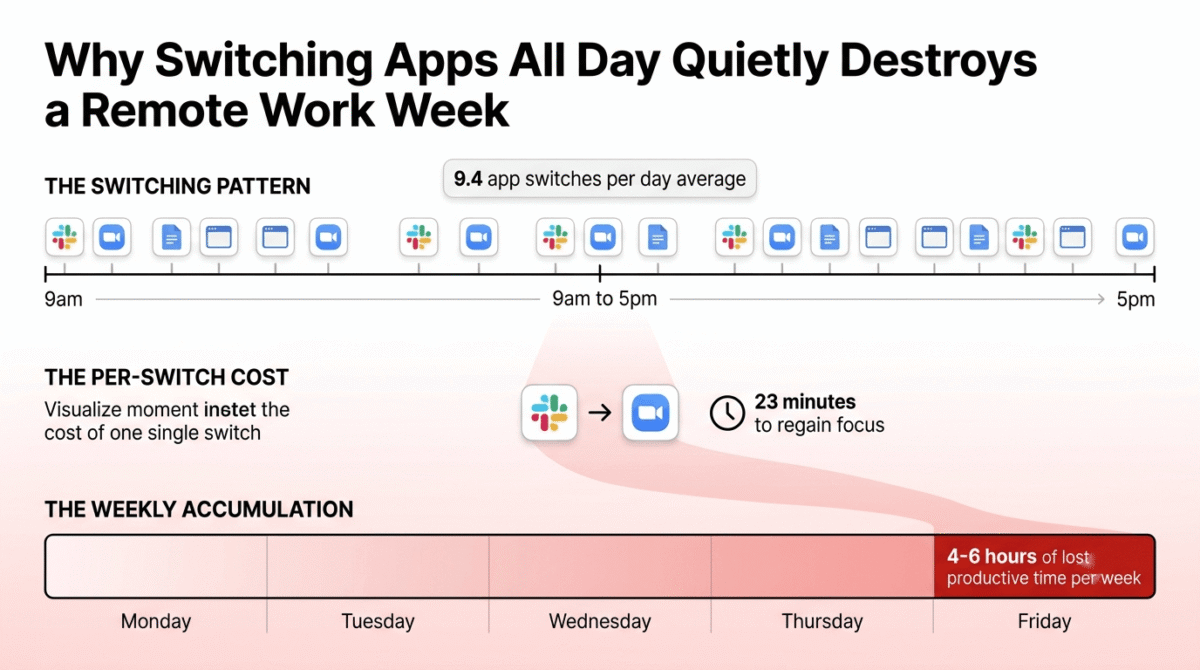
The average remote worker switches between 9.4 different applications per day (Productiv, 2025). Each context switch, from a Slack notification to a Zoom call to a project management tool to a document editor and back, costs an average of 23 minutes of recovered focus time. Across a 40-hour work week, unnecessary application switching costs knowledge workers four to six hours of effective productive time.
The right software stack reduces this friction by: consolidating overlapping tools into single platforms, automating handoffs between tools that need to talk to each other, and reducing the number of applications that need to be open simultaneously.
For bloggers and freelancers working from home, the stack calculation is slightly different from a distributed corporate team. You are optimising for individual focus and output rather than team coordination, which changes which tools earn their place and which represent unnecessary overhead.
Category 1: Video Conferencing and Communication
The replacement for the office meeting room and the hallway conversation.
Best free option: Google Meet
Google Meet is free for any Google account holder, unlimited 1-on-1 calls and 60-minute group meetings for up to 100 participants. For freelancers and remote workers whose video meetings are primarily client calls and occasional team standups, the free Google Meet tier covers every scenario without cost.
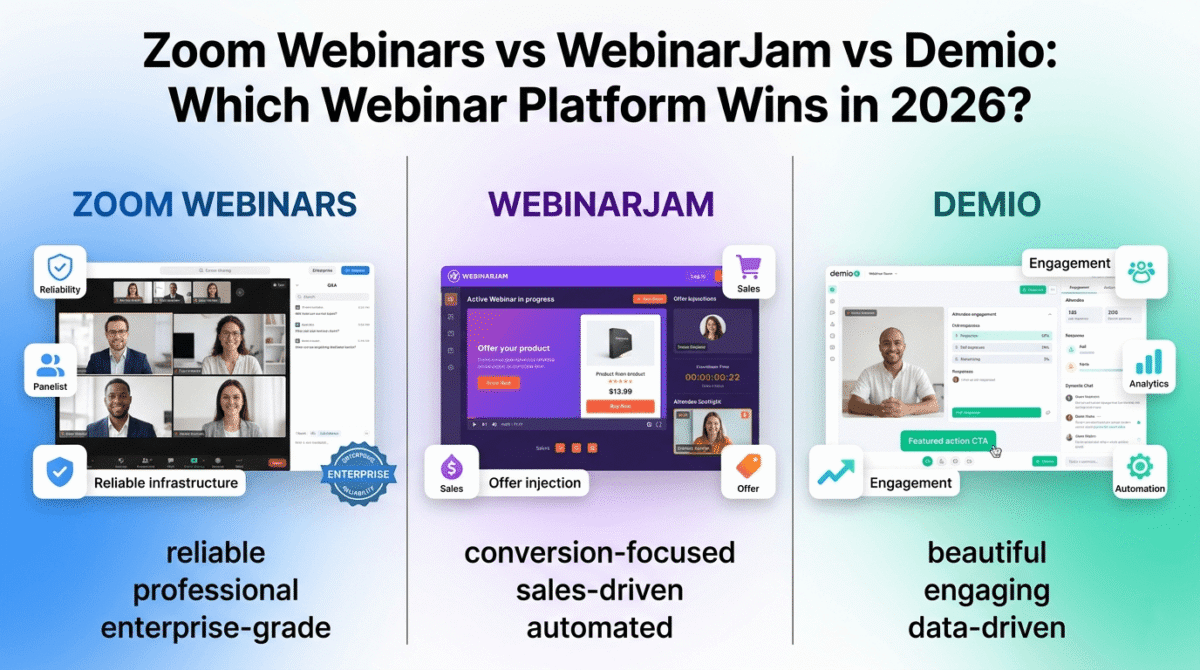
Best paid option: Zoom Pro ($13.32/user/month, annual billing)
Zoom remains the universal standard for professional video conferencing in 2026 for two practical reasons: client familiarity and reliability. Zoom Pro removes the 40-minute group meeting limit, adds cloud recording with 5GB storage, and includes webinar access for up to 100 attendees. For freelancers and remote workers who conduct client meetings, the professional credibility of a Zoom link and the cloud recording capability for client reference and training content justifies the cost.
Best for async communication: Slack Pro ($7.25/user/month, annual)
Slack is the standard for team messaging and replaces the hallway conversation for distributed teams. The free plan’s 90-day message history limit is genuinely restrictive for any team that needs to search older conversations for context or decisions. Pro at $7.25/user/month unlocks full message history and unlimited app integrations.
For solo remote workers and freelancers with no team: the free tiers of Google Meet and Slack cover every communication need. The paid upgrades earn their cost when working within a team that needs reliable async communication history and professional client-facing video.
Pricing note: Microsoft Teams is free for Microsoft 365 subscribers and is the obvious default for anyone already paying for Microsoft’s productivity suite. Google Meet is included in Google Workspace plans (starting at $6/user/month) for teams already using Gmail and Drive. Both eliminate the need for a separate Zoom subscription if you are already in one of these ecosystems.
Full reviews: Best Video Conferencing Software in 2026 | Best Zoom Alternatives in 2026
Category 2: Project Management and Task Tracking
The replacement for the whiteboard, the sticky note wall, and the manager who tracks your progress.
Best free option: Todoist (free tier)
For individual remote workers managing their own task list without team coordination requirements, Todoist’s free plan offers unlimited tasks, five active projects, and basic integrations with Google Calendar and Slack. The natural language date parsing, type “finish client proposal every Friday by 5pm” and Todoist creates a recurring task automatically, is the most intuitive task capture interface in the category.
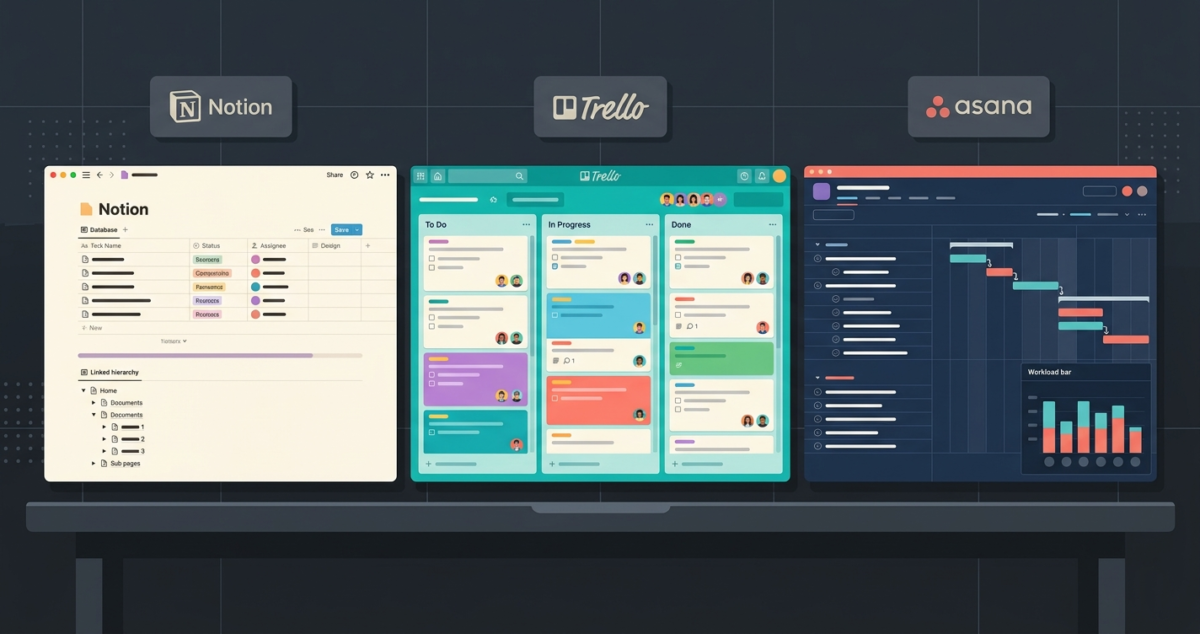
Best for individual + team: Notion (free plan, unlimited pages)
Notion’s free plan offers unlimited pages and blocks for individual users, covering notes, task lists, project databases, and wiki documentation in a single flexible workspace. For a remote freelancer who wants one tool for everything from their content calendar to their client project notes to their personal goal tracking, Notion eliminates four separate tools. The Business plan at $15/user/month adds AI features and expanded team collaboration if those become necessary.
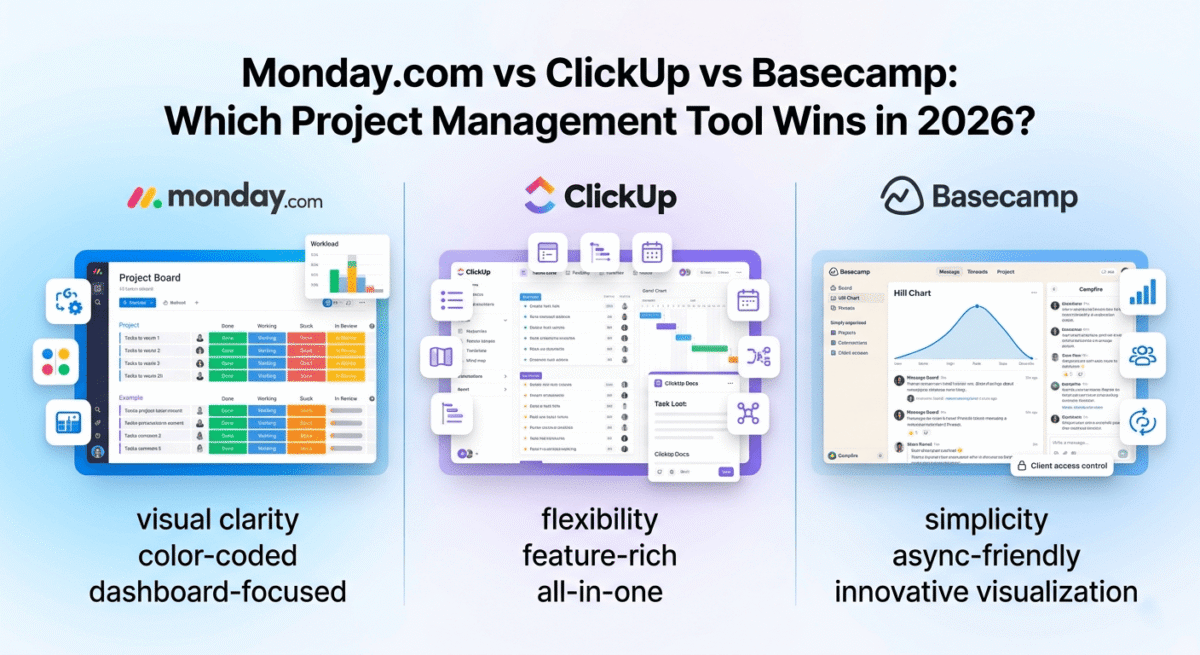
Best for teams: ClickUp Unlimited ($7/user/month, annual)
For remote teams that need structured task management with due dates, assignees, time estimates, and reporting, ClickUp covers every project management function at a price that undercuts most competitors. Multiple views, list, board, calendar, gantt, timeline, accommodate different team members’ workflow preferences without requiring separate tools.
Pricing note: Remote teams often over-invest in project management tools before understanding their actual workflow requirements. Start with free tiers (Trello free for simple boards, Notion free for individuals, Asana basic for small teams) and upgrade only when a specific missing feature, time tracking, automations, reporting, consistently costs more time than the upgrade would save.
Full reviews: Best Project Management Software in 2026 | Best Note-Taking Apps in 2026 | Best Task Management Apps in 2026
Category 3: Cloud Storage and File Collaboration
The replacement for the shared drive, the filing cabinet, and the IT server room.
Best free option: Google Drive (15GB free)
Google Drive’s 15GB free tier covers storage for most individual remote workers who do not work with large video or design files. The real value is the collaboration layer: Google Docs, Sheets, and Slides allow real-time multi-person editing, commenting, and version control in a browser without any software installation. For a freelancer sharing documents with clients for feedback and approval, the collaborative editing experience in Google Docs eliminates the email attachment version control problem entirely.
Best paid option: Google One ($2.99/month, 100GB) or Microsoft OneDrive ($1.99/month, 100GB)
For remote workers who exceed the 15GB free tier, common for anyone working with design files, video, or large document libraries, both Google One and Microsoft OneDrive offer 100GB for under $3/month. The choice between them depends on your primary productivity ecosystem: Google Drive for Google Workspace users, OneDrive for Microsoft 365 users.
Best for team file management: Dropbox Business ($15/user/month, annual)
Dropbox Business adds centrally managed team folders, granular permission controls, admin account oversight, and extended version history to the cloud storage experience. For remote teams where multiple people access and modify shared files, the structured permission model and audit trail of Dropbox Business reduces the access confusion that personal cloud storage tiers do not address.
Free alternative that is genuinely competitive: Dropbox free (2GB) is too small for real use. The correct free cloud storage stack for a remote worker is Google Drive (15GB) + OneDrive (5GB) used simultaneously, giving 20GB of free storage across two providers without paying for either.
Full review: Best Cloud Storage in 2026 | Best Cloud Backup Software in 2026
Category 4: Focus and Time Management
The replacement for the natural work rhythm that office environments provide, and the enforcement mechanism that home environments remove.
Best free option: Clockify (free, unlimited time tracking)
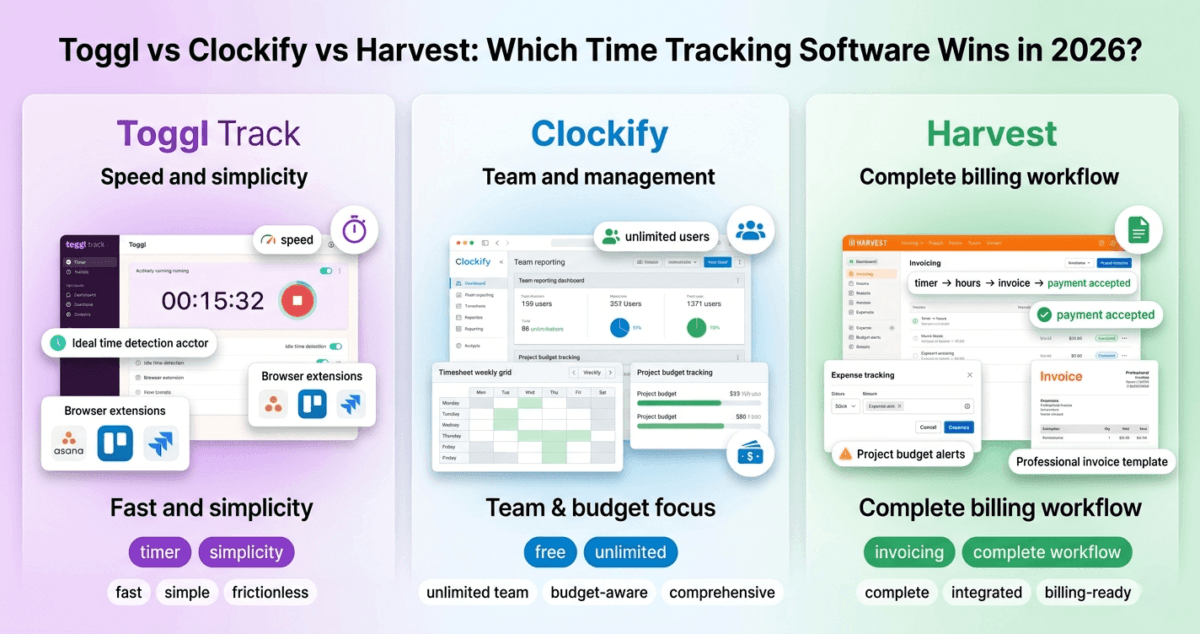
Clockify is the most functional permanently free time tracking tool in the market, unlimited projects, unlimited users, unlimited time entries, and a basic reporting dashboard at zero cost. For remote freelancers who bill clients by the hour or need to understand where their work time actually goes, Clockify tracks time by project and task with a one-click timer that runs in the browser, desktop app, or mobile.
Best paid option: Toggl Track (Starter, $10/user/month, annual)
Toggl Track adds calendar integration, project revenue reporting, billable rate tracking, and team time visibility to the core time tracking experience. For freelancers charging different rates for different clients, the billable rate dashboard shows actual earned revenue per project in real time, a direct connection between time tracked and income generated.
Best for focus blocking: Freedom ($6.99/month, annual)
The primary productivity threat in a home office is the internet itself, social media, news sites, YouTube, and notification-heavy apps available one browser tab away from any work task. Freedom blocks distracting websites and apps across all devices simultaneously for scheduled or on-demand focus sessions. Unlike browser-level blockers that are easily circumvented by opening a different browser, Freedom operates at the network level and blocks across desktop and mobile simultaneously during active sessions.
For Pomodoro-based work sessions: Forest (free iOS/Android app)
Forest uses a gamification mechanic, you plant a virtual tree that grows during a focus session and dies if you leave the app, to enforce focused work blocks without website blocking infrastructure. Free on Android, paid on iOS ($1.99 one-time). Not suitable as the only focus tool for serious internet distraction problems, but effective as a lightweight habit-builder for remote workers who need a low-friction focus prompt.
Pricing note: Time tracking data is only useful if you review it. Schedule a 15-minute weekly review of your Clockify or Toggl report every Friday, the patterns revealed in where your time actually goes versus where you intended it to go are the most actionable productivity information a remote worker can have.
Full reviews: Best Time Tracking Software in 2026 | Best AI Productivity Tools in 2026
Category 5: Security for Remote Workers
The replacement for the enterprise firewall, the IT security team, and the physical building access control that protected your data in the office.
Working from home means your security posture is your personal responsibility, and most home office setups have significant gaps that corporate offices do not.
Essential: VPN for all non-home-network connections
Any remote worker who uses coffee shop Wi-Fi, co-working spaces, hotel internet, or any network they do not personally control is transmitting business data across networks where interception is technically trivial. A VPN encrypts all traffic in transit, protecting email, documents, client data, and login credentials from network-level interception.
Best option: NordVPN ($3.99/month promotional, ~$6.99/month renewal, annual billing)
NordVPN is the most widely deployed consumer VPN with consistently strong performance in independent speed tests, a verified no-logs policy, and apps for every platform a remote worker uses. The promotional entry price is significantly below the renewal rate, budget for approximately $6.99–$8.29/month as the sustainable cost after the initial term.
Free alternative: Proton VPN’s free tier offers unlimited data on three server locations with no data cap, the only meaningfully useful free VPN in a category where most free options impose data limits that make daily use impractical.
Essential: Password manager
Credential reuse, using the same password across multiple services, is the single most common cause of account compromise for remote workers. A password manager generates unique, complex passwords for every service and stores them securely, eliminating reuse across the board.
Best for individuals: Bitwarden (free, open-source)
Bitwarden’s free tier covers unlimited password storage across unlimited devices, end-to-end encryption, and browser extension integration for autofill, everything most individual remote workers need at zero cost.
Best for business accounts: 1Password Teams ($19.95/month for up to 10 users)
1Password Teams adds centrally managed password vaults, account recovery for team members who lose access, and admin visibility over shared credential usage, the features that personal password managers lack for business accounts that need organisational oversight.
Essential: Cloud backup for local files
Data loss from laptop failure, theft, or accidental deletion is a significantly higher risk for remote workers than for office workers whose files are stored on managed company servers with automatic backup. Any file that exists only on a local device and is not backed up to cloud storage is one hardware failure away from permanent loss.
Best option: Backblaze Personal Backup ($9/month)
Backblaze continuously backs up everything on your computer, unlimited storage, automatic background operation, no file size restrictions, for $9/month. The backup runs silently in the background without configuration or maintenance. File restore is available within 30 days of deletion on the standard plan.
Free alternative: Any files stored in Google Drive, OneDrive, or Dropbox are automatically backed up to cloud. The Backblaze subscription earns its cost primarily for local files that are not saved to a cloud folder, large video projects, archived client work, application data.
Pricing trap warning: NordVPN’s promotional pricing for new subscribers is typically 60–70% off. The renewal rate after the initial term (usually two years) rises to approximately $6.99–$8.29/month. Budget for the renewal rate and treat the promotional price as a first-term discount rather than the ongoing cost.
Full reviews: Best VPN for Beginners in 2026 | Best Password Managers in 2026 | Best Cloud Backup Software in 2026 | Best Antivirus Software in 2026
Category 6: Note-Taking and Knowledge Management
The replacement for the notebook on your desk, the whiteboard in the meeting room, and the colleague whose brain holds all the institutional knowledge.
Best free option: Notion (free individual plan)
Notion’s free plan, unlimited pages and blocks for individual users, is the most flexible note-taking and knowledge management tool available at zero cost. A remote freelancer can build their entire second brain in Notion: client notes, meeting summaries, research archives, content calendars, and project wikis all in one searchable workspace. The AI features (Notion Agent, AI search) require the Business plan at $15/user/month.
Best for automatic knowledge organisation: Mem ($15/month, annual billing)
Mem eliminates the manual filing and organisation that makes most note-taking systems collapse under real-world information volume. Notes are captured without folders, and Mem’s AI automatically surfaces semantic connections between related notes when relevant. For remote workers who capture large volumes of research, meeting notes, and ideas, Mem’s automatic organisation is a practical time saver over any folder-based system. Full review in the Best AI Productivity Tools comparison on this site.
Best for markdown and local-first notes: Obsidian (free, personal use)
Obsidian stores notes as plain markdown files on your local device, no cloud dependency, no subscription, no vendor lock-in. The backlinks system allows manual creation of a personal knowledge graph that connects related notes across your entire library. For remote workers who prioritise data ownership, offline access, and long-term note portability, Obsidian is the strongest free option in the category.
Full reviews: Best Note-Taking Apps in 2026 | Best AI Productivity Tools in 2026
Category 7: Remote Desktop and Access
The replacement for being physically present at your work machine or office server.
Best free option: Chrome Remote Desktop (completely free)
Chrome Remote Desktop allows remote access to any computer running Chrome from any other device, free, no account required beyond a Google account, and no connection limits. For occasional access to a work machine from another location, Chrome Remote Desktop is the simplest and most reliable free solution available.
Best for regular use: AnyDesk (Solo, $14.90/month, annual)
AnyDesk provides fast, reliable remote desktop access with file transfer, remote printing, and session recording. For remote workers who regularly need to access office machines, client servers, or personal workstations from different locations, AnyDesk’s performance, particularly on high-latency international connections, is meaningfully better than Chrome Remote Desktop for sustained working sessions.
Best for IT and managed access: TeamViewer (Business, $50.90/month, annual)
TeamViewer covers enterprise remote access with centrally managed device lists, session logging, two-factor authentication per connection, and compliance documentation. For small businesses managing remote access to multiple endpoints across a distributed team, TeamViewer’s management layer justifies the premium over AnyDesk.
Full review: Best Remote Desktop Software in 2026
Category 8: Email and Calendar
The coordination layer that replaces the office scheduling system and the shared calendar on the wall.
Best free option: Gmail + Google Calendar
Gmail and Google Calendar are the default for most individual remote workers, free, deeply integrated with each other and with Google Meet, Drive, and Docs, and accessible from any device without software installation. For a freelancer managing their own schedule and correspondence, the free Google Workspace tier covers everything.
Best email client for organisation: Spark (free, individual)
Spark’s AI-powered email prioritisation, smart inbox grouping, and email scheduling features make it the most functional free email client for remote workers dealing with high email volume. Spark groups emails by type, notifications, newsletters, personal, team, reducing the cognitive load of processing a mixed inbox. Available on iOS, macOS, Android, and Windows.
Best for managing multiple email accounts: Thunderbird (free, open-source)
Mozilla Thunderbird manages unlimited email accounts from a single interface, personal Gmail, client email aliases, and business accounts all accessible in one organised sidebar. The free calendar integration (via Lightning add-on) adds scheduling to the same interface. For freelancers managing multiple client email identities, Thunderbird is the most capable free multi-account email client available.
Full review: Best Email Clients in 2026
The Complete Recommended Remote Work Stack
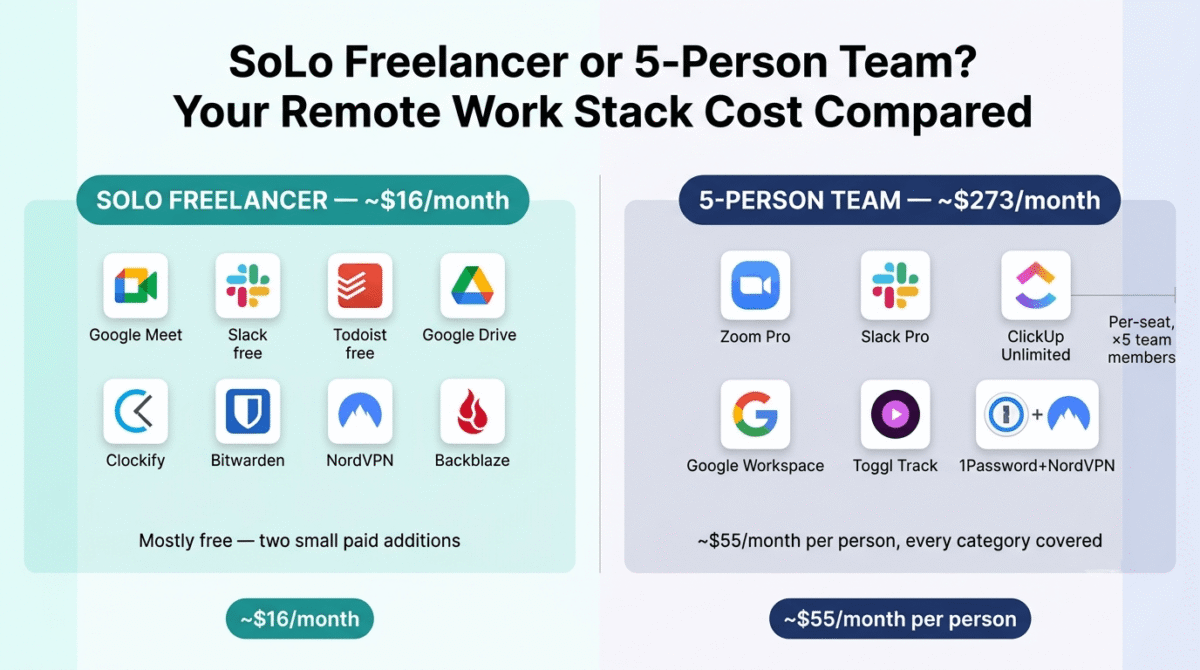
For solo freelancers and individual remote workers (total cost: $0–$30/month):
| Category | Tool | Cost |
|---|---|---|
| Video calls | Google Meet | Free |
| Team messaging | Slack free or Discord | Free |
| Task management | Todoist free or Notion free | Free |
| File storage | Google Drive 15GB | Free |
| Time tracking | Clockify | Free |
| Note-taking | Obsidian | Free |
| Password manager | Bitwarden | Free |
| VPN | NordVPN | ~$6.99/month |
| Cloud backup | Backblaze | $9/month |
| Remote access | Chrome Remote Desktop | Free |
| Gmail + Spark | Free | |
| Total | — | ~$16/month |
For remote teams (5 people, total cost: ~$150–$250/month):
| Category | Tool | Monthly Cost |
|---|---|---|
| Video conferencing | Zoom Pro | $66.60 (5 seats) |
| Team messaging | Slack Pro | $36.25 (5 seats) |
| Project management | ClickUp Unlimited | $35 (5 seats) |
| File storage | Google Workspace Starter | $30 (5 seats) |
| Time tracking | Toggl Track Starter | $50 (5 seats) |
| Security | 1Password Teams + NordVPN Teams | $55 (5 seats) |
| Total | — | ~$273/month for 5 people |
The Five Remote Work Tool Mistakes That Cost You the Most
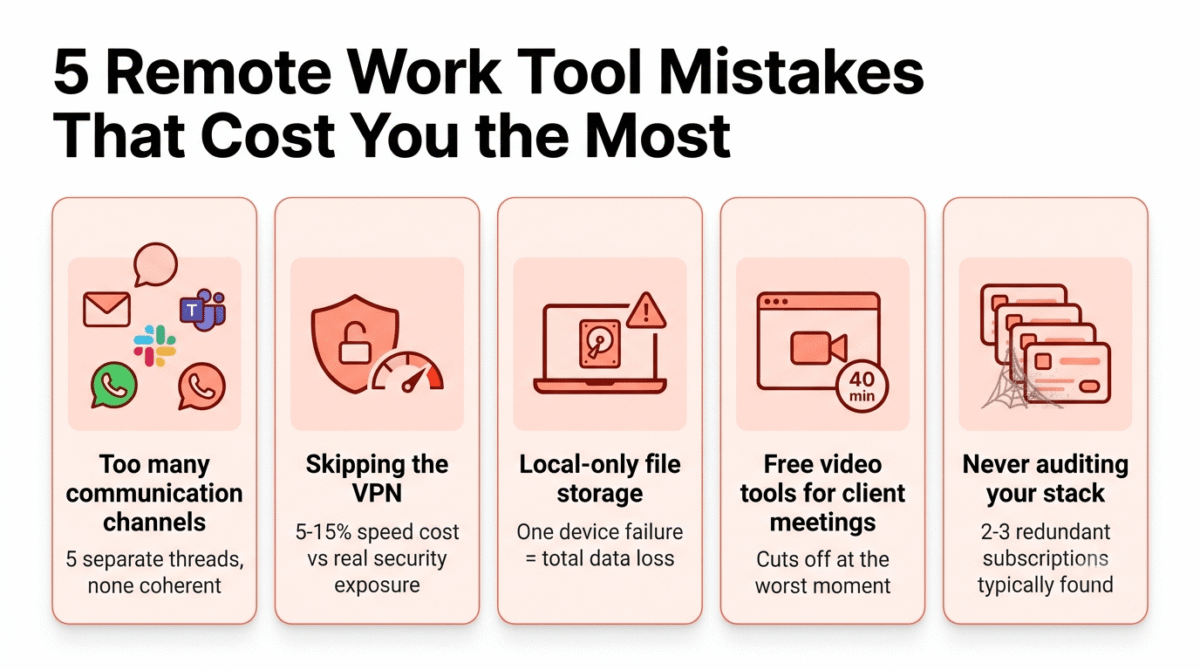
Running too many communication channels simultaneously. Email, Slack, Microsoft Teams, WhatsApp, and direct text messages each demand separate attention and create parallel conversation threads that are impossible to keep coherent. Choose one primary async channel (Slack or Teams), one video tool (Zoom or Meet), and route everything else through those. The productivity cost of a fragmented communication stack is larger than most remote workers recognise.
Skipping the VPN because it slows things down. Modern VPN solutions on good servers reduce connection speeds by 5–15%, a nearly imperceptible difference on any broadband connection above 50 Mbps. The security exposure from working without a VPN on public networks is substantially larger than any performance trade-off. NordVPN and ExpressVPN both maintain sub-10% speed reduction on their best servers in independent testing.
Using local-only storage for critical work files. Any file that exists only on a laptop hard drive is unprotected from device failure, theft, or accidental deletion. Cloud-synced folders (Google Drive, OneDrive, Dropbox) and a continuous backup solution (Backblaze) together ensure that no single hardware event causes irreversible data loss.
Choosing free video conferencing tools for client meetings. The 40-minute limit on Zoom’s free group meetings, the interface lag on some Google Meet free connections, and the unreliability of some free alternatives create friction at exactly the moment when professional credibility matters most. Zoom Pro at $13.32/month is a legitimate business expense that pays back in the professional impression it maintains in client relationships.
Never auditing your tool stack. Remote workers accumulate subscriptions the same way small businesses do, by adding tools in response to specific problems and never removing them when the problem changes. A quarterly audit of active subscriptions against actual usage patterns typically surfaces two to three tools paying for functions that a free tier or another existing subscription already covers.
How Bloggers Working From Home Should Build Their Stack
For bloggers specifically, the remote work stack priorities look different from a corporate remote worker’s. Your output is content, writing, research, media, and publishing, not team coordination and corporate project management.
The blogger-specific remote work stack:
Writing environment: A distraction-free writing tool, either Hemingway Editor (free web app) for clear, readable prose, or Ulysses ($5.99/month) for long-form structured writing with markdown support. WordPress itself handles the publishing environment if you draft directly in Gutenberg.
Research management: Notion free plan or Mem ($15/month) for capturing and organising research across topics, sources, and content clusters. The note-taking investment pays back across a content library, a well-organised research archive from year one becomes a compounding asset by year three.
Focus blocking: Freedom ($6.99/month) during dedicated writing blocks. Writing requires sustained concentration that open-tab browsing environments undermine systematically. Blocking distractions during scheduled writing sessions is the single highest-impact productivity decision for home-based bloggers.
Time tracking: Clockify free to track time spent per post. Understanding whether a post took three hours or seven hours to research and write, and which phase (research, outline, drafting, editing) consumed the most time, directly informs content planning and pricing for any blogger who also takes on client writing work.
Security: NordVPN for any public Wi-Fi work sessions, Bitwarden for password management, and Google Drive for automatic document backup. The security overhead for a solo blogger is low, these three tools cover the meaningful risks at under $10/month combined.
Final Verdict
The best remote work tool stack in 2026 is the one with the fewest tools that still covers every essential function. Tool sprawl is the most common remote work productivity problem, more apps means more context switching, more subscription costs, and more time spent managing tools rather than doing work.
For most individual remote workers and freelancers, the free-tier stack listed above, Google Meet, Slack free, Notion free, Google Drive, Clockify, Obsidian, Bitwarden, Chrome Remote Desktop, Gmail, covers every essential function at zero cost. Add NordVPN ($6.99/month) and Backblaze ($9/month) and the entire functional remote work stack costs under $20/month.
The paid upgrades, Zoom Pro, Slack Pro, ClickUp Unlimited, Toggl Track, earn their cost only when specific limitations in the free tier consistently interrupt real work. Upgrade when that friction costs more time or money than the subscription, and not before.
Frequently Asked Questions
What are the essential tools for remote work in 2026?
The minimum viable remote work stack covers six functions: video conferencing (Google Meet free or Zoom Pro), team messaging (Slack free), task management (Todoist or Notion free), file storage (Google Drive 15GB free), a password manager (Bitwarden free), and a VPN (NordVPN ~$6.99/month). These six tools together replace every core office infrastructure function for an individual remote worker at under $10/month.
Is Zoom still the best video conferencing tool for remote work in 2026?
Yes, for external client-facing meetings, Zoom remains the universal standard because of client familiarity and platform reliability. For internal team meetings within a Google Workspace or Microsoft 365 organisation, Google Meet and Microsoft Teams are equally capable and already included in existing subscriptions. the practical recommendation: use Zoom for client calls, use Meet or Teams for internal team meetings, and avoid paying for two video conferencing subscriptions simultaneously.
Do remote workers really need a VPN?
Yes, for any work done outside a trusted home network. Coffee shops, co-working spaces, hotels, and airports all run networks where traffic interception is technically feasible. Business emails, client documents, login credentials, and any other data transmitted without a VPN on these networks is vulnerable. Modern VPN solutions like NordVPN reduce connection speeds by less than 10% on good servers, a negligible trade-off for the security coverage provided.
What is the best free note-taking app for remote workers in 2026?
Notion’s free plan (unlimited pages and blocks for individuals) is the most versatile free note-taking and knowledge management option, flexible enough to serve as a full personal workspace, not just a note-taking app. Obsidian (free for personal use) is the best option for remote workers who prioritise local-first storage, offline access, and long-term data portability. Both are detailed in the Best Note-Taking Apps comparison on this site.
How do I stay focused working from home?
The most effective focus strategies for remote workers combine environmental design with tool support. Close email and Slack during scheduled deep work blocks, notification-driven interruptions are the primary focus disruptor for most remote workers. Use Freedom ($6.99/month) or Cold Turkey (free version available) to block distracting websites during focus sessions. Time-block your calendar using Google Calendar or Notion so that each day has designated protected time for deep work that is visible to anyone scheduling meetings with you. Track your actual time with Clockify (free) to build an honest picture of where focus time is going versus where you intend it to go.
What is the best cloud storage for remote workers in 2026?
Google Drive (15GB free, then $2.99/month for 100GB) is the best default for individual remote workers already using Gmail and Google Docs. Microsoft OneDrive ($1.99/month for 100GB) is the natural choice for Microsoft 365 users. Dropbox Business ($15/user/month) is the best option for teams who need centrally managed shared folders with granular permission controls. All three are reviewed in detail in the Best Cloud Storage comparison on this site.
How much should a freelancer spend on remote work tools each month?
A solo freelancer running a complete, professional remote work stack should spend between $0 and $30/month by using free tiers strategically. The minimum paid additions that most freelancers genuinely need: NordVPN ($6.99/month) for security on public networks and Backblaze ($9/month) for continuous device backup. Everything else, video conferencing, task management, file storage, note-taking, email, password management, has a fully functional free tier that covers individual freelancer needs. Upgrade individual tools only when specific paid features directly save time that costs more than the subscription.
What is the biggest remote work tool mistake freelancers make?
Replicating a corporate tool stack instead of optimising for solo work. Enterprise tools like Salesforce, Microsoft Teams (without a Microsoft 365 subscription), and enterprise project management platforms are designed for team coordination overhead that solo freelancers do not have. The best freelancer stack is lighter, cheaper, and more integrated than a corporate remote worker’s stack. Most solo freelancers need strong writing tools, reliable video calling, organised file storage, and automated time tracking, not the full enterprise collaboration infrastructure that corporate remote work platforms are built around.