Remote desktop software lets you access and control any computer from anywhere in the world, as if you were sitting directly in front of it. In 2026, this capability is no longer a niche IT requirement. It is a daily tool for remote workers accessing office computers from home, bloggers managing their WordPress server from a phone, freelancers providing technical support to clients without travel, and small business owners checking on operations from anywhere. Remote desktop is one piece of a distributed team’s stack, see our roundup of remote work tools for the rest of what a fully remote setup typically needs.
The question is which remote desktop tool to use, and whether the free options are good enough or whether a paid subscription is worth it.
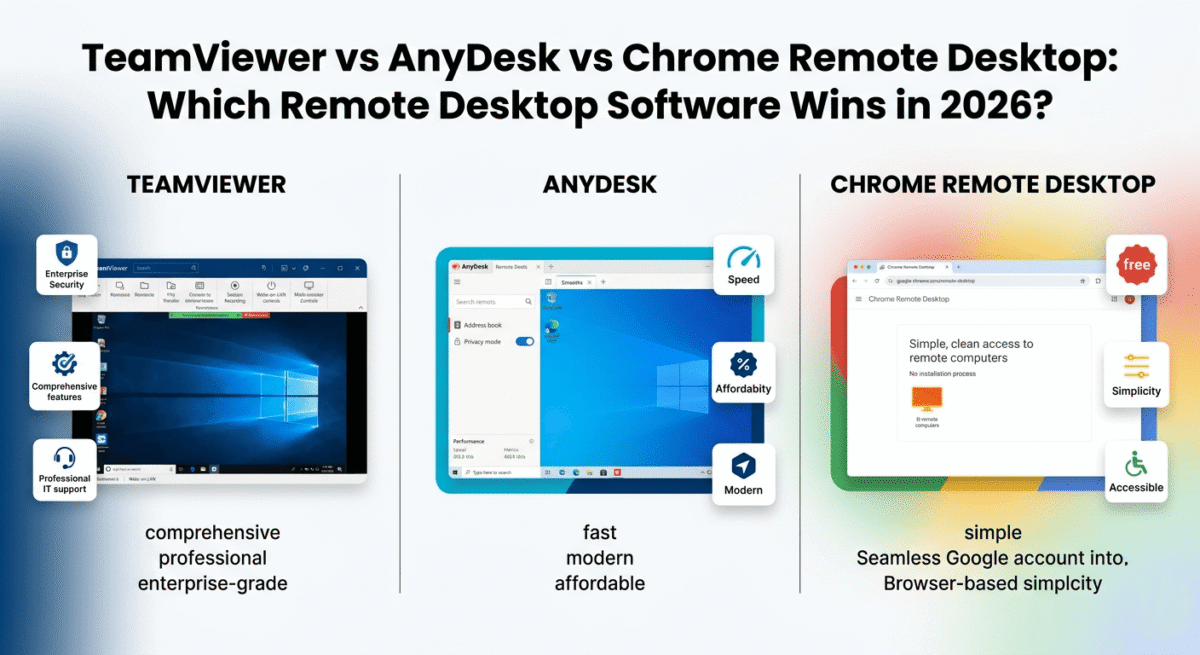
I tested TeamViewer vs AnyDesk vs Chrome Remote Desktop for 30 days across real use cases, accessing a home PC from a laptop, providing remote support to family members, managing a WordPress server, and file transfers between machines. Here is the honest comparison.
Table of Contents
How We Evaluated These Tools
Every platform was tested across five criteria:
– Connection quality: speed, latency, and visual clarity of the remote session
– Ease of setup: how quickly can a non-technical user establish a remote connection?
– Features: file transfer, multi-monitor support, session recording, and collaboration tools
– Security: encryption standards, authentication options, and access controls
– Value: free plan quality and paid plan pricing versus features offered
Why Remote Desktop Software Matters for Bloggers and Developers
Remote desktop tools have specific practical value for anyone running an online business:
Server management. WordPress developers and bloggers who manage their own hosting environments use remote desktop to access server control panels, FTP clients, and development tools from any location; a laptop at a coffee shop can control a powerful desktop at home. See our full developer remote toolkit guide for the rest of the WordPress development stack this pairs with.
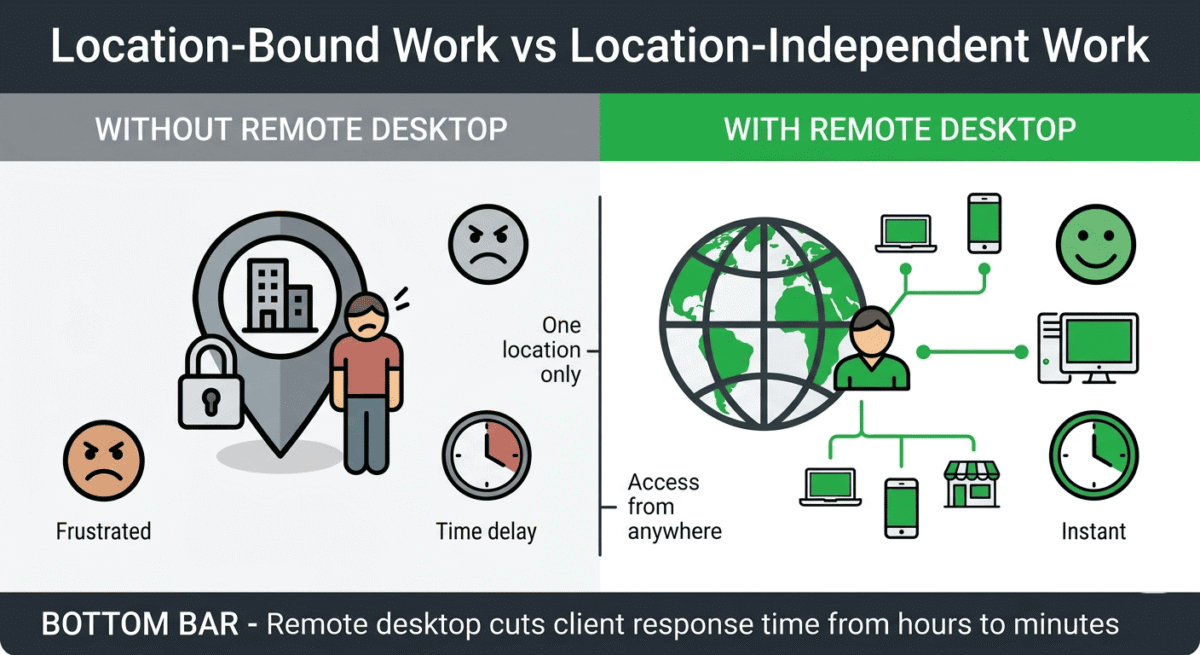
Client support. Freelance WordPress developers and designers frequently need to access client websites and servers directly. Remote desktop eliminates the back-and-forth of explaining technical steps; you connect, fix the issue, and disconnect in minutes.
Cross-device file access. Forgot a file on your home computer while travelling? Remote desktop connects you to it instantly, view, edit, and transfer files without needing cloud storage sync to have worked correctly in advance. That said, remote desktop is not a substitute for a real backup, back up before you remote in with a dedicated tool so a lost or damaged machine doesn’t mean lost files. See our Backblaze vs Acronis vs iDrive comparison.
Team collaboration. Remote desktop enables screen sharing for pair programming, design review, and technical training, more interactive than video calls because the helper can take direct control rather than talking someone through steps.
TeamViewer Review: Best Remote Desktop Software for Business and IT Support
Free plan: Yes, free for personal non-commercial use
Starting price: $24.90/month (Remote Access, billed annually)
Best plan for most businesses: Business, $50.90/month (billed annually)
Platforms: Windows, Mac, Linux, iOS, Android, Chrome OS, Raspberry Pi
Affiliate program: Yes, TeamViewer affiliate program
TeamViewer is the world’s most widely used remote desktop software, installed on over 2.5 billion devices globally. It is the tool most IT professionals reach for when they need to support a remote computer, and its name has become almost synonymous with remote access, much as Xerox became synonymous with photocopying. For business use cases, particularly in IT support and managed services, TeamViewer’s feature depth and reliability are unmatched.
What TeamViewer does best
TeamViewer’s connection quality is the strongest of the three tools in challenging network conditions. TeamViewer’s proprietary routing infrastructure, with servers distributed globally, maintains stable, low-latency connections even when both ends of the connection are on residential internet with variable speeds. In testing, TeamViewer maintained a usable remote session through network conditions that caused AnyDesk to lag and Chrome Remote Desktop to disconnect entirely.
The feature set is the most comprehensive of the three tools. Beyond basic remote control, TeamViewer includes:
File transfer: drag-and-drop file transfer between local and remote machines during an active session, with transfer speeds faster than most cloud sync services for large files on fast connections.
Session recording: record remote sessions as video files for training, documentation, compliance, and quality assurance. Automatically saved to local storage with searchable session logs.
Multi-monitor support: view and switch between multiple monitors on the remote machine, with the option to see all monitors simultaneously in a side-by-side layout or switch between them individually.
Wake-on-LAN: remotely wake a sleeping or powered-off computer before connecting, enabling access to machines that are not left running 24/7.
Remote printing: print documents from the remote machine to a printer connected to your local machine, as if the remote computer’s printer were your local printer.
TeamViewer Meeting: built-in video conferencing and screen sharing for up to 300 participants, included with business plans. Replaces the need for a separate video call tool for IT support sessions.
IoT and server monitoring: TeamViewer’s extended platform covers IoT device management and server monitoring alongside desktop remote access, relevant for developers managing multiple servers and devices.
The unattended access feature, connecting to a remote computer that has no one present to accept the connection, is TeamViewer’s most practically important capability for business use. Set up unattended access on your home computer, office server, or client machines, and you can connect to them any time without requiring someone to be present and accept the connection request.
TeamViewer’s security model is the most comprehensive of the three tools: AES 256-bit session encryption, two-factor authentication, device-level trust lists, conditional access policies, and a zero-trust network architecture that does not require any firewall configuration or port forwarding. For businesses with security-conscious IT policies, TeamViewer’s security credentials are the most enterprise-grade available.
TeamViewer’s free plan: the commercial use issue
TeamViewer’s free plan is technically available for personal non-commercial use, but TeamViewer’s automated systems aggressively flag and block connections that appear commercial. Bloggers, freelancers, and small business owners who use the free plan frequently report being locked out with a “commercial use suspected” message, requiring them to either purchase a licence or wait for manual review.
For anyone using TeamViewer for any work-related purpose, including managing a blog, supporting clients, or accessing a work computer, the paid plan is effectively required. This aggressive enforcement of the personal-only restriction is TeamViewer’s most consistent user complaint.
TeamViewer pricing
Plan | Price/month (annual) | Devices | Key features |
Remote Access | $24.90 | 1 licensed user | Remote control, file transfer, basic features |
Business | $50.90 | 1 licensed user | + Multi-session, meeting, reporting |
Premium | $112.90 | 15 licensed users | + Mobile device management, service queue |
Corporate | $229.90 | 30 licensed users | + Mass deployment, advanced reporting |
TeamViewer: Pros and Cons
Pros:
– Best connection stability, proprietary global routing infrastructure
– Most comprehensive feature set, file transfer, session recording, Wake-on-LAN, multi-monitor
– Best enterprise security, AES 256-bit, 2FA, zero-trust architecture
– Unattended access for connecting without someone present
– Remote printing between local and remote machines
– Widest platform support, Linux, Raspberry Pi, IoT, mobile
– Built-in video conferencing on business plans
Cons:
– Free plan aggressively enforced, commercial use flagged and blocked quickly
– Most expensive paid plans of the three tools
– Subscription only, no perpetual licence
– Overkill and overpriced for individual bloggers and light users
– Interface feels dated compared to AnyDesk’s modern design
Rating: 4.5 / 5 Best remote desktop software for IT professionals, managed service providers, and businesses with complex remote access needs. Expensive for individual users.
AnyDesk Review: Best Remote Desktop Software for Speed and Individual Users
Free plan: Yes, free for personal use, no commercial use flagging
Starting price: $14.90/month (Solo, billed annually)
Best plan for most individual users: Solo, $14.90/month (billed annually)
Platforms: Windows, Mac, Linux, iOS, Android, Chrome OS, Raspberry Pi, FreeBSD
Affiliate program: Yes, AnyDesk affiliate program, recurring commission
AnyDesk was founded in 2014 by former TeamViewer engineers who set out to build a faster, lighter, and more affordable alternative. In 2026, AnyDesk has achieved exactly that, delivering the fastest remote desktop connection speeds of the three tools tested, the lightest application footprint, and a more modern interface, at a significantly lower price than TeamViewer.
What AnyDesk does best
AnyDesk’s connection speed is its defining advantage. The proprietary DeskRT codec, developed specifically for remote desktop video transmission, delivers smoother, lower-latency remote sessions than TeamViewer’s video protocol, particularly on lower-bandwidth connections. In testing, AnyDesk’s remote session felt noticeably more responsive when both ends of the connection were on standard residential internet; mouse movements appeared with less lag, typing felt more immediate, and video playback on the remote machine was more fluid.
The application footprint is remarkably small; the AnyDesk desktop client is under 4MB, compared to TeamViewer’s 50+MB installer. This small size means AnyDesk can be run as a portable application without installation, useful for providing remote support on a computer you do not have administrator access to, or keeping AnyDesk on a USB drive for situations where installing software is impractical.
AnyDesk’s free plan is the most genuinely usable of the three tools. Unlike TeamViewer’s aggressive commercial use detection, AnyDesk allows personal free use without the constant threat of session interruption. For bloggers, freelancers, and small business owners who use remote desktop occasionally rather than professionally, AnyDesk free provides reliable access without the cost or enforcement anxiety of TeamViewer free.
The interface is the most modern and visually polished of the three tools, a clean, minimal design that new users navigate intuitively without needing documentation. The address book for managing frequently accessed computers, the session history for reviewing past connections, and the settings panel are all logically organised and visually clear.
AnyDesk’s privacy mode, available on paid plans, blacks out the remote machine’s display so that anyone physically near the remote computer cannot see what you are doing during the session. For accessing sensitive information on a shared office computer, this privacy protection is genuinely valuable.
The custom client feature, available on Professional plans, allows businesses to create branded versions of the AnyDesk client with their own logo, colours, and alias, useful for IT support companies and managed service providers who want to present a professional branded remote support tool to clients.
File transfer, multi-monitor support, session recording, and clipboard synchronisation (copy text on one machine, paste on the other) are all available in AnyDesk, comparable to TeamViewer’s feature set at a lower price point.
Where AnyDesk falls short
AnyDesk’s connection stability on very poor network conditions falls slightly below TeamViewer’s. On consistently fast connections, the performance advantage is AnyDesk’s; on unreliable or congested networks, TeamViewer’s routing infrastructure maintains more stable sessions.
The unattended access setup in AnyDesk, while available on all paid plans, requires slightly more configuration than TeamViewer’s, particularly for setting up permanent passwords and access permissions. For non-technical users setting up unattended access for the first time, the process is less guided than TeamViewer’s.
AnyDesk’s enterprise security features, while solid, are less comprehensive than TeamViewer’s zero-trust architecture for large organisational deployments. For individual users and small teams, AnyDesk’s security is entirely adequate; for enterprises with formal security policies, TeamViewer’s compliance certifications provide additional assurance.
AnyDesk pricing
Plan | Price/month (annual) | Sessions | Key features |
Free | $0 | 1 at a time | Personal use, basic remote control |
Solo | $14.90 | 1 concurrent | Unattended access, file transfer, unlimited sessions |
Standard | $29.90 | 1 concurrent | + 3 managed devices, performance reporting |
Advanced | $79.90 | 1 concurrent | + 20 managed devices, custom client |
Ultimate | Custom | Unlimited | + Mass deployment, SSO, dedicated support |
AnyDesk: Pros and Cons
Pros:
– Fastest connection speed, DeskRT codec delivers lowest latency
– Smallest application size, under 4MB, runs as portable app without installation
– Most usable free plan, personal use without commercial flagging
– Most modern and intuitive interface
– Most affordable paid plan, Solo at $14.90/month
– Privacy mode blocks remote screen from physical observers
– Custom branded client for MSPs and IT support businesses
– Available on FreeBSD, unique among the three tools
Cons:
– Connection stability slightly below TeamViewer on very poor networks
– Unattended access setup less guided than TeamViewer
– Enterprise security features less comprehensive than TeamViewer
– Free plan limited to personal use, commercial use requires Solo plan
– Fewer built-in collaboration features than TeamViewer
Rating: 4.7 / 5 Best remote desktop software for individual users, bloggers, and small businesses. Fastest connection, most affordable paid plan, most usable free tier.
Chrome Remote Desktop Review: Best Completely Free Remote Desktop Tool
Free plan: Yes, completely free, all features included
Starting price: Free, no paid plans
Best for: Occasional personal use, accessing your own computers, basic remote support
Platforms: Windows, Mac, Linux, Chrome OS (host), access via Chrome browser or iOS/Android app
Affiliate program: None, Google product, completely free
Chrome Remote Desktop is Google’s browser-based remote desktop tool, completely free, requiring only a Google account and the Chrome browser. It is not a competitor to TeamViewer or AnyDesk in terms of features; it does not include file transfer, session recording, or advanced security controls, but for occasional personal remote access to your own computers, it is the simplest and most accessible option available.
What Chrome Remote Desktop does best
Chrome Remote Desktop’s setup simplicity is its defining advantage. Install the Chrome extension on the computer you want to access, authorise it with your Google account, set a PIN, and the computer appears in your Chrome Remote Desktop list on any other device. The entire setup takes under three minutes, faster than installing either TeamViewer or AnyDesk.
Because it runs through the Chrome browser and uses Google’s infrastructure, Chrome Remote Desktop works in virtually every network environment, corporate firewalls, hotel Wi-Fi, and mobile data, without port forwarding, firewall configuration, or IT department approval. Any network that allows HTTPS traffic (which is essentially all networks) supports Chrome Remote Desktop.
For users who already have a Google account, which in 2026 means virtually everyone, there are no new accounts, passwords, or software licences to manage. Chrome Remote Desktop lives inside the Chrome browser, uses your existing Google login, and costs nothing.
The remote support feature, generating a one-time access code that lets someone else connect to your computer temporarily, is the simplest way to provide or receive remote technical help. Share the code, the other person connects, and the session automatically ends when they disconnect. No ongoing access is created, no permanent connection is established, clean and simple.
For bloggers who occasionally need to access their home computer while travelling, checking a file, accessing a bookmarked resource, managing a download, Chrome Remote Desktop’s always-available, always-free access is perfectly adequate.
Where Chrome Remote Desktop falls short
Chrome Remote Desktop has significant feature limitations compared to TeamViewer and AnyDesk. There is no file transfer; you cannot move files between local and remote machines. There is no clipboard synchronisation on all platforms. There is no session recording. There is no multi-monitor management interface. There is no unattended mobile device support. And there is no chat functionality during sessions.
Connection quality, while generally adequate for basic use, is the weakest of the three tools for smooth, responsive remote control. On fast connections it is acceptable; on slower or congested connections, lag makes fine-grained mouse work (graphic design, detailed editing) impractical.
Chrome Remote Desktop only works on computers where Chrome can be installed and the extension configured; it does not support Linux server headless environments or IoT devices the way TeamViewer and AnyDesk do.
Chrome Remote Desktop pricing
Chrome Remote Desktop is completely free; no paid plans exist. All features are available at no cost. The only requirements are a Google account and Chrome browser installed on the host computer.
Chrome Remote Desktop: Pros and Cons
Pros:
– Completely free, no cost, no plans, no limitations on usage
– Simplest setup, under 3 minutes, no technical knowledge required
– Works through any firewall, no port forwarding needed
– Uses existing Google account, no new credentials to manage
– One-time access codes for temporary remote support sessions
– Available on iOS and Android for mobile access
Cons:
– No file transfer between local and remote machines
– No session recording
– No clipboard synchronisation on all platforms
– Connection quality below TeamViewer and AnyDesk
– No multi-monitor management
– Requires Chrome installation on host, no server/headless support
– No advanced security controls or access management
– Not suitable for business or professional IT support use
Rating: 4.2 / 5 Best completely free remote desktop tool for personal occasional use. Not suitable for professional or business remote access needs.
Head-to-Head Comparison
TeamViewer Business | AnyDesk Solo | Chrome Remote Desktop | |
Price/month | $50.90 | $14.90 | Free |
Free plan | Yes (personal, enforced) | Yes (personal) | Yes (all use cases) |
Connection speed | Excellent | Fastest | Good |
Connection stability | Best (poor networks) | Very good | Good |
File transfer | Yes | Yes | No |
Session recording | Yes | Yes | No |
Multi-monitor support | Yes | Yes | Basic |
Unattended access | Yes | Yes (paid) | Yes |
Wake-on-LAN | Yes | No | No |
Remote printing | Yes | No | No |
Privacy mode | No | Yes (paid) | No |
Application size | 50+ MB | <4 MB | Browser extension |
Linux support | Yes | Yes | Limited |
Mobile device management | Yes (Premium+) | No | No |
Enterprise security | Excellent | Good | Basic |
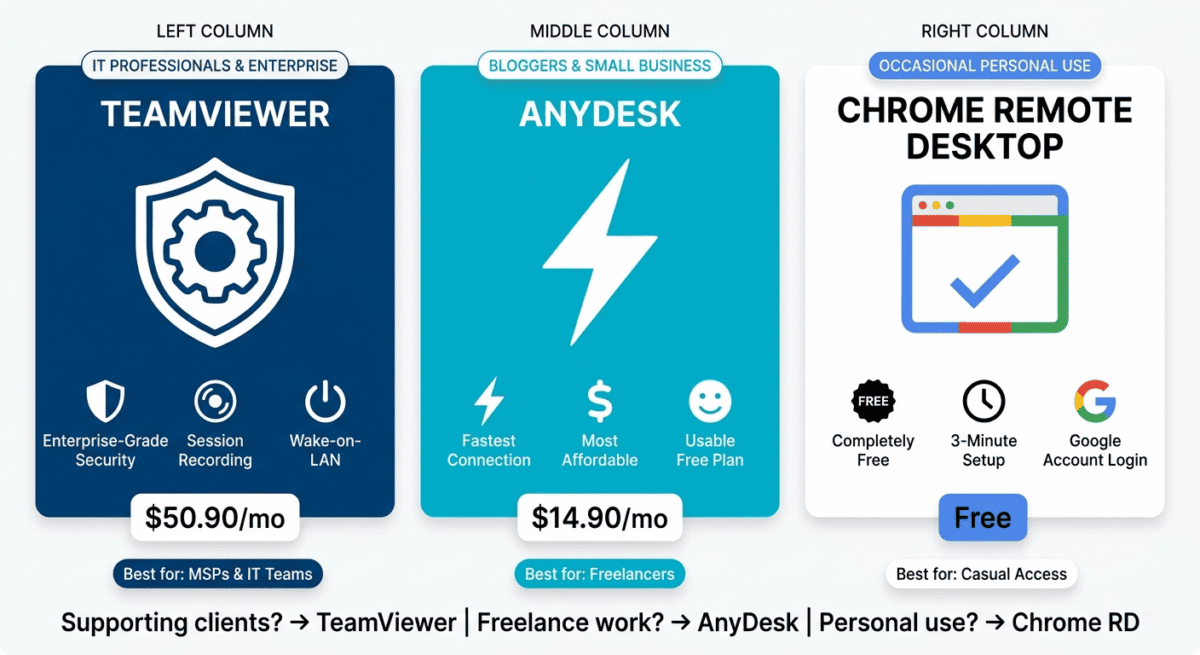
Best for | IT pros/enterprise | Individual/SMB | Personal/occasional |
Affiliate program | Yes | Yes (recurring) | None |
Which Remote Desktop Tool Should You Choose?
Choose AnyDesk if:
You are a blogger, freelancer, or small business owner who needs reliable remote desktop access at an affordable price. AnyDesk’s Solo plan at $14.90/month covers all practical use cases, unattended access, file transfer, session recording, and privacy mode, at the lowest price of any paid option. The free plan covers personal use without aggressive commercial enforcement. AnyDesk is the recommended choice for most readers of this blog.
Choose TeamViewer if:
You are an IT professional or managed service provider supporting multiple clients’ computers remotely, or you manage a business with 10+ users who all need simultaneous remote access capability. TeamViewer’s enterprise security, Wake-on-LAN, session recording for compliance, and multi-platform IoT support justify the higher cost for professional IT use cases. Also choose TeamViewer if connection stability on unreliable networks is a critical requirement.
Choose Chrome Remote Desktop if:
You occasionally need to access your own computers remotely and have no budget for remote desktop software. Chrome Remote Desktop’s zero cost and three-minute setup make it the right starting point for anyone testing whether remote desktop access is useful before committing to a paid tool. Upgrade to AnyDesk when you need file transfer, better performance, or unattended access to multiple machines.
Remote Desktop Security Best Practices
Regardless of which tool you choose, these security practices protect your computers from unauthorised access:
Use strong, unique passwords. Remote desktop access is a target for automated brute-force attacks. Use passwords of 16+ characters combining letters, numbers, and symbols for all remote access accounts.
Enable two-factor authentication. All three paid tools support 2FA, which means a stolen password alone is insufficient to access your computer. TeamViewer and AnyDesk both support authenticator app 2FA.
Use trusted device lists. TeamViewer and AnyDesk allow you to whitelist specific devices that can connect; any connection attempt from an unrecognised device is blocked regardless of the correct password.
Disable unattended access when not needed. If you only occasionally need remote access rather than permanent 24/7 availability, disable unattended access when not in use. This reduces the attack surface to zero when remote access is not required.
Keep remote desktop software updated. All three tools release regular security updates. Enable automatic updates to ensure known vulnerabilities are patched promptly.
Final Verdict
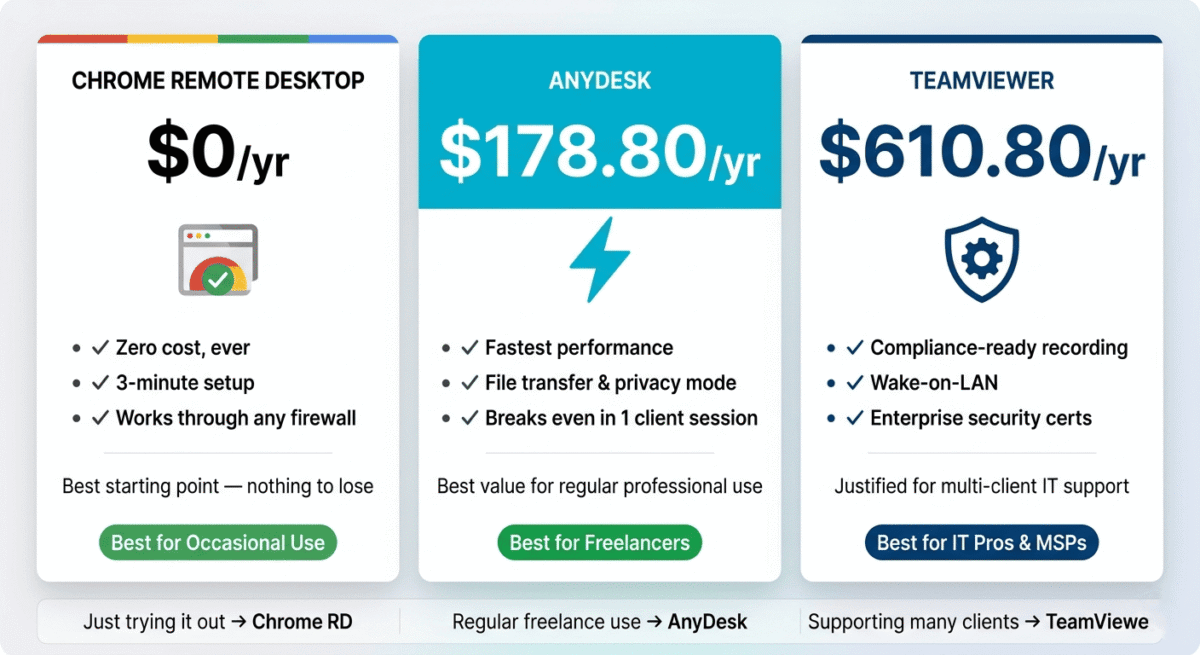
AnyDesk is the best remote desktop software for most users in 2026. The fastest connection speed, the most affordable paid plan, the most usable free tier, and the most modern interface make it the recommended choice for bloggers, freelancers, and small business owners who need reliable remote desktop access without enterprise pricing.
TeamViewer is the best choice for IT professionals and enterprises. Its unmatched feature depth, superior stability on poor networks, and enterprise security credentials justify its premium pricing for professional IT support and business deployments.
Chrome Remote Desktop is the best completely free option for occasional personal remote access to your own computers, its zero cost and three-minute setup are hard to argue with. Upgrade to AnyDesk when your needs exceed what a browser extension can handle.
Ratings:
– AnyDesk: 4.7 / 5
– TeamViewer: 4.5 / 5
– Chrome Remote Desktop: 4.2 / 5
Frequently Asked Questions
What is the best free remote desktop software in 2026?
Chrome Remote Desktop is the best completely free remote desktop tool, with all features available at zero cost, no usage limits, and no commercial use restrictions. AnyDesk’s free plan is also excellent for personal use and less aggressively enforced than TeamViewer’s free tier. For occasional personal remote access, both are adequate without spending money.
Is TeamViewer really free?
TeamViewer is technically free for personal non-commercial use, but its automated detection systems frequently flag and block connections that appear commercial, even for legitimate personal use. Bloggers, freelancers, and anyone using TeamViewer for work-related access commonly find themselves locked out and prompted to purchase a licence. For any work-related remote access, a paid plan is effectively required.
Is AnyDesk safe to use?
Yes. AnyDesk uses TLS 1.2 encryption for all connections and RSA 2048 key exchange, security standards comparable to online banking. Paid plans add two-factor authentication and trusted device whitelisting for additional protection. Like any remote access tool, security depends on using strong passwords, enabling 2FA, and not sharing access codes with untrusted individuals.
What is the difference between remote desktop and screen sharing?
Remote desktop gives you full control of a remote computer; you can run any application, access any file, and use the remote machine as if sitting in front of it. Screen sharing (as in Zoom or Teams) shows your screen to another person but does not give them control unless explicitly granted. Remote desktop is for access and control; screen sharing is for presentation and collaboration. Many tools offer both capabilities.
Can I use remote desktop software on a phone?
Yes. TeamViewer, AnyDesk, and Chrome Remote Desktop all have iOS and Android apps that let you access and control a remote computer from your smartphone. The experience is functional for basic tasks, checking files, monitoring processes, and making simple changes, but the small screen and touch interface make complex work impractical. For serious remote work, a laptop or tablet is significantly more productive than a phone.
Does remote desktop software slow down the host computer?
Remote desktop software uses some CPU and RAM to encode and transmit the screen image, typically 1–5% CPU and 50–200MB RAM during an active session. On modern computers, this is imperceptible. On older or lower-spec machines running resource-intensive applications, the additional load may cause noticeable slowdown during remote sessions. AnyDesk has the lightest performance footprint of the three tools.
Which remote desktop software works best over slow internet?
AnyDesk’s DeskRT codec is specifically optimised for low-bandwidth connections; it compresses the remote screen image more efficiently than TeamViewer’s protocol, resulting in better performance on slow or congested internet connections up to a certain threshold. On very poor connections (under 1 Mbps), TeamViewer’s global routing infrastructure maintains more stable connections than AnyDesk. Chrome Remote Desktop performs the worst on slow connections of the three tools.
Is remote desktop software legal to use?
Yes, remote desktop software is legal to use for accessing your own computers or computers you have explicit permission to access. Using remote desktop software to access someone else’s computer without their knowledge or permission is illegal in virtually every jurisdiction. Always ensure you have proper authorisation before establishing any remote connection.