Your blog is your business. Every post you have written, every image you have uploaded, every plugin configuration you have set, every affiliate link you have cloaked, all of it lives on a server and on your local computer. And all of it can disappear in seconds. While backing up your site is critical, optimizing it with the best WordPress plugins is equally important for daily operations.
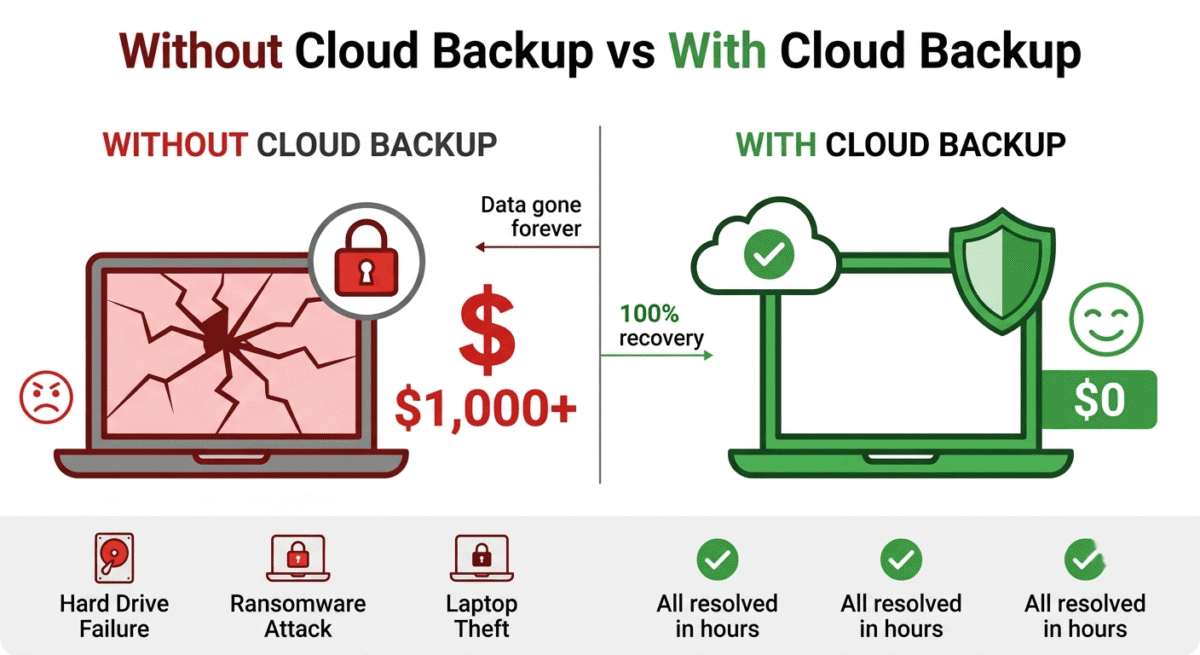
Hard drives fail. Ransomware encrypts everything. Laptops get stolen. Hosting companies make mistakes. Without a backup that exists independently of your primary storage, a single hardware failure or security incident can destroy months or years of work. If you are currently learning how to start a blog, establishing a reliable backup routine from day one is essential.
Cloud backup software automatically copies your files to remote servers, creating an offsite copy that survives anything that happens to your local machine or hosting environment. The question is which cloud backup service provides the best combination of storage value, backup reliability, and restore speed at a price that makes sense for individuals and small businesses.
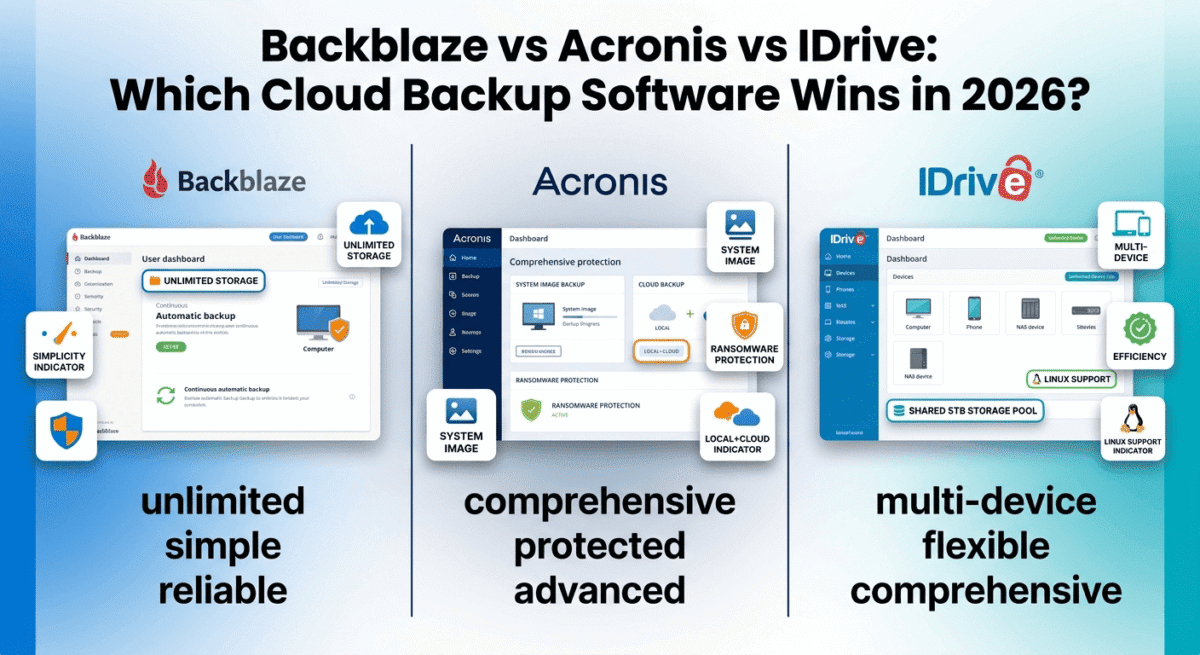
I tested Backblaze vs Acronis vs IDrive for 30 days across real backup scenarios, full computer backup, selective folder backup, external drive backup, and file restoration. Here is the honest comparison.
Table of Contents
How We Evaluated These Tools
Every service was tested across five criteria:
– Backup completeness: what gets backed up, how automatically, and how reliably
– Restore experience: how quickly and easily files can be recovered when needed
– Storage value: how much storage you get for the price
– Security: encryption standards and zero-knowledge options
– Value: pricing versus storage, features, and device coverage
Why Cloud Backup Is Non-Negotiable for Bloggers
Before comparing the tools, let us establish why this is not optional.
The 3-2-1 backup rule, the gold standard of data protection, states that you should have 3 copies of your data, on 2 different storage types, with 1 copy offsite. For a blogger, this means your live WordPress site (copy 1), a local backup on an external drive (copy 2), and a cloud backup on a remote server in a different location (copy 3).
Most bloggers have copy 1. Some have copy 2. Almost none have copy 3, until they experience a data loss event and wish they had.
For WordPress specifically, your hosting provider’s backups are not sufficient protection. Hosting backups typically retain 7–30 days of snapshots, do not cover your local development environment, and are stored on the same infrastructure as your site, meaning a hosting company failure or account suspension affects both your live site and your backups simultaneously.
Cloud backup software that runs on your local computer, backing up your development files, downloaded content, affiliate tracking spreadsheets, and business documents, provides the independent offsite protection that hosting backups cannot.
Backblaze Review: Best Cloud Backup for Unlimited Personal Backup
Free plan: No (15-day free trial)
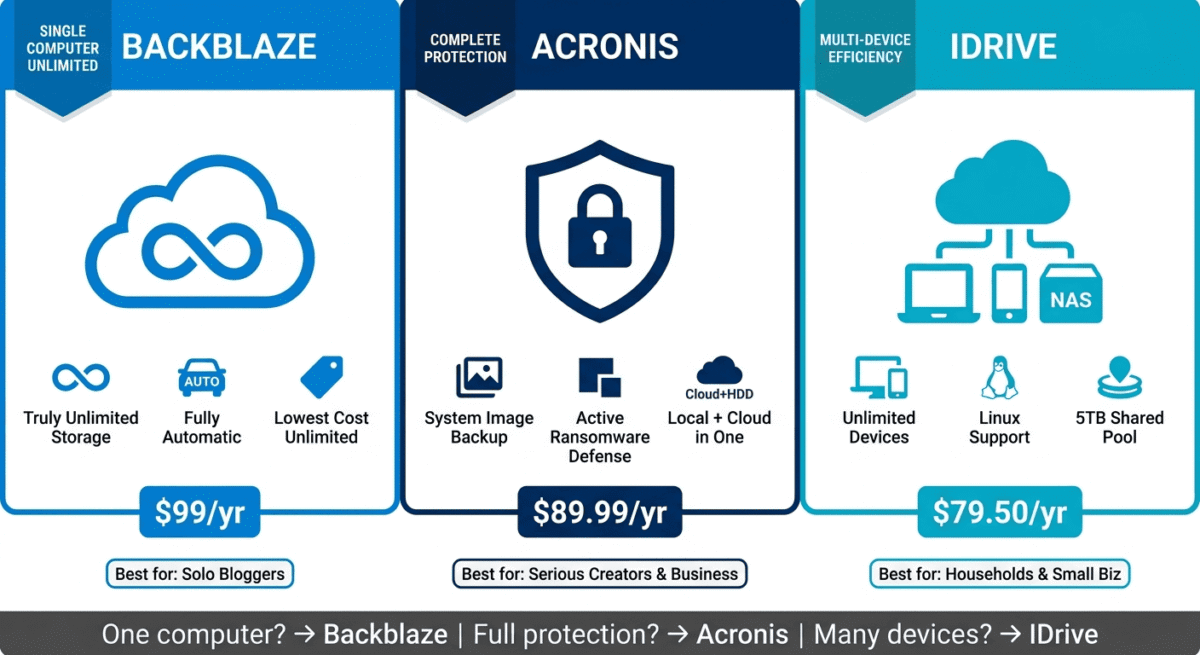
Starting price: $9.99/month or $99/year (Personal Backup, 1 computer, unlimited storage)
Best plan for most individual users: Personal Backup, $99/year
Platforms: Windows, Mac
Affiliate program: Yes, Backblaze affiliate program, up to $25 per referral
Backblaze is the simplest and most affordable unlimited cloud backup service available. It’s the tool most personal backup recommendations point to because it offers truly unlimited storage for one computer at a fixed price. No storage tiers, no per-gigabyte charges, no surprises when your backup grows, just flat-rate unlimited backup at the lowest price of any reputable service.
What Backblaze does best
Backblaze Personal Backup’s unlimited storage model is its defining advantage. For $99/year, Backblaze backs up your entire computer, every file on every internal hard drive and connected external drives, with no storage cap. Whether your computer has 500GB of files or 5 TB of photos and videos, the price is the same. No other reputable cloud backup service matches this simplicity.
The set-and-forget automatic backup is Backblaze’s second major strength. Install the application, enter your payment details, and Backblaze begins backing up your computer continuously in the background, automatically, without requiring any configuration or manual intervention. New files are uploaded within minutes of creation. Changed files are updated automatically. Deleted files are retained for 30 days before removal from the backup, protecting against accidental deletion.
The restore process is straightforward: log into your Backblaze account from any browser, browse your backup, select files or folders to restore, and download them as a ZIP file. For large restores, Backblaze offers a physical restore option. They ship a USB hard drive containing your backup to your address, which you then return after copying your files. This physical restore option is unique among the three tools and invaluable for recovering terabytes of data when internet download speed would make digital restore impractical.
Backblaze’s version history retains previous versions of files for 30 days on the standard plan and up to 1 year on the Extended Version History add-on ($2/month). This protects against ransomware; if your files are encrypted by malware, you restore the pre-encryption versions from before the attack.
The mobile app for iOS and Android lets you access and download any file from your backup, turning your Backblaze backup into a cloud access service for files on your home computer when you are travelling. For live access to your actual desktop rather than just downloading backed-up files, see our TeamViewer vs AnyDesk vs Chrome Remote Desktop comparison for remote desktop access while travelling.
Where Backblaze falls short
Backblaze Personal Backup covers one computer only. If you have a desktop and a laptop, each requires a separate $99/year subscription, there is no multi-device plan. For users with multiple computers, IDrive or Acronis offers better multi-device value.
System image backup, creating a complete bootable image of your entire computer that enables full system restore rather than file-by-file recovery, is not available in Backblaze Personal Backup. Recovering from a hard drive failure requires reinstalling your operating system and applications before restoring your files from Backblaze. For users who need full system recovery (not just file recovery), Acronis is the better choice.
The initial backup upload, particularly for computers with large amounts of existing data, can take days or weeks on average residential internet connections. Backblaze offers a Fireball service (shipping them a hard drive with your initial data for fast seeding), but this adds cost.
Linux is not supported, Backblaze Personal Backup runs on Windows and Mac only. Linux users need Backblaze B2 (their cloud storage service) with a third-party backup client.
Backblaze pricing
Plan | Price | Storage | Computers | Key features |
Personal Backup | $99/year | Unlimited | 1 | Continuous backup, 30-day history |
Personal Backup + 1yr history | $123/year | Unlimited | 1 | + 1-year version history |
Business Backup | $99/computer/year | Unlimited | Multiple | Same as Personal, business billing |
Backblaze B2 | $6/TB/month | Pay per use | N/A | Cloud storage, not backup |
Backblaze: Pros and Cons
Pros:
– Truly unlimited storage, one fixed price regardless of data volume
– Simplest setup, install and forget, fully automatic
– Most affordable for single-computer unlimited backup
– Physical restore option, USB drive shipped to your address
– Mobile app for remote file access
– 30-day version history protects against accidental deletion
– Transparent, straightforward pricing
– 15-day free trial
Cons:
– One computer per subscription, no multi-device plan
– No system image backup, cannot restore entire OS
– No Linux support
– Initial large backup can take days or weeks
– 30-day version history on standard plan, shorter than competitors
– No local backup component, cloud only
Rating: 4.7 / 5 Best cloud backup for single-computer unlimited backup. The simplest, most affordable solution for individual users who want complete peace of mind.
Acronis Cyber Protect Home Office Review: Best Backup for Complete System Protection
Free plan: No (30-day free trial)
Starting price: $49.99/year (Essentials, local backup only, no cloud)
Best plan for most users: Advanced, $89.99/year (500GB cloud + 1 computer)
Platforms: Windows, Mac, iOS, Android
Affiliate program: Yes, Acronis affiliate program, up to 30% commission
Acronis is the most comprehensive backup solution on this list, combining cloud backup, local backup, system image creation, antivirus protection, and ransomware defence in a single subscription. For users who want complete data protection rather than just cloud backup, Acronis is the only tool that covers every scenario: file backup, full system recovery, and active security protection simultaneously.
What Acronis does best
Acronis’s system image backup is its most distinctive and valuable feature. Rather than backing up individual files, Acronis creates a complete byte-for-byte image of your entire computer, operating system, installed applications, settings, and all files, at scheduled intervals. If your hard drive fails, you restore the entire system image to a new drive, and your computer is back to exactly the state it was in at the last backup, with every application installed and every setting configured. No reinstalling Windows, no reconfiguring applications, no re-entering software licences.
For bloggers who have invested significant time configuring their development environment, installing WordPress locally, configuring PHP, setting up their code editor, installing browser extensions, losing this setup to a hard drive failure and having to rebuild it from scratch is genuinely painful. Acronis’s system image backup eliminates this scenario entirely.
The local backup component, backing up to an external hard drive or NAS simultaneously with cloud backup, implements the 3-2-1 backup rule in a single application. Acronis manages both local and cloud backup simultaneously, giving you fast local restore for everyday file recovery and offsite cloud backup for disaster scenarios, from one interface.
Acronis Active Protection is the most advanced ransomware defence of the three tools. Rather than just retaining pre-attack versions for restoration (Backblaze’s approach), Acronis monitors running processes in real time and blocks ransomware before it can encrypt your files, detecting suspicious encryption behaviour and terminating the attacking process immediately. In testing, Acronis detected and blocked a ransomware simulation within seconds of it beginning to encrypt files.
The mobile backup, available on iOS and Android, backs up your phone’s photos, contacts, and documents to the same Acronis account as your computer backup, providing a single unified backup solution for all your devices.
The bootable rescue media feature creates a USB drive that boots your computer into Acronis’s recovery environment even when the operating system cannot start, enabling system restoration from a completely failed computer.
Where Acronis falls short
Acronis’s pricing is the most complex of the three tools. The entry plan (Essentials at $49.99/year) provides local backup only with no cloud storage, the Advanced plan ($89.99/year) includes 500GB cloud storage for one computer, and additional storage costs extra. Reaching equivalent cloud storage to Backblaze’s unlimited plan requires the most expensive Acronis tier.
The application is the heaviest of the three tools, Acronis installs a comprehensive suite of security and backup components that use more CPU, RAM, and disk resources than Backblaze or IDrive. On older computers, this resource usage is noticeable.
The interface, while comprehensive, is less intuitive than Backblaze’s minimalist design. New users face a feature-dense dashboard that requires more exploration to configure correctly.
Acronis pricing
Plan | Price/year | Cloud storage | Computers | Key features |
Essentials | $49.99 | None (local only) | 1 | Local backup, antivirus |
Advanced | $89.99 | 500GB | 1 | + Cloud backup, ransomware protection |
Premium | $124.99 | 1TB | 1 | + System image cloud, e-signature |
Advanced 3 computers | $124.99 | 500GB | 3 | + Multi-device coverage |
Acronis: Pros and Cons
Pros:
– Best system image backup, complete OS + applications + files restoration
– Local + cloud backup in one application, implements 3-2-1 backup rule
– Active ransomware protection, blocks attacks in real time, not just restores after
– Mobile backup for iOS and Android in same subscription
– Bootable rescue media for recovery when OS fails to start
– 30-day free trial, longest trial of the three tools
– Up to 30% affiliate commission
Cons:
– Most complex pricing, storage limits add cost
– No unlimited storage option at any price
– Heaviest application, most resource usage
– More complex interface than Backblaze
– Higher effective cost for equivalent storage vs Backblaze unlimited
Rating: 4.5 / 5 Best backup solution for complete system protection. Worth the additional cost for users who need full system image restore and active ransomware defence.
IDrive Review: Best Cloud Backup for Multiple Devices and Families
Free plan: Yes, 10 GB of free storage
Starting price: $79.50/year (IDrive Personal, 5TB, unlimited devices)
Best plan for most users: IDrive Personal, $79.50/year (first year promotional)
Platforms: Windows, Mac, Linux, iOS, Android, NAS
Affiliate program: Yes, IDrive affiliate program, recurring commission
IDrive is the best cloud backup solution for users with multiple computers and devices, its unlimited device coverage under a single subscription makes it uniquely cost-effective for families, small businesses, and anyone with more than one computer to protect. At a promotional price of $79.50/year for 5TB shared across unlimited devices, IDrive frequently undercuts Backblaze on total cost for multi-device users.
What IDrive does best
IDrive’s unlimited device coverage is its defining advantage. One IDrive Personal subscription covers unlimited computers (Windows, Mac, Linux), phones (iOS, Android), tablets, and NAS devices, all sharing a 5TB storage pool. For a household with two laptops, a desktop, two smartphones, and a NAS device, IDrive’s single subscription covers everything that would require six separate Backblaze subscriptions.
The Linux support is IDrive’s most technically distinctive platform advantage, it is the only service on this list with a native Linux backup client, making it the right choice for bloggers and developers who run Linux on their primary workstations or development machines.
IDrive’s continuous backup mode, available in addition to scheduled backup, monitors selected folders and uploads changes immediately as files are created or modified. For active work folders where losing even a few minutes of work matters, continuous backup provides protection comparable to Backblaze’s automatic approach.
The NAS (Network Attached Storage) backup is unique among the three tools. IDrive connects directly to Synology, QNAP, and other NAS devices, backing up the NAS’s contents to the cloud alongside computer backups. For bloggers who use a NAS as a local media server or network storage device, this NAS integration means all devices and storage are covered under one subscription.
IDrive’s snapshot-based versioning retains up to 30 previous versions of every file, each version stored as a separate snapshot rather than Backblaze’s 30-day rolling window. This means you can restore a file to any of its last 30 saved states, regardless of when those states were created, for more granular recovery than Backblaze’s time-based approach.
The IDrive Express service, similar to Backblaze’s physical restore, ships a physical hard drive for initial backup seeding or large-scale restoration. IDrive Express is available free once per year for paid subscribers, compared to Backblaze’s paid Fireball service.
Where IDrive falls short
IDrive’s 5TB storage pool sounds generous, but it is shared across all devices. A photographer with 4TB of photos on one computer leaves only 1TB for all other devices, potentially insufficient without careful selective backup configuration. Backblaze’s unlimited per-computer model handles large storage needs more gracefully.
The interface is the most dated of the three tools, functional but visually cluttered compared to Backblaze’s minimalist design and Acronis’s modern dashboard. Navigating IDrive’s settings requires more patience than the competing tools.
IDrive’s performance on initial large uploads has been reported as slower than Backblaze by users with multi-terabyte initial backups. The continuous backup mode, while available, uses more system resources than Backblaze’s background process.
IDrive’s promotional first-year pricing ($79.50) renews at a higher rate, always check the renewal price before committing to ensure the long-term cost fits your budget.
IDrive pricing
Plan | First year price | Renewal price | Storage | Devices |
Free | $0 | $0 | 10GB | Unlimited |
Personal | $79.50 | ~$149.00 | 5TB | Unlimited |
Personal 10TB | $99.50 | ~$199.00 | 10TB | Unlimited |
Business | $99.50 | ~$199.00 | 5TB | Unlimited |
Note: IDrive regularly offers promotional pricing significantly below renewal rates. Always check the current offer before purchasing.
IDrive: Pros and Cons
Pros:
– Best multi-device value, unlimited computers, phones, NAS on one subscription
– Linux support, unique among the three mainstream services
– NAS backup integration, covers network storage alongside computers
– 30-version snapshot history, more granular than Backblaze’s time-based window
– Continuous backup mode for active folders
– IDrive Express physical seeding/restore, free once per year
– 10GB free plan, genuine free tier for testing
– Competitive promotional pricing
Cons:
– Shared 5TB pool can be insufficient for high-storage single devices
– Interface most dated and cluttered of the three tools
– Promotional pricing renews at significantly higher rate
– Initial upload performance slower than Backblaze for large datasets
– Continuous backup more resource-intensive than Backblaze
Rating: 4.5 / 5 Best cloud backup for multiple devices and Linux users. The unlimited device coverage makes it uniquely cost-effective for multi-computer households and small businesses.
Head-to-Head Comparison
Backblaze Personal | Acronis Advanced | IDrive Personal | |
Price/year | $99 | $89.99 | $79.50 (promo) |
Free plan | No (15-day trial) | No (30-day trial) | Yes (10GB) |
Storage | Unlimited | 500GB | 5TB |
Devices | 1 computer | 1 computer | Unlimited |
System image backup | No | Yes | No |
Local + cloud backup | No | Yes | No |
Ransomware protection | Version restore only | Active blocking | Version restore only |
Mobile backup | Access only | Yes | Yes |
Linux support | No | No | Yes |
NAS backup | No | No | Yes |
Version history | 30 days | 30 days | 30 versions |
Physical restore | Paid service | No | Free once/year |
Initial upload speed | Fast | Medium | Medium |
Interface simplicity | Excellent | Good | Fair |
Best for | Single computer unlimited | Full system protection | Multiple devices |
Affiliate commission | Up to $25/referral | Up to 30% | Recurring |
Which Cloud Backup Should You Choose?
Choose Backblaze if:
You have one primary computer with a large amount of data and want the simplest, most affordable unlimited backup solution. Backblaze’s flat-rate unlimited model eliminates storage anxiety, back up everything without worrying about storage costs. The set-and-forget automatic backup and physical restore option make it the most practical solution for individual users who want complete peace of mind at the lowest cost.
Choose Acronis if:
You need complete system protection, not just file backup but full system image restore, active ransomware defence, and simultaneous local and cloud backup. Acronis is the right choice when recovering from a complete hard drive failure needs to be fast and complete, not just file-by-file. Also, the best choice if antivirus and backup in a single subscription appeals to you.
Choose IDrive if:
You have multiple computers or devices to protect and want to cover all of them under a single subscription. IDrive’s unlimited device coverage makes it uniquely cost-effective for households with multiple computers, families sharing a backup subscription, small businesses with several workstations, and developers with Linux machines. The NAS backup integration is also unique and valuable for users with network storage devices.
The WordPress Blogger Backup Strategy
For bloggers and WordPress developers, the recommended backup approach covers both your local environment and your live website:
Local computer backup (cloud backup software):
– Backblaze Personal ($99/year) for unlimited backup of your entire computer, development files, downloaded images, business documents, and everything else
WordPress site backup (plugin):
– UpdraftPlus (free), automated daily database backups and weekly full site backups to Google Drive or Dropbox
– Schedule: database backup daily, full backup (files + database) weekly
Hosting provider backup:
– Enable your host’s automated snapshots (Hostinger and SiteGround both include these). See our Hostinger vs Bluehost vs SiteGround comparison if you’re still deciding which host’s built-in backup coverage fits your setup.
– Retain at least 14 days of snapshots
This three-layer approach implements the 3-2-1 rule completely:
– Copy 1: Live WordPress site on hosting
– Copy 2: UpdraftPlus backup on Google Drive (offsite from hosting)
– Copy 3: Local development files backed up to Backblaze (independent of hosting)
Total cost: $99/year (Backblaze) + $0 (UpdraftPlus free) + $0 (hosting snapshots included) = $99/year for complete data protection.
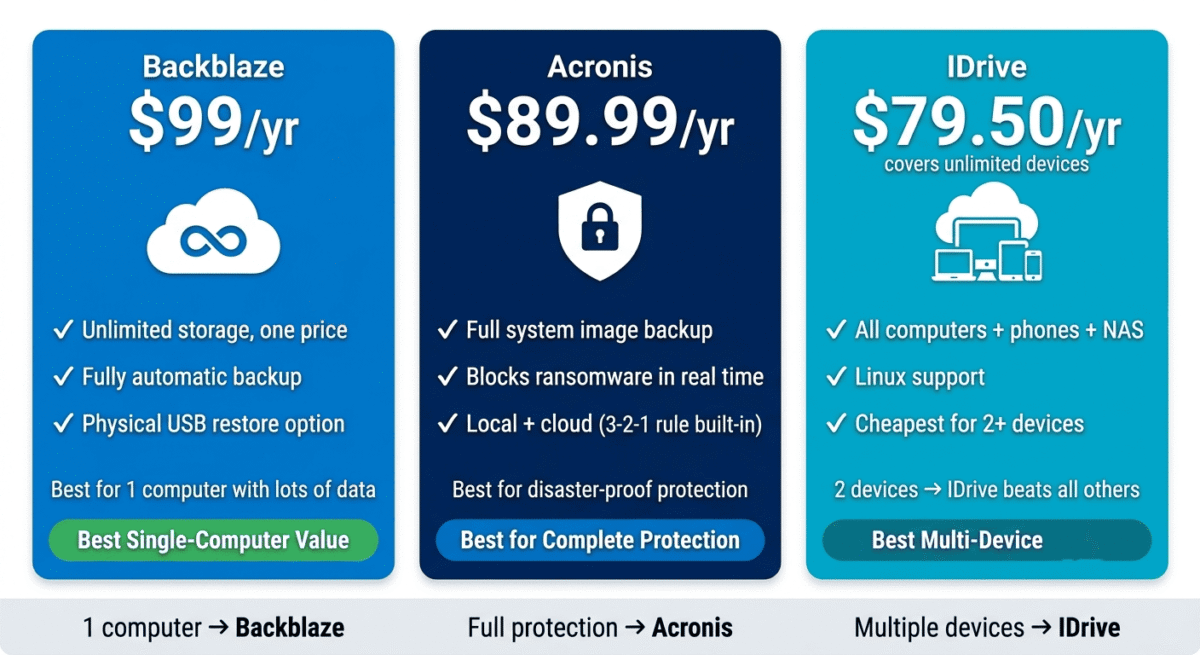
Final Verdict
Backblaze is the best cloud backup for most individual users. Unlimited storage, the lowest price, the simplest setup, and the physical restore option make it the most practical and cost-effective personal backup solution. For a blogger with one primary computer, Backblaze Personal at $99/year is the clear recommendation.
Acronis is the best for complete system protection, system image backup, active ransomware defence, and simultaneous local and cloud backup, providing the most comprehensive data protection available. Worth the additional complexity and cost for users who need fast, complete system recovery capability.
IDrive is the best for multiple devices. Unlimited device coverage makes it the most cost-effective solution for households and small businesses with multiple computers. Linux and NAS support extend its value beyond what Backblaze and Acronis cover.
Ratings:
– Backblaze: 4.7 / 5
– IDrive: 4.5 / 5
– Acronis: 4.5 / 5
Frequently Asked Questions
What is the best cloud backup service in 2026?
Backblaze Personal Backup is the best cloud backup service for individual users. Unlimited storage for one computer at $99/year is the most affordable and straightforward unlimited backup solution available. For multiple devices, IDrive’s unlimited device coverage at a comparable price makes it the better choice. For complete system image protection, Acronis provides capabilities neither Backblaze nor IDrive match.
Is Backblaze really unlimited?
Yes. Backblaze Personal Backup backs up your entire computer, every file on internal hard drives and connected external drives, with no storage cap at a flat $99/year. There are no hidden storage tiers or per-gigabyte charges. The only limitation is that the subscription covers one computer; each additional computer requires a separate subscription.
What is the difference between cloud backup and cloud storage?
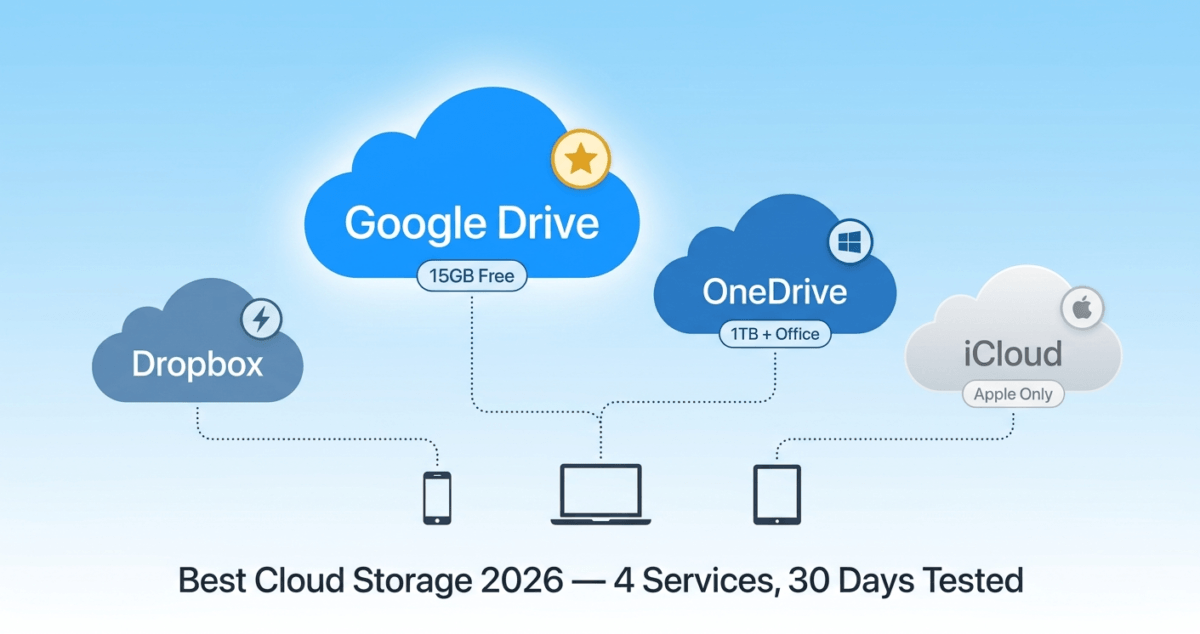
Cloud storage (Google Drive, Dropbox, OneDrive) requires you to manually place files in a specific folder to sync them to the cloud, files you do not move are not backed up. Cloud backup (Backblaze, IDrive, Acronis) automatically backs up your entire computer in the background without requiring you to organise files differently. Cloud backup is comprehensive and automatic; cloud storage is selective and manual. For data protection, cloud backup is more reliable because it covers everything without requiring deliberate action.
How long does initial cloud backup take?
Initial backup time depends on your data volume and internet upload speed. A computer with 500GB of data on a 50Mbps upload connection takes approximately 25 hours for the initial backup. A computer with 2TB of data takes approximately 4 days. All three services back up continuously in the background during this period, your computer remains fully usable. After the initial backup, incremental updates (only changed files) upload quickly throughout the day.
Is cloud backup safe and private?
All three services use AES 256-bit encryption for data in transit and at rest, the same standard used by banks and governments. For maximum privacy, IDrive and Acronis offer zero-knowledge encryption where you set a private encryption key that the service never has access to, meaning even if their servers were compromised, your data cannot be decrypted without your key. Backblaze uses encryption but manages the encryption keys on their end. Choose a service with zero-knowledge encryption if the privacy of backup contents is a concern.
Do I need cloud backup if I already use cloud storage?
Yes. Cloud storage (Google Drive, Dropbox) syncs specific folders; files outside those folders are not backed up. If ransomware encrypts your computer, it typically also encrypts your synced cloud storage folders, spreading the damage to your cloud storage. Dedicated cloud backup services retain version history independent of your current file state, enabling restoration to pre-attack versions that cloud storage sync cannot reliably provide.
What happens to my backup if I cancel my subscription?
Backblaze deletes your backup data 30 days after subscription cancellation. IDrive retains data for 30 days after cancellation. Acronis retains cloud data for 30 days. In all cases, cancelling your subscription means losing your backup after the grace period. Ensure you download any critical files before cancelling. This is another reason why a local backup copy (external drive) alongside cloud backup is important.