Remote work is not going anywhere. In 2026, hybrid and fully remote teams are the norm across every industry, and the video conferencing tool your team uses every day has a bigger impact on productivity than most managers realise.
A bad video conferencing tool means dropped calls, poor audio, confusing interfaces, and meetings that run over time because half the participants cannot figure out how to share their screen. A good one disappears into the background, reliable, fast, and frictionless.
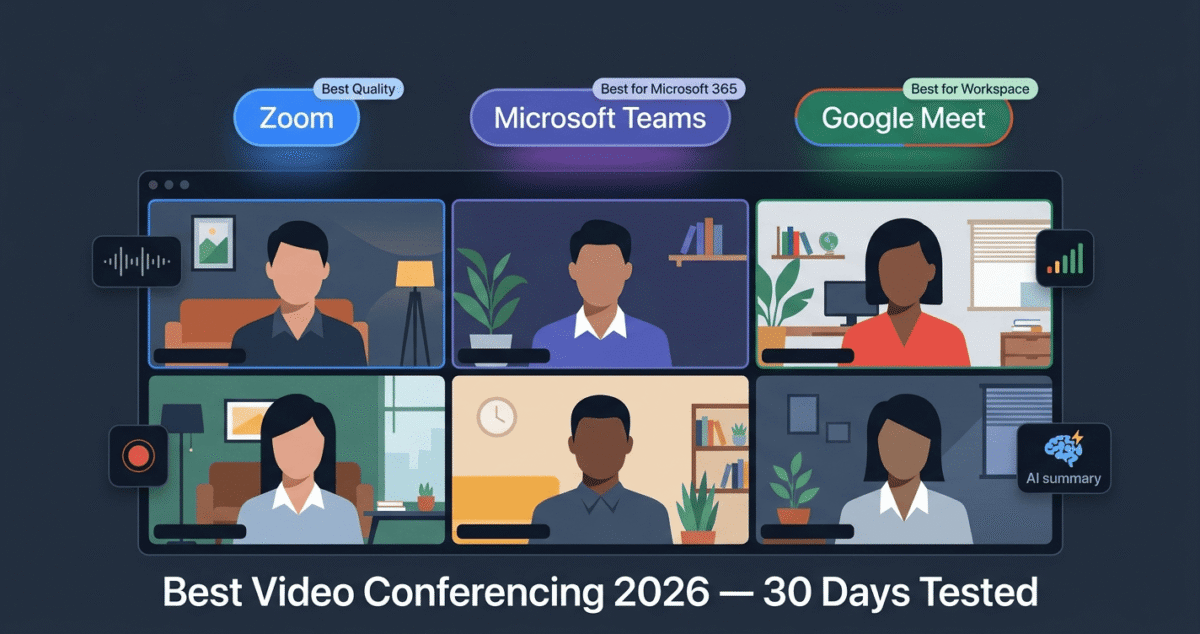
I tested Zoom vs Microsoft Teams vs Google Meet for 30 days across real team meetings, client calls, webinars, and one-on-one conversations. Here is what actually matters in 2026 and which platform wins for different types of users.
Table of Contents
How We Evaluated These Platforms
Every platform was tested across five criteria:
– Video and audio quality: clarity, stability, and performance on different internet connections
– Ease of use: how quickly can a new participant join and get started without help?
– Features: screen sharing, recording, breakout rooms, whiteboard, AI tools
– Free plan quality: what do you actually get for free?
– Pricing and value: cost for individuals, small teams, and larger organisations
Why Your Video Conferencing Tool Matters More Than You Think
The average knowledge worker spends 5–8 hours per week in video meetings in 2026. Multiply that by your team size and you are looking at hundreds of hours per year spent inside whichever platform you choose.
A platform that crashes once a week, drops audio on unreliable connections, or requires a five-minute setup process for every external guest does not just cause frustration; it costs real time and real money. Conversely, a platform that integrates seamlessly with your calendar, records meetings automatically, and provides AI-generated summaries can meaningfully improve how your team operates.
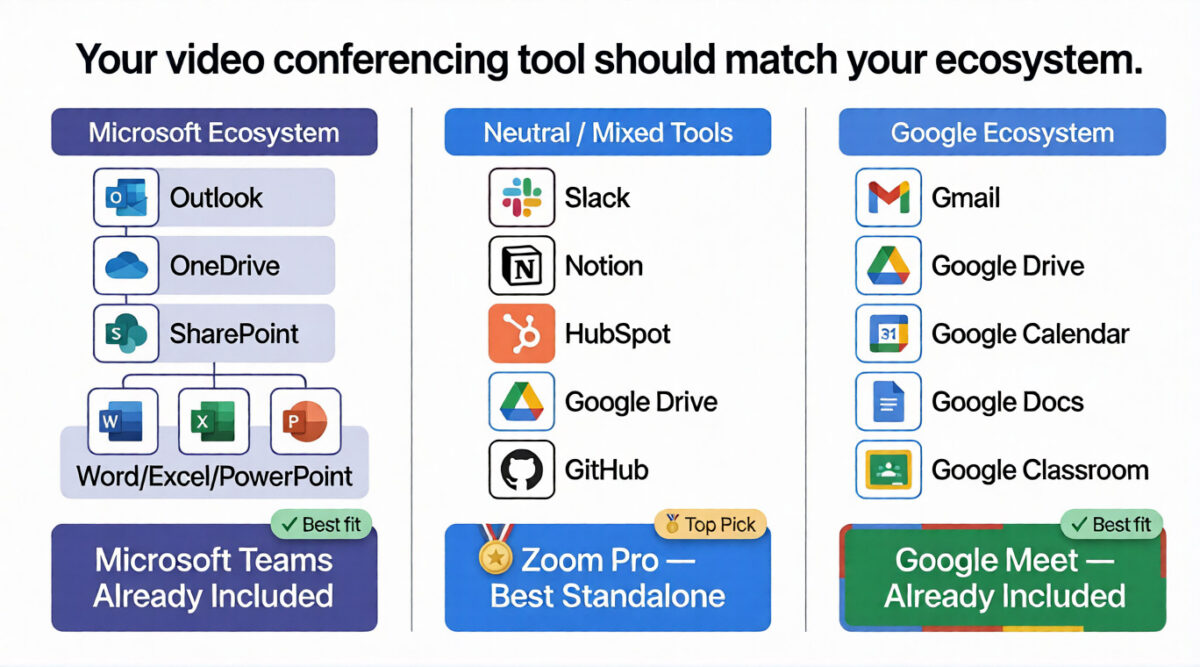
The right choice depends almost entirely on your existing software ecosystem, which is why this comparison focuses on real-world fit, not just feature lists.
Zoom Review: Best Standalone Video Conferencing Platform
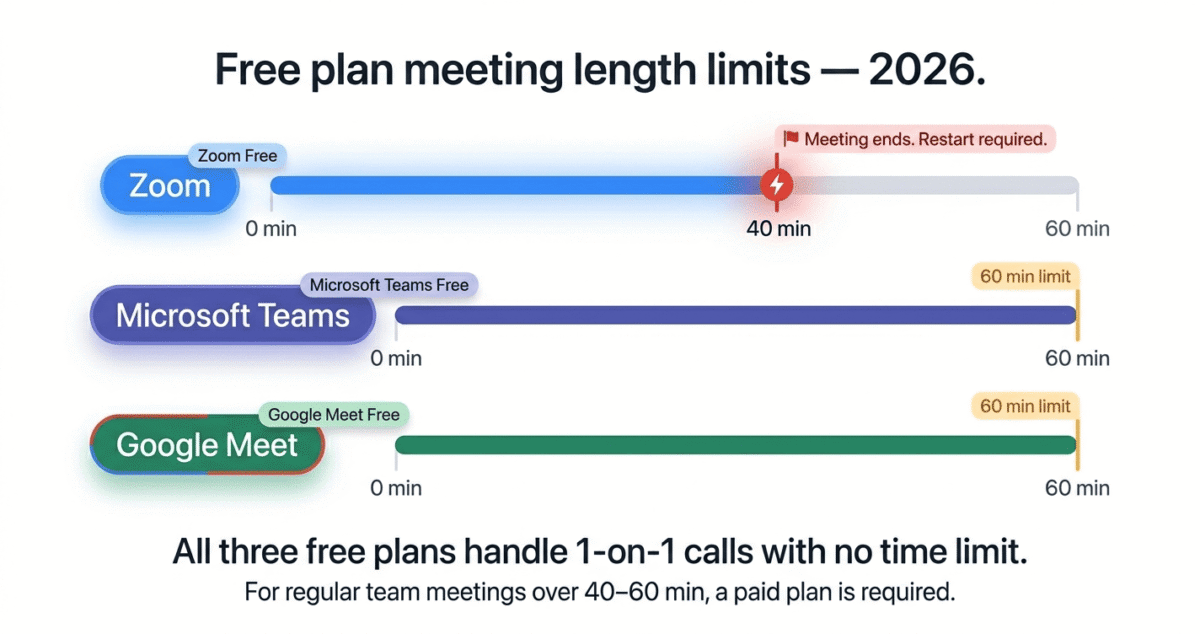
Free plan: Yes, 40-minute limit on group meetings, unlimited 1-on-1 calls
Starting paid price: $13.33/month/user (Pro, billed annually)
Best plan for most users: Pro, $13.33/month/user
Platforms: Windows, Mac, Linux, iOS, Android, web browser
Affiliate program: Yes, Zoom affiliate program via impact.com
Zoom is the platform that defined video conferencing for the modern era. It went from relative obscurity to global ubiquity during 2020 and has maintained its position as the most recognised video conferencing brand in the world. In 2026, it remains the best standalone video conferencing tool, particularly for businesses that are not deeply embedded in the Microsoft or Google ecosystem.
Video and audio quality
Zoom consistently delivers the best video and audio quality of the three platforms tested. Its adaptive bitrate technology adjusts video quality in real time based on available bandwidth, meaning calls stay stable even when internet connections fluctuate. On a poor connection where Google Meet pixelates and Teams drops frames, Zoom typically maintains a watchable, usable video stream.
Zoom’s noise suppression is industry-leading. Background noise, keyboard typing, air conditioning, and street noise are filtered aggressively without affecting voice quality. In office environments, construction sites, and home offices with noisy backgrounds, Zoom’s noise cancellation is noticeably superior to both Teams and Meet.
Ease of use
Joining a Zoom meeting is the most frictionless experience of the three tools. Clicking a Zoom link launches the meeting app immediately (or offers a browser fallback) without requiring participants to sign in, create an account, or navigate a complex interface. For external guests, clients, customers, and interview candidates, this low-friction joining experience is a significant practical advantage.
The in-meeting interface is clean and consistent across platforms. Screen sharing, recording, background blur, and participant management are all one click away. First-time users figure out the interface without instruction, which matters when you are running a client call and cannot afford a five-minute technical setup.
Features
Zoom’s feature set in 2026 is comprehensive and mature:
Recording and transcription: meetings can be recorded locally (free plan) or to Zoom’s cloud (paid plans). Zoom’s AI Companion automatically generates meeting summaries, action items, and next steps, available on paid plans.
Breakout rooms: split large meetings into smaller groups for workshops, training sessions, or team exercises. Zoom’s breakout room implementation remains the smoothest of the three tools.
Zoom Webinars: a separate product for large-scale webinars (up to 50,000 attendees) with registration, Q&A, polling, and panelist management. Ideal for bloggers and content creators hosting live events.
Zoom Phone: a cloud phone system that integrates with video conferencing for businesses that want to consolidate voice and video on one platform.
Whiteboard: a collaborative digital whiteboard for visual brainstorming, available in meetings and as a standalone tool.
AI Companion: included at no extra cost on paid plans. Generates meeting summaries, answers questions about past meetings, drafts follow-up emails, and assists with real-time tasks during meetings.
Virtual backgrounds and filters: the most polished and realistic virtual background implementation of the three tools, with blur, custom images, and video backgrounds.
Zoom’s security evolution
Zoom faced significant security criticism in 2020; “Zoombombing” (uninvited participants joining public meetings) became a widespread problem. Since then, Zoom has overhauled its security architecture: end-to-end encryption is now available on all plans, waiting rooms are enabled by default, and meeting passwords are standard. In 2026, Zoom’s security record is solid, and these early concerns are no longer relevant for properly configured meetings.
Where Zoom falls short
Zoom’s free plan’s 40-minute limit on group meetings is its most significant limitation. Any meeting with three or more participants cuts off automatically at 40 minutes, requiring participants to restart, which is disruptive during client presentations or team workshops.
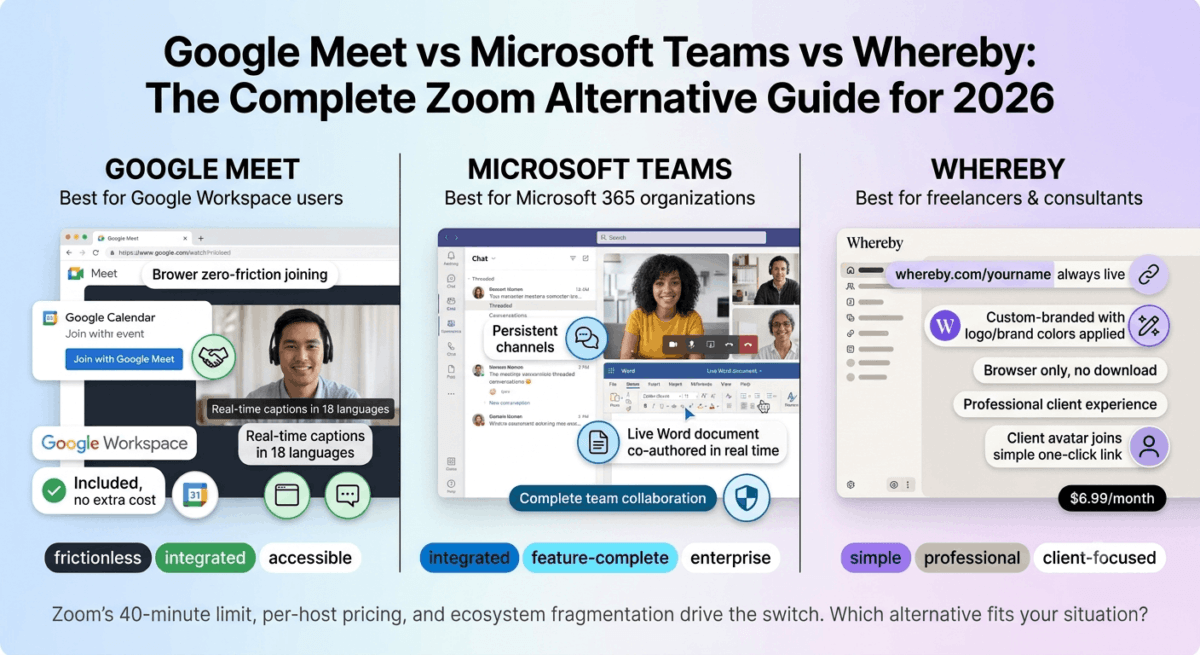
Zoom is also a standalone tool. Unlike Teams (which integrates with Microsoft 365) or Meet (which integrates with Google Workspace), Zoom requires separate subscriptions for email, calendar, and document collaboration. If that standalone cost is the dealbreaker, see our roundup of Zoom alternatives (Google Meet vs Microsoft Teams vs Whereby) for options that skip the extra subscription. For teams that want everything in one ecosystem, Zoom is a piece of a puzzle rather than a complete solution.
Zoom pricing
Plan | Price/user/month | Meeting length | Participants | Key extras |
Free | $0 | 40 min (groups) | 100 | Local recording |
Pro | $13.33 | 30 hours | 100 | Cloud recording, AI Companion |
Business | $18.33 | 30 hours | 300 | Extras, managed domains |
Business Plus | $22.49 | 30 hours | 300 | + Zoom Phone |
Enterprise | Custom | 30 hours | 1,000 | Unlimited cloud storage |
Zoom: Pros and Cons
Pros:
– Best video and audio quality, most stable on poor connections
– Best noise cancellation of the three platforms
– Frictionless joining for external guests, no account required
– Best breakout rooms for workshops and training
– AI Companion included on paid plans at no extra cost
– Most polished virtual backgrounds and filters
– Zoom Webinars for large-scale live events
– Works on Linux, unique among mainstream video conferencing tools. For developers already running Linux, see our full WordPress developer toolkit guide for the rest of a Linux-friendly development stack.
Cons:
– Free plan 40-minute limit on group meetings, disruptive cutoff
– Standalone tool, no built-in email, calendar, or document collaboration
– Additional subscription cost on top of existing Microsoft or Google tools
– AI Companion requires paid plan
– More expensive than Google Meet for Google Workspace users
Rating: 4.7 / 5 Best standalone video conferencing tool. Top choice for teams not embedded in Microsoft or Google ecosystems.
Microsoft Teams Review: Best for Microsoft 365 Users
Free plan: Yes, unlimited meetings, 60-minute limit, 100 participants
Starting paid price: Included with Microsoft 365 Business Basic ($6/user/month)
Best plan for most businesses: Microsoft 365 Business Basic, $6/user/month
Platforms: Windows, Mac, iOS, Android, web browser
Affiliate program: Yes, Microsoft partner program
Microsoft Teams is not just a video conferencing tool. It is a complete collaboration platform, combining video meetings, team chat, file sharing, document collaboration, and project management in a single application. For businesses already paying for Microsoft 365, Teams is included at no extra cost, making it effectively free for tens of millions of users worldwide.
What Teams does best
Teams’ deepest advantage is its integration with Microsoft 365. Every Teams meeting is automatically added to Outlook calendars. If you haven’t settled on your email client yet, see our Outlook vs Thunderbird vs Spark comparison, Outlook is the natural pairing if you’re already leaning toward Teams. Files shared in Teams are stored in SharePoint and accessible in OneDrive. Teams channels can have tabs for Word documents, Excel spreadsheets, PowerPoint presentations, and third-party apps, creating a workspace where your team communicates, collaborates on documents, and meets without switching between applications.
For organisations already using Microsoft 365, Outlook email, Word, Excel, PowerPoint, OneDrive, and Teams are the natural video conferencing choices. Adding another subscription (Zoom or Google Meet) when Teams is already included in your Microsoft 365 plan is difficult to justify.
The Teams chat functionality is the most mature of the three platforms. Persistent team channels, threaded conversations, @mentions, emoji reactions, and rich formatting make Teams genuinely useful for day-to-day team communication, not just meeting hosting. For many teams, Teams replaces Slack as their primary communication tool.
Meeting quality and features
Teams’ video and audio quality have improved significantly since 2020 and are now genuinely good, though still slightly behind Zoom on low-bandwidth connections. The noise suppression is effective. Screen sharing is reliable and includes the ability to share specific windows, browser tabs, or the entire desktop.
Together Mode, a unique Teams feature, places all participants in a shared virtual background (a conference room, lecture hall, or café) rather than individual boxes. Research suggests this reduces meeting fatigue by creating a more natural group environment. It is a small feature but genuinely different from anything Zoom or Meet offers.
Microsoft Copilot, integrated into Teams, is the most powerful AI assistant of the three platforms. It generates real-time meeting summaries, answers questions about what was discussed, drafts follow-up emails, and can summarise entire chat threads. For paid Microsoft 365 Copilot subscribers ($30/user/month add-on), this functionality is comprehensive and impressive.
Teams also handles large meetings well, up to 1,000 participants on standard plans and 10,000 on Teams Live Events (webinar format). The polling, Q&A, and hand-raising features for large meetings are more mature than Zoom’s equivalent.
Where Teams falls short
Teams’ complexity is its biggest weakness for small businesses and non-Microsoft users. The interface, channels, tabs, apps, wikis, and SharePoint integrations present new users with a steep learning curve. Many Teams users only use it for video calls and never explore the collaboration features, which represents both wasted potential and unnecessary complexity.
For external guests, clients, customers, and partners who do not use Microsoft 365, joining a Teams meeting requires downloading the Teams app or using a web browser version that has limited functionality. The joining experience for non-Teams users is noticeably more friction-heavy than Zoom’s one-click link experience.
Teams’ free plan, while offering unlimited meeting duration (60-minute limit removed for one-on-one calls), limits group meetings to 60 minutes, slightly better than Zoom’s 40-minute limit but still a constraint for longer workshops.
Teams pricing
Plan | Price/user/month | Key features |
Free | $0 | Unlimited 1-on-1, 60 min groups, 100 participants, 5GB storage |
Microsoft 365 Business Basic | $6 | Teams + Exchange email + OneDrive 1TB + SharePoint |
Microsoft 365 Business Standard | $12.50 | + Desktop Office apps (Word, Excel, PowerPoint) |
Microsoft 365 Business Premium | $22 | + Advanced security, Intune device management |
Note: Teams is included in all Microsoft 365 plans. The value comparison is whether Microsoft 365 is worth it, not Teams in isolation.
Microsoft Teams: Pros and Cons
Pros:
– Included with Microsoft 365, effectively free for existing subscribers
– Best ecosystem integration, seamless with Outlook, OneDrive, SharePoint, Office apps
– Most mature team chat and persistent channels
– Together Mode reduces meeting fatigue
– Microsoft Copilot AI (paid add-on) is the most powerful meeting AI available
– Large meeting support up to 10,000 participants (Live Events)
– Strong security and compliance features for regulated industries
Cons:
– Steepest learning curve of the three, complex interface for new users
– External guest experience is more friction-heavy than Zoom
– Video quality slightly behind Zoom on poor connections
– Overkill as a video-only tool, better suited as a complete collaboration platform
– Copilot AI requires expensive add-on ($30/user/month)
– Free plan limited to 60 minutes for group meetings
Rating: 4.5 / 5 Best video conferencing for Microsoft 365 users. Hard to justify as a standalone purchase if you are not already in the Microsoft ecosystem.
Google Meet Review: Best for Google Workspace Users
Free plan: Yes, unlimited meetings up to 60 minutes, 100 participants
Starting paid price: Included with Google Workspace Starter ($6/user/month)
Best plan for most users: Google Workspace Starter, $6/user/month
Platforms: Windows, Mac, iOS, Android, web browser (no download required)
Affiliate program: Yes, Google Workspace affiliate program
Google Meet is the most accessible video conferencing tool of the three; it runs entirely in a web browser without requiring any download or installation, integrates seamlessly with Google Calendar and Gmail, and is included in every Google Workspace subscription. For individuals and teams already using Google’s ecosystem, Meet is the path of least resistance.
What Google Meet does best
Google Meet’s browser-first approach is its defining advantage. Participants can join a Google Meet call by clicking a link in Chrome, Safari, Firefox, or Edge- no app download, no account creation, no plugin installation. This zero-friction joining experience is comparable to Zoom for external guests and significantly better than Teams.
Google Calendar integration is seamless. When you create a meeting in Google Calendar, a Meet link is automatically attached. Joining is a one-click experience directly from the calendar event, no copying and pasting links, no remembering meeting IDs.
Google Meet’s noise cancellation has improved dramatically in recent years. Background noise suppression is now comparable to Zoom, a significant improvement from its earlier reputation for poor audio quality. On standard home office setups, Meet’s audio performs well.
Gemini AI integration, Google’s AI model, is available in Google Meet for paying Workspace subscribers. It generates meeting notes, action items, and summaries automatically and can translate captions in real time across 69 languages, the most extensive live translation capability of the three platforms.
For educators, Google Meet integrates directly with Google Classroom, making it the standard choice for schools and universities that already use Google’s education tools.
Google Meet’s simplicity: strength and limitation
Google Meet is deliberately simple. The interface has fewer features than Zoom or Teams; this is a design decision, not an oversight. Google’s philosophy is that most users want a meeting tool that works without configuration, not a feature-rich platform they need to learn.
This simplicity works well for casual users, small teams, and people who primarily need reliable video calls without complexity. It works less well for power users who need breakout rooms, webinar functionality, advanced recording options, or deep customisation.
Breakout rooms are available in Google Meet but are less polished than Zoom’s implementation, particularly for large groups. Recording requires a paid Workspace plan (not available on the free tier). The whiteboard tool (Google Jamboard was discontinued; Meet now integrates with Google’s new Whiteboard) is functional but less mature than Zoom’s offering.
Where Google Meet falls short
Google Meet’s feature set lags behind Zoom and Teams for professional use cases. Polls, Q&A, hand raising, and attendee management are available but less developed. The waiting room equivalent (a knock-to-enter feature) works, but the host controls are simpler than Zoom’s.
Recording on the free plan is not available, you need at least a Google Workspace Business Starter plan ($6/user/month) to record meetings. Zoom’s free plan includes local recording.
Meet’s performance on poor internet connections is the weakest of the three tools. Where Zoom’s adaptive bitrate maintains reasonable quality on 1–2 Mbps connections, Meet’s video quality degrades more noticeably in low-bandwidth environments.
Google Meet pricing
Plan | Price/user/month | Meeting length | Participants | Key extras |
Free (personal Google account) | $0 | 60 min | 100 | No recording |
Google Workspace Starter | $6 | 24 hours | 100 | Recording, 30GB storage |
Google Workspace Standard | $12 | 24 hours | 150 | + Noise cancellation, attendance tracking |
Google Workspace Plus | $18 | 24 hours | 500 | + Enhanced security |
Google Meet: Pros and Cons
Pros:
– No download required, runs entirely in browser
– Seamless Google Calendar and Gmail integration
– Simplest interface, minimal learning curve
– Real-time translation in 69 languages (Workspace plans)
– Included with Google Workspace, no extra subscription for Google users
– Best for educational institutions using Google Classroom
– Live captions in English on all plans including free
Cons:
– Weakest performance on poor internet connections
– Recording not available on free plan
– Feature set less comprehensive than Zoom and Teams
– Breakout rooms less polished than Zoom
– No standalone product, best when deeply integrated in Google Workspace
– Whiteboard tool less mature than Zoom’s offering
Rating: 4.3 / 5 Best video conferencing for Google Workspace users. Limited appeal outside the Google ecosystem.
Head-to-Head Comparison
Zoom Free | Zoom Pro | Teams Free | Teams (M365 Basic) | Meet Free | Meet (Workspace) | |
Price | $0 | $13.33/user/mo | $0 | $6/user/mo | $0 | $6/user/mo |
Group meeting limit | 40 min | 30 hours | 60 min | 30 hours | 60 min | 24 hours |
Max participants | 100 | 100 | 100 | 300 | 100 | 100 |
Recording | Local only | Cloud + local | No | Yes | No | Yes |
Noise cancellation | Excellent | Excellent | Good | Good | Good | Good |
AI meeting summary | No | Yes | No | Yes (Copilot add-on) | No | Yes (Workspace add-on) |
Breakout rooms | Yes | Yes | Yes | Yes | Yes | Yes |
Browser join (no download) | Optional | Optional | Optional | Optional | Yes | Yes |
Whiteboard | Yes | Yes | Yes | Yes | Limited | Limited |
Linux support | Yes | Yes | Yes | Yes | Yes (browser) | Yes (browser) |
Which Video Conferencing Tool Should You Choose?
Choose Zoom if:
You want the best standalone video conferencing tool and your team is not embedded in the Microsoft or Google ecosystem. Zoom’s video quality, noise cancellation, breakout rooms, and frictionless guest joining make it the best experience for external client calls, webinars, and teams using a mix of software tools. Essential if you host webinars or large events.
Choose Microsoft Teams if:
You already pay for Microsoft 365 or are considering it. Teams is included in every Microsoft 365 plan, adding Zoom on top is an unnecessary expense. Teams also wins for teams that want video conferencing, persistent chat, and document collaboration in a single tool rather than multiple subscriptions.
Choose Google Meet if:
You use Google Workspace for email (Gmail), calendar (Google Calendar), and documents (Google Docs). Meet is included in every Workspace plan and integrates so seamlessly with the rest of Google’s tools that switching to Zoom would add friction rather than remove it. Also the best choice for educators using Google Classroom.
Use the free plan if:
You primarily have one-on-one calls or short team meetings. All three free plans handle 1-on-1 calls well. For teams that meet regularly in groups for more than 40–60 minutes, a paid plan becomes necessary.
Final Verdict
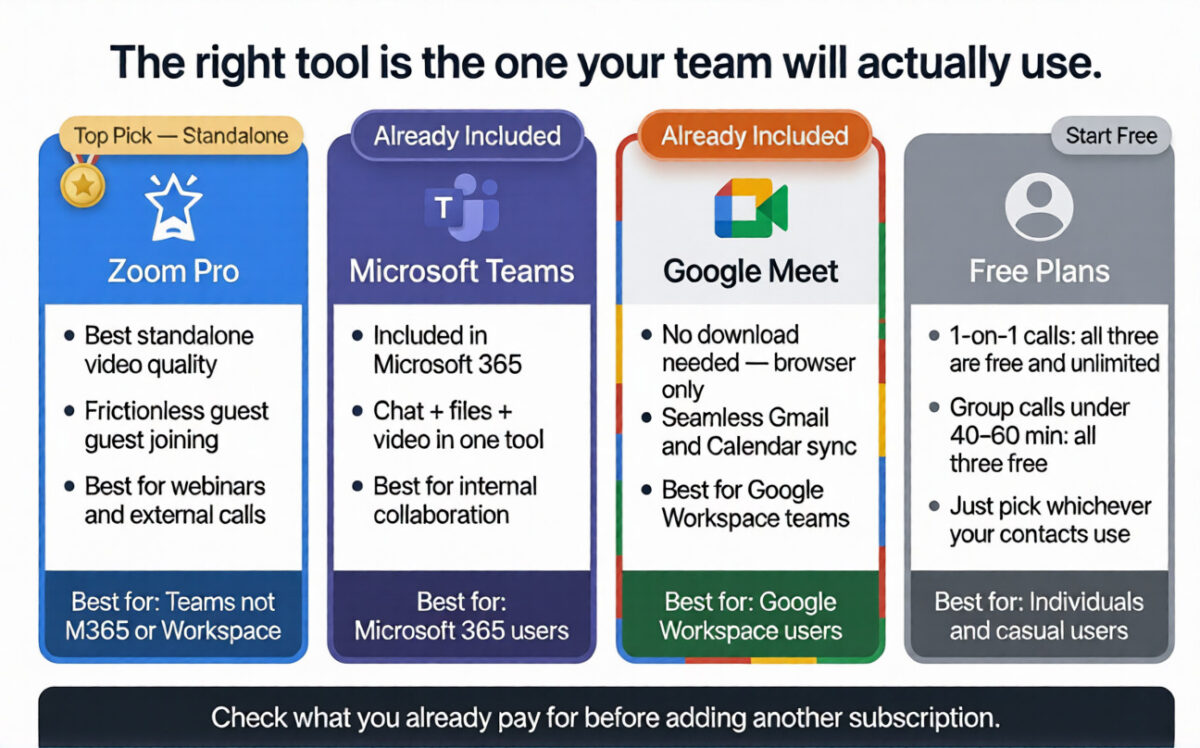
There is no universally “best” video conferencing tool in 2026, the right answer depends entirely on your existing software ecosystem.
Zoom wins on pure video conferencing quality and is the right standalone tool for teams not committed to Microsoft or Google.
Microsoft Teams wins for Microsoft 365 users, it is included in their subscription and adds collaboration features Zoom cannot match at any price.
Google Meet wins for Google Workspace users: zero friction, browser-based, and deeply integrated with Gmail and Calendar.
The most expensive mistake is paying for Zoom when you already have Teams through Microsoft 365, or vice versa. Check what you already pay for before adding another subscription.
Ratings:
– Zoom: 4.7 / 5
– Microsoft Teams: 4.5 / 5
– Google Meet: 4.3 / 5
Frequently Asked Questions
Is Zoom still the best video conferencing tool in 2026?
Zoom remains the best standalone video conferencing tool in 2026, particularly for video quality, noise cancellation, and breakout rooms. However, for teams already using Microsoft 365 or Google Workspace, Teams or Meet may be a better fit simply because they are already included in existing subscriptions.
Is Google Meet free?
Yes. Google Meet is free for anyone with a Google account, with meetings up to 60 minutes and up to 100 participants. Recording and longer meetings require a Google Workspace paid plan starting at $6/user/month.
What is the difference between Zoom and Microsoft Teams?
Zoom is primarily a video conferencing tool; it does one thing exceptionally well. Microsoft Teams is a complete collaboration platform combining video meetings, team chat, file sharing, and document collaboration. Teams is included with Microsoft 365 subscriptions. Zoom requires a separate subscription. For pure video quality, Zoom wins. For all-in-one team collaboration within the Microsoft ecosystem, Teams wins. Note this is different from remote desktop software like TeamViewer or AnyDesk, which lets you control another computer directly rather than just talk to the person using it, see our comparison if that’s what you actually need.
Can I use Microsoft Teams for free?
Yes. Microsoft Teams has a free plan that includes unlimited one-on-one calls, group meetings up to 60 minutes with 100 participants, team chat, and 5GB of cloud storage. The free plan does not include meeting recording, Outlook calendar integration, or Exchange email; these require a Microsoft 365 subscription.
Which video conferencing tool is best for client meetings?
Zoom is best for client meetings because external participants can join by clicking a link without creating an account or downloading software. The joining experience for people outside your organisation is the most frictionless of the three tools.
Does Microsoft Teams require a Microsoft 365 subscription?
No. Microsoft Teams has a free standalone plan. However, the most useful Teams features, Outlook integration, cloud recording, SharePoint file storage, and full Office app access require a Microsoft 365 subscription starting at $6/user/month.
Which is better for webinars: Zoom or Teams?
Zoom Webinars is the better dedicated webinar product, it supports up to 50,000 attendees, includes registration pages, Q&A moderation, panelist management, and detailed analytics. Teams Live Events supports up to 10,000 attendees and is better suited for internal all-hands meetings than external webinars. For external audience webinars and events, Zoom Webinars is the stronger platform.
Is video conferencing software safe to use for confidential meetings?
All three platforms offer end-to-end encryption for meetings: Zoom (enabled in settings), Teams (for one-on-one calls, with enhanced encryption for small group calls), and Google Meet (in progress for additional encryption layers). For highly confidential meetings, enable end-to-end encryption in your platform settings and use waiting rooms or meeting passwords to prevent uninvited participants.