Email attachments cap out around 25MB, which means the moment you need to send a client a finished video, a batch of high-resolution photos, or a design file with embedded assets, email simply stops being an option. Most freelancers solve this the wrong way first, uploading to a personal cloud storage folder and sharing a link that was never designed for one-time delivery, then forgetting to revoke access months later. A dedicated file transfer service solves a narrower, more specific problem than cloud storage does: getting one file or one batch of files from you to someone else, reliably, without leaving a permanent trail of forgotten shared folders. File transfer is one small piece of a working freelancer’s stack, see our full freelancer toolkit roundup for the rest of what a solo operation typically runs.
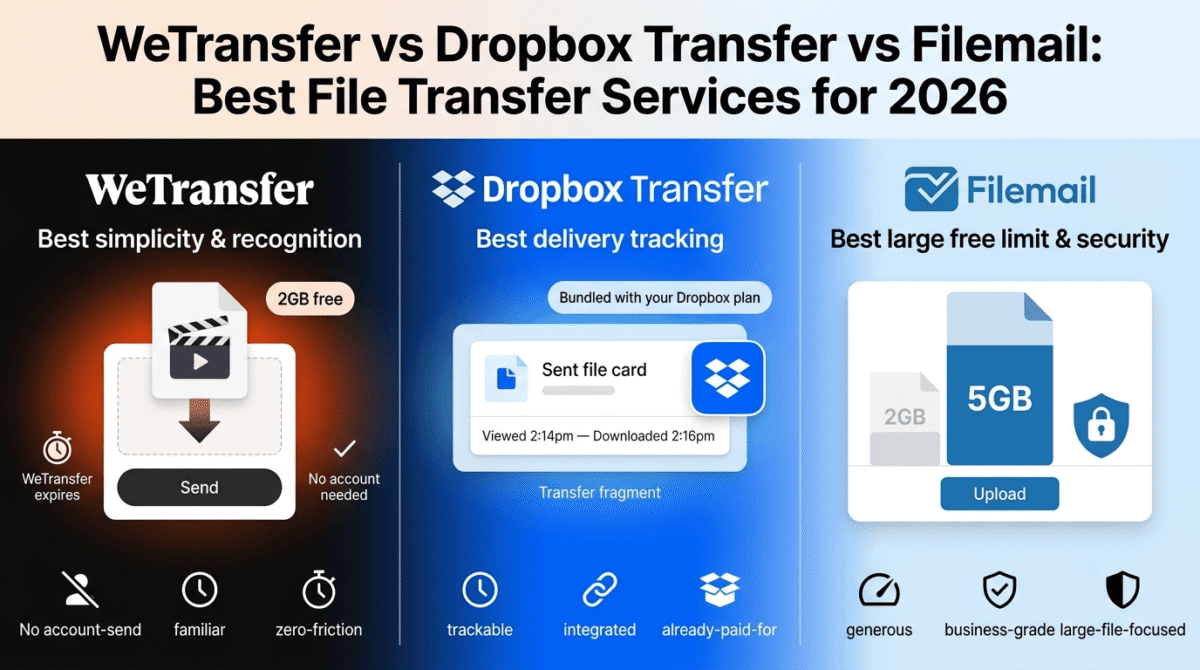
In 2026, this category sits in an interesting position, WeTransfer remains the household name most clients already recognize, Dropbox Transfer has built a more professional, trackable delivery experience on top of a tool many freelancers already pay for, and Filemail has carved out a niche with larger free limits and business-friendly security features. I tested all three (WeTransfer vs Dropbox Transfer vs Filemail) for 30 days sending real client deliverables, video files, design assets, and document batches. Here is the honest comparison.
Table of Contents
How We Tested These Services
Every platform was evaluated against five criteria:
- Free tier usability, how large a file can you actually send without paying, and how long does the recipient have to download it?
- Delivery confirmation and tracking, do you know when, or if, the recipient has downloaded the file?
- Security and access control, password protection, link expiration, and encryption in transit and at rest
- Professional presentation, does the transfer feel like a polished part of your client delivery process, or does it feel like a temporary workaround?
- Value at the volume a working freelancer or small agency actually needs, not just the headline free-tier size, but realistic monthly use
Why File Transfer Is a Different Problem Than Cloud Storage
It is worth being explicit about the distinction this entire category rests on, because it is easy to default to “I’ll just use my existing Dropbox or Google Drive” without examining why a dedicated transfer tool might actually serve the task better. Delivering the finished file is usually the last step before getting paid, see our FreshBooks vs PayPal vs Bonsai comparison of invoicing software for closing out that part of the client workflow too.
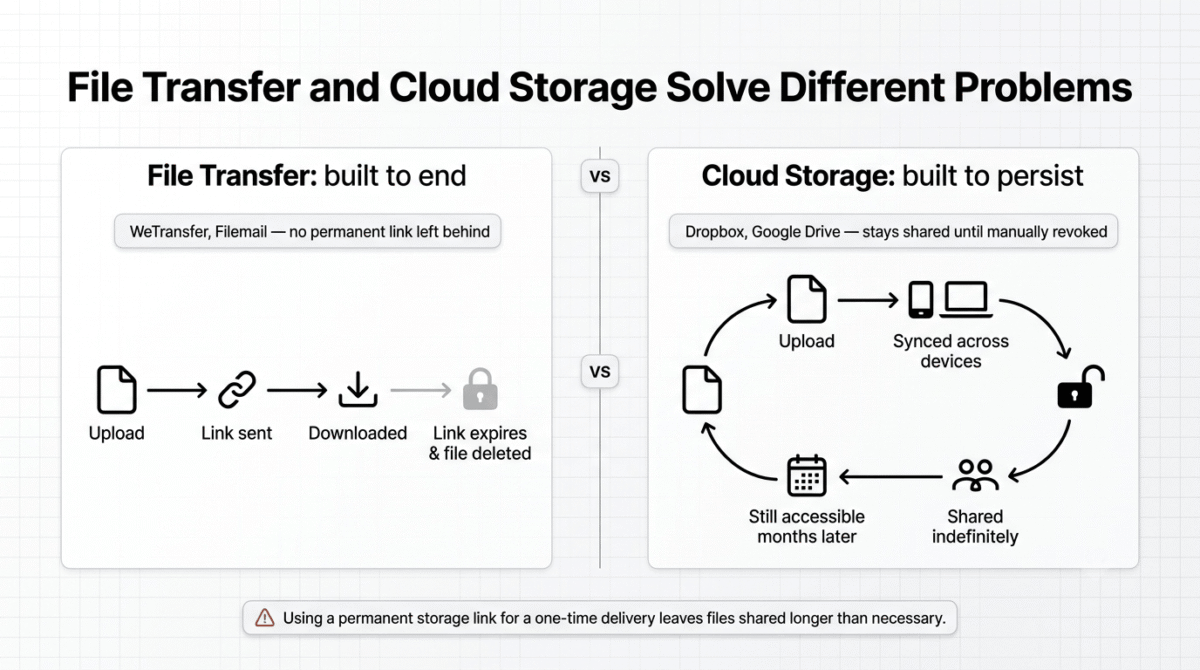
Cloud storage is built around ongoing access, files live there indefinitely, sync across devices, and stay shared until someone manually revokes access. File transfer is built around the opposite assumption, a file needs to move from one person to another once, with a natural expiration, and no ongoing relationship between the sender’s storage and the recipient’s access. Using a permanent cloud storage link for a one-time delivery means the link, and your file, often stays live and shared long after the client has downloaded it, a small but real and frequently overlooked security gap that a transfer-specific tool closes by default.
WeTransfer Review: Best for Simplicity and Universal Client Recognition
Free plan: Yes, up to 2GB per transfer, no account required
Starting paid price: WeTransfer Pro, generally priced in the range of other premium cloud tools, billed annually for the best rate
Best plan for most freelancers: Free tier covers occasional use; Pro for regular client deliverables needing larger files and branding
Platforms: Web, iOS, Android
Affiliate program: Limited, confirm current availability directly
WeTransfer is the closest thing this category has to a household name. Most clients have either used it themselves or at least recognize the name when a link arrives in their inbox, which removes a small but real layer of friction compared to sending a file through an unfamiliar service.
What WeTransfer does best
The no-account-required transfer is WeTransfer’s defining convenience. You can upload a file and send a download link within seconds, without creating an account, without the recipient creating an account, and without either party navigating a sign-up flow before the actual task, sending a file, gets done.
WeTransfer’s interface is genuinely the simplest of the three tools tested. There is essentially nothing to learn: select a file, enter an email or generate a link, and send. For a freelancer who transfers files occasionally rather than as a core part of daily workflow, this near-zero learning curve matters more than any advanced feature a competitor might offer.
Client familiarity is a real, if intangible, advantage. A client receiving a WeTransfer link has very likely seen one before, which reduces the chance they hesitate, mark it as spam, or ask a confused follow-up question, a small but real factor in how smoothly a delivery actually completes.
WeTransfer Pro adds larger transfer limits (commonly cited around 200GB), basic branding options, and password protection, covering most of what a working freelancer or small studio actually needs without introducing the complexity of an enterprise file transfer platform.
Where WeTransfer falls short
WeTransfer’s “ticking clock” problem is its most consistently cited drawback across independent reviews, free transfer links expire after a set window, and if a client misses the download period, you have to re-upload and resend the entire file. For larger files or distracted clients, this creates real, avoidable friction.
There is no central dashboard for tracking what you have sent on the free tier, which makes it genuinely difficult to audit your own delivery history, if a client claims they never received a file, you have limited ability to verify what was sent and when.
WeTransfer relies on third-party advertisers on its free tier, and the company holds the encryption keys to your files, meaning WeTransfer can technically access file contents in transit, worth knowing if you regularly send sensitive client documents rather than finished creative deliverables.
The 2GB free limit is the smallest of the three tools tested, which matters specifically for video files or large batches of high-resolution images, exactly the kind of deliverable that pushes a freelancer toward this category of tool in the first place.
WeTransfer pricing
| Plan | Price | Transfer limit | Key features |
|---|---|---|---|
| Free | $0 | 2GB per transfer | No account required, link expires |
| Pro | Paid (billed annually) | ~200GB per transfer | Branding, password protection, longer link validity |
WeTransfer: Pros and Cons
Pros:
- No account required for sender or recipient, fastest path from upload to sent link
- Highest client recognition and trust of the three tools
- Simplest interface, with effectively no learning curve
- Pro plan adds meaningful branding and security for a reasonable cost
- Works well for ad-hoc, occasional use without commitment
Cons:
- Smallest free transfer limit of the three tools (2GB)
- Free links expire, forcing re-uploads if a client misses the window
- No dashboard to track or audit sent files on the free tier
- Relies on third-party ads on the free tier
- WeTransfer holds encryption keys, limiting end-to-end privacy for sensitive files
Rating: 4.2 / 5, Best for occasional, ad-hoc file transfers where client familiarity and simplicity matter more than tracking or larger file limits.
Dropbox Transfer Review: Best for Freelancers Already Using Dropbox Who Want Delivery Tracking
Free plan: Yes, included with a free Dropbox account, limited transfer size
Starting paid price: Included with paid Dropbox plans starting around $10–12/month, with larger transfer limits at higher tiers
Best plan for most freelancers: A paid Dropbox plan you likely already have, since Transfer is bundled rather than sold separately
Platforms: Web, Windows, Mac, iOS, Android
Affiliate program: Yes, Dropbox affiliate program
Dropbox Transfer takes a different approach than WeTransfer: instead of being a single-purpose transfer tool, it is a feature wrapped around the broader Dropbox platform most freelancers and small agencies already use for cloud storage. This means the value proposition is less about a delivery flow you choose specifically and more about a meaningful upgrade to a tool you might already be paying for.
What Dropbox Transfer does best
Delivery confirmation is Dropbox Transfer’s standout feature relative to WeTransfer. You can see exactly when a recipient has viewed or downloaded a transfer, which closes the audit gap that WeTransfer’s free tier leaves wide open, genuinely useful when a client claims they “never got the file” and you need to show otherwise.
Because Transfer is bundled into the broader Dropbox platform, freelancers and agencies already paying for Dropbox storage get professional file delivery without an additional subscription, the marginal cost of using Transfer instead of WeTransfer Pro is effectively zero if you are already a Dropbox customer.
The integration with Dropbox’s existing security infrastructure means file transfers benefit from the same encryption and access control standards as the rest of your stored files, rather than a separate, potentially less mature security model built specifically for short-lived transfers.
For ongoing client relationships where you send deliverables repeatedly, having both storage and transfer live in the same platform reduces the mental overhead of choosing which tool to use for which task, everything client-facing flows through one system. Pairing that with a project management tool built for freelancer client work rounds out the system, see our Notion vs ClickUp vs Trello comparison.
Where Dropbox Transfer falls short
Dropbox Transfer is not a standalone product you can purchase independently, its value is entirely contingent on already using, or being willing to subscribe to, Dropbox more broadly. A freelancer who has no interest in Dropbox’s cloud storage gets comparatively little reason to choose Transfer specifically over a purpose-built transfer tool.
The free Dropbox account’s transfer limits are modest, similar in spirit to WeTransfer’s free tier constraints, the real value only appears once you are on a paid Dropbox plan, which represents a larger financial commitment than a dedicated transfer tool’s entry-level paid plan.
For recipients without any existing relationship to Dropbox, the experience can feel slightly less universally familiar than receiving a WeTransfer link, Dropbox’s brand association skews more toward “the cloud storage app” than “the way people send me files,” which can introduce minor friction with some clients.
Dropbox Transfer lacks Filemail’s specific focus on very large, business-oriented file transfers, if your work regularly involves files in the tens of gigabytes, Dropbox’s transfer limits, even on paid tiers, may lag behind Filemail’s higher ceilings.
Dropbox Transfer pricing
| Plan | Price | Transfer limit | Key features |
|---|---|---|---|
| Free (Dropbox Basic) | $0 | Modest, similar to other free tiers | Basic transfer, limited tracking |
| Plus / Professional | ~$10–12/month and up | Meaningfully larger | Delivery tracking, branding, full Dropbox storage included |
Dropbox Transfer: Pros and Cons
Pros:
- Delivery confirmation shows exactly when a file was viewed or downloaded
- Bundled at no extra cost for existing Dropbox subscribers
- Inherits Dropbox’s broader security and access control infrastructure
- Keeps storage and delivery in one platform for ongoing client work
- Strong fit for freelancers who already rely on Dropbox day to day
Cons:
- Not a standalone purchase, value depends on broader Dropbox subscription
- Free tier transfer limits are modest, similar to WeTransfer’s constraints
- Slightly less universal client recognition than WeTransfer specifically for file delivery
- Lower transfer ceilings than Filemail for very large business files
- Adds less value if you don’t already use or want Dropbox for storage
Rating: 4.4 / 5, Best for freelancers and agencies already using Dropbox who want professional delivery tracking without adding a separate subscription.
Filemail Review: Best for Large Business Files and Generous Free Limits
Free plan: Yes, up to 5GB per transfer, no account required for basic use
Starting paid price: Business plans priced per professional sender, with higher limits than either competitor’s free tier
Best plan for most small agencies: A business-tier plan once transfer volume and file size exceed what free tiers across the category support
Platforms: Web, Windows, Mac, iOS, Android
Affiliate program: Check current availability directly
Filemail occupies the niche between WeTransfer’s consumer simplicity and an enterprise managed file transfer platform. Its free tier offers more than double WeTransfer’s free limit, and its paid plans are positioned specifically around the needs of businesses that send large files regularly rather than occasionally.
What Filemail does best
The 5GB free transfer limit is more than double WeTransfer’s 2GB free tier, which matters meaningfully for the exact use case this category exists to solve, large video files, full photo shoot deliveries, or design asset bundles that exceed WeTransfer’s free ceiling but don’t yet justify a paid subscription.
Filemail’s encryption and security features are explicitly built with business use in mind, including options that go beyond what WeTransfer’s free tier offers by default, a relevant distinction for freelancers and agencies handling client files with any sensitivity, such as legal documents, financial records, or unreleased creative work.
The platform’s paid plans are structured around regular business use rather than one-off consumer transfers, with features supporting more consistent, higher-volume sending patterns than either WeTransfer or Dropbox Transfer’s free tiers anticipate.
For users who need a large file transfer without WeTransfer’s “ticking clock” problem dictating a tight re-upload cycle, Filemail’s paid tiers generally offer longer retention windows, reducing the chance a missed download forces you to resend an entire large file.
Where Filemail falls short
Filemail’s business plans are reported as priced per user, which scales up quickly for a growing team compared to flat-rate alternatives, a real consideration if you anticipate adding team members who also need to send large files regularly.
Brand recognition is the weakest of the three tools tested. Clients are less likely to have used Filemail before, which can introduce a small amount of hesitation or confusion compared to WeTransfer’s near-universal familiarity, a real, if minor, friction point worth weighing against the larger free transfer limit.
Filemail does not offer persistent storage in the way Dropbox does, like WeTransfer, it remains fundamentally a transfer tool rather than an ongoing storage solution, so businesses needing both will still need a separate cloud storage subscription alongside it.
Free-tier files are still deleted after a relatively short window, similar to WeTransfer’s expiration model, the larger 5GB limit does not solve the underlying “ticking clock” problem, just the file-size constraint specifically.
Filemail pricing
| Plan | Price | Transfer limit | Key features |
|---|---|---|---|
| Free | $0 | 5GB per transfer | No account required for basic use, time-limited storage |
| Business | Per-user pricing (confirm current rates) | Significantly higher than free tier | Extended retention, business-grade security features |
Filemail: Pros and Cons
Pros:
- Free tier limit more than double WeTransfer’s (5GB vs 2GB)
- Business-oriented security features beyond what competitors’ free tiers offer
- Longer retention windows on paid plans reduce re-upload friction
- Purpose-built for regular, higher-volume business file sending
- No account required for basic transfers, similar to WeTransfer’s convenience
Cons:
- Per-user pricing on business plans scales expensively for growing teams
- Lowest brand recognition of the three tools, which can affect client comfort
- No persistent storage, still fundamentally a one-time transfer tool
- Free-tier files still expire on a relatively short window
- Less polished consumer-facing brand presence than WeTransfer or Dropbox
Rating: 4.1 / 5, Best for freelancers and small agencies who regularly hit WeTransfer’s 2GB free limit and want a larger free ceiling with business-grade security, without yet committing to a paid plan.
Head-to-Head Comparison
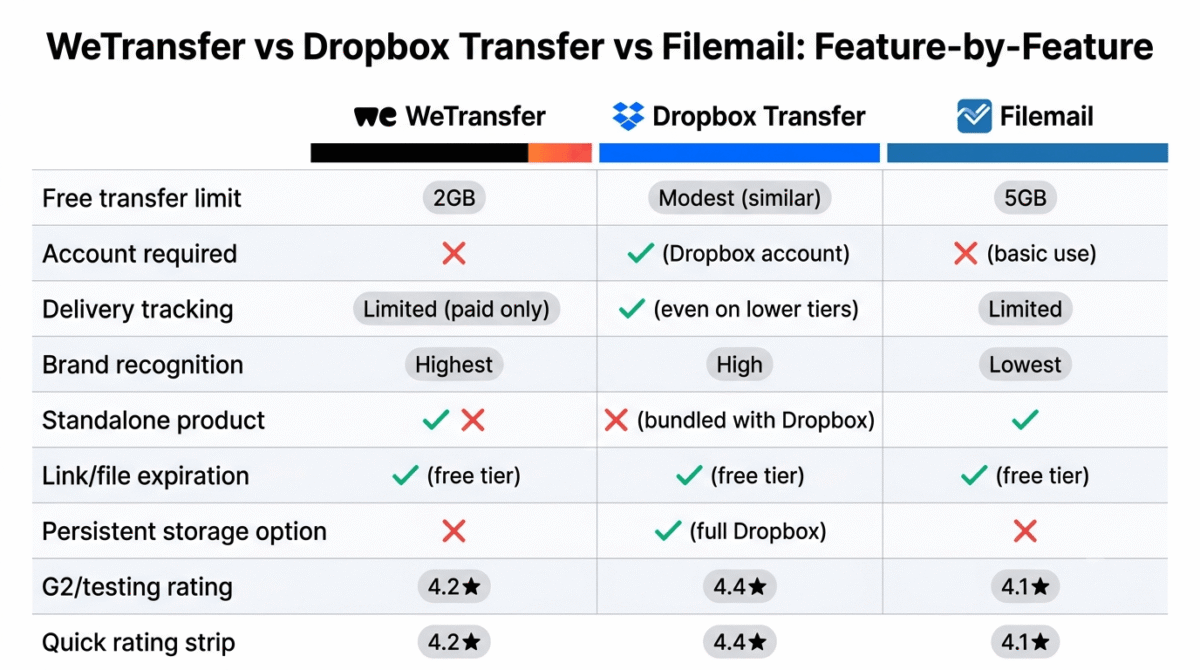
| Feature / Category | WeTransfer | Dropbox Transfer | Filemail |
|---|---|---|---|
| Free transfer limit | 2GB | Modest, similar tier | 5GB |
| Account required | No | Yes (Dropbox account) | No (basic use) |
| Delivery tracking | Limited (paid only) | Yes, even on lower tiers | Limited on free |
| Brand recognition | Highest | High | Lowest |
| Standalone product | Yes | No, bundled with Dropbox | Yes |
| Link/file expiration | Yes, free tier | Yes, free tier | Yes, free tier |
| Best for | Occasional ad-hoc sends | Existing Dropbox users wanting tracking | Larger files, business-grade security |
| Persistent storage option | No | Yes (full Dropbox) | No |
Which Service Should You Choose?
Choose WeTransfer if:
You send files occasionally, want the simplest possible experience for both you and your client, and value universal recognition over advanced tracking or larger free limits. WeTransfer remains the right default for a freelancer who needs to send a file a few times a month without thinking hard about which tool to open.
Choose Dropbox Transfer if:
You already use, or are willing to use, Dropbox for cloud storage, and you want delivery confirmation that shows exactly when a client has viewed or downloaded your file. This is the strongest choice for freelancers who want one platform handling both ongoing storage and one-time delivery rather than juggling two separate tools.
Choose Filemail if:
You regularly hit WeTransfer’s 2GB free limit, need business-grade security features for sensitive client files, or send large files frequently enough that a higher free ceiling and structured business plans make more sense than WeTransfer’s consumer-first approach.
The Freelancer Setup Recommendation
Based on 30 days of testing across real client deliverables, here is the recommended setup by use case:
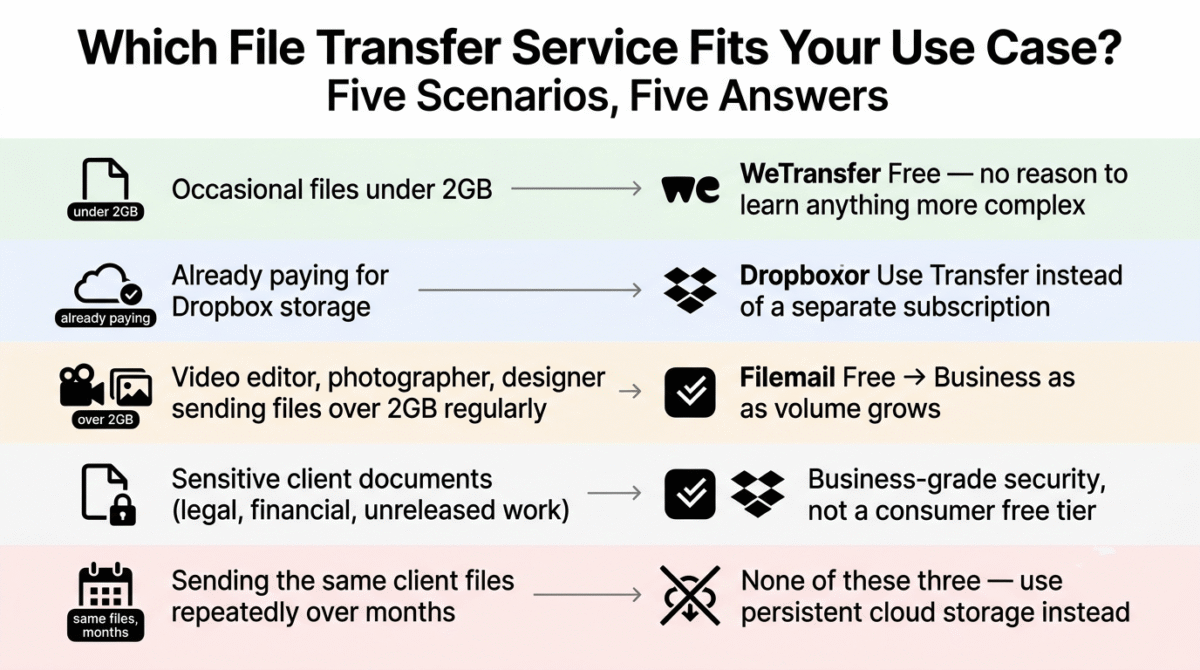
Freelancer sending occasional files under 2GB: WeTransfer’s free tier. There is no meaningful reason to pay for or learn a more complex tool at this volume.
Freelancer or agency already paying for Dropbox storage: Use Dropbox Transfer instead of adding a separate transfer subscription. The delivery tracking alone justifies defaulting to it once you are already a Dropbox customer.
Video editor, photographer, or designer regularly sending files over 2GB: Filemail’s free tier first, upgrading to a business plan once you are sending large files frequently enough that the per-user cost is justified by time saved and reduced re-upload friction.
Agency handling sensitive client documents (legal, financial, unreleased creative work): Filemail’s business-grade security features or a paid Dropbox plan, rather than relying on either tool’s consumer-oriented free tier, given that WeTransfer specifically retains access to encryption keys on its free service.
Anyone sending the same client files repeatedly over months: None of these three tools, a persistent cloud storage solution like the ones covered in our cloud storage comparison is the better fit, since file transfer tools are built around one-time delivery, not ongoing shared access.
Final Verdict
Dropbox Transfer is the best overall choice for freelancers who already use Dropbox, the delivery tracking closes a real gap that WeTransfer’s free tier leaves open, and bundling transfer into a tool you likely already pay for makes it the most economical professional option in this comparison.
WeTransfer remains the best choice for simplicity and universal client comfort, for occasional, ad-hoc sends where the recipient’s familiarity with the tool matters as much as any feature, WeTransfer’s near-zero friction is hard to beat.
Filemail is the best choice once file size becomes the binding constraint, its larger free limit and business-grade security features solve a real problem for freelancers and small agencies who regularly exceed WeTransfer’s 2GB ceiling.
Ratings:
- Dropbox Transfer: 4.4 / 5
- WeTransfer: 4.2 / 5
- Filemail: 4.1 / 5
Frequently Asked Questions
What is the best service for sending large files in 2026?
Dropbox Transfer is the best overall choice for freelancers already using Dropbox, due to its delivery tracking and bundled pricing. WeTransfer is the better choice for occasional, ad-hoc transfers where simplicity and client recognition matter most. Filemail is the better choice once file size regularly exceeds WeTransfer’s 2GB free limit.
Is WeTransfer safe for sending sensitive client files?
WeTransfer offers encryption, but the company holds the encryption keys, meaning it technically retains the ability to access file contents in transit. For routine creative deliverables this is a minor concern, but for sensitive documents like contracts, financial records, or unreleased work, a service with stronger end-to-end privacy controls, or a paid plan with enhanced security, is the safer choice.
How large a file can I send for free?
WeTransfer’s free tier allows up to 2GB per transfer. Filemail’s free tier allows up to 5GB per transfer. Dropbox’s free tier transfer limit is comparable to WeTransfer’s, though Dropbox’s value is more about delivery tracking than free-tier file size specifically.
Do file transfer links expire?
Yes, on the free tier of all three services tested. Free transfer links typically remain active for a limited window, commonly a matter of days, after which the file is deleted and must be re-uploaded if the recipient missed the download period. Paid plans generally extend this retention window.
Should I use cloud storage or a dedicated file transfer service to send a client their files?
It depends on whether the relationship is ongoing or one-time. A dedicated transfer service like WeTransfer or Filemail is the better choice for a single delivery that does not need to remain accessible indefinitely. Cloud storage like Dropbox or Google Drive is the better choice when a client needs ongoing access to a shared folder of files over time. Using a permanent cloud storage link for a one-time delivery is a common mistake that leaves files shared longer than necessary.
Can I track whether a client has downloaded the file I sent them?
Dropbox Transfer offers the clearest delivery confirmation among the three services tested, showing when a recipient has viewed or downloaded a transfer even on lower-tier plans. WeTransfer and Filemail offer more limited tracking on their free tiers, with better tracking features generally reserved for paid plans.
Is there a free file transfer tool with no expiration at all?
None of the three services in this comparison offer permanent free storage, all free tiers include some form of expiration or deletion window. For files that need to remain accessible indefinitely without expiration, a cloud storage solution rather than a transfer-specific tool is the more appropriate choice.