Video instruction has become the backbone of modern teaching. Whether you are a classroom teacher recording flipped lessons, an online course creator building a curriculum, a corporate trainer delivering remote onboarding, or a blogger creating tutorial content, screen recording is the most practical way to turn your knowledge into reusable, scalable video.
The challenge is choosing the right tool. A screen recorder designed for quick async business communication feels limited for structured lesson creation. A professional video production suite feels overwhelming for a teacher who just wants to record their screen with a voiceover and share it with students.
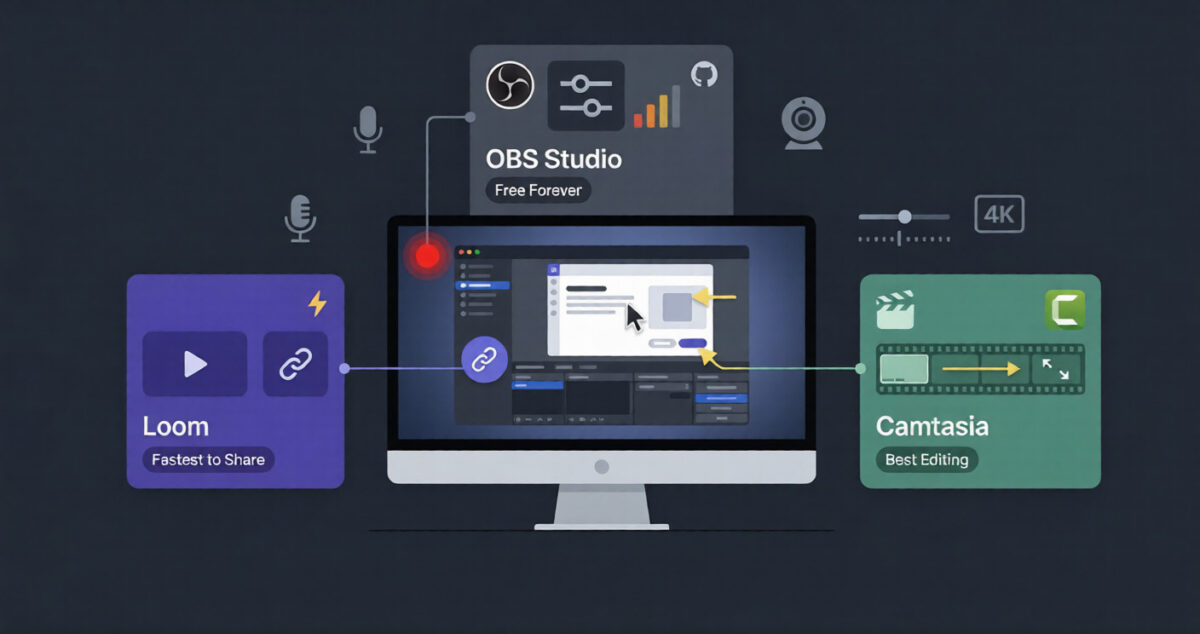
In 2026, three tools dominate screen recording for educators: Loom, Screencast-O-Matic (now Screencastify for some users, still widely known by its original name), and Camtasia. Each is built for a different type of recording need and a different level of production investment.
I tested all three ( Loom vs Screencast-O-Matic vs Camtasia) for 30 days creating real instructional content, lecture recordings, software walkthroughs, annotated explanations, and quiz-embedded lessons. Here is the honest comparison.
Table of Contents
How We Evaluated These Tools
Every tool was tested across five criteria:
- Recording ease, how quickly can a teacher start recording without technical friction?
- Editing capability, how well can recordings be trimmed, annotated, and enhanced?
- Student sharing, how easily can completed videos be shared with students?
- Interactive features, quizzes, chapters, comments, and engagement tools
- Value, free plan quality and paid plan pricing for education use
Why Screen Recording Matters for Teachers and Educators
Before comparing the tools, understanding the specific ways screen recording changes teaching practice:
Flipped classroom instruction. Recording lectures for students to watch before class, freeing class time for discussion, application, and problem-solving rather than content delivery. A 15-minute recorded lecture watched at home replaces 30 minutes of in-class delivery because students can pause, rewind, and re-watch at their own pace.
Absent student support. Recording class sessions or creating targeted makeup content for students who miss class, eliminating the “I was absent” learning gap without requiring individual re-teaching.
Software and process tutorials. Recording screen walkthroughs of software tools, website navigation, or digital processes, particularly valuable for technology teachers and online course creators who need to show rather than describe.
Feedback and assessment. Recording personalised video feedback on student work, more nuanced and personal than written comments, received as a genuine investment of teacher time by students.
Online and hybrid course creation. Building a library of reusable recorded content that students access asynchronously, the foundation of any online course or blended learning curriculum. Once your videos are ready, you will need to host them on one of the best online course platforms to deliver your curriculum.
Loom Review: Best Screen Recording Tool for Quick Teacher-Student Communication
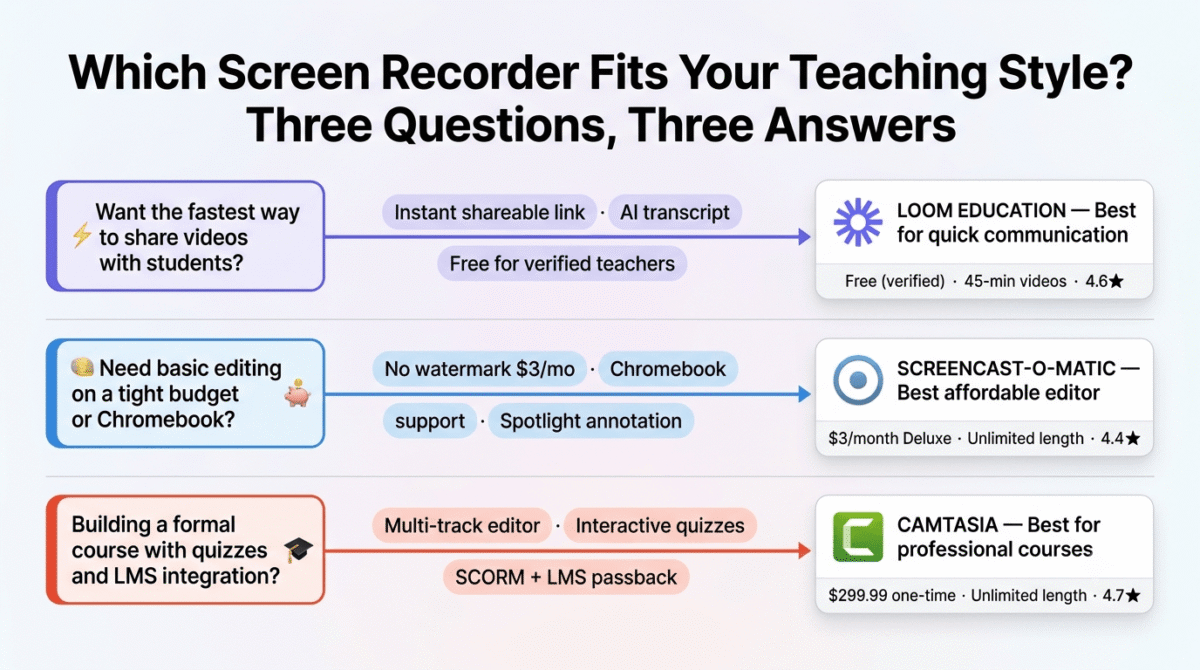
Free plan: Yes, 25 videos, 5-minute limit per video
Starting price: $12.50/month (Starter, billed annually)
Best plan for most teachers: Education plan, free for verified educators and students
Platforms: Web browser extension, Windows, Mac, iOS, Android
Affiliate program: Yes, Loom affiliate program, 15% recurring commission
Full review: Best Screen Recording Software →
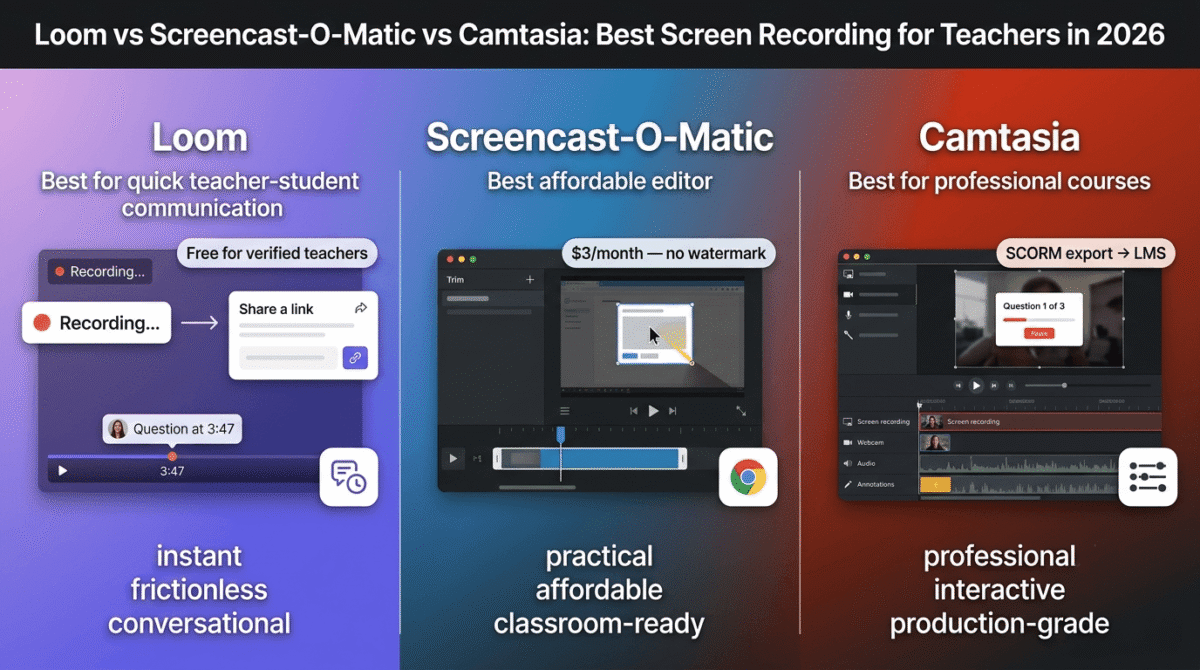
Loom is the fastest and most frictionless screen recording tool, record, share, and receive a viewable link within seconds of finishing. For teachers who want to communicate with students through video without complex production workflows, Loom removes every barrier between the recording intention and the delivered video.
What Loom does best for teachers
Loom’s speed-to-share workflow is its defining educational advantage. Click record → record your screen with or without webcam overlay → stop recording → receive a shareable link immediately. No rendering wait, no export, no upload to a separate platform. Students click the link and watch, from any device, in any browser, without creating an account. This zero-friction delivery is the reason Loom has become the default async video tool for teachers who communicate through Google Classroom, Canvas, or email.
The Loom Education plan, completely free for verified K-12 teachers and students, removes the 5-video and 5-minute limits of the standard free plan. Verified educators get unlimited videos at up to 45 minutes per recording, making Loom genuinely viable for full-length lecture recording at zero cost. Verification requires a school email address and takes 1–2 business days. For more academic resources, check out our guide to the best tools for students to help you succeed.
The viewer engagement features, emoji reactions, timestamped comments, and a simple question overlay, enable student interaction with recorded content. A student who has a question at minute 3:47 of a lecture can leave a comment at exactly that timestamp, and the teacher sees the comment precisely in context without needing to re-watch the entire video to understand what the student is asking about.
Loom’s AI-powered features are the most practical for teachers in 2026. The automatic transcript, generated immediately after recording, provides a searchable text version of every video. The AI summary, a bullet-point synopsis of the video’s key points, appears below the player automatically. The AI title generation suggests an appropriate video title based on the content. For teachers who record frequently, these features eliminate the manual titling, captioning, and summarising that consumes post-recording time.
The drawing tool, available during recording, enables basic annotation on the screen without pausing the recording. Circling an important element, underlining a key term, or drawing an arrow to a specific area of the screen adds visual emphasis that narrated-only recordings lack.
Loom’s workspace and folder organisation, organising videos by class, unit, or topic, creates a searchable video library that grows more valuable over time. Students who need to revisit a specific explanation find it through the searchable transcript rather than scrubbing through video timelines.
Where Loom falls short for teachers
Loom’s editing capabilities are the most limited of the three tools, the only editing available is trimming the beginning and end of recordings and cutting specific sections. There is no ability to add annotations after recording, insert titles or captions, add background music, or significantly restructure content. For teachers who want polished, production-quality instructional videos, Loom’s minimal editing is a serious limitation. If you need advanced editing features, you might want to look into dedicated video editing software to polish your recordings.
The 45-minute recording limit on the Education plan, while generous for most instruction, is insufficient for teachers who need to record extended class sessions or full-length online course modules that run longer.
Interactive learning features, embedded quizzes, branching scenarios, and SCORM-compatible content, are entirely absent from Loom. For teachers who need to assess comprehension within the video rather than through separate assessment tools, Loom provides no built-in mechanism.
Loom pricing
| Plan | Price/month | Videos | Length | Key features |
|---|---|---|---|---|
| Free | $0 | 25 | 5 min | Basic recording, link sharing |
| Education | $0 (verified) | Unlimited | 45 min | + Full features for teachers/students |
| Starter | $12.50 | Unlimited | 45 min | For non-education users |
| Business | $12.50/user | Unlimited | 45 min | + Custom branding, analytics |
Loom: Pros and Cons
Pros:
- Free Education plan for verified teachers, most accessible option
- Fastest recording-to-share workflow, zero production friction
- AI transcript, summary, and captions generated automatically
- Timestamped student comments, contextual student engagement
- Works in any browser for students, no account or app required
- Drawing tool for live annotation during recording
- Searchable video library via transcript text
- 15% recurring affiliate commission
Cons:
- Minimal editing, trim only, no post-production annotation
- No interactive quizzes or comprehension checks
- 45-minute recording limit
- Not suitable for polished course production
- Free plan limited to 25 videos before Education verification
- No SCORM export for LMS integration
Rating: 4.6 / 5, Best screen recording tool for teachers who prioritise speed, simplicity, and direct student communication. The free Education plan makes it the most accessible option for K-12 and higher education teachers.
Screencast-O-Matic Review: Best Affordable Screen Recorder for Teachers
Free plan: Yes, 15-minute recordings, watermark on export
Starting price: $3/month (Deluxe, billed annually)
Best plan for most teachers: Premier, $6/month (billed annually)
Platforms: Windows, Mac, iOS, Android, Chromebook
Affiliate program: Yes, Screencast-O-Matic affiliate program
Screencast-O-Matic is the most affordable paid screen recording tool for teachers, providing meaningful editing capability, no watermarks, and educational-friendly features at a price point well below both Loom’s Business plan and Camtasia’s professional pricing. For teachers who want more than Loom’s minimal editing but cannot justify Camtasia’s professional investment, Screencast-O-Matic fills the gap effectively.
What Screencast-O-Matic does best for teachers
Screencast-O-Matic’s Deluxe and Premier plans provide editing capabilities that Loom entirely lacks, trimming, cutting, adding captions, inserting image overlays, adding text annotations, and basic transitions. For teachers who record explanations and want to clean up stumbles, add visual emphasis to key concepts, or add their name and subject to the video opening, Screencast-O-Matic provides a straightforward editing interface at a price any teacher’s budget can accommodate.
The Chromebook support is Screencast-O-Matic’s most educationally important platform distinction. In K-12 education, Chromebooks are the most widely deployed student device, and screen recording options on Chromebook are significantly more limited than on Windows or Mac. Screencast-O-Matic’s Chromebook compatibility makes it the practical choice in school districts where Chromebooks are the standard device.
The scripted recording feature, displaying a script as scrolling text alongside the recording interface, enables teachers to deliver more polished, prepared recordings without memorising content. The teleprompter-style script display reduces the “um,” “uh,” and dead air that make unscripted recordings feel less professional.
The drawing tools, pen, highlighter, spotlight, and zoom, enable real-time annotation during recording. The spotlight feature (darkening everything except the area you are highlighting) is particularly effective for directing student attention to specific elements in complex diagrams, code, or interface walkthroughs.
Screencast-O-Matic’s video hosting, the Screencast-O-Matic platform where videos are stored and shared via link, provides a basic but functional alternative to YouTube for teachers in districts where YouTube is blocked. Videos shared via Screencast-O-Matic links are viewable without student accounts in most configurations.
The Screencast-O-Matic for Education pricing, school and district licensing at significantly discounted rates, makes it one of the few tools with formal institutional pricing designed for K-12 deployment.
Where Screencast-O-Matic falls short
Screencast-O-Matic’s editing interface, while more capable than Loom’s, is less polished than Camtasia’s professional editor. The timeline editor works for basic cuts and annotation additions but becomes cumbersome for complex multi-element compositions or detailed video restructuring.
The video quality ceiling is lower than Camtasia’s, recordings at maximum quality settings are good but not at the professional broadcast standard that Camtasia produces. For course creators who want production quality comparable to commercially published online courses, Screencast-O-Matic falls short.
The AI features are minimal, basic automated captions are available but without the transcript search, AI summary, or contextual comment features that make Loom particularly valuable for teacher-student communication.
The free plan’s watermark is the most significant barrier for teachers who want to share recordings without paying, the Screencast-O-Matic watermark on free exports is prominent and unprofessional for classroom use. The Deluxe plan at $3/month removes the watermark, a minimal cost that removes the primary free plan limitation.
Screencast-O-Matic pricing
| Plan | Price/month (annual) | Recording limit | Key features |
|---|---|---|---|
| Free | $0 | 15 min | Basic recording, watermark |
| Deluxe | $3 | Unlimited | + No watermark, basic editing, captions |
| Premier | $6 | Unlimited | + Script recording, drawing tools, stock library |
| Max | $10 | Unlimited | + Advanced editing, multi-track, branding |
Screencast-O-Matic: Pros and Cons
Pros:
- Most affordable paid plan, $3/month removes watermark and adds editing
- Chromebook support, critical for K-12 classroom environments
- Scripted recording with teleprompter display
- Drawing tools, pen, highlighter, spotlight, zoom during recording
- School and district licensing available
- Longer recording capability than Loom free
- Good balance of features and simplicity
Cons:
- Free plan watermark limits classroom use without payment
- Editing interface less polished than Camtasia
- Lower video quality ceiling than Camtasia
- Minimal AI features compared to Loom
- No interactive quiz capability
- Video hosting platform less robust than dedicated LMS integration
Rating: 4.4 / 5, Best affordable screen recorder for teachers who need more than Loom’s editing but cannot justify Camtasia’s cost. The $3/month Deluxe plan is the most cost-effective upgrade in screen recording.
Camtasia Review: Best Professional Screen Recording for Online Course Creators
Free plan: No (30-day free trial)
Starting price: $179.88/year (Essentials subscription) | $299.99 one-time (perpetual licence)
Best plan for most course creators: Perpetual licence, $299.99 one-time
Platforms: Windows, Mac
Affiliate program: Yes, TechSmith affiliate program, 20% commission
Camtasia is the professional standard for instructional video production, the tool used by corporate training departments, professional online course creators, and eLearning developers who need production quality and features that consumer screen recorders cannot match. For educators who want their instructional videos to look and function like commercially published course content, Camtasia’s professional editor, interactive features, and LMS integration are the most complete solution available.
What Camtasia does best for teachers
Camtasia’s video editor is the most powerful of the three tools, a multi-track timeline where separate tracks for screen recording, webcam, audio, annotations, and effects can be independently edited, timed, and mixed. Adding a lower-third name graphic, an animated introduction, background music that automatically ducks when voiceover speaks, and a branded outro all happen in the same editor that handles the raw screen recording, without exporting to additional software.
The annotation library, callouts, arrows, text boxes, highlight boxes, blur effects, and keystroke visualisation, provides every visual emphasis tool that instructional video design requires. The keystroke callout feature is uniquely valuable for software teachers, automatically displaying the keyboard shortcuts used during a recording as on-screen graphics, making keyboard-driven workflows transparent to students who cannot see the keyboard.
The interactive quiz feature, embedding multiple choice, fill-in-the-blank, and short answer questions directly within the video at specific timestamps, enables in-video comprehension checks that pause the video until students answer. For teachers who want to ensure students are actively engaging rather than passively watching, embedded quizzes are the most effective engagement mechanism available in any screen recorder.
The chapter markers feature, creating a clickable table of contents for longer videos, enables students to navigate directly to the section they need to review rather than scrubbing through an entire recording. For lecture recordings that cover multiple distinct topics, chapter navigation significantly improves the utility of recorded content as a reference resource.
SCORM export, packaging Camtasia recordings as SCORM-compatible content for upload to any LMS (Canvas, Moodle, Blackboard, Google Classroom, TalentLMS), enables grade passback from in-video quizzes directly to the gradebook. Students who complete an embedded quiz have their scores recorded in the LMS automatically, the most complete integration between video instruction and assessment tracking available.
The Assets library, thousands of royalty-free intro animations, lower thirds, background music tracks, and video templates, enables professional-quality instructional video production without graphic design or audio production skills. The themed template packs create visual consistency across an entire course’s video library without custom design work.
Camtasia’s screen zoom and pan, automatically creating smooth zooms into specific areas of the screen during playback from recorded cursor positions, highlights the most important elements in software walkthroughs without requiring students to lean toward their screen to read small interface elements.
Where Camtasia falls short
Camtasia’s price is the primary barrier for individual teachers, $299.99 one-time for the perpetual licence or $179.88/year for the subscription. For K-12 teachers who need to purchase from personal funds, this cost is significant compared to Loom Education (free) and Screencast-O-Matic Deluxe ($3/month). TechSmith offers academic pricing for institutional purchases, school and university procurement typically access significantly discounted pricing.
The learning curve is the steepest of the three tools, the professional editor interface with multiple tracks, the effect library, and the animation system require meaningful time investment before producing polished results. Teachers who have never used video editing software may spend several hours learning the interface before creating their first complete lesson.
Camtasia does not have a free plan, the 30-day trial provides evaluation time but requires paid commitment for ongoing use.
Camtasia pricing
| Plan | Price | Type | Key features |
|---|---|---|---|
| Essentials | $179.88/year | Subscription | Full editor, no perpetual access |
| Create | $249/year | Subscription | + Assets library, enhanced features |
| Perpetual | $299.99 | One-time | Current version forever, no updates |
| Perpetual + Maintenance | $299.99 + $99/year | Hybrid | + Annual updates |
Academic and volume pricing available, contact TechSmith for institutional rates
Camtasia: Pros and Cons
Pros:
- Best professional video editor, multi-track, full annotation library
- Interactive in-video quizzes with LMS grade passback
- SCORM export for any LMS integration
- Chapter markers for navigable long-form content
- Keystroke callout feature for software tutorials
- Zoom and pan animation for software walkthroughs
- Assets library, royalty-free templates, music, animations
- One-time perpetual licence option, no ongoing subscription
- 20% affiliate commission
Cons:
- Most expensive, $299.99 one-time or $179.88/year
- Steepest learning curve, professional editor complexity
- No free plan, 30-day trial only
- Windows and Mac only, no Chromebook support
- Overkill for teachers who only need quick async communication
- Does not include Loom’s instant sharing and AI transcript features
Rating: 4.7 / 5, Best screen recording tool for professional online course creators and educators who need production-quality instructional video with interactive features and LMS integration.
Head-to-Head Comparison
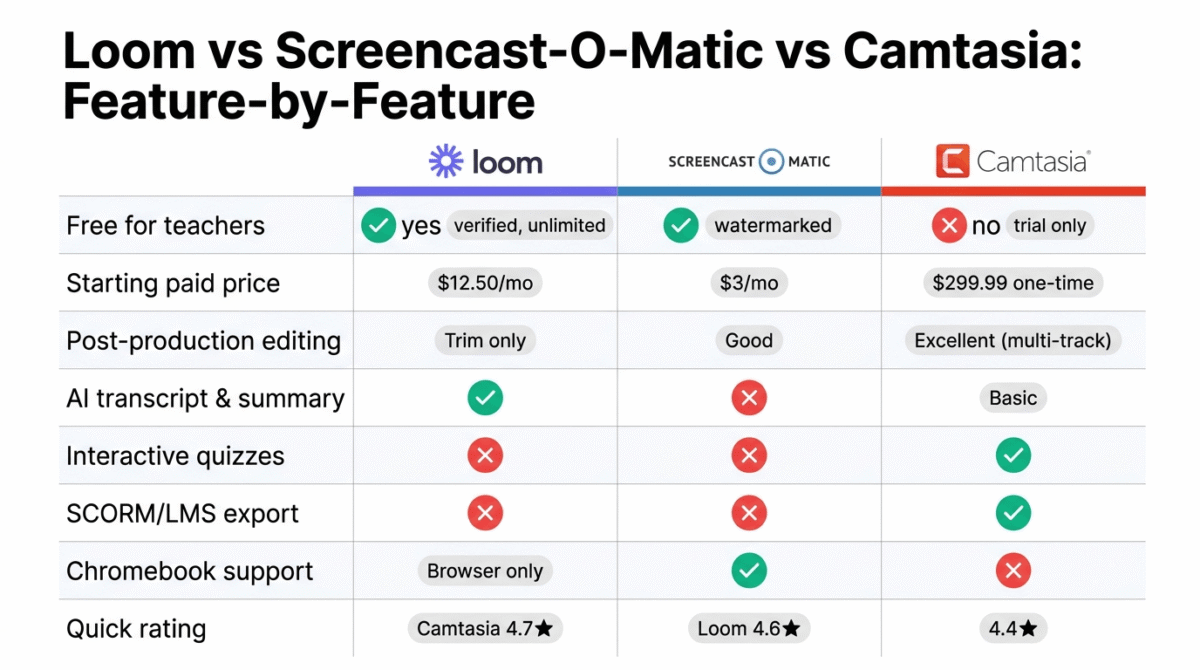
| Loom Education | Screencast-O-Matic Deluxe | Screencast-O-Matic Premier | Camtasia Perpetual | |
|---|---|---|---|---|
| Price | Free (verified) | $3/month | $6/month | $299.99 one-time |
| Recording limit | 45 min | Unlimited | Unlimited | Unlimited |
| Watermark | No | No | No | No |
| Basic editing | Trim only | Yes | Yes | Excellent |
| Multi-track editing | No | No | No | Yes |
| Annotations (post-production) | No | Basic | Good | Excellent |
| Live drawing tools | Basic | Yes | Yes | Yes |
| AI transcript | Yes | No | No | Basic |
| AI summary | Yes | No | No | No |
| Interactive quizzes | No | No | No | Yes |
| Chapter markers | No | No | No | Yes |
| SCORM export | No | No | No | Yes |
| LMS grade passback | No | No | No | Yes |
| Keystroke callouts | No | No | No | Yes |
| Chromebook support | Browser only | Yes | Yes | No |
| Student commenting | Yes (timestamped) | No | No | No |
| Video hosting | Yes | Yes | Yes | Export only |
| Best for | Quick async teaching | Budget-conscious | Mid-range feature set | Professional courses |
Which Screen Recording Tool Should You Choose?
Choose Loom Education (free) if:
You are a K-12 or university teacher who wants the fastest way to record and share instructional videos with students. The verified educator free plan removes all meaningful limitations, unlimited videos at 45 minutes each, and the AI transcript, student commenting, and instant shareable links make teacher-student video communication more natural than any competing tool. Apply for Education verification before starting: loom.com/education.
Choose Screencast-O-Matic Deluxe ($3/month) if:
You need more editing capability than Loom provides, trimming mistakes, adding text annotations, removing the watermark, at the lowest possible cost. Especially compelling for teachers in Chromebook environments where Camtasia is not available. The $3/month cost is lower than any comparable editing-capable screen recorder.
Choose Camtasia ($299.99 one-time) if:
You are building a professional online course, corporate training programme, or structured curriculum where production quality, interactive quizzes, chapter navigation, and LMS integration are requirements. The one-time perpetual licence makes Camtasia the best long-term investment for educators who will produce significant volumes of instructional video, paying $299.99 once versus $72/year for Loom Starter ongoing.
The Teacher Screen Recording Workflow
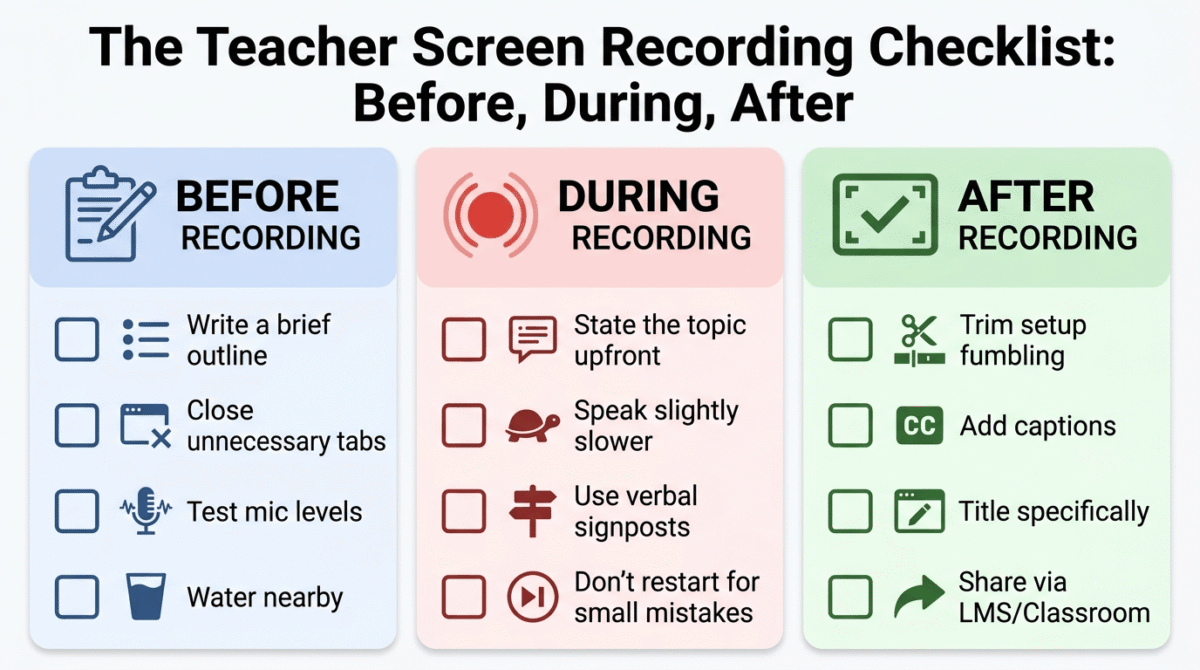
For teachers recording instructional content consistently, here is the workflow that produces the best results regardless of tool:
Before recording:
- Write a brief outline, not a full script, but bullet points covering each section
- Close unnecessary browser tabs and applications to reduce screen clutter
- Set your microphone input level and do a 30-second test recording
- Place a glass of water nearby, dry mouth is the most common recording disruptor
During recording:
- Start with a brief verbal introduction: “In this video we’ll cover [topic], specifically [point 1], [point 2], and [point 3]”
- Speak slightly slower than conversational pace, students watch at varied speeds and may need to process while listening
- Use verbal signposting: “First…”, “Now moving to…”, “The key point here is…”
- Do not restart for small mistakes, pause, correct yourself naturally, and trim in editing
- End with a clear summary and next action: “In the next video, we’ll cover…”
After recording:
- Trim the first few seconds of setup fumbling and the last few seconds of clicking stop
- Add captions if your platform supports it, increases accessibility and comprehension
- Title the video specifically: “Lesson 3.2: Solving Quadratic Equations” not “Math Video”
- Share via your LMS, Google Classroom, or direct link with a brief text context
For Bloggers Creating Tutorial Content
Screen recording tools are equally valuable for bloggers who create tutorial content, the “how to” posts that combine written instruction with video walkthroughs rank better, retain readers longer, and convert affiliate links at higher rates than text-only posts.
For RateTheTool.com specifically, embedding a 3–5 minute Loom recording showing how to set up a specific tool (configuring Rank Math SEO, setting up ThirstyAffiliates link cloaking, installing LiteSpeed Cache) adds unique value that no competitor post provides, original video content that demonstrates genuine hands-on experience with the tools you review.
The practical recommendation: use Loom Education free for quick tutorial recordings embedded in blog posts. For signature how-to guide posts that anchor your highest-traffic categories, invest in Camtasia for the professional quality that justifies the production time.
Frequently Asked Questions
What is the best free screen recording tool for teachers?
Loom’s Education plan is the best free screen recording tool for verified teachers, unlimited videos at up to 45 minutes per recording, AI transcripts, student timestamped commenting, and instant shareable links at zero cost. Apply at loom.com/education with your school email address. Screencast-O-Matic’s free plan is the best alternative for Chromebook users, though the watermark limits professional use without the $3/month Deluxe upgrade.u003cbru003e
Is Camtasia worth the price for teachers?
Yes, for teachers building formal online courses or structured eLearning content where interactive quizzes, LMS integration, and professional production quality are requirements. The one-time $299.99 perpetual licence pays back quickly for teachers who produce significant video content, compare against $72/year for Loom Starter or $36/year for Screencast-O-Matic Deluxe over a 4–5 year period. For occasional async communication with students, Loom Education free is a better fit than Camtasia.u003cbru003e
Can students watch Loom videos without a Loom account?
Yes, Loom videos shared via link are viewable in any browser without students creating a Loom account or downloading any software. Students simply click the link and watch. They can leave timestamped comments by entering their name, no account required. This zero-friction student experience is one of Loom’s most important advantages for classroom use.
What screen recorder works best on Chromebook?
Screencast-O-Matic has the best dedicated Chromebook support among the three tools. Loom works via its Chrome browser extension on Chromebook, functional for recording but without the full drawing and script features of the desktop application. Camtasia does not support Chromebook. For K-12 schools where Chromebook is the standard device, Screencast-O-Matic is the recommended choice.
What is the difference between Loom and Camtasia for teaching?
Loom prioritises speed and communication, record, share a link, receive student comments, all within seconds. No editing required. Camtasia prioritises production quality and interactivity, professional video editing, embedded quizzes, chapter markers, and LMS integration for structured course content. Loom is best for frequent, lightweight teacher communication. Camtasia is best for polished, reusable course content that will be watched by many students over time.
How long should instructional videos be?
Research on educational video engagement consistently shows that videos under 6 minutes maintain the highest completion rates. Videos of 6–9 minutes are the most common length for instructional content, long enough to cover a complete concept, short enough to maintain attention. Videos over 15 minutes see significant drop-off in completion rates unless chapter markers enable students to navigate directly to relevant sections. For lecture recording of longer content, break into 8–12 minute segments rather than recording one long continuous video.u003cbru003e
Do I need a special microphone for screen recording?
Not necessarily, a modern laptop’s built-in microphone produces acceptable audio quality in a quiet room. For noticeably better audio, the Blue Yeti Nano USB microphone ($99) or Rode NT-USB Mini ($99) produce professional-quality audio that meaningfully improves the perceived quality of instructional recordings. The single highest-impact hardware investment for screen recording quality is microphone quality, better than buying a webcam, better than a ring light, better than any software feature.