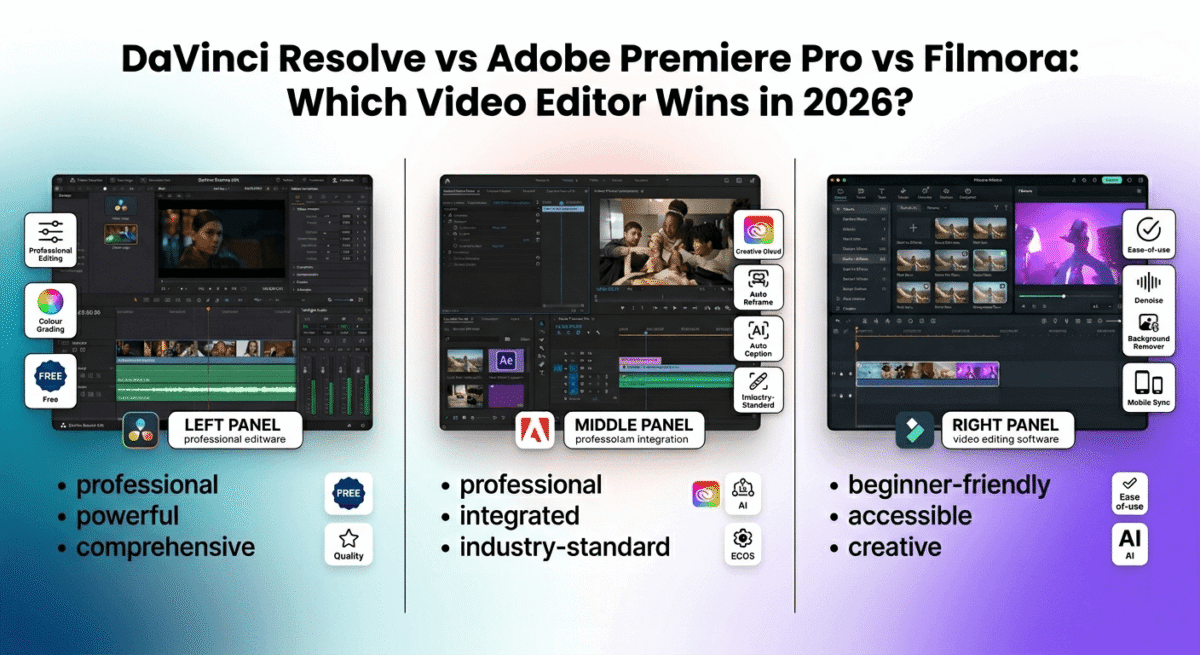
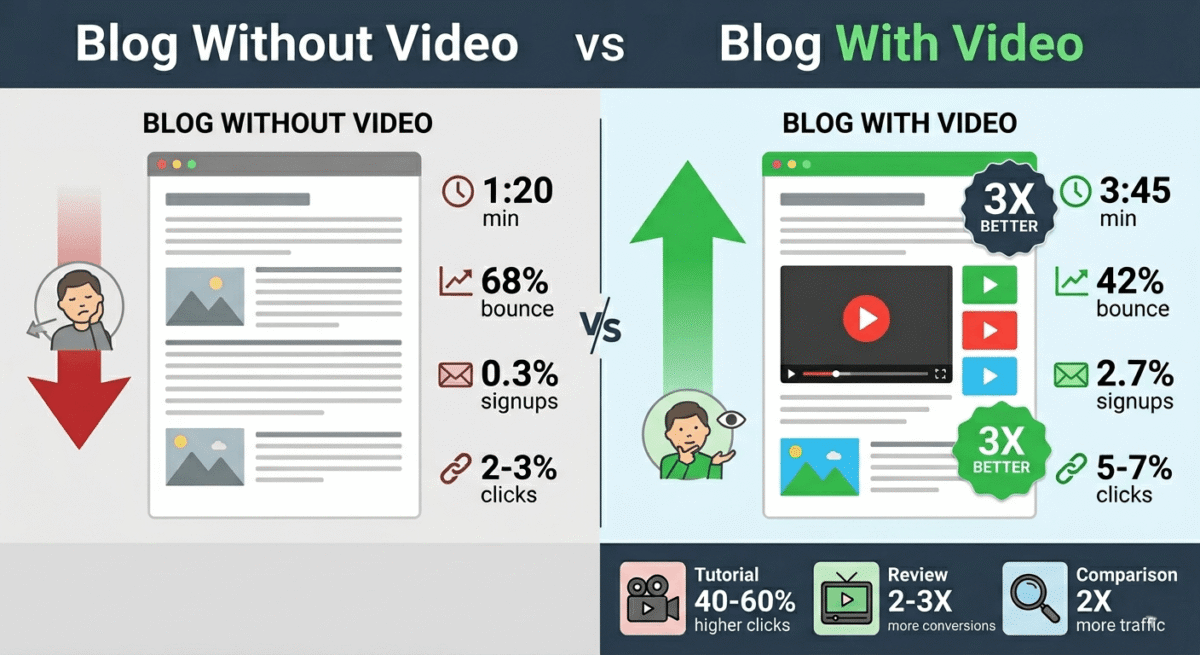
Video is the fastest-growing content format for bloggers in 2026. YouTube remains the second-largest search engine in the world. Short-form video on TikTok, Instagram Reels, and YouTube Shorts drives millions of new website visitors every month. And video tutorials embedded in blog posts increase time-on-page, reduce bounce rates, and make affiliate recommendations more persuasive than text alone.
But creating good video requires good editing software, and choosing the wrong tool means either fighting a steep learning curve that kills your production momentum, or paying for professional features you will never use.
I tested DaVinci Resolve vs Adobe Premiere Pro vs Filmora for 30 days across YouTube tutorials, blog video content, short-form clips, and podcast video recordings. If podcast video is your main use case, see our full toolkit guide for podcasters covering the rest of the recording and publishing stack. Here is the honest comparison.
Table of Contents
How We Evaluated These Tools
Every platform was tested across five criteria:
– Editing capabilities: timeline quality, cut precision, and workflow efficiency
– Effects and colour: colour grading, transitions, titles, and visual effects
– AI features: automatic editing, noise removal, background removal, and smart tools
– Export quality: output formats, resolution support, and rendering speed
– Value: free plan quality and paid plan pricing versus features offered
Why Video Editing Matters for Bloggers in 2026
Before comparing the tools, a brief case for why video should be part of your content strategy as a software review blogger.
YouTube SEO complements Google SEO: A video review of Grammarly that ranks on YouTube drives traffic independently of your blog’s Google rankings. The same research and testing that produced your written review produces a YouTube video, doubling your distribution from a single content investment.
Video increases affiliate conversion rates: A 5-minute screen recording demonstrating a software tool converts affiliate clicks at a meaningfully higher rate than a written description of the same tool. Seeing the interface in action removes purchase uncertainty in a way that screenshots cannot.
Short-form video drives discovery: A 60-second TikTok or Instagram Reel showing “the fastest way to remove a background in Canva” drives viewers to your full review, to your affiliate link, and to your email list, all from a clip that takes 30 minutes to produce once you have the editing workflow down.
The video editor you choose determines how quickly you can execute this strategy. Video editing is one piece of that strategy, see our full content creator toolkit roundup for the rest of what a video-first content operation typically runs on.
DaVinci Resolve Review: Best Free Professional Video Editor
Free plan: Yes, DaVinci Resolve free is extraordinarily capable
Starting paid price: $295 one-time (DaVinci Resolve Studio, lifetime licence)
Best plan for most users: Free version, covers 95% of what most creators need
Platforms: Windows, Mac, Linux
Affiliate program: Blackmagic Design reseller program
DaVinci Resolve is the most technically impressive video editing software available, and the fact that its free version is used by professional Hollywood editors makes it the most remarkable value proposition in creative software. Films, television series, and streaming content edited in DaVinci Resolve include major productions you have watched recently, all edited using software you can download for free today.
What DaVinci Resolve does best
DaVinci Resolve’s colour grading capabilities are the best available in any video editing software at any price point. The Colour page, a dedicated colour grading workspace, provides node-based colour correction, scopes (waveform, vectorscope, histogram, parade), primary colour wheels, curves, qualifier tools for isolating specific colours in a shot, and HDR grading support. For creators who want their videos to look cinematic rather than amateur, Resolve’s colour tools have no peer.
The Cut page, designed for fast-paced editing, allows rough assembly of a video in a fraction of the time the traditional Edit page requires. Magnetic timeline clips, source tape navigation, and smart indicators for sync points make DaVinci Resolve faster for initial assembly than Premiere Pro or Filmora for experienced editors.
The Fairlight audio page provides professional audio editing, a dedicated workspace with mixing console, EQ, dynamics, noise reduction, dialogue processing, and spatial audio tools. For creators who care about audio quality (and all serious video creators should), Fairlight eliminates the need for a separate audio editing application.
DaVinci Resolve’s Fusion page, a node-based visual effects and motion graphics compositor, enables effects and animations comparable to Adobe After Effects, built directly into the editing software. Title animations, green screen compositing, particle effects, and 3D graphics are all achievable within Resolve without additional software.
The free version of DaVinci Resolve includes all of the above, the full editing timeline, the Colour page, the Fairlight audio page, and the Fusion VFX page, at no cost. The paid Studio version ($295 one-time) adds AI-powered tools (magic mask, super scale upscaling, noise reduction, speed warp), collaboration features for teams, and support for certain HDR formats and frame rates. For individual creators, the free version is genuinely sufficient for professional-quality output.
DaVinci Resolve’s Linux support is unique among the three tools, the only professional video editor that runs natively on Linux, making it the only option for creators on Linux workstations.
DaVinci Resolve for beginner and intermediate creators
DaVinci Resolve’s steep learning curve is its primary barrier. The software was designed for professional editors with existing video production knowledge, the interface, terminology, and workflow assumptions reflect this. New users who open DaVinci Resolve for the first time face a complex, multi-page interface that requires deliberate learning before producing results.
The Cut page, Blackmagic’s attempt to create a more accessible entry point, significantly reduces this friction for basic editing tasks. Simple cuts, basic transitions, text titles, and audio adjustments are achievable in the Cut page within a few hours of first use. The full Edit and Colour pages require more substantial investment.
YouTube and third-party tutorial resources for DaVinci Resolve are extensive, the large professional user base has produced thousands of tutorials covering every feature and workflow. For self-directed learners, the learning path is well-documented even if the initial curve is steep.
DaVinci Resolve pricing
Version | Price | Key differences |
DaVinci Resolve (free) | $0 | Full editor, colour, audio, VFX, no AI tools |
DaVinci Resolve Studio | $295 one-time | + AI tools, collaboration, HDR, noise reduction |
DaVinci Resolve: Pros and Cons
Pros:
– Best colour grading in any video editor at any price
– Free version used by professional Hollywood editors
– One-time Studio payment ($295), no subscription
– Dedicated audio editing workspace (Fairlight) eliminates need for separate DAW
– Fusion VFX page for motion graphics and visual effects
– Linux support, unique among professional editors
– Extensive tutorial library from professional users
– Best rendering quality of the three tools
Cons:
– Steepest learning curve, designed for professional editors
– AI tools (noise reduction, magic mask) require paid Studio version
– RAM and GPU intensive, requires capable hardware for smooth performance
– Less beginner-friendly than Filmora
– No subscription option, full Studio licence required for paid features
– Collaboration requires paid Studio version
Rating: 4.8 / 5, Best video editing software overall. Free version is unmatched in capability at zero cost. Requires hardware and learning investment to use effectively.
Adobe Premiere Pro Review: Best Video Editor for Creative Professionals and Adobe Users
Free plan: No (7-day free trial)
Starting price: $22.99/month (Premiere Pro only, billed annually)
Best plan for most users: Creative Cloud All Apps, $59.99/month (includes Premiere, After Effects, Photoshop, Audition, and 20+ more apps)
Platforms: Windows, Mac
Affiliate program: Yes, Adobe affiliate program, up to 85% commission on first month
Adobe Premiere Pro is the industry standard video editor for professional videographers, filmmakers, and content creators, used at every level from YouTube creators to broadcast television to feature film post-production. Its deep integration with the Adobe Creative Cloud ecosystem, After Effects for VFX, Audition for audio, Photoshop for graphics, and Lightroom for photo editing, makes it the most connected video editing environment available.
What Premiere Pro does best
Premiere Pro’s timeline is the most refined and feature-complete of the three tools. Multi-camera editing, nested sequences, dynamic linked compositions from After Effects, adjustment layers, and advanced track management handle complex projects, multi-camera interview shoots, documentary edits with hundreds of clips, broadcast graphics packages, that would overwhelm simpler editors.
The Adobe ecosystem integration is Premiere Pro’s defining advantage. Dynamic Link, Adobe’s technology for connecting Premiere and After Effects without rendering, lets you create motion graphics in After Effects and have them update live in your Premiere timeline. Editing audio in Adobe Audition with changes reflected instantly in Premiere, pulling assets from Creative Cloud Libraries, and using Photoshop files as Premiere graphics, all without file exports or format conversion, creates a workflow efficiency that no other creative suite matches.
Adobe Sensei AI, integrated throughout Premiere Pro, powers features that save meaningful production time. Auto Reframe automatically reformats horizontal video for vertical (9:16) output, a single click converts a YouTube video into a TikTok clip without manual cropping. Scene Edit Detection analyses an exported video and automatically adds cut points where scene changes occur, rebuilding an editable timeline from a finished piece. Speech to Text generates automatic captions from your video’s audio with high accuracy in 17 languages, eliminating hours of manual captioning work.
The Essential Sound panel simplifies audio mixing for non-audio engineers, tag audio clips as Dialogue, Music, Sound Effects, or Ambience, and Premiere applies appropriate processing presets automatically. The result is dramatically better audio than unprocessed footage, without requiring Fairlight-level audio engineering knowledge.
Premiere Pro’s export presets cover every output scenario, H.264 for YouTube, HEVC for Apple devices, ProRes for broadcast, DNxHD for Avid workflows, and platform-specific presets for Instagram, Twitter, TikTok, and Vimeo. The Media Encoder, included with all Premiere subscriptions, handles batch exports in the background while you continue editing.
Where Premiere Pro falls short
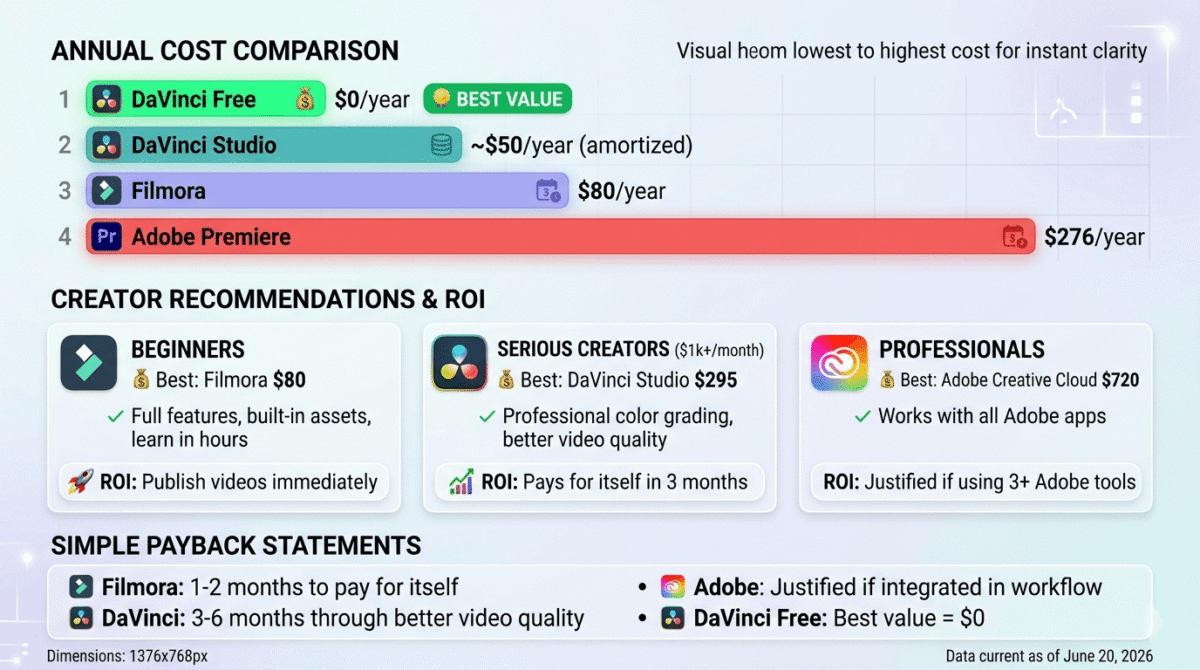
Premiere Pro’s subscription model is its most significant drawback. At $22.99/month for Premiere only ($275.88/year), it costs more annually than DaVinci Resolve Studio’s one-time $295, and every year you pay again. The Creative Cloud All Apps plan at $59.99/month ($719.88/year) provides better value if you use other Adobe apps, but it is a significant ongoing commitment.
Colour grading in Premiere Pro, while functional and improved with the Lumetri Colour panel, does not match DaVinci Resolve’s colour tools. Professional colourists who use Premiere for editing typically export to DaVinci Resolve for colour grading, then return to Premiere for finishing. For creators who prioritise cinematic colour, Resolve is superior.
Premiere Pro requires a subscription, there is no perpetual licence option. If you stop paying, you lose access to your software and projects (though your project files remain accessible). This ongoing cost and dependency on Adobe’s continued service is a genuine concern for long-term planning.
Premiere Pro pricing
Plan | Price/month (annual) | Includes |
Premiere Pro only | $22.99 | Premiere Pro + Media Encoder |
Creative Cloud All Apps | $59.99 | 20+ Adobe apps including Premiere, After Effects, Photoshop |
Students/teachers | $19.99 | All Apps at discounted rate |
Adobe Premiere Pro: Pros and Cons
Pros:
– Industry standard, most widely used professional editor
– Best Adobe ecosystem integration, After Effects, Audition, Photoshop connected
– Auto Reframe for automatic vertical video formatting
– Speech to Text for automatic captioning in 17 languages
– Scene Edit Detection rebuilds timeline from finished video
– Most comprehensive export options and platform presets
– Large professional community, most training resources available
– Adobe affiliate pays up to 85% commission on first month
Cons:
– Subscription only, $22.99/month with no perpetual licence
– Colour grading inferior to DaVinci Resolve
– No Linux support
– Requires Creative Cloud subscription for full ecosystem benefits
– Most expensive long-term cost of the three tools
– 7-day trial, short evaluation window
Rating: 4.5 / 5, Best video editor for professionals already in the Adobe ecosystem. Subscription cost and colour grading limitations make it less compelling than DaVinci Resolve for most creators.
Filmora Review: Best Video Editing Software for Beginners and Content Creators
Free plan: Yes, full features with watermark on export
Starting paid price: $49.99/year (Filmora subscription)
Best plan for most users: Perpetual licence, $79.99 one-time (single platform)
Platforms: Windows, Mac, iOS, Android
Affiliate program: Yes, Filmora affiliate program, up to 30% commission
Filmora is the most beginner-friendly video editor on this list, designed specifically for content creators, YouTubers, social media managers, and bloggers who want professional-looking results without professional editing experience or a professional’s learning investment. Its combination of drag-and-drop simplicity, a massive library of built-in effects and templates, and AI-powered tools that automate complex tasks makes it the fastest path from raw footage to published video.
What Filmora does best
Filmora’s interface is the most approachable of the three tools. New users can import footage, arrange clips on the timeline, add transitions, apply a colour preset, add background music, include title cards, and export a finished video in under two hours on their first attempt, without watching a single tutorial. The timeline is intuitive, the toolbar is clearly labelled, and every operation has a visual preview before applying.
The built-in asset library is Filmora’s most immediately impressive feature, thousands of royalty-free music tracks, sound effects, video templates, transitions, titles, stickers, filters, and overlays are included with every paid licence. For content creators who do not have the time or skills to source assets separately, Filmora’s built-in library means every video starts with professional building blocks rather than a blank canvas.
Filmora’s AI features are the most accessible of the three tools, powerful capabilities that require minimal expertise to use:
AI Copilot is an AI assistant that answers editing questions, suggests improvements, and walks you through complex tasks in plain English. New users who do not know how to apply a colour grade or sync audio can describe what they want and AI Copilot guides them through it.
AI Audio Denoise removes background noise (fans, air conditioning, keyboard clicks, street noise) from audio recordings with a single click. The result is dramatically cleaner audio without requiring any audio engineering knowledge.
AI Background Remover removes and replaces video backgrounds without a green screen, using AI segmentation. The quality is impressive for most indoor shooting scenarios.
AI Smart Cutout isolates subjects in video clips for compositing and creative effects.
AI Text to Video generates short video clips from text descriptions, useful for B-roll footage and illustration sequences. For more advanced AI video generation than Filmora’s built-in clips, see our Runway vs Kling vs Google Veo comparison.
Auto Beat Sync analyses your background music and automatically cuts your video to match the beat, the most requested feature for social media montages and highlight reels.
Smart Scene Cut automatically detects and suggests optimal cut points based on scene changes and action within clips.
The mobile apps for iOS and Android, CapCut-level capabilities within the Filmora ecosystem, enable editing on your phone, with projects syncing to the desktop version via cloud. For creators who film on their phones and want to edit on their phones before exporting, Filmora’s mobile experience is the strongest of the three tools.
Filmora’s export presets cover all major social platforms, YouTube (multiple resolutions and frame rates), TikTok, Instagram Reels, Facebook, and Twitter, with platform-specific aspect ratios and quality settings pre-configured. Exporting for multiple platforms from one edit is a straightforward workflow.
Where Filmora falls short
Filmora’s professional ceiling is lower than DaVinci Resolve and Premiere Pro. Advanced colour grading, complex multi-camera workflows, high-end VFX compositing, and professional audio mixing are all beyond what Filmora handles comfortably. Creators who start on Filmora typically outgrow it within 12–18 months as their skills and ambitions advance.
The watermark on the free version is non-negotiable, every exported video includes a Filmora watermark until you purchase a licence. For any professional or monetized content, the paid licence is required.
Filmora’s timeline is less precise than Premiere Pro’s for complex edit sequences, fine-tuning frame-accurate cuts and managing multi-track compositions with dozens of clips becomes cumbersome compared to professional editors.
Filmora pricing
Plan | Price | Platform | Key features |
Free | $0 | Windows/Mac | Full features, watermark on export |
Annual | $49.99/year | 1 platform | No watermark, updates included |
Perpetual | $79.99 one-time | 1 platform | No watermark, current version forever |
Perpetual + Effects | $109.99 one-time | 1 platform | + Premium effects pack |
Cross-Platform | $99.99/year | All platforms | Windows, Mac, iOS, Android |
Filmora: Pros and Cons
Pros:
– Most beginner-friendly, publishable results within hours of first use
– Massive built-in asset library, music, effects, templates, transitions included
– Best AI features for beginners, denoise, background remover, beat sync
– Mobile apps with desktop sync, edit anywhere
– Perpetual licence at $79.99, no ongoing subscription
– Most affordable paid option for individual creators
– Free version with full features (watermark only)
– Up to 30% affiliate commission
Cons:
– Lower professional ceiling, outgrown by advancing creators
– Watermark on free exports, paid licence required for professional use
– Less precise timeline than Premiere Pro for complex edits
– Colour grading less powerful than DaVinci Resolve or Premiere
– Limited advanced audio tools compared to Fairlight
– Not used in professional broadcast or film production
Rating: 4.4 / 5 Best video editor for beginners and content creators. Fastest path from beginner to publishable video content.
Head-to-Head Comparison
DaVinci Resolve Free | DaVinci Resolve Studio | Adobe Premiere Pro | Filmora Perpetual | |
Price | $0 | $295 one-time | $22.99/month | $79.99 one-time |
Free plan | Yes (fully capable) | No (7-day trial) | Yes (watermarked) | |
Learning curve | Steep | Steep | Moderate | Low |
Colour grading | Industry best | Industry best | Good | Basic |
AI tools | Limited (free) | Full | Excellent | Excellent (beginner) |
Audio editing | Professional (Fairlight) | Professional | Good (Audition link) | Basic |
VFX/motion graphics | Professional (Fusion) | Professional | Excellent (AE link) | Basic |
Mobile app | No | No | No | Yes |
Linux support | Yes | Yes | No | No |
Collaboration | No | Yes | Via Frame.io | No |
Auto captions | No | Yes | Yes (17 languages) | Yes |
Export formats | Comprehensive | Comprehensive | Most comprehensive | Good |
Best for | All levels (with learning) | Professionals | Professional/Adobe users | Beginners |
Affiliate commission | Reseller program | Reseller program | Up to 85% first month | Up to 30% |
Which Video Editing Software Should You Choose?
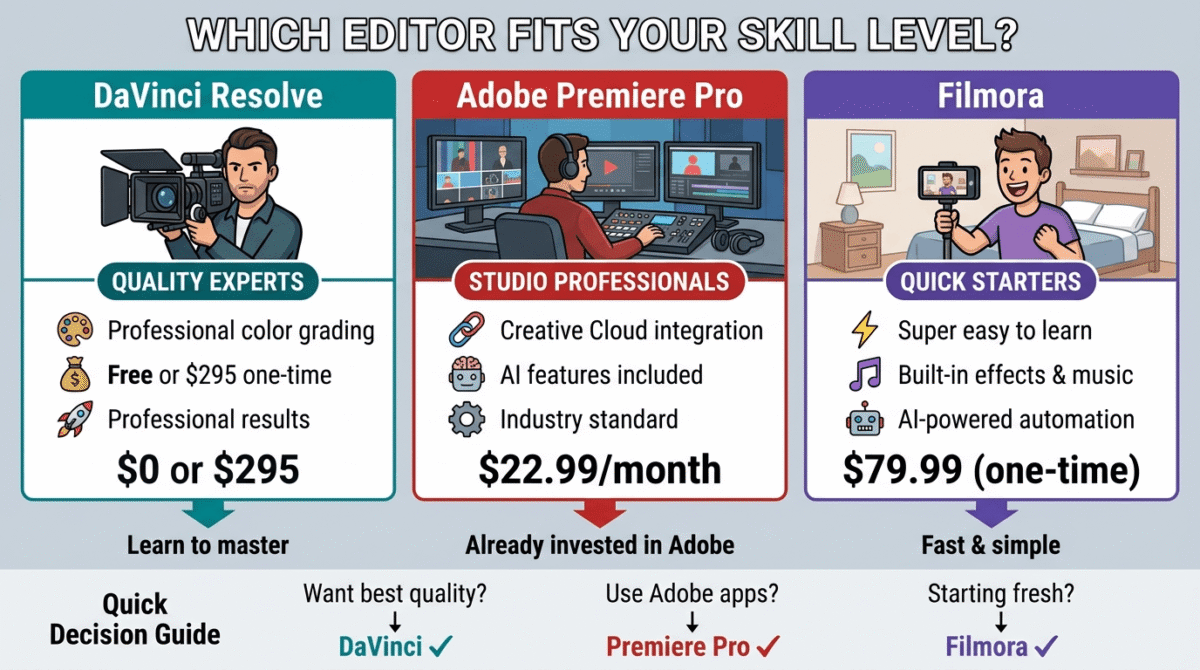
Choose DaVinci Resolve (free) if:
You are willing to invest time learning a professional-grade tool and want the best possible output quality at zero cost. DaVinci Resolve’s free version is the most capable free creative software available, used by professional editors worldwide. If your hardware can run it smoothly (16GB RAM and a dedicated GPU recommended), DaVinci Resolve delivers professional results that justify the learning investment. Also the right choice if you care about cinematic colour grading.
Choose Adobe Premiere Pro if:
You are already an Adobe Creative Cloud subscriber, or you work in a professional environment where After Effects integration, collaboration with other Adobe users, and industry-standard workflows matter. The subscription cost is easier to justify when you use other Adobe apps, Photoshop, After Effects, Audition, in the same creative workflow. Also the right choice for creators who need automatic captioning across 17 languages and the best platform export presets.
Choose Filmora if:
You are a blogger or content creator who wants to add video to your content strategy without spending weeks learning editing software. Filmora’s beginner-friendly interface, built-in asset library, and AI-powered tools produce publishable results faster than any other option. The $79.99 perpetual licence is the most affordable paid entry point, and the mobile apps let you edit wherever your footage is captured.
The Blogger Video Content Strategy
For bloggers adding video to their content strategy, here is the recommended approach by stage:
Stage 1, Starting out: Filmora perpetual licence ($79.99 one-time). Create short tutorial videos for your blog posts, simple YouTube reviews, and social media clips. Focus on learning storytelling and pacing before worrying about advanced editing techniques.
Stage 2, Growing YouTube channel: Upgrade to DaVinci Resolve free. Invest 20–30 hours in learning the Edit and Colour pages. The improvement in video quality, particularly colour grading, will noticeably differentiate your content from competitors using consumer-grade editors.
Stage 3, Professional production: DaVinci Resolve Studio ($295 one-time) for AI tools and maximum quality, or Adobe Creative Cloud All Apps ($59.99/month) if you also use Photoshop, Illustrator, and After Effects for blog graphics and motion content.
Minimum viable video setup for bloggers:
– Camera: Your smartphone (iPhone or modern Android, sufficient for 4K)
– Microphone: Rode VideoMicro ($79), the single biggest quality improvement over built-in audio
– Editing: Filmora perpetual ($79.99) or DaVinci Resolve free
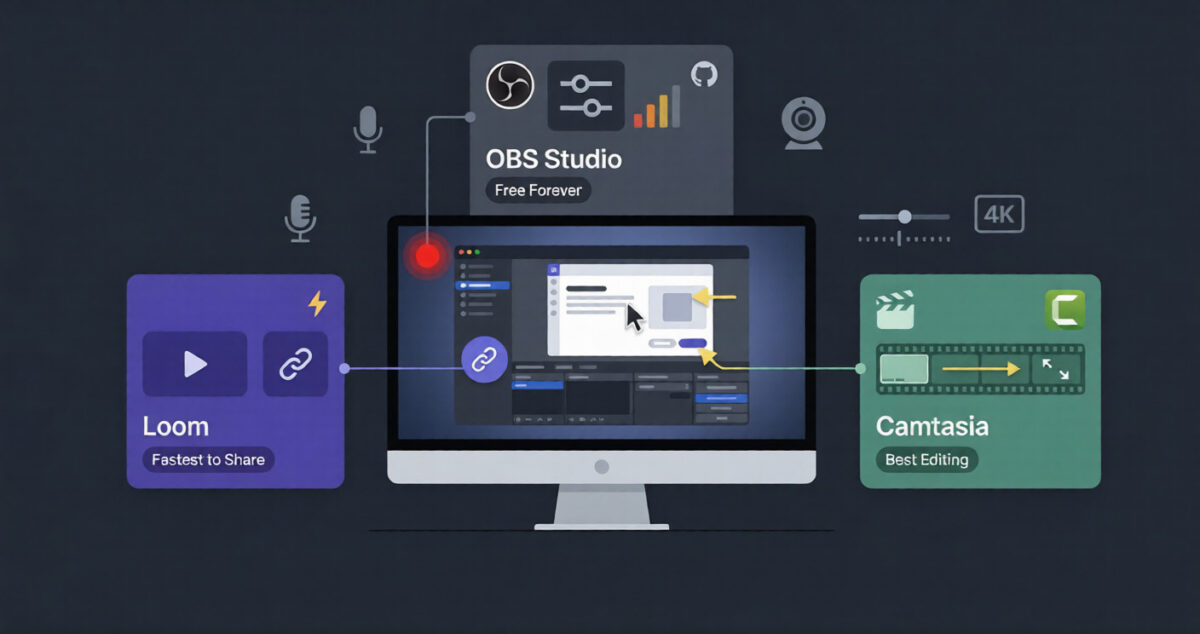
– Screen recording: OBS free (for software tutorial content). See our Loom vs OBS vs Camtasia comparison if you want to record before you edit with something more guided than OBS’s raw setup.
– Total investment: $0–$160 for a complete video production setup
This minimal setup produces video content that competes effectively with most YouTube tutorials in the software review niche, where screen recordings and software demonstrations matter more than cinematic camera work.
Final Verdict
DaVinci Resolve is the best video editing software overall, the free version delivers professional-grade editing, colour grading, audio, and VFX capabilities that no other tool offers at any price. The learning investment is real and the hardware requirements are meaningful, but creators who make that investment produce the highest-quality output available.
Adobe Premiere Pro is the best editor for professionals in the Adobe ecosystem, the Creative Cloud integration, industry-standard workflows, and AI features like Auto Reframe and Speech to Text justify the subscription cost for creators who produce video professionally and use other Adobe apps regularly.
Filmora is the best editor for beginners and bloggers starting their video journey, the fastest path to publishable video content, the most beginner-friendly AI tools, and the lowest barrier to entry make it the right starting point for creators who are not yet ready to invest weeks in learning a professional editor.
Ratings:
– DaVinci Resolve: 4.8 / 5
– Adobe Premiere Pro: 4.5 / 5
– Filmora: 4.4 / 5
Frequently Asked Questions
What is the best free video editing software in 2026?
DaVinci Resolve is the best free video editing software, its free version includes professional-grade colour grading, a full editing timeline, Fairlight audio, and Fusion VFX at no cost. It is used by professional Hollywood editors and produces output quality that rivals $500+ professional editing software. The learning curve is steep, but the capability is unmatched at zero cost.
Is Adobe Premiere Pro worth the subscription?
Cloud integration is valuable. For individual bloggers and content creators who primarily need a reliable editor with good export optiYes, for professional creators already in the Adobe ecosystem or working in environments where Creative ons, DaVinci Resolve Studio ($295 one-time) or Filmora ($79.99 one-time) provide better long-term value without ongoing subscription costs.
Is DaVinci Resolve good for beginners?
Yes, with patience. The Cut page significantly reduces the learning curve for basic editing tasks, simple assembly edits are achievable within a few hours of first use. The full Edit, Colour, Fairlight, and Fusion pages require more substantial investment. Creators who commit to learning DaVinci Resolve gain access to professional-grade tools that serve them at every level, from beginner blog videos to broadcast-quality production.
What video editor do most YouTubers use?
It varies by audience and production level. Beginner and mid-tier YouTubers commonly use Filmora, iMovie (Mac), or CapCut for quick content. Mid-level to professional YouTubers frequently use DaVinci Resolve (especially those prioritising colour) or Adobe Premiere Pro (especially those integrated in the Adobe ecosystem). DaVinci Resolve has grown significantly in YouTube creator adoption since 2020 as creators discovered its free professional capabilities.
Can I edit 4K video in Filmora?
Yes. Filmora supports 4K video editing on both Windows and Mac. Hardware performance matters, 4K editing requires a capable CPU, GPU, and at least 16GB RAM for smooth playback. On capable hardware, Filmora handles 4K footage comfortably. On lower-spec machines, proxy editing (working with lower-resolution copies for editing, then replacing with original files for export) keeps the workflow smooth.
What is the difference between DaVinci Resolve free and Studio?
DaVinci Resolve free includes the full editing timeline, Colour page, Fairlight audio, and Fusion VFX, everything most creators need. DaVinci Resolve Studio ($295 one-time) adds AI-powered tools (Magic Mask for subject isolation, Super Scale for AI upscaling, noise reduction, speed warp for smooth slow motion), collaboration features for teams, and support for certain HDR formats and high frame rates. For individual creators, the free version is sufficient for professional-quality output.
Which video editor is best for social media content?
Filmora is the best for social media content creators, its Auto Beat Sync, platform-specific export presets, mobile apps, and AI tools are specifically designed for the short-form, high-output workflow of social media content. For creators who primarily make TikToks, Instagram Reels, and YouTube Shorts, Filmora’s workflow is faster and more tailored than DaVinci Resolve or Premiere Pro.
How much RAM do I need for video editing?
Minimum 16GB RAM for comfortable 1080p editing. 32GB RAM recommended for 4K editing and complex timelines. DaVinci Resolve is the most RAM-intensive of the three tools, 16GB is the minimum, 32GB is recommended. Filmora runs comfortably on 8–16GB. Adobe Premiere Pro requires 16GB minimum with 32GB recommended for professional workflows. A dedicated GPU with at least 4GB VRAM significantly improves playback performance and rendering speed in all three tools.