WordPress powers 43% of all websites on the internet, and the plugin ecosystem is the primary reason why. With over 60,000 free plugins in the WordPress.org directory alone, you can extend WordPress to do virtually anything.
The problem is not finding plugins. The problem is knowing which ones actually improve your blog and which ones slow it down, conflict with each other, and give you a false sense of productivity while adding zero real value.
As a WordPress developer and blogger, I have tested hundreds of plugins across dozens of sites. This guide covers the best WordPress plugins in 2026 that every blogger actually needs, organised by category, with honest assessments of free versus paid options and exactly what each plugin does for your traffic, income, and productivity.
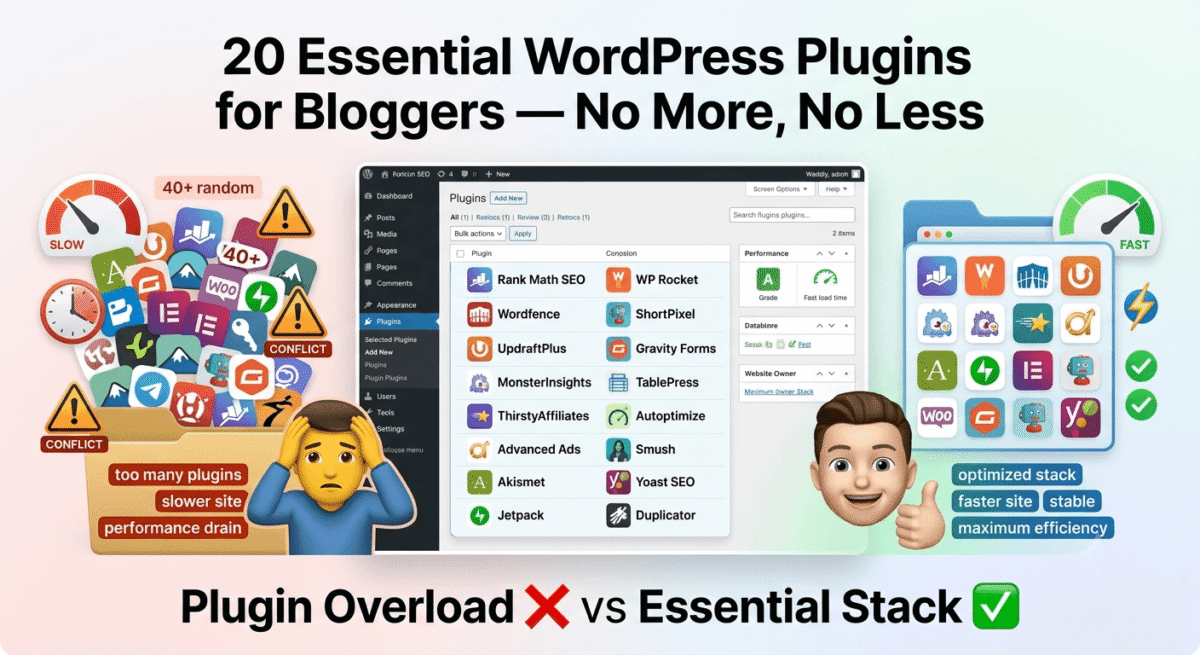
One critical rule before we start: install only the plugins you need: Every plugin adds load time, increases attack surface, and creates potential conflicts. A blog with 10 essential plugins outperforms a blog with 40 random plugins every time. Less is more. If you are just getting started, check out our complete guide on how to start a blog in 2026.
Table of Contents
Category 1: SEO Plugins
1. Rank Math SEO, Free ⭐ Top Pick
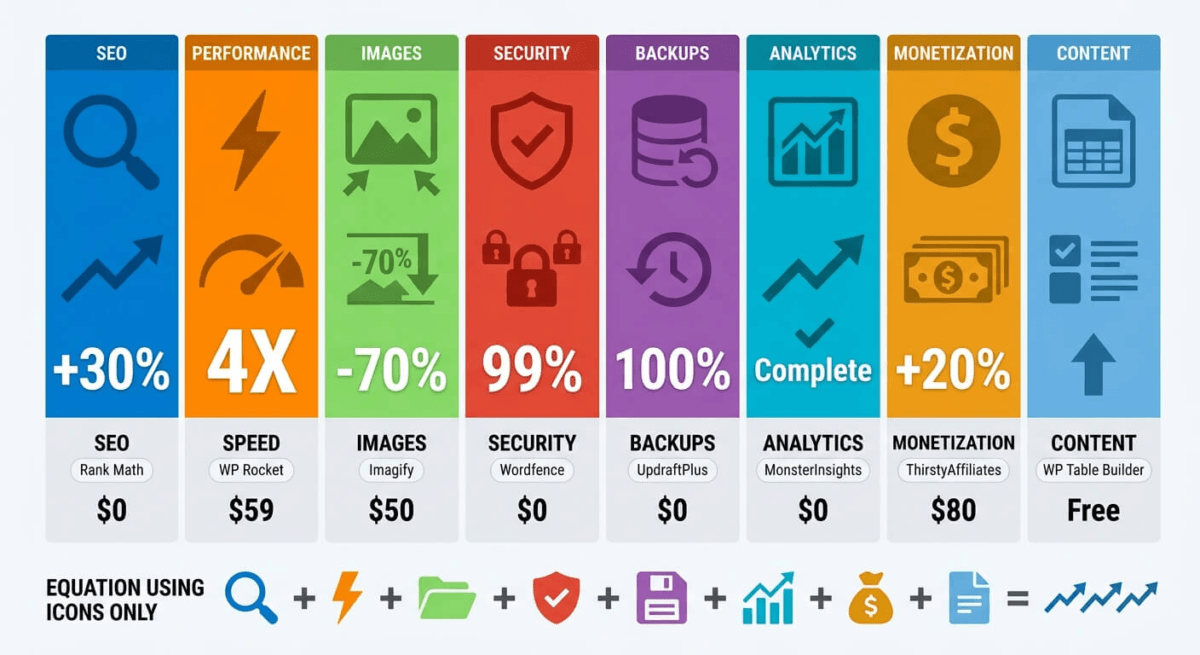
Why you need it: Rank Math is the most powerful free SEO plugin available, and for most bloggers it is the only SEO plugin you will ever need. It handles on-page SEO optimisation, XML sitemap generation, schema markup, redirect management, Google Search Console integration, and keyword rank tracking in a single free plugin. For advanced keyword research and competitor tracking beyond WordPress, you should also compare the best SEO tools in 2026.
What it does:
– On-page SEO analysis with actionable recommendations for every post
– XML sitemap automatically generated and submitted to search engines
– Schema markup for articles, reviews, FAQs, how-to guides, and more
– 301/302 redirect management, essential when you change URLs
– Google Search Console integration showing keyword rankings inside WordPress dashboard
– Local SEO, WooCommerce SEO, and video SEO modules included free
– Multiple focus keywords per post (Yoast limits this to one on the free version)
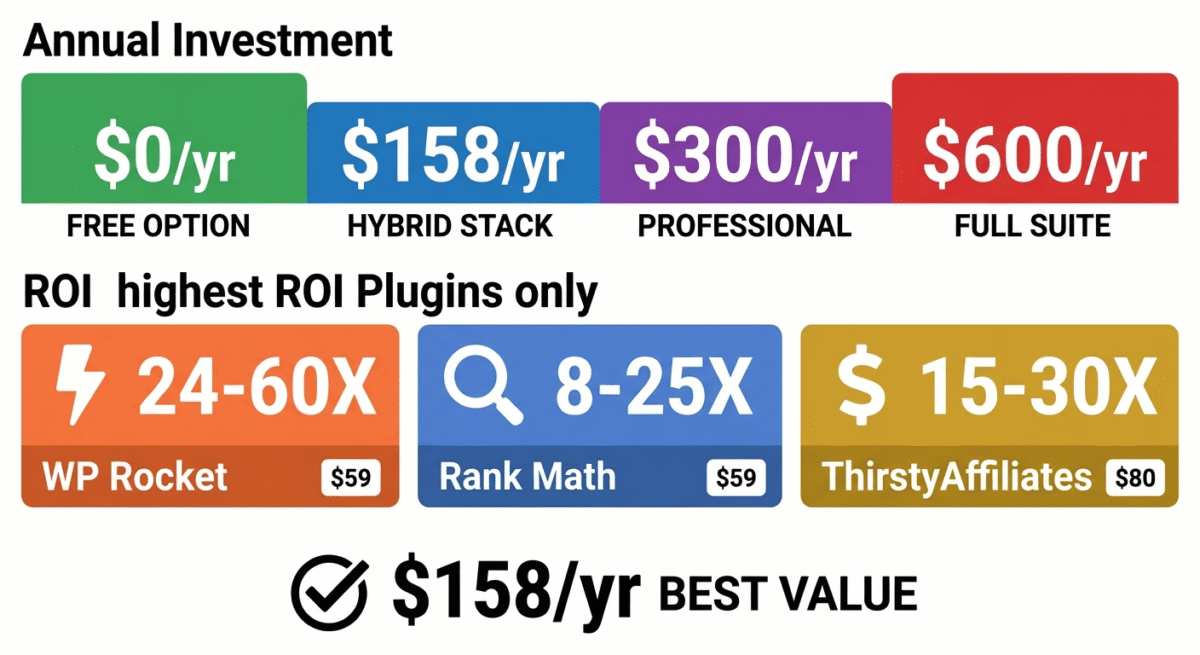
Free vs paid: The free version covers everything 95% of bloggers need. Rank Math Pro ($59/year) adds advanced schema types, keyword rank tracking history, and content AI suggestions, worth it when you want deeper analytics.
Install it: Search “Rank Math SEO” in Plugins → Add New. Run the setup wizard immediately after activation, connect to Google Search Console and enable the modules relevant to your blog.
2. Redirection: Free
Why you need it: Every time you change a post URL, you create a broken link that sends visitors and Google crawlers to a 404 error page, damaging your SEO. Redirection tracks 404 errors and lets you create instant 301 redirects to fix them.
What it does:
– Creates and manages 301/302/307 redirects without touching .htaccess
– Monitors your site for 404 errors and logs which URLs are broken
– Automatically creates redirects when you change a post’s permalink
– Import/export redirect lists for site migrations
Note: Rank Math Pro includes redirect management. If you upgrade Rank Math, you can uninstall Redirection, one less plugin.
Category 2: Performance and Speed Plugins
3. WP Rocket – Paid ($59/year) ⭐ Top Pick
Why you need it: Page speed directly affects your Google rankings, AdSense RPM, and affiliate conversion rates. WP Rocket is the most effective caching and performance plugin available, it improves page load speed more consistently and with less configuration than any free alternative.
What it does:
– Page caching, serves pre-built HTML pages to visitors instead of generating them dynamically
– GZIP compression, reduces file sizes before sending to browsers
– Browser caching, tells browsers to store static files locally
– CSS and JavaScript minification and combination, fewer, smaller files to load
– Lazy loading images, images load only when they scroll into view
– Database optimisation, cleans up post revisions, spam comments, and transients
– CDN integration, connects to Cloudflare and other CDNs with one click
– Preloading, automatically rebuilds cache after updates
Free alternative: W3 Total Cache or LiteSpeed Cache (if your host uses LiteSpeed servers – Hostinger does). LiteSpeed Cache is genuinely excellent and free, if you host on Hostinger, use LiteSpeed Cache instead of WP Rocket and save $59/year.
Install it: Purchase at wp-rocket.me, download the zip, install via Plugins → Add New → Upload Plugin.
4. Imagify: Free tier available
Why you need it: Images are typically the largest files on any blog page. Unoptimised images are the single most common reason for slow page load times. Imagify automatically compresses every image you upload without visible quality loss.
What it does:
– Automatically compresses images on upload, no manual action required
– Converts images to WebP format (smaller than JPEG/PNG, supported by all modern browsers)
– Bulk optimises existing images already uploaded to your media library
– Preserves original images as backups before compression
Free vs paid: The free plan covers 25MB of images per month, sufficient for light bloggers publishing one or two posts per week. The Starter plan at $4.99/month or $49.99/year removes the monthly limit. If you publish daily, the paid plan is worth it.
5. Cloudflare: Free
Why you need it: Cloudflare is not technically a WordPress plugin, it is a CDN (Content Delivery Network) and DNS service that sits in front of your website. But it has a WordPress plugin that connects your site to Cloudflare’s free tier, providing global content delivery, DDoS protection, and performance improvements at zero cost.
What it does:
– Serves your static files (images, CSS, JS) from servers closer to each visitor globally
– Protects against DDoS attacks and malicious traffic
– Free SSL certificate management
– Automatic cache purging when you update your WordPress content
– Page Rules for fine-grained cache control
Free vs paid: Cloudflare’s free plan is sufficient for most bloggers. Pro ($20/month) adds image optimisation and advanced caching rules, only needed for high-traffic sites.
Category 3: Security Plugins
6. Wordfence Security – Free ⭐ Top Pick
Why you need it: WordPress sites are the most targeted websites on the internet, automated bots constantly attempt to brute-force admin passwords, exploit plugin vulnerabilities, and inject malware. Wordfence is the most widely deployed WordPress security plugin for good reason.
What it does:
– Web Application Firewall (WAF), blocks malicious traffic before it reaches WordPress
– Malware scanner, scans all WordPress files, themes, and plugins for infections
– Brute force protection, limits login attempts and blocks repeated failures
– Two-factor authentication for admin login
– Real-time IP blocklist, blocks known malicious IPs automatically
– Login security, CAPTCHA, strong password enforcement, and login URL hiding
– Live traffic monitoring, see every request to your site in real time
Free vs paid: Wordfence Free is sufficient for most blogs. Wordfence Premium ($119/year) adds real-time threat feed updates (free version has a 30-day delay), worth it for high-traffic or e-commerce sites.
Important: Enable the firewall in “Extended Protection” mode and run a full scan immediately after activation. Fix any issues the scan identifies before proceeding.
7. UpdraftPlus: Free ⭐ Top Pick
Why you need it: Your hosting provider’s backups are not sufficient protection. UpdraftPlus creates independent automated backups of your WordPress database and files, stored in a location completely separate from your hosting, Google Drive, Dropbox, Amazon S3, or any other cloud storage.
What it does:
– Automated scheduled backups, daily database, weekly full site
– Stores backups in Google Drive, Dropbox, S3, OneDrive, FTP, or email
– One-click restoration from any backup point
– Incremental backups (UpdraftPlus Premium), backs up only changed files
– Multisite support and migration tools on premium
Configuration: Settings → UpdraftPlus Backups → Settings tab → set schedule (daily for database, weekly for files) → connect to Google Drive → save. Takes five minutes and provides irreplaceable protection.
8. WP Hide Login – Free
Why you need it: The default WordPress admin login URL (yourdomain.com/wp-admin) is known to every automated bot on the internet. Changing it to something non-standard (yourdomain.com/rtt-login or any custom slug) eliminates the vast majority of brute-force login attempts before Wordfence even sees them.
What it does:
– Changes your WordPress login URL to any custom path you choose
– Returns a 404 error for requests to the default /wp-admin and /wp-login.php URLs
– Zero performance impact, simple redirect rule, no database queries
Important: Note your new login URL before activating, if you forget it, you will need FTP access to log in.
Category 4: Analytics and Tracking Plugins
9. MonsterInsights – Free
Why you need it: Google Analytics 4 requires adding a tracking code to your site. MonsterInsights connects WordPress to GA4 without touching theme files, and automatically tracks affiliate link clicks, file downloads, and form submissions as GA4 events.
What it does:
– Connects WordPress to Google Analytics 4 with one click, no code editing
– Shows key GA4 metrics inside your WordPress dashboard
– Automatically tracks outbound link clicks, including affiliate links
– Tracks form submissions, file downloads, and e-commerce transactions
– Enhanced link attribution, shows which specific links visitors click
Free vs paid: MonsterInsights Lite (free) covers GA4 connection and basic tracking. The Pro version ($99.50/year) adds advanced e-commerce tracking, custom dimensions, and detailed affiliate link reports, worth it when affiliate income is your primary revenue source.
Category 5: Monetization Plugins
10. ThirstyAffiliates: Free ⭐ Top Pick
Why you need it: Affiliate links are long, ugly, and immediately recognisable as affiliate links, which reduces click-through rates. They also break when affiliate programs change their URLs. ThirstyAffiliates solves both problems.
What it does:
– Cloaks affiliate links, turns ugly affiliate URLs into clean branded links (ratethetool.com/go/nordvpn)
– Manages all affiliate links in one place, update a URL once and it changes everywhere
– Tracks clicks on every affiliate link, see which posts and which links generate the most clicks
– Automatically adds rel=”nofollow sponsored” to all affiliate links (Google’s requirement)
– Inserts affiliate links into posts by keyword, type “NordVPN” and it automatically links
– Categorises affiliate links by program for easy management
– Geolocation redirects, send US visitors to US affiliate link, UK visitors to UK link
Free vs paid: ThirstyAffiliates Free covers the essentials. ThirstyAffiliates Pro ($79.50/year) adds automatic keyword linking, click statistics, geolocation, and link health checker, worth it when managing 50+ affiliate links across dozens of posts.
11. Advanced Ads: Free
Why you need it: Once your AdSense is approved, placing ads in the optimal positions, after the first paragraph, in the middle of content, in the sidebar, requires either coding knowledge or a plugin. Advanced Ads handles all AdSense placement without touching your theme.
What it does:
– Places AdSense ads in any position, above content, after first paragraph, between paragraphs, sidebar, footer
– Rotates multiple ads in the same position for A/B testing
– Schedules ads to show or hide at specific times
– Targets ads to specific posts, categories, or user types
– Lazy loads ads to improve page speed
– Prevents accidental invalid clicks (clicking your own ads, an AdSense policy violation)
Configuration: After AdSense approval, copy your ad unit codes from AdSense → paste into Advanced Ads → set placement positions. Start with: one unit after the first paragraph, one after the last paragraph, one in the sidebar.
12. WooCommerce – Free (if selling products)
Why you need it: If you plan to sell digital products (ebooks, templates, courses) directly from your WordPress blog, WooCommerce is the most widely used and most extensible e-commerce plugin available, and it is free.
What it does:
– Creates a complete online store within WordPress
– Sells physical products, digital downloads, subscriptions, and appointments
– Accepts payments via Stripe, PayPal, and dozens of other gateways
– Manages orders, customers, and inventory
– Integrates with your existing WordPress theme
Note: Only install WooCommerce if you plan to sell products directly. If you are monetizing exclusively through AdSense and affiliate marketing, skip WooCommerce, it adds significant complexity and load time to a blog that does not need e-commerce.
Category 6: Content and UX Plugins
13. WP Table Builder: Free
Why you need it: Comparison tables are the highest-converting content format for software review blogs, they present multiple products’ features, pricing, and ratings at a glance. WP Table Builder creates professional comparison tables without HTML knowledge.
What it does:
– Drag-and-drop table builder, no coding required
– Responsive tables that display correctly on mobile
– Star ratings, buttons, images, and icons inside table cells
– Sortable columns for visitor-controlled sorting
– Import/export tables between posts
Alternative: TablePress is another excellent free option with a slightly different interface, equally good for comparison tables.
14. Smash Balloon Social Photo Feed – Free (if using social media)
Why you need it: Displaying your Instagram feed on your blog sidebar or homepage increases social proof, keeps content fresh, and encourages visitors to follow your social accounts, which builds a distribution channel independent of Google.
What it does:
– Displays Instagram, Facebook, Twitter/X, YouTube, or TikTok feeds on your site
– Fully customisable grid, masonry, or carousel layout
– Caches feed data locally, does not slow your site with external API calls
– Mobile-responsive and lazy-loaded
15. Broken Link Checker – Free
Why you need it: As the software tools you review update their pricing, change their URLs, or discontinue products, your affiliate links and internal links break, returning 404 errors that damage reader trust and SEO. Broken Link Checker monitors every link on your site automatically.
What it does:
– Scans all posts and pages for broken links
– Sends email alerts when broken links are detected
– Allows editing broken links directly from the plugin dashboard without opening each post
– Checks both internal links and external links including affiliate links
Important performance note: Broken Link Checker can slow your site if left running continuously on a live site. Configure it to run during low-traffic hours (3am–6am) and disable continuous monitoring after the initial scan is complete.
16. Insert Headers and Footers – Free
Why you need it: Many tools, Google Analytics, Google Search Console verification, AdSense, Facebook Pixel, and others, require adding code to your site’s header or footer. Editing theme files directly risks losing changes on theme updates. Insert Headers and Footers adds code safely without theme file editing.
What it does:
– Adds custom code to the header (before `</head>`) or footer (before `</body>`) of every page
– Survives theme updates, code is stored in the database, not theme files
– No coding knowledge required, paste the code and save
Category 7: Forms and Lead Generation
17. WPForms Lite – Free
Why you need it: Every blog needs a contact form. WPForms Lite creates professional contact forms in minutes with drag-and-drop, no coding required. Required for AdSense approval (Google requires a contact method) and for reader and partner communication.
What it does:
– Drag-and-drop form builder, create contact forms in minutes
– Spam protection with CAPTCHA and honeypot fields
– Email notifications when forms are submitted
– Connects to ConvertKit, Mailchimp, and other email marketing tools
– Mobile-responsive forms that work on all devices
Free vs paid: WPForms Lite covers basic contact forms. WPForms Pro ($49.95/year) adds conditional logic, multi-page forms, file uploads, and payment collection, needed for advanced lead generation forms.
18. ConvertKit for WordPress – Free
Why you need it: Growing your email list is the most important long-term marketing strategy for any blogger. The ConvertKit WordPress plugin adds opt-in forms, landing pages, and subscriber management to your WordPress site, connected to your ConvertKit email marketing account.
What it does:
– Embeds ConvertKit opt-in forms anywhere on your site, inline, popup, or slide-in
– Connects to your ConvertKit account for subscriber management
– Tags subscribers based on which form they used, enabling targeted email sequences
– Works with Gutenberg blocks for easy form insertion in posts
Category 8: Developer and Technical Plugins
19. Query Monitor – Free
Why you need it: As a WordPress developer, Query Monitor is your most important debugging tool. It shows database queries, PHP errors, hook execution, AJAX calls, and performance data for every page load, essential for diagnosing plugin conflicts, slow queries, and theme issues.
What it does:
– Displays all database queries with execution time, identifies slow queries
– Shows PHP errors and warnings in the admin bar
– Lists all hooks and filters fired on each page load
– Displays REST API calls and AJAX requests
– Identifies which plugin or theme is responsible for each query
Note: Disable or uninstall Query Monitor on production sites once development is complete, it exposes technical information that should not be visible to the public.
20. Duplicate Post – Free
Why you need it: When you have established a post structure that works, introduction, comparison table, individual reviews, verdict, FAQ, you want to replicate it for every new post without recreating it from scratch. Duplicate Post clones any post or page with one click.
What it does:
– Duplicates any post, page, or custom post type with one click
– Creates a draft copy preserving all content, categories, tags, and metadata
– Rewrite and Republish feature lets you update an existing post by working on a draft copy, the live post stays unchanged until you publish the update
The Minimal Plugin Stack for RateTheTool.com
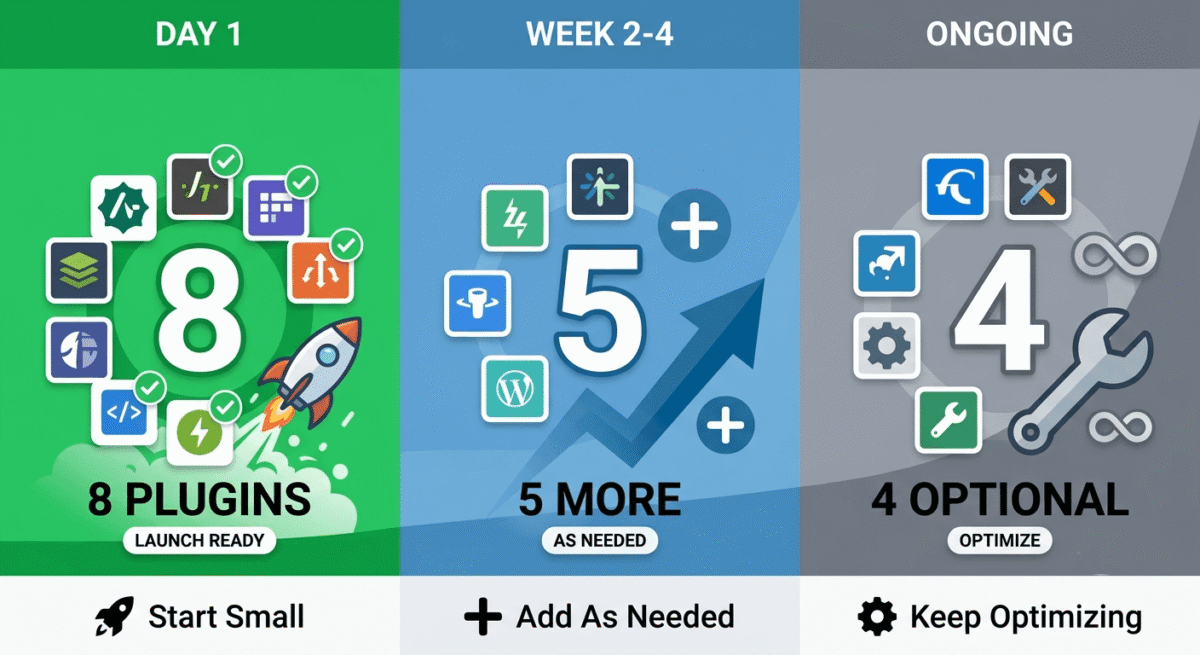
As a WordPress developer launching a software review blog, here is the exact plugin set to install on day one, nothing more:
Must install immediately (8 plugins):
1. Rank Math SEO, SEO foundation
2. WP Rocket or LiteSpeed Cache, performance
3. Imagify, image optimisation
4. Wordfence Security, security firewall
5. UpdraftPlus, automated backups
6. MonsterInsights, Google Analytics connection
7. ThirstyAffiliates, affiliate link management
8. Advanced Ads, AdSense placement (after approval)
Install when needed:
9. WPForms Lite, when setting up contact page
10. ConvertKit plugin, when starting email list
11. WP Table Builder, when adding comparison tables to posts
12. Broken Link Checker, weekly check, then disable
13. Insert Headers and Footers, for any header/footer code needs
14. WP Hide Login, security hardening
15. Redirection, when any URL changes
Total: 8 active plugins on launch day. This is the minimum viable plugin stack for a professional, fast, secure, SEO-optimised WordPress blog.
Plugin Performance Impact – What to Avoid
As a developer you already know this, but for the record, these common plugins cause significant performance or conflict issues and should be avoided:
Avoid these:
– Jetpack does many things poorly instead of one thing well. Replace with individual focused plugins.
– WP Super Cache outdated. Use WP Rocket or LiteSpeed Cache instead.
– Akismet fine for spam filtering but requires an API key and adds a server request. Use Wordfence’s spam protection instead.
– Social sharing plugins with loaded scripts, use lightweight alternatives or simple HTML sharing buttons
– Multiple SEO plugins simultaneously never install both Rank Math and Yoast. Pick one.
– Excessive slider plugins sliders kill page speed. Use static hero images instead.
Once your site is live, you should also set up the best email marketing software to start building your subscriber list. To properly measure your traffic growth, you should integrate your site with the best website analytics tools.
Frequently Asked Questions
How many WordPress plugins should a blog have?
Ideally 10–15 actively running plugins for a standard blog. Each plugin adds PHP execution time, database queries, and potential conflicts. The benchmark: every plugin you install should either improve your Google rankings, increase your income, protect your site, or save you meaningful time. If a plugin does none of these things, uninstall it.u003cbru003e
Are free WordPress plugins safe?
Plugins from the official WordPress.org directory go through a review process and are generally safe. The risks come from: abandoned plugins that have not been updated in years (vulnerabilities are never patched), plugins from unverified third-party sources outside WordPress.org, and poorly coded plugins that conflict with others. Always check the last updated date and active installation count before installing any plugin.u003cbru003e
What is the best free SEO plugin for WordPress?
Rank Math SEO is the best free SEO plugin for WordPress in 2026. It provides more features than Yoast SEO’s free version, including multiple focus keywords, advanced schema markup, redirect management, and Google Search Console integration, all at zero cost.u003cbru003e
Does having too many plugins slow down WordPress?
Yes, each active plugin adds PHP processing time on every page load. However, the number of plugins matters less than the quality of plugins. Ten poorly coded plugins slow a site more than 20 well-coded ones. The most performance-damaging plugins are those that run heavy database queries, load external scripts, or add large CSS/JavaScript files on every page. Use Query Monitor to identify which plugins affect your site’s performance.u003cbru003e
What is the best WordPress caching plugin?
WP Rocket is the best premium caching plugin, it improves page speed more consistently and requires less configuration than any alternative. If you host on Hostinger (which uses LiteSpeed servers), LiteSpeed Cache is the best free alternative, it integrates directly with the server-level cache for superior performance. For other hosting environments, W3 Total Cache or WP Super Cache are free alternatives, though neither matches WP Rocket’s ease of use.u003cbru003e
Do I need a WordPress security plugin?
Yes. WordPress sites are targeted by automated bots constantly attempting to brute-force admin passwords, exploit plugin vulnerabilities, and inject malware. A security plugin like Wordfence provides a web application firewall, malware scanning, and brute force protection that significantly reduces your attack surface. Combine Wordfence with WP Hide Login (changing your default admin URL) and strong unique passwords for robust security.u003cbru003e
What WordPress plugins do professional bloggers use?
Most professional bloggers use a core stack of: an SEO plugin (Rank Math or Yoast), a caching plugin (WP Rocket or LiteSpeed Cache), an image compression plugin (Imagify or ShortPixel), a security plugin (Wordfence), a backup plugin (UpdraftPlus), an analytics plugin (MonsterInsights), and an affiliate link management plugin (ThirstyAffiliates). Additional plugins depend on specific monetization and content strategies.u003cbru003e