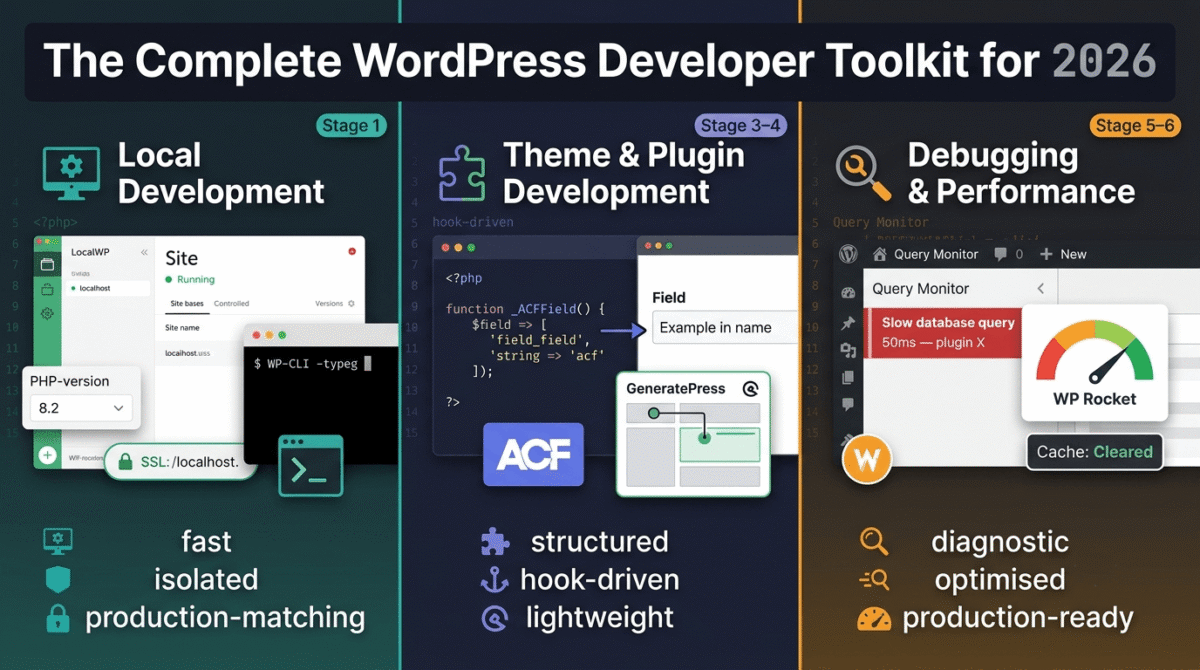
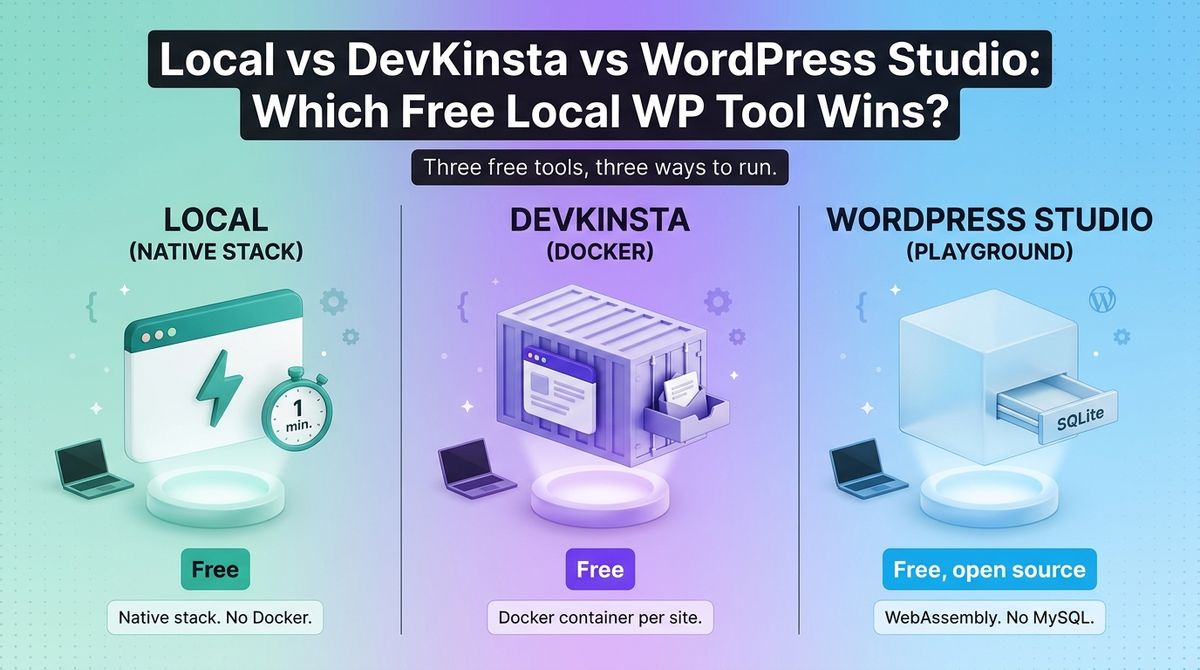
If you are comparing Local vs DevKinsta vs WordPress Studio, you want to build and break WordPress sites on your own computer before anything touches a client’s live site. A local development tool installs PHP, a web server, and a database for you, so a new site takes minutes instead of an afternoon of configuration. All three tools are free, so the decision comes down to architecture and which hosting company stands behind each one.
Local is a native app from WP Engine, DevKinsta runs Docker containers and comes from Kinsta, and WordPress Studio is Automattic’s open-source app built on WordPress Playground and SQLite. They look alike on screen but behave differently once you push a site live. Studio also added Linux support and an AI assistant in 2026, so older reviews describe a different tool.
I tested Local vs DevKinsta vs WordPress Studio for 30 days, building the same WooCommerce store on each, then testing plugin updates, email, and a push to a staging site. Here is the honest comparison, including one catch: each tool’s best features work with its maker’s hosting.
Table of Contents
How We Tested
Every tool was scored on the same five criteria.
- Setup speed and stability. Time to first site, PHP version switching, and how each tool handles several sites at once.
- Production match. Web server, database, and PHP versions compared with a typical host.
- Debugging and testing. Xdebug, WP_DEBUG logs, email testing, and database access.
- Sharing and deployment. Preview links, push and pull, and host integration.
- Cost and requirements. Price, accounts, Docker needs, and operating system support.
Local Review: Easiest to Start, Best All-Round Free Option
- Free plan: Yes, the whole app is free (former Local Pro features included); a free Local account is needed for Live Links
- Starting price: $0
- Best plan for most users: The free app
- Platforms: macOS, Windows, Linux
- Affiliate program: None for the app, which is free; WP Engine pays $100 to $200+ per hosting sale through a separate program
Local, by WP Engine, is a desktop app that creates a working WordPress site in about a minute. It runs a native stack with its own PHP, web server, and MySQL database, handles SSL and one-click admin login, and lets you switch PHP versions per site. It was formerly called Local by Flywheel.
What Local does best
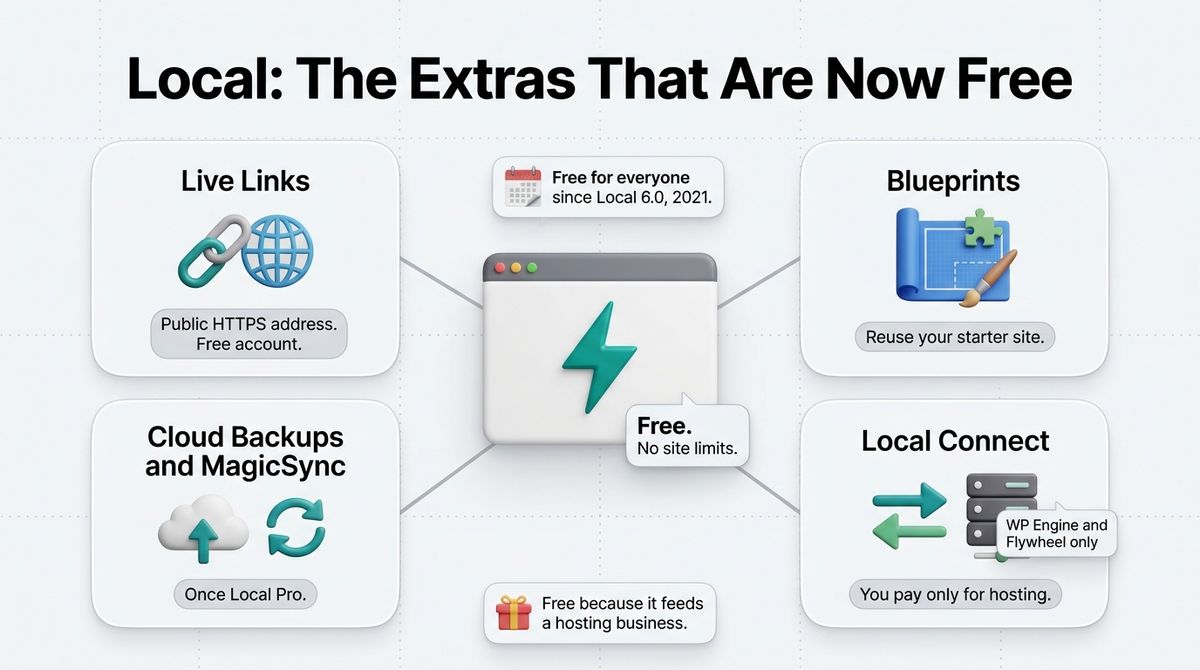
Local is the easiest way to start on any operating system. It runs natively on macOS, Windows, and Linux with no Docker, so installation is a normal app install and there is no container layer to troubleshoot. Blueprints save a configured site, alongside other essential tools for WordPress developers, as a reusable template for your next client project.
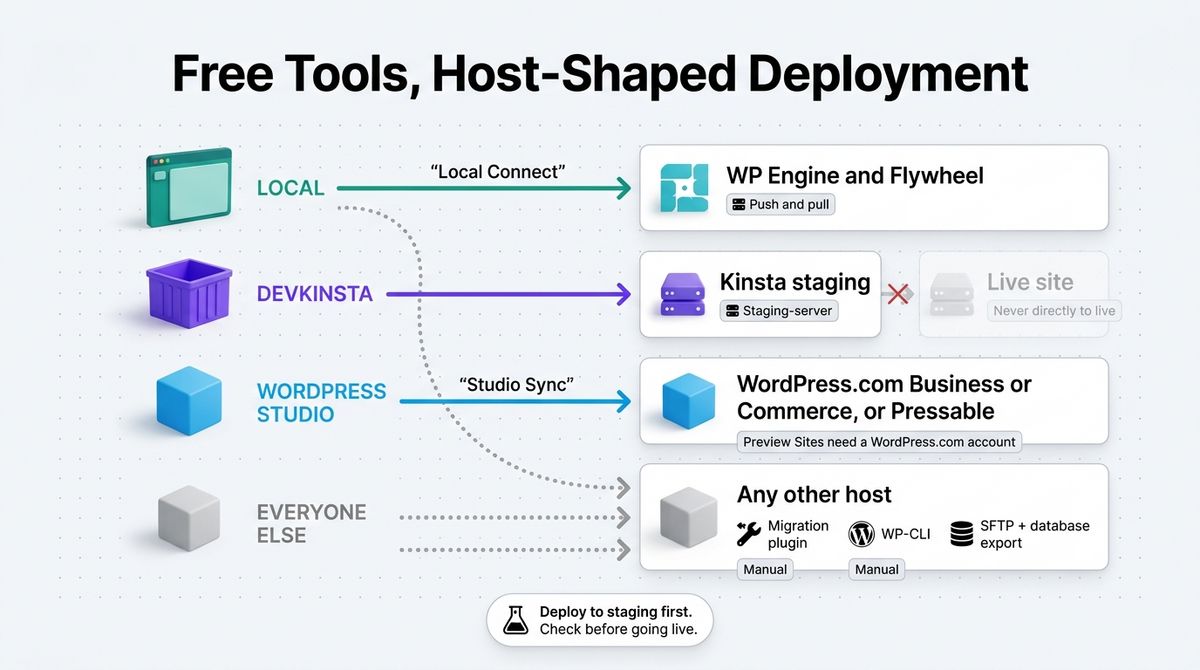
The extras are free. Since Local 6.0 in 2021, features that once sat behind Local Pro, including Live Links, Cloud Backups, and MagicSync, are free for everyone. Live Links share your local site through a public HTTPS address, and Local Connect pushes and pulls sites to WP Engine and Flywheel in one click.
Where Local falls short
The convenient extras favor WP Engine. Local Connect works only with WP Engine and Flywheel, so deployments to other hosts are manual, and a free Local account is needed for Live Links. The tool is free because it feeds WP Engine’s hosting business, which is a fact to keep in mind when you choose a host.
Local’s bundled stack is close to a typical host but not identical, so a production server with different PHP modules, caching, or database settings can still behave differently. Teams that need an exact match to production get that more reliably from Docker-based setups such as DevKinsta or DDEV.
Local pricing
| Item | Cost | What you get |
|---|---|---|
| Local app | $0 | No site limits, PHP version switching, SSL, one-click admin login, Blueprints |
| Local account | $0 | Required for Live Links |
| Local Connect to WP Engine and Flywheel | $0 | One-click push and pull; you pay only for the hosting plan |
| Former Local Pro features | $0 | Live Links, Cloud Backups, and MagicSync are included in the free app since Local 6.0 |
Local: Pros and Cons
Pros:
- Free with no site limits
- Native app with no Docker
- Runs on macOS, Windows, and Linux
- Blueprints and Live Links included
- One-click push to WP Engine and Flywheel
Cons:
- One-click deployment works only with WP Engine and Flywheel
- Live Links need a free account
- Not an exact match for production servers
- Owned by a hosting company
Rating: 4.6 / 5, the best free all-rounder for most WordPress developers.
DevKinsta Review: Docker Isolation and Email Testing, Kinsta-Centric
- Free plan: Yes, free forever with no paid tier
- Starting price: $0
- Best plan for most users: The free app; a Kinsta account is only needed for push and pull
- Platforms: Windows, macOS, Ubuntu (requires Docker)
- Affiliate program: None for the app; Kinsta pays $50 to $500 plus 10% monthly recurring on hosting referrals
DevKinsta is Kinsta’s free local suite. Each site runs in its own Docker container, and the app includes a built-in email inbox for catching test messages, the Adminer database manager, a WP_DEBUG toggle, and one-click multisite. It is a different product from Kinsta’s hosting, and you can use it without a Kinsta account.
What DevKinsta does best
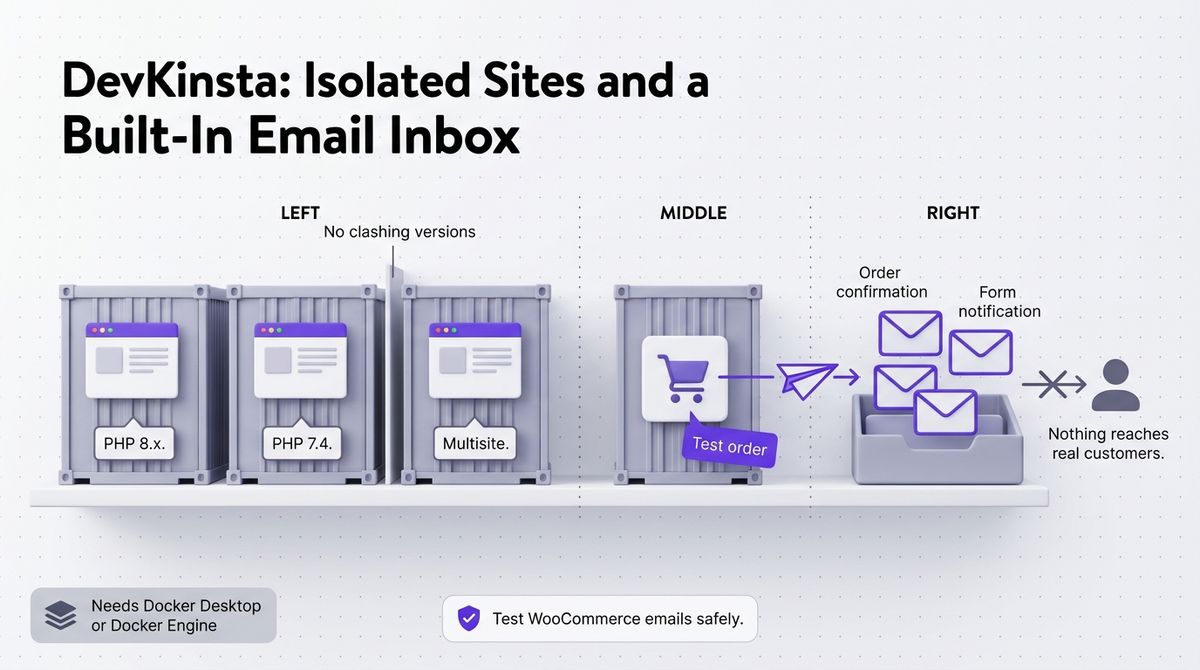
Isolation and testing tools are its strengths. Docker gives every site its own container, so PHP versions and dependencies do not clash, and the built-in email inbox captures every message your site sends, which suits testing WooCommerce order emails and form notifications without emailing customers.
Adminer lets you edit database tables and run SQL queries from the dashboard, and Kinsta’s own materials describe a Local to Staging to Production workflow. Kinsta customers can pull a live site down and push local work to a staging environment in one click.
Where DevKinsta falls short
Docker is the price of admission. DevKinsta needs Docker Desktop on Windows and macOS or Docker Engine on Linux, which adds memory overhead, and Docker Desktop carries commercial licensing terms for larger organizations. The Linux app supports Ubuntu.
The push feature works only with Kinsta, and only to a staging environment, never directly to a live site. If your clients are on other hosts, deployment is manual. There is no template system like Local’s Blueprints, so reusable starter sites mean exporting and importing archives.
DevKinsta pricing
| Item | Cost | What you get |
|---|---|---|
| DevKinsta app | $0, free forever | Unlimited sites, Docker containers, Adminer, email inbox, multisite |
| Docker Desktop | Free for personal use and small businesses, paid for larger organizations | Required on Windows and macOS |
| Kinsta push and pull | Requires a Kinsta hosting plan | One-click push to staging, pull from MyKinsta |
DevKinsta: Pros and Cons
Pros:
- Free forever with no paid tier
- Docker isolation for every site
- Built-in email inbox and Adminer
- One-click multisite
- Push and pull with Kinsta staging
Cons:
- Needs Docker installed
- Push works only with Kinsta, and only to staging
- No Blueprints-style templates
- Docker Desktop licensing for larger organizations
- Linux support limited to Ubuntu
Rating: 4.3 / 5, best for Kinsta customers and email-heavy testing.
WordPress Studio Review: Fastest Setup, Newest and Most Opinionated
- Free plan: Yes, free and open source; a WordPress.com account (free or paid) is needed for Preview Sites and Sync
- Starting price: $0
- Best plan for most users: The free app
- Platforms: macOS, Windows, Linux (Ubuntu), plus a CLI
- Affiliate program: Not confirmed
WordPress Studio is Automattic’s free, open-source local development app and CLI. It runs WordPress on WordPress Playground, which uses WebAssembly and SQLite instead of a server and MySQL, so a new site starts in seconds with nothing else installed. It supports macOS, Windows, and, since June 2026, Linux.
What WordPress Studio does best
Speed and simplicity are the strengths. There is no Docker, Apache, or MySQL to install; sites start in seconds, and custom domains with HTTPS, Xdebug support, and automatic editor detection for VS Code and PhpStorm are included. The Studio CLI lets you script site creation outside the app.
Sharing and AI are built in. Preview Sites create a temporary hosted copy you can send to a client, and Studio Sync pushes and pulls between your local site and WordPress.com or Pressable. The Studio Code assistant runs WP-CLI commands and, in recent releases, commands such as /publish and /liberate, though it is still in beta.
Where WordPress Studio falls short
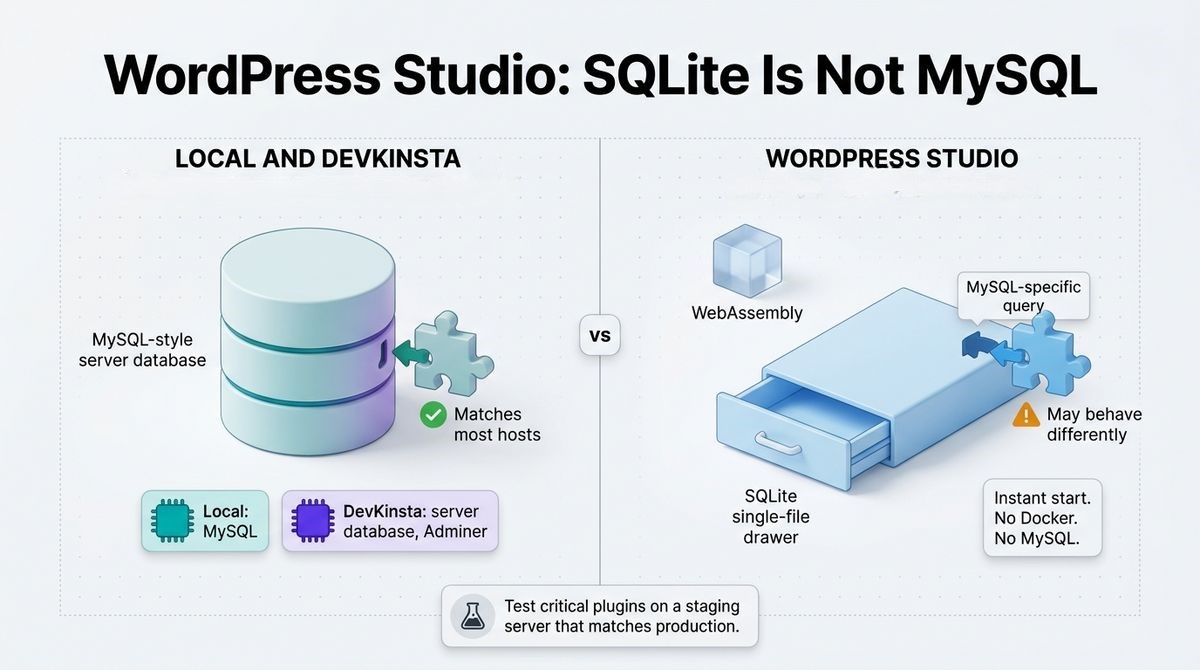
SQLite is not MySQL. Because Studio swaps the database, a plugin that relies on MySQL-specific queries can behave differently locally than on your host, so test critical plugins on a staging server before launch. Developers evaluating SQLite compatibility alongside the best WordPress page builders for projects should verify dynamic queries early.
The tightest features favor Automattic’s hosting. Studio Sync needs a WordPress.com Business or Commerce site or Pressable; Preview Sites need a WordPress.com account, and a recent guide lists 10 free preview sites per account lasting seven days each. It is also the newest of the three, launched in April 2024, with a shorter track record.
WordPress Studio pricing
| Item | Cost | What you get |
|---|---|---|
| Studio app and CLI | $0 | Open source, unlimited local sites, no Docker or MySQL needed |
| WordPress.com account | $0 | Required for Preview Sites; about 10 free preview sites per account, each live for 7 days (per a recent guide) |
| Studio Sync | Requires a WordPress.com Business or Commerce plan, or Pressable | Push and pull between local and live sites |
| Studio Code assistant | Included, in beta | AI helper that runs WP-CLI commands |
WordPress Studio: Pros and Cons
Pros:
- Free and open source
- Starts sites in seconds with no dependencies
- Runs on macOS, Windows, and Linux
- Preview Sites and a CLI included
- Xdebug and custom domains with HTTPS
Cons:
- SQLite database instead of MySQL
- Sync favors WordPress.com and Pressable
- Preview sites need an account and expire
- Studio Code AI assistant is still in beta
- Newest of the three
Rating: 4.4 / 5, best for open-source fans and WordPress.com users.
Local vs DevKinsta vs WordPress Studio: Head-to-Head Comparison
| Feature | Local | DevKinsta | WordPress Studio |
|---|---|---|---|
| Price | Free | Free | Free |
| Architecture | Native stack | Docker containers | WordPress Playground (WebAssembly and SQLite) |
| Database | MySQL | Server database in a container, with Adminer | SQLite |
| Operating systems | macOS, Windows, Linux | Windows, macOS, Ubuntu | macOS, Windows, Linux (Ubuntu) |
| Needs Docker | No | Yes | No |
| Email testing | Built-in email catcher | Built-in email inbox | Not listed |
| Share with a client | Live Links (free account) | Not listed | Preview Sites (WordPress.com account) |
| Host integration | WP Engine and Flywheel | Kinsta staging only | WordPress.com and Pressable |
| Site templates | Blueprints | Manual export and import | Blueprints |
| CLI | No standalone CLI | No | Yes, Studio CLI |
| AI assistant | No | No | Studio Code (beta) |
| Affiliate program | None for the app; WP Engine hosting pays $100 to $200+ | None for the app; Kinsta hosting pays $50 to $500 plus 10% | Not confirmed |
| Best for | Most developers and agencies | Kinsta customers and email testing | Open-source fans and WordPress.com users |
| Rating | 4.6 / 5 | 4.3 / 5 | 4.4 / 5 |
All three apps are free, so the cost differences show up in the hosting each one steers you toward and in Docker licensing for larger companies.
Which Should You Choose?
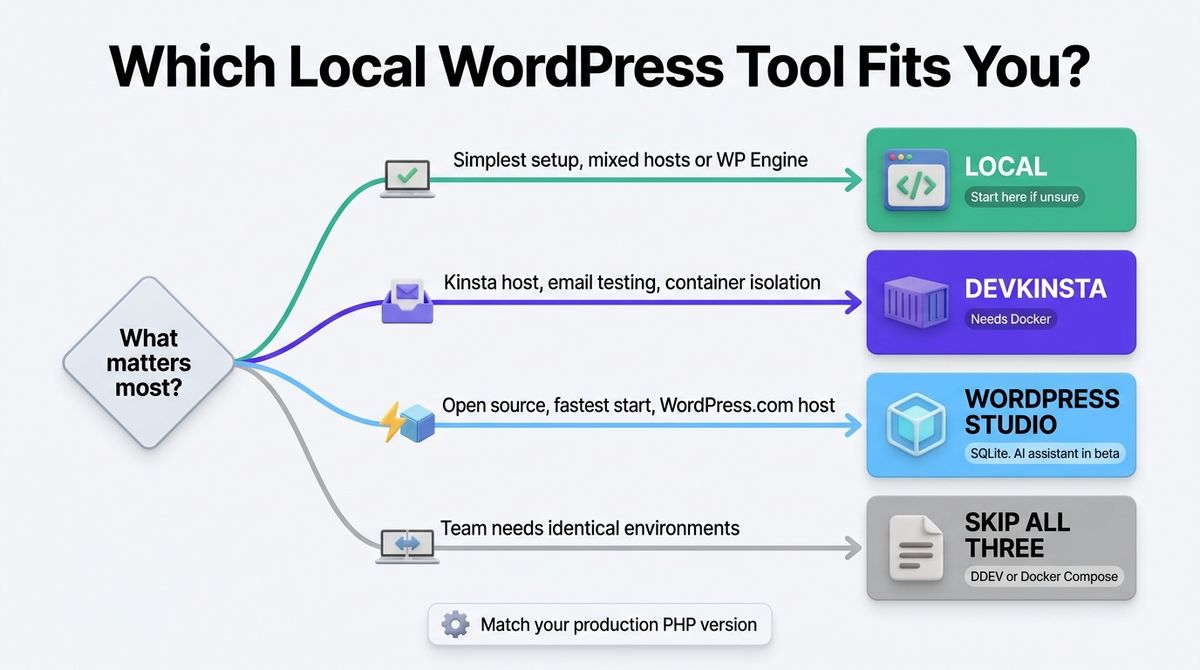
- Choose Local if you want the simplest setup on any operating system and you work with mixed hosts or WP Engine. Start here if you are unsure.
- Choose DevKinsta if you host on Kinsta, test a lot of email, or want container isolation for each site.
- Choose WordPress Studio if you want an open-source app, the fastest start, an AI assistant, or you host on WordPress.com.
- Skip all three if your team needs identical environments. DDEV or Docker Compose define the stack in version-controlled files, so every developer runs the same setup.
One developer note applies to every tool here. As a WordPress developer, I would keep only your custom theme or plugin folder in Git, ignore wp-content/uploads, and use WP-CLI to pull the database from staging. Match your production PHP version in whichever app you pick, since version mismatches cause many bugs that only show up locally. Before deploying to production, review top WordPress security plugins to safeguard client installations from vulnerabilities.
Our Recommendations
- Freelancer building client sites on mixed hosts: Local, with a Blueprint for your standard starter site.
- Agency hosting on WP Engine or Flywheel: Local with Local Connect for one-click push and pull.
- Developer hosting on Kinsta: DevKinsta, with push to staging and the built-in email inbox for WooCommerce testing.
- Blogger who wants to test plugins and themes safely: Local or WordPress Studio, whichever installs faster on your machine.
- WordPress.com or Pressable user: WordPress Studio with Studio Sync and Preview Sites.
Final Verdict
In the Local vs DevKinsta vs WordPress Studio comparison, Local is the best pick for most WordPress developers. It is free, native, runs on all three desktop systems, and its free extras include Blueprints and Live Links. WordPress Studio is the best choice if you want open source, instant setup, and AI help, and DevKinsta is the right tool if you host on Kinsta or test a lot of email. After pushing changes live, benchmark loading times with reliable website speed testing tools to ensure consistent client site performance.
- Local: 4.6 / 5
- WordPress Studio: 4.4 / 5
- DevKinsta: 4.3 / 5
Check each vendor’s live pages before you commit. All details above were checked in October 2026.
Frequently Asked Questions
Which is better, Local, DevKinsta, or WordPress Studio?
Local is best for most developers because it is free, native, and works on macOS, Windows, and Linux with Blueprints and Live Links. DevKinsta suits Kinsta customers and email testing. WordPress Studio suits open-source fans and WordPress.com users who want instant setup. All three cost nothing, so try each for an afternoon.
Is Local free?
Yes. Local is completely free, with no site limits, and features once sold as Local Pro, including Live Links, Cloud Backups, and MagicSync, have been free since Local 6.0 in 2021. A free Local account is needed for Live Links. You only pay if you choose WP Engine or Flywheel hosting.
Is DevKinsta free if I do not host with Kinsta?
Yes. DevKinsta is free forever with no paid tier, and you do not need a Kinsta account to use it. A Kinsta hosting plan is only needed for one-click push and pull to staging. It does require Docker Desktop on Windows and macOS, which has commercial licensing terms for larger organizations.
Does WordPress Studio work on Linux?
Yes. The Studio desktop app launched for Linux, starting with Ubuntu, on 11 June 2026, and the Studio CLI was already available on Linux. Studio also runs on macOS and Windows. Older reviews that say there is no Linux version are out of date.
Does WordPress Studio use MySQL?
No. Studio runs on WordPress Playground, which uses WebAssembly and SQLite instead of a MySQL server. That makes setup instant, but plugins with MySQL-specific queries can behave differently than on your host. Test important plugins on a staging server that matches production before launching. Local and DevKinsta use server databases.
Can I push a local site to any host?
Not with one click. Local Connect pushes to WP Engine and Flywheel, DevKinsta pushes only to Kinsta staging, and Studio Sync works with WordPress.com and Pressable. For other hosts, use a migration plugin, WP-CLI, or SFTP plus a database export. Always deploy to staging first and check the site before going live.
Which tool can share a local site with a client?
Local offers Live Links, which share a local site through a public HTTPS address and need a free Local account. WordPress Studio offers Preview Sites, temporary hosted copies that need a WordPress.com account. DevKinsta lists no built-in sharing feature, so use a tunnel service or push to a staging site instead.
How do I match my local site to my live host?
Match the PHP version first, since version mismatches cause many works-locally bugs. Then copy the live database and uploads, mirror key plugins, and enable the same caching and debugging settings. Local and DevKinsta let you switch PHP versions per site, and teams that need an exact match can use Docker Compose or DDEV.