Your email client is the application you open more times per day than almost any other. It is where affiliate commissions arrive, where partnership opportunities land, where reader questions come in, and where business relationships are built and maintained. Email is one piece of a location-independent business’s stack, see our full remote work toolkit roundup for the rest of what a remote-run blog or business typically needs. Yet most people use whatever email client came pre-installed on their device and never consider whether something better exists.
In 2026, email clients have evolved far beyond simple inbox displays. The best ones prioritise your most important messages automatically, schedule emails to send at optimal times, snooze messages until you are ready to deal with them, integrate with your calendar and task manager, and use AI to draft replies, turning email from a source of overwhelm into a manageable, productive workflow.
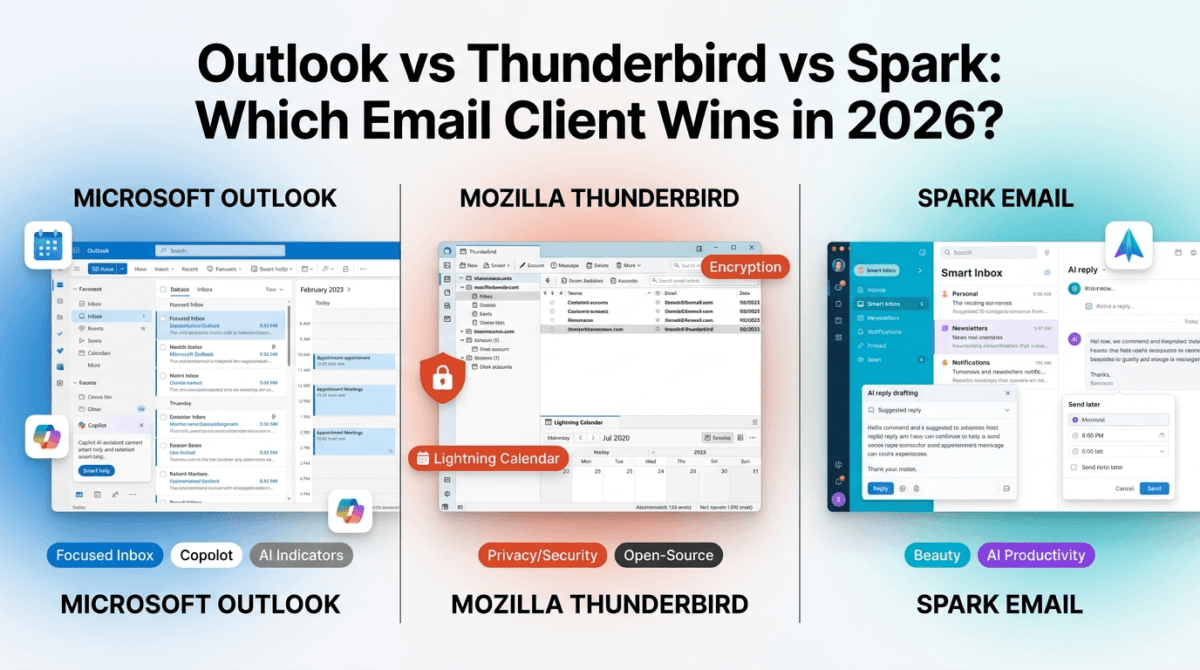
I tested Microsoft Outlook vs Thunderbird vs Spark for 30 days as my primary email client, managing multiple accounts, affiliate communications, reader emails, and newsletter subscriptions simultaneously. Here is the honest comparison.
Table of Contents
How We Evaluated These Email Clients
Every client was tested across five criteria:
– Email management, inbox organisation, search, filtering, and multi-account handling
– Productivity features, scheduling, snoozing, templates, and keyboard shortcuts
– AI capabilities, smart inbox, AI drafting, and automated organisation
– Integration, calendar, task manager, and third-party app connections
– Value, free plan quality and paid plan pricing versus features offered
Why Your Email Client Choice Matters for Bloggers
Email management is one of the most time-consuming daily tasks for anyone running an online business. As a blogger you receive:
Affiliate program communications: commission notifications, promotional opportunities, and policy updates from dozens of affiliate programs simultaneously.
Reader emails: questions, feedback, and collaboration requests from your audience that require thoughtful, personalised responses.
Partnership and sponsorship inquiries: time-sensitive opportunities that lose value if responses are delayed by a cluttered inbox. Fast, organised communication is one piece of running a freelance or solo content business, see our roundup of tools for freelancers for the rest of the stack.
Newsletter subscriptions: research material, industry updates, and competitor monitoring that needs to be accessible without cluttering your primary inbox.
Vendor and tool notifications: hosting alerts, plugin updates, payment notifications, and service communications from every tool in your stack.
Without an email client that organises, prioritises, and streamlines these different streams, email becomes the primary obstacle to productive blogging rather than a tool that supports it.
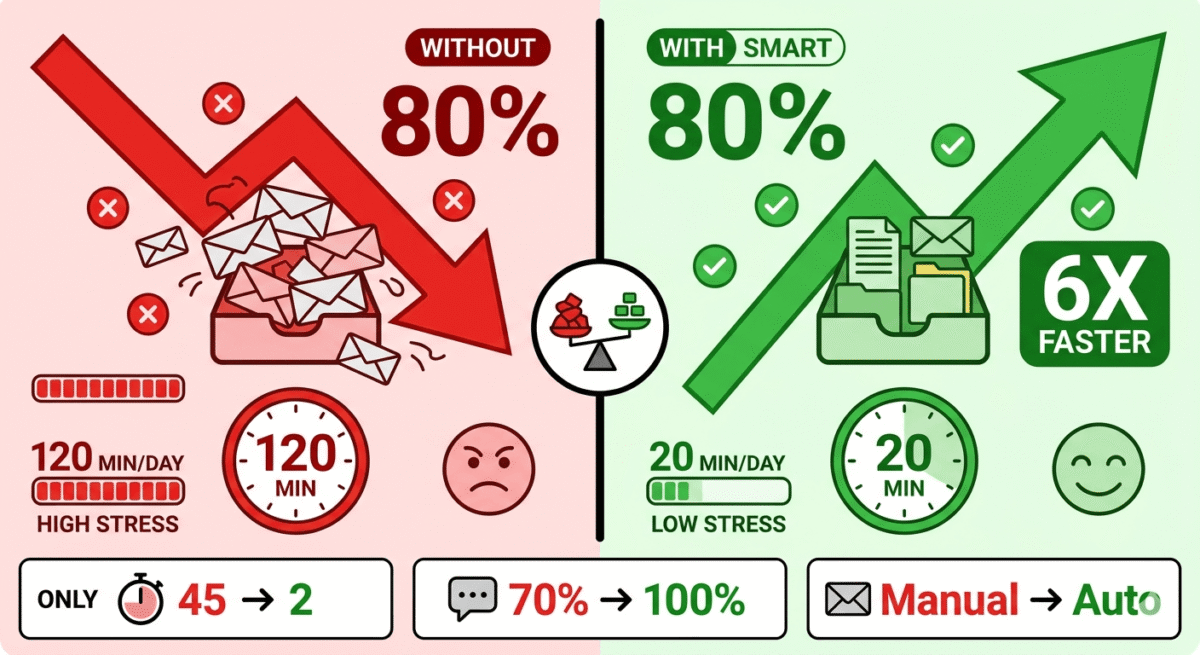
Microsoft Outlook Review: Best Email Client for Windows Users and Microsoft 365 Subscribers
Free plan: Yes, Outlook.com web version free, new Outlook app free on Windows 11
Starting price: Included with Microsoft 365 Personal ($6.99/month)
Best plan for most users: Microsoft 365 Personal, $6.99/month (includes Outlook + OneDrive + Office apps)
Platforms: Windows, Mac, iOS, Android, web browser
Affiliate program: Yes, Microsoft affiliate program
Microsoft Outlook is the world’s most widely used professional email client, the standard in enterprise environments for over two decades. In 2026, the new Outlook (rebuilt from the ground up and replacing the legacy desktop client) brings a modern interface, deep Microsoft 365 integration, and AI-powered features that make it genuinely competitive as a personal productivity tool rather than just an enterprise necessity.
What Outlook does best
Outlook’s calendar integration is the most seamless of the three clients. Email and calendar live in the same application, scheduling a meeting from an email takes one click, viewing your day’s calendar alongside your inbox is the default layout, and Microsoft Teams meetings are created directly from calendar events without switching applications. For bloggers who manage editorial calendars, publishing schedules, and partnership calls, this email-calendar unification is genuinely valuable.
The Focused Inbox feature, Outlook’s AI-powered email prioritisation, separates your inbox into Focused (important messages) and Other (newsletters, notifications, automated emails) automatically. The AI learns from your behaviour, which emails you open immediately, which you archive without reading, which senders you respond to, and increasingly accurately predicts which messages deserve your immediate attention. In testing, Focused Inbox correctly routed approximately 85% of emails after two weeks of training.
Microsoft Copilot integration, available with Microsoft 365 subscriptions, is the most capable AI email assistant of the three clients tested. Copilot drafts complete email replies based on the context of the thread, summarises long email chains into a few key points, suggests meeting times based on your calendar, and prepares briefing notes before scheduled calls by summarising related email history. For bloggers managing complex partnership communications, Copilot’s contextual assistance saves meaningful time.
Outlook’s rules and filtering system is the most powerful of the three clients, conditions can combine any number of criteria (sender, subject keywords, recipient, attachment presence, message size, account) with any combination of actions (move, forward, flag, categorise, reply with template). For bloggers who want to automatically route affiliate commission emails to a specific folder, flag emails from priority partners, and archive newsletter subscriptions, Outlook’s rules handle this with more precision than Thunderbird or Spark.
The mobile apps for iOS and Android are among the best email mobile experiences available, swipe gestures for archiving and deleting, a clean unified inbox for multiple accounts, and offline access to recent emails all work smoothly. Microsoft has invested significantly in mobile Outlook over recent years, and the result is an app that rivals Spark’s mobile experience.
The new Outlook vs legacy Outlook
It is worth noting that Microsoft has been transitioning users from the legacy Outlook desktop application (a 30-year-old codebase) to the new Outlook (rebuilt on web technologies). The new Outlook is faster to launch, more consistent across platforms, and more actively developed, but it currently lacks some features of the legacy version (local PST file support, some third-party plugin compatibility, and some advanced enterprise features). For most bloggers and small business users, the new Outlook is superior. For power users relying on legacy features, check compatibility before switching.
Where Outlook falls short
Outlook’s full feature set requires a Microsoft 365 subscription, while the new Outlook app is free on Windows 11 and the web version is free at Outlook.com, Copilot AI, advanced calendar features, and OneDrive integration require a paid Microsoft 365 subscription ($6.99/month or $69.99/year for Personal).
Privacy-conscious users may be uncomfortable with Microsoft’s data practices, Outlook.com email is scanned for advertising purposes on the free tier, and Microsoft 365 subscribers’ data is subject to Microsoft’s terms. For bloggers handling sensitive business communications, this is worth considering.
The Mac version of Outlook, while vastly improved in recent years, still feels slightly less native than Spark, which was built specifically for Apple platforms.
Outlook pricing
Plan | Price/month | Includes |
Free (Outlook.com) | $0 | Web email, basic calendar, 15GB storage |
Microsoft 365 Personal | $6.99 | Outlook desktop + mobile + web, 1TB OneDrive, Office apps |
Microsoft 365 Family | $9.99 | Same for up to 6 users, 6TB OneDrive total |
Outlook: Pros and Cons
Pros:
– Best calendar integration, email and calendar unified in one app
– Focused Inbox AI learns and improves email prioritisation
– Microsoft Copilot, most capable AI email assistant
– Most powerful rules and filtering system
– Excellent mobile apps for iOS and Android
– Included in Microsoft 365, no extra cost for existing subscribers
– Universal enterprise acceptance, works with every corporate email system
– Consistent cross-platform experience
Cons:
– Full features require Microsoft 365 subscription ($6.99/month)
– New Outlook missing some legacy features
– Privacy concerns, free tier email scanned for advertising
– Mac version less native-feeling than Spark
– Copilot AI requires Microsoft 365, not available on free tier
– More complex than necessary for simple personal email use
Rating: 4.6 / 5 – Best email client for Windows users and Microsoft 365 subscribers. The calendar integration and Copilot AI make it the most productive choice for business email management.
Mozilla Thunderbird Review: Best Free and Open-Source Email Client
Free plan: completely free, all features, no limitations
Starting price: Free forever, donation-supported open source
Best plan for most users: Free version, fully featured
Platforms: Windows, Mac, Linux
Affiliate program: None, open source project
Mozilla Thunderbird is the most widely used free, open-source email client, developed by the Mozilla Foundation, the same organisation behind the Firefox browser. In 2026, following a significant redesign and relaunch (Thunderbird 115 “Supernova” and subsequent updates), Thunderbird has emerged as a genuinely modern, capable email client that competes with paid alternatives while remaining completely free.
What Thunderbird does best
Thunderbird’s completely free, fully featured model is its most compelling advantage in 2026. Every feature, multi-account management, advanced filtering, calendar integration, encryption, and the full extension library, is available at zero cost, forever, with no subscription required and no artificial feature restrictions to push upgrades that do not exist.
Multi-account management is one of Thunderbird’s strongest capabilities. You can add unlimited email accounts from any provider — Gmail, Outlook, Yahoo, your own domain email, corporate Exchange servers, and manage them all from a unified inbox or individually. For bloggers managing a personal Gmail account, a domain email (contact@ratethetool.com), and potentially a separate business email, Thunderbird’s unified account management is practical and well-implemented.
The extension library, over 100 extensions developed by the community, extends Thunderbird’s capabilities significantly. Relevant extensions for bloggers include:
Lightning Calendar a full calendar application integrated directly into Thunderbird, enabling email-calendar management comparable to Outlook without a subscription.
Enigmail / OpenPGP built-in end-to-end encryption for sending and receiving encrypted emails. Thunderbird is the only client on this list with native OpenPGP encryption, essential for anyone communicating sensitive business information.
MailExtensions a growing library of productivity tools covering templates, send-later scheduling, and inbox management.
Thunderbird’s filtering and search capabilities are the most powerful of the three clients for technical users. The filter rules system supports complex boolean conditions, and the search syntax enables granular queries across all accounts simultaneously, finding every email from a specific domain, every attachment above a certain size, or every message containing specific text across years of email history.
The privacy model is Thunderbird’s most distinct advantage over Outlook. All email processing happens locally on your device, no data is sent to Mozilla’s servers, no scanning for advertising, no cloud-based AI processing your email content. For bloggers who handle sensitive business communications, partnership terms, financial information, legal agreements, Thunderbird’s local processing provides privacy guarantees that cloud-based clients cannot match.
Thunderbird’s 2024–2025 redesign
Thunderbird underwent a significant visual and architectural redesign in 2023–2024, modernising an interface that had felt dated for years. The new Thunderbird features a cleaner sidebar, improved conversation threading, better search, and a more responsive layout. The redesign significantly improved Thunderbird’s competitive position against modern email clients, new users who dismissed Thunderbird based on its previous dated appearance may find the current version surprisingly polished.
Where Thunderbird falls short
Thunderbird has no mobile app, it is a desktop-only application. This is its most significant practical limitation for anyone who reads and responds to email on a smartphone regularly. Mobile email requires a separate app, Gmail, Outlook mobile, or another mobile client, which breaks the unified email management that Outlook and Spark provide across all devices.
The AI features available in Outlook (Copilot) and Spark (AI replies) have no equivalent in Thunderbird. The open-source philosophy means no cloud-based AI processing, which is both a privacy advantage and a feature limitation. Thunderbird will not draft your emails or summarise threads automatically.
Setup is more technical than Outlook or Spark, particularly for adding non-major email providers, configuring IMAP/SMTP settings, or enabling encryption. For non-technical users, the initial configuration requires more effort than the guided setup flows of Outlook and Spark.
Thunderbird pricing
Thunderbird is completely free and open-source. It is supported by donations and Mozilla Foundation funding. There are no paid plans, no premium features, and no subscriptions. The entire application, including the extension library, is available at zero cost.
Thunderbird: Pros and Cons
Pros:
– Completely free, all features, no subscriptions, no limitations
– Best privacy, local processing, no advertising, no data sent to servers
– Native OpenPGP encryption, unique among the three clients
– Unlimited multi-account management from any email provider
– Most powerful filtering and search for technical users
– Open-source, community-developed, transparent codebase
– Lightning Calendar integration provides Outlook-like email-calendar experience
– Linux support, unique among mainstream email clients
Cons:
– No mobile app, desktop only
– No AI features, no email drafting, summarisation, or smart inbox
– More technical setup than Outlook or Spark
– Interface less polished than Spark
– Extension ecosystem smaller than Outlook’s plugin library
– No real-time collaboration features
Rating: 4.4 / 5 – Best free email client and best for privacy-conscious users. Desktop-only limitation is significant for mobile email users.
Spark Review: Best Email Client for Mac, iPhone, and Productivity-Focused Users
Free plan: Yes, full features for individuals, limited team features
Starting price: $4.99/month (Premium, billed annually) for teams
Best plan for most individual users: Free plan, sufficient for solo bloggers
Platforms: Mac, iOS, iPad OS, Windows, Android
Affiliate program: Yes, Spark affiliate program
Spark by Readdle is the most design-forward and productivity-focused email client on this list, built specifically for Apple platforms (Mac, iPhone, iPad) and expanded to Windows and Android. Its combination of a beautiful interface, smart inbox prioritisation, powerful AI email drafting, and the most innovative team email collaboration features makes it the preferred email client among productivity-conscious Mac and iPhone users.
What Spark does best
Spark’s Smart Inbox is the most effective email prioritisation system of the three clients. Rather than a simple two-category system like Outlook’s Focused Inbox, Spark organises emails into five categories automatically, Personal (emails from real people you know), Newsletters (subscription content), Notifications (automated service emails), Pinned (emails you have marked for follow-up), and Seen (everything else). This five-category organisation surfaces genuinely personal emails from the noise of automated content more accurately than Outlook’s binary Focused/Other split.
The AI email drafting in Spark is the most practical AI email feature for individual bloggers. Select an email, click “AI Reply,” and Spark drafts a complete contextually appropriate response, which you edit, personalise, and send. The drafts are more conversational and less formal than Outlook Copilot’s suggestions, making them more suitable for the authentic, personal tone that blogger-reader relationships require. In testing, Spark’s AI drafts required editing approximately 30% of the time to match personal voice versus Outlook Copilot’s 50%.
Spark’s send later and snooze features are the most smoothly implemented of the three clients. Writing an email at midnight but wanting it to arrive in the recipient’s morning inbox? Set a delivery time with two clicks, the email queues and sends automatically at the scheduled time. Received an email you cannot deal with now? Snooze it to reappear at a specific time, tomorrow morning, Monday at 9am, or in three hours. These features transform email from a real-time obligation into an asynchronous, manageable workflow.
Email templates, called Quick Replies in Spark, let you save frequently sent email content as reusable templates triggered by keyboard shortcut. For bloggers who send similar responses to partnership inquiries, sponsorship requests, and reader questions, templates eliminate repetitive typing and maintain consistent messaging.
Spark’s link tracking, showing you when a recipient opens your email, is available on Premium plans and is genuinely useful for following up on sponsorship proposals, partnership pitches, and important business emails where knowing whether the recipient has seen the message informs your follow-up timing.
The interface is the most beautiful and polished of the three clients, particularly on Mac and iPhone, where Spark feels like a native, premium application. The typography, spacing, colour use, and interaction design are noticeably superior to Outlook’s somewhat dense interface and Thunderbird’s more utilitarian approach.
Where Spark falls short
Spark’s team features, shared inboxes, email delegation, internal comments on emails, require the Premium plan at $4.99/month per user. For solo bloggers, the free plan covers all individual productivity features; for teams managing a shared inbox (support@yourblog.com, press@yourblog.com), Premium is required.
The Windows and Android versions, while significantly improved from their initial releases, are less polished than the Mac and iOS versions. Spark was built Mac-first and it shows, the Apple platform experience is noticeably superior to the cross-platform alternatives.
Spark’s privacy model, like Outlook’s, involves cloud-based processing for AI features. Email content is sent to Spark’s servers for AI analysis, which is less private than Thunderbird’s local-only processing. Spark’s privacy policy specifies that email content is not used for advertising or sold to third parties, but cloud processing means the data leaves your device.
The search functionality, while adequate, is less powerful than Thunderbird’s advanced search syntax for finding specific emails across large archives.
Spark pricing
Plan | Price/month | Key features |
Free (Personal) | $0 | Smart Inbox, AI replies, templates, send later, snooze |
Premium | $4.99/user | + Shared inboxes, email delegation, link tracking, team comments |
Business | Custom | + Advanced team features, priority support |
Spark: Pros and Cons
Pros:
– Best Smart Inbox, five-category organisation more accurate than Outlook’s two-category system
– Best AI email drafting, most conversational and personal AI replies
– Best send later and snooze implementation
– Most beautiful interface, especially on Mac and iPhone
– Email templates (Quick Replies) for repetitive responses
– Link tracking on Premium, know when recipients open emails
– Free plan covers all individual productivity features
– Best mobile experience on iPhone and iPad
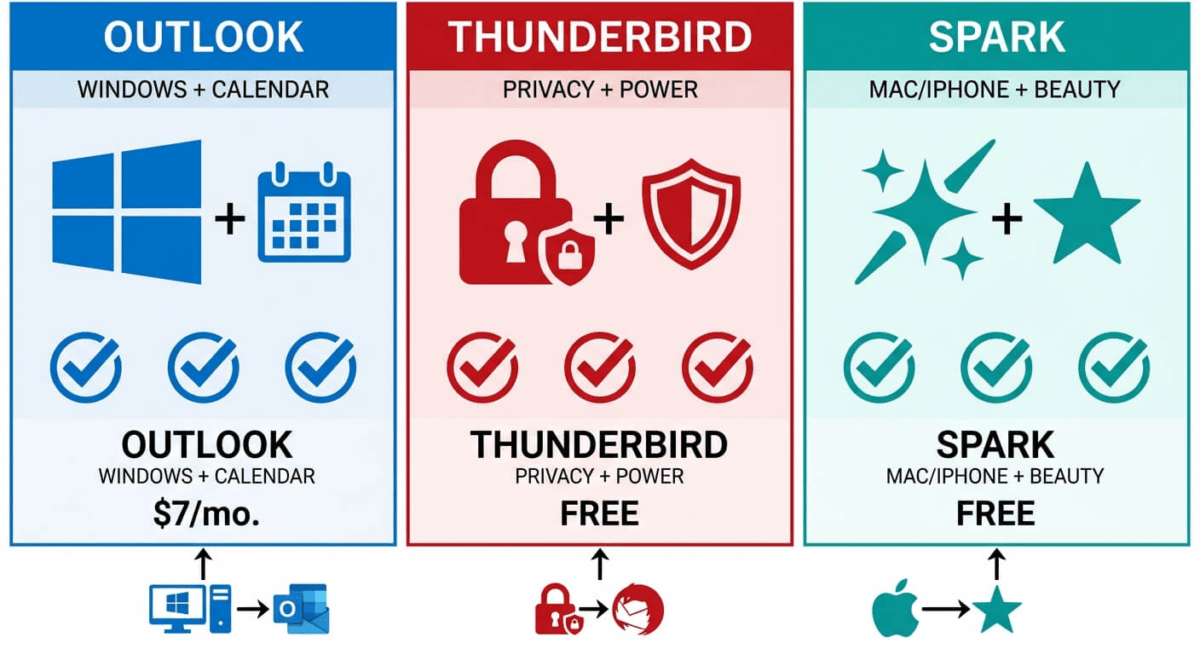
Cons:
– Team features require Premium ($4.99/month)
– Windows and Android versions less polished than Mac/iOS
– Cloud processing for AI, less private than Thunderbird
– Search less powerful than Thunderbird for large archives
– No native calendar, requires separate calendar app
– Less suitable for Windows-primary users than Outlook
Rating: 4.7 / 5 – Best email client for Mac and iPhone users who prioritise productivity and a beautiful interface. The free plan is remarkably full-featured for individual bloggers.
Head-to-Head Comparison
Outlook (M365) | Thunderbird | Spark Free | |
Price/month | $6.99 (M365) | Free | Free |
Free plan | Limited (web only) | Full features | Full features |
Mobile app | Excellent | None | Excellent |
AI email drafting | Copilot (M365) | None | Yes (free) |
Smart inbox | Focused (2 categories) | None | Smart (5 categories) |
Send later | Yes | Via extension | Yes |
Snooze | Yes | Via extension | Yes |
Email templates | Yes | Via extension | Yes (Quick Replies) |
Calendar integration | Excellent (built-in) | Yes (Lightning) | No (separate app) |
Multi-account | Yes | Yes (unlimited) | Yes |
Privacy | Cloud (ad-free on M365) | Local only | Cloud (no ads) |
Encryption | S/MIME | OpenPGP + S/MIME | No |
Linux support | No | Yes | No |
Team features | Yes | No | Premium only |
Best for | Windows/M365 users | Privacy/power users | Mac/iPhone users |
Which Email Client Should You Choose?
Choose Outlook if:
You use Windows as your primary operating system, already pay for Microsoft 365, or manage a business email on Exchange or Microsoft 365 Business. The calendar integration, Focused Inbox, and Copilot AI make Outlook the most productive choice for heavy email users already in the Microsoft ecosystem. Also choose Outlook if universal enterprise compatibility is important, every corporate email system works with Outlook.
Choose Thunderbird if:
Privacy is your top priority, you use Linux as your primary operating system, or you want a fully featured email client at zero cost with no cloud dependency. Thunderbird’s local processing, OpenPGP encryption, and powerful filtering make it the most secure and privacy-respecting option. The mobile limitation is significant, but if you primarily manage email from a desktop, Thunderbird is the most capable free option.
Choose Spark if:
You primarily use a Mac or iPhone and want the most productive, beautiful email experience with AI assistance at no cost for individual use. Spark’s Smart Inbox, AI replies, send later, and snooze features are the most refined implementation of modern email productivity features available, and the free plan covers everything an individual blogger needs without paying a dollar.
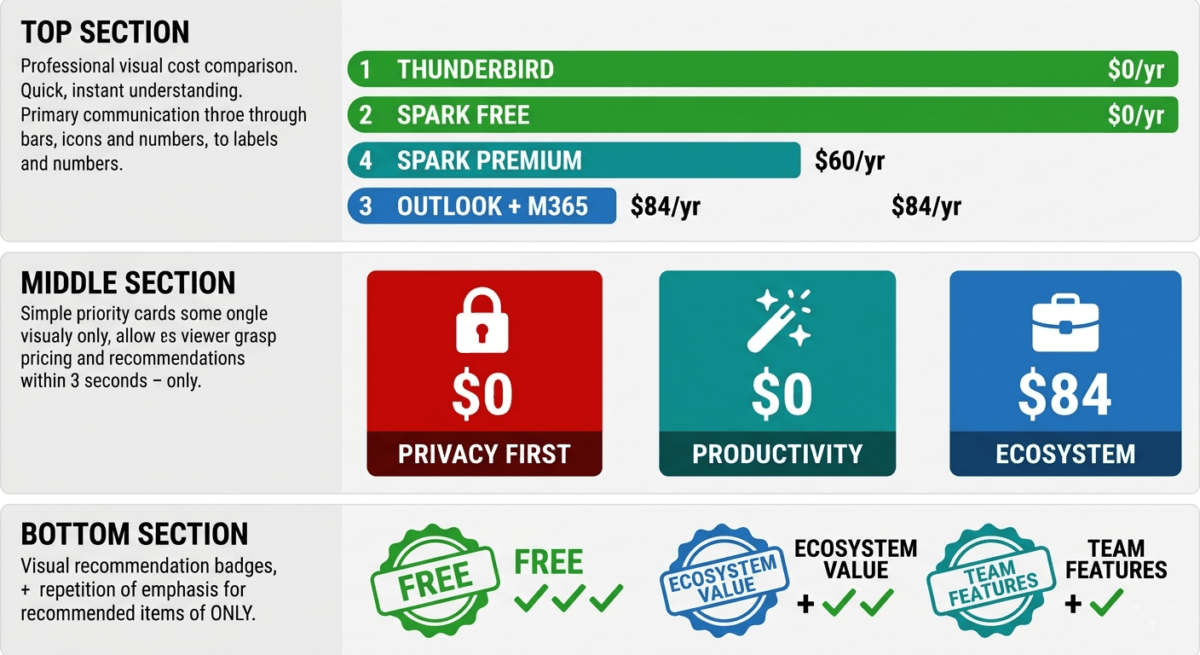
The Blogger Email Management System
For bloggers managing email across multiple accounts and contexts, here is the recommended setup:
Account structure:
– Personal email, your 5-year-old Gmail for Google services (AdSense, Search Console, Analytics)
– Blog contact email, contact@ratethetool.com for reader emails and general inquiries
– Business email, hello@ratethetool.com or partnerships@ratethetool.com for affiliate and sponsorship communications
– Newsletter email, the email connected to your ConvertKit account for subscriber management. If you haven’t picked a platform to build your list with email marketing yet, see our Mailchimp vs Brevo vs ActiveCampaign comparison before setting up that account.
Folder/label structure in any client:
– Affiliate Programs, commission notifications and program communications
– Partnerships, sponsorship inquiries and active partner communications
– Reader Emails, questions and feedback requiring personal responses
– Press and PR, software company outreach and review requests
– Admin, hosting, domain, payment notifications
Response time targets:
– Partnership and sponsorship inquiries: same day (time-sensitive opportunities)
– Reader questions: within 48 hours
– Press and PR: within 72 hours
– Automated notifications: weekly batch review, not daily
Recommended client by platform:
– Windows primary: Outlook (especially if already on M365)
– Mac/iPhone primary: Spark free
– Linux primary: Thunderbird
– Privacy-first anywhere: Thunderbird on desktop + ProtonMail on mobile
Final Verdict
Spark is the best email client for most bloggers, the Smart Inbox, AI reply drafting, send later, snooze, and beautiful interface make it the most productive email experience available on Mac and iPhone. The free plan covers every individual productivity feature, no subscription required. For Windows users, Outlook is the stronger choice given its superior calendar integration and Microsoft ecosystem depth.
Outlook is the best email client for Windows and Microsoft 365 users, the calendar integration, Focused Inbox, and Copilot AI make it the most productive choice for heavy email users in the Microsoft ecosystem. Existing M365 subscribers get Outlook at no additional cost.
Thunderbird is the best free and privacy-focused email client, local processing, OpenPGP encryption, and unlimited multi-account management at zero cost make it the most secure and capable free option for desktop email management. The mobile gap is the only significant limitation.
Ratings:
– Spark: 4.7 / 5
– Outlook: 4.6 / 5
– Thunderbird: 4.4 / 5
Frequently Asked Questions
What is the best free email client in 2026?
Thunderbird is the best completely free email client, all features available at zero cost with no subscriptions, no advertising, and no data sent to external servers. Spark’s free plan is the best for individual productivity features (Smart Inbox, AI replies, send later) on Mac and iPhone. For Windows users, the free Outlook.com web interface provides basic email management at no cost.
Is Outlook free?
Outlook.com – the web-based version, is free with a Microsoft account, including 15GB of storage and basic email and calendar features. The full Outlook desktop application with advanced features requires a Microsoft 365 subscription starting at $6.99/month. The new Outlook app on Windows 11 is free to use but connects to your Outlook.com or Microsoft 365 account.
What is the best email client for Mac?
Spark is the best email client for Mac, built natively for Apple platforms, it provides the most polished interface, the most accurate Smart Inbox, and the best AI reply drafting of any Mac email client. Apple’s built-in Mail app is a capable free alternative. Outlook for Mac has improved significantly but feels less native than Spark on Apple hardware.
Does Thunderbird have a mobile app?
No. Thunderbird is a desktop-only application available for Windows, Mac, and Linux. There is no official Thunderbird mobile app. Mobile email on iPhone requires a separate app, Apple Mail, Spark, Gmail, or Outlook mobile. Mozilla has indicated future mobile development but no timeline has been confirmed.
What is the best email client for privacy?
Thunderbird is the most privacy-respecting mainstream email client, all email processing happens locally on your device, no data is sent to Mozilla’s servers, and built-in OpenPGP encryption enables end-to-end encrypted communication. For even stronger privacy, ProtonMail (with its own client) provides end-to-end encrypted email at the server level. Both Outlook and Spark involve cloud-based processing for their AI features.
Can I use multiple email accounts in one email client?
Yes, all three clients support multiple email accounts from different providers simultaneously. Thunderbird has the most flexible multi-account support, handling unlimited accounts from any provider (Gmail, Outlook, Yahoo, custom domain, Exchange) in a unified or individual inbox. Outlook and Spark also support multiple accounts from major providers, with the unified inbox showing all accounts’ email in a single chronological stream.
What is send later and why does it matter for bloggers?
Send later allows you to write an email now but schedule it to be delivered at a future time, tomorrow morning, Monday at 9am, or any specific date and time. For bloggers, this is valuable for sending partnership pitches during business hours (even when written at midnight), timing follow-up emails at optimal response windows, and maintaining a professional appearance of working regular hours even when your schedule is irregular. Spark and Outlook both include send later natively; Thunderbird supports it via the Send Later extension.
Is email client different from email service?
Yes. An email service (Gmail, Outlook.com, ProtonMail) stores and delivers your email, it is the server infrastructure. An email client (Outlook app, Spark, Thunderbird) is the application you use to read and write emails, it connects to your email service via IMAP/SMTP protocols. You can use Spark (client) to read Gmail (service), or Thunderbird (client) to read Outlook.com (service). Your email address stays the same regardless of which client you use.