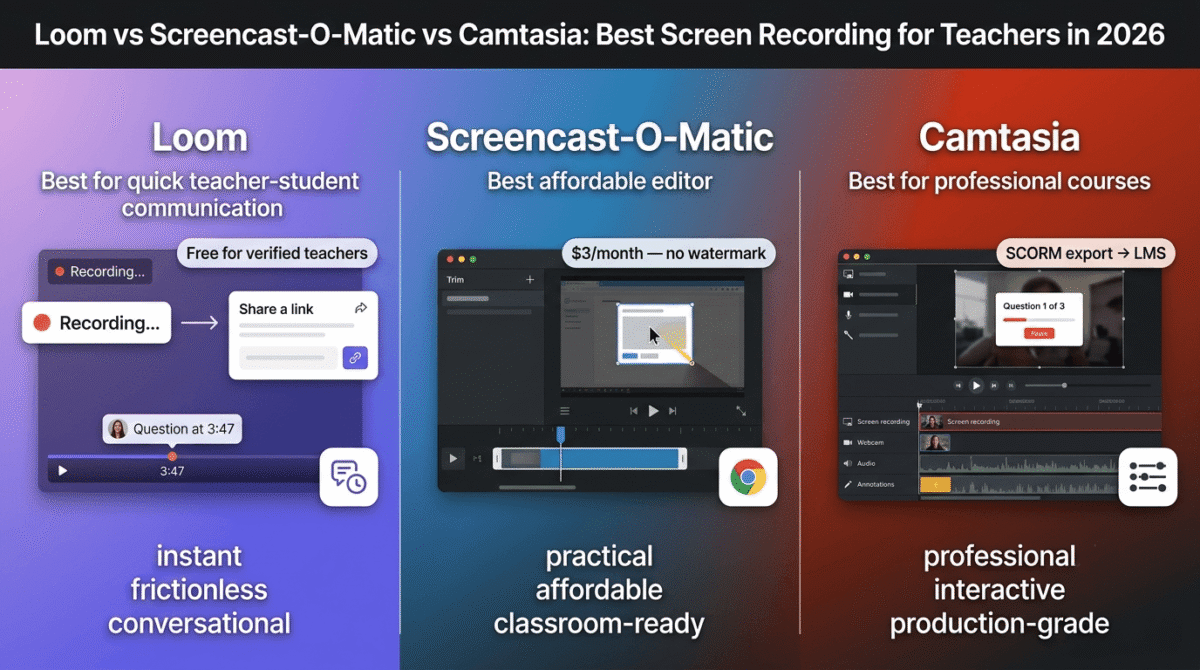
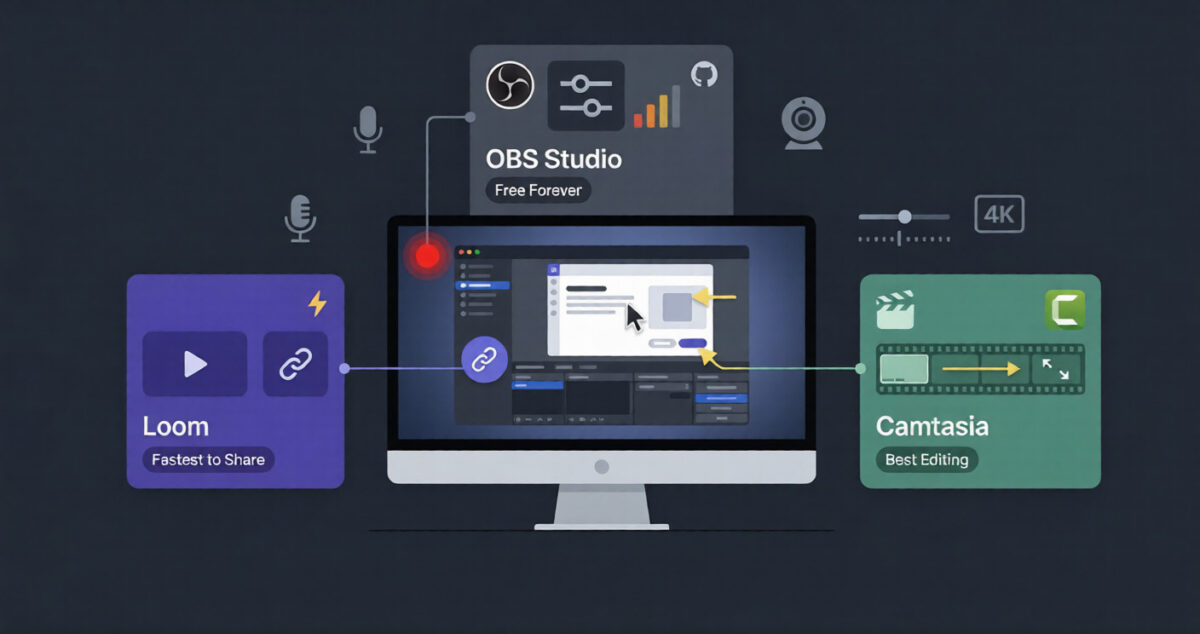
Screen recording software has gone from a niche developer tool to something almost every knowledge worker, content creator, educator, and remote team member uses regularly.
Need to explain a bug to your developer without writing a 500-word email? Record your screen. Want to create a tutorial for your YouTube channel? Record your screen. Need to onboard a new team member on a process? Record your screen. Have a client who wants to see how your software works? Record your screen.
The problem is that the three most popular screen recording tools, Loom, OBS, and Camtasia, are built for completely different use cases. Choosing the wrong one means either paying for features you will never use or struggling with a tool that cannot do what you actually need.
I tested all three (Loom vs OBS vs Camtasia) for 30 days across real use cases: async team communication, YouTube tutorials, software demos, and training videos. Here is the honest comparison.
Table of Contents
How We Evaluated These Tools
Every platform was tested across five criteria:
– Recording quality: video resolution, frame rates, and audio capture quality
– Ease of use: how quickly can a beginner record and share their first video?
– Editing capabilities: can you edit recordings inside the tool, or do you need separate software?
– Sharing and collaboration: How easily can recordings be shared with others?
– Value: free plan quality and paid plan pricing versus features
Who Uses Screen Recording Software, and Why It Matters for Your Blog
Before comparing the tools, a quick note on why this post matters for your specific audience.
Bloggers and content creators use screen recording for:
– Tutorial content: step-by-step software walkthroughs that complement written reviews
– YouTube videos: screen-based content is among the easiest video formats to produce without a camera. To design professional thumbnails and custom channel graphics that actually get clicks on those videos, pair your pipeline with the right tool from our Canva Pro vs Adobe Express comparison.
– Course creation: selling online courses built around screen recordings is one of the highest-margin monetization strategies for bloggers
– Client communication: recording a quick Loom instead of writing a long email saves hours per week
– Affiliate content: demonstrating a software tool via screen recording is more persuasive than describing it in text
The screen recording tool you choose directly affects the quality and efficiency of these activities, making it a genuinely important software decision for anyone running a content business.
Loom Review: Best Screen Recording Tool for Async Communication and Beginners
Free plan: Yes, up to 25 videos, 5-minute limit per video
Starting paid price: $12.50/month/creator (Starter, billed annually)
Best plan for most users: Starter, $12.50/month/creator
Platforms: Windows, Mac, iOS, Android, Chrome extension
Affiliate program: Yes, Loom affiliate program via impact.com
Loom is not a traditional screen recorder. It is an async video communication tool built for the specific use case of recording a quick video message instead of writing an email or scheduling a meeting. It records your screen, your webcam, or both simultaneously, uploads instantly to Loom’s cloud, and gives you a shareable link within seconds of finishing the recording. While Loom is great for async updates, live team collaboration is better suited for the best video conferencing software tools.
What Loom does best
Loom’s defining feature is speed. From clicking record to having a shareable link takes under 60 seconds, including the upload. No rendering, no exporting, no waiting. You finish recording, click stop, and a link is automatically copied to your clipboard. Paste it into Slack, email, or a project management tool, and your recipient can watch it immediately.
The Chrome extension makes this even faster. With Loom installed in Chrome, you can start a screen recording from anywhere in your browser without opening a separate application. For remote teams that communicate primarily through tools like Slack, Notion, and Asana, Loom integrates into existing workflows without friction.
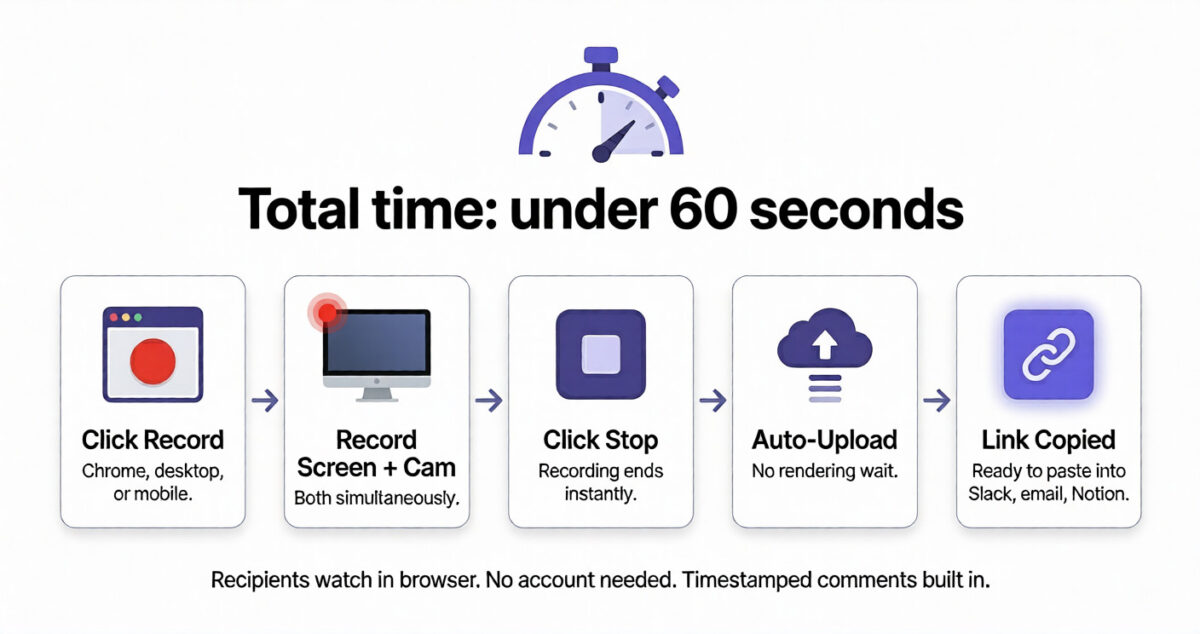
Loom’s viewer experience is excellent. Recipients watch the video in a clean, branded player, with no account required. They can leave timestamped comments, emoji reactions, and replies directly on the video. The conversation happens around the video itself rather than in a separate thread.
For bloggers and content creators, Loom is ideal for creating software demo videos to embed in your reviews. Record a quick walkthrough of a tool you are reviewing, share the Loom link, and embed it in your post- more persuasive than screenshots and faster to produce than edited YouTube videos.
Loom’s AI features, available on paid plans, automatically generate transcripts, summaries, and chapters for every recording. The AI can identify the title of the video, the key points covered, and the action items discussed, making it genuinely useful for meeting recordings and async status updates. These features are just a small sample of how the best AI tools for bloggers can streamline your workflow.
Where Loom falls short
Loom is not a video editing tool. You can trim the beginning and end of recordings, remove filler words (on paid plans), and stitch clips together, but you cannot add callouts, zoom effects, lower thirds, background music, or the kind of production polish that makes a YouTube tutorial look professional. For those advanced features, you will need to pair your recorder with the best video editing software available.
The free plan’s 25-video limit and 5-minute cap per video are restrictive for heavy users. Once you exceed 25 videos, older recordings become paywalled for viewers, a friction point that can affect recipients who try to access older links.
Loom is cloud-dependent. Recordings are stored on Loom’s servers, not locally. While this enables instant sharing, it means your videos are dependent on Loom’s continued operation and your subscription status.
Loom pricing
Plan | Price/creator/month | Videos | Length limit | Key extras |
Free | $0 | 25 | 5 minutes | Basic recording, instant sharing |
Starter | $12.50 | Unlimited | 6 hours | Transcript, AI summary, custom branding |
Business | $12.50 (5+ seats) | Unlimited | 6 hours | Team workspace, analytics, SSO |
Loom: Pros and Cons
Pros:
– Fastest time from recording to shareable link, under 60 seconds
– Chrome extension for one-click recording anywhere in the browser
– Simultaneous screen and webcam recording
– Excellent viewer experience, timestamped comments, reactions
– AI transcripts and summaries on paid plans
– No rendering or export wait time
– Ideal for async team communication and software demos
– Works on iOS and Android for mobile screen recording
Cons:
– Not a video editing tool, minimal post-production capabilities
– Free plan limited to 25 videos and 5 minutes per recording
– Cloud-dependent, videos stored on Loom’s servers
– Not suitable for producing polished YouTube tutorials or courses
– Free plan videos become paywalled for viewers after the limit is reached
– Less suitable for long-form content creation
Rating: 4.6 / 5. Best screen recording tool for async communication, software demos, and beginner content creators. Not the right tool for polished video production.
Tight Studio Review: Best Screen Recorder for Polished Mac Product Demos and Tutorials
Free plan: Yes, with standard exports and no watermark
Starting paid price: $9/month (Plus, billed yearly)
Best plan for most users: Plus, $9/month billed yearly
Platforms: Mac with Apple Silicon
Affiliate program: Not publicly listed on Tight Studio’s current website
Tight Studio is a Mac screen recording and editing tool designed for creating polished product demos, tutorials, and walkthroughs without the complexity of a traditional video editor. It combines screen recording with automatic zoom, smooth cursor animation, professional captions, dynamic layouts, clipping tools, annotations, background music, multi-clip recording, and shareable links in one focused workflow.
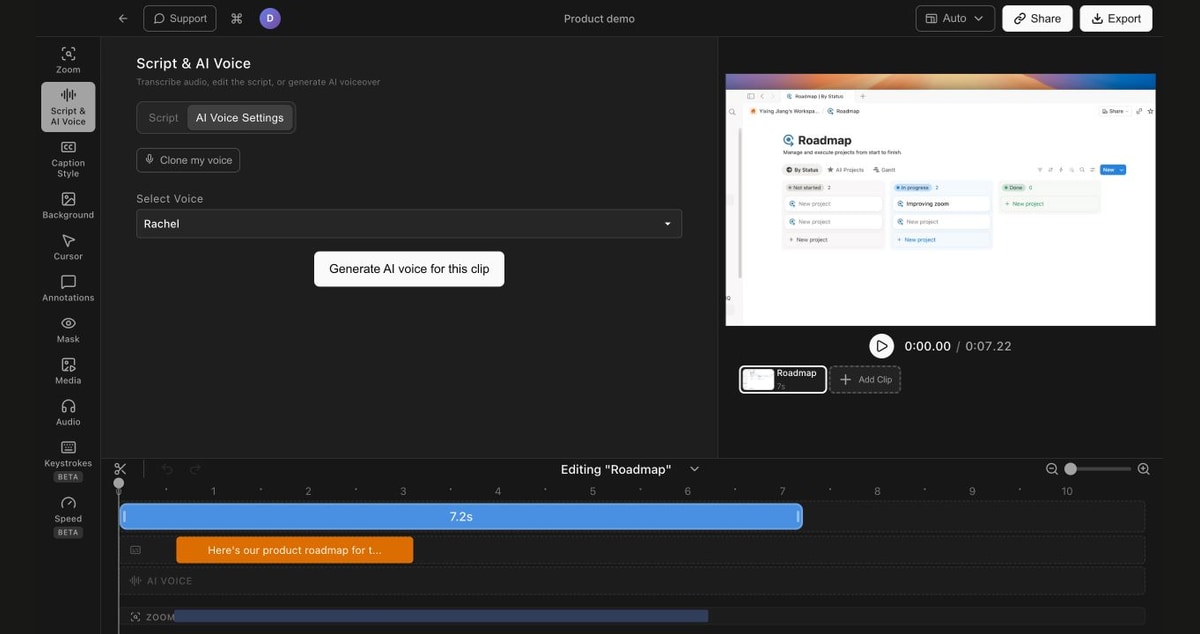
Its Pro plan adds AI voiceover (1,000 AI credits/month, compared to 100 trial AI credits on Free ), AI media generation, and collaborative team editing, making it a particularly interesting alternative to Screen Studio and Camtasia for Apple Silicon Mac users.
What Tight Studio does best
Tight Studio excels at turning ordinary screen recordings into polished product demos and tutorials with minimal manual editing. Its Smart Auto-Zoom detects clicks and keystrokes and creates smooth zooms automatically without requiring keyframes. At the same time, the editor adds cursor animation, captions, dynamic layouts, annotations, clipping, music, and multi-clip recording.
It also includes AI voiceover tools on Pro, including voice cloning, so you can revise narration without recording the voiceover again. For creators who want the polished look of Screen Studio with more editing and AI features in one focused Mac app, Tight Studio is a strong option.
Where Tight Studio falls short
Tight Studio’s biggest limitation is platform compatibility: it currently requires an Apple Silicon Mac, with no Windows or Intel Mac version available. The Free plan also has limits around multi-clip recording, shared videos, and AI voice, while unlimited multi-clip recording and unlimited shareable links with no expiration start with Plus, and AI voiceover is capped at 100 trial credits on Free (expanding to 1,000 credits/month on Pro), and AI media generation and team collaboration require Pro.
It is also less of a traditional full-scale editor than Camtasia, so users looking for deep multi-track editing, extensive effects, animation, or advanced training features may still prefer a more comprehensive video editor.
Tight Studio pricing
| Plan | Price | Key extras |
|---|---|---|
| Free | $0 | 100 trial AI credits for AI voiceover, core recording/editing, smooth zoom, cursor animation, captions, layouts, clipping, music, annotations, limited multi-clip recording, shareable links |
| Plus | $9/month billed yearly | Unlimited multi-clip recording & shareable links with no expiration |
| Pro | $24/month billed yearly | Everything in Plus, AI voiceover, AI media generation, 1,000 AI credits/month, team workspace, collaborative editing |
Tight Studio also offers monthly billing at $19/month for Plus and $49/month for Pro. Paid plans include a 60-day money-back guarantee.
Tight Studio: Pros and Cons
Pros:
– Automatic zoom based on clicks and keystrokes
– Smooth cursor animation
– Professional captions built in
– Multi-clip recording and editing
– AI voiceover and voice cloning on Pro
– Free standard exports without a watermark
– Simple alternative to Screen Studio and Camtasia for Mac users
– Shareable browser links with no expiration on Plus and Pro (Free includes up to 5 shareable links with a 7-day expiration)
Cons:
– Apple Silicon Mac required
– No Windows version
– No Intel Mac version
– Free plan has limits on multi-clip recording and shared videos
– Less comprehensive than Camtasia for advanced multi-track editing and effects
Rating: 4.6 / 5, Best screen recording tool for Apple Silicon Mac users creating polished product demos and software tutorials
OBS Studio Review: Best Free Screen Recording and Streaming Software
Free plan: Completely free, no paid plans, no limitations
Starting paid price: Free forever
Best for: Streamers, YouTubers, developers, and power users who want maximum control at zero cost
Platforms: Windows, Mac, Linux
Affiliate program: None; OBS is open source and free
OBS Studio (Open Broadcaster Software) is the most powerful free screen recording and live streaming tool available, and it costs absolutely nothing. It is open source, maintained by a community of developers, and used by millions of content creators, streamers, and broadcasters worldwide.
What OBS does best
OBS’s recording capabilities are unmatched at its price point of zero. It records at up to 4K resolution and 60+ frames per second, supports multiple audio sources simultaneously (system audio, microphone, external audio interface), and handles complex multi-source scenes: picture-in-picture webcam, overlays, alerts, and custom graphics that paid tools charge hundreds of dollars to enable.
The scene system is OBS’s most powerful feature. A “scene” is a saved layout of everything visible in your recording, your screen capture, your webcam feed, any overlays, graphics, or text you have added. You can switch between scenes instantly, enabling professional-level production where your recording seamlessly transitions between a full-screen demonstration and a talking-head webcam view.
For live streaming specifically, OBS is the industry standard. It connects directly to Twitch, YouTube Live, Facebook Live, and dozens of other platforms. Streamers of all sizes, from hobbyists to professional broadcasters, use OBS because no paid tool offers better streaming performance at any price.
OBS also supports a vast library of plugins that extend its capabilities, noise suppression filters, virtual camera output (making OBS a virtual webcam for video conferencing), browser source integration, and much more. The open-source community continuously develops and improves the plugin ecosystem.
OBS for beginners: the truth
OBS is powerful but genuinely complex. The interface is not designed for beginners; it is designed for users who want maximum control and are willing to invest time in learning the software.
Setting up OBS for the first time involves configuring sources, scenes, audio tracks, output settings, and encoding parameters. For a new user who just wants to record their screen and share it, this setup process can take 30–60 minutes and involves terminology (bitrate, encoder, canvas resolution, output resolution) that is unfamiliar without prior experience.
Once configured correctly, OBS is excellent. But the initial setup barrier is real, and beginners often find themselves frustrated before they reach that point. Tools like Loom remove this friction entirely, at the cost of features and control.
If you invest the time to learn OBS, the payoff is significant: professional-quality recordings with full control over every parameter, at zero ongoing cost.
OBS and video editing
OBS records video; it does not edit it. Recordings are saved as local files (MP4, MKV, or other formats) that you then edit in a separate application. For YouTube content, this typically means importing OBS recordings into a video editor like DaVinci Resolve (free), Adobe Premiere Pro, or Final Cut Pro for post-production.
This two-tool workflow, OBS for recording and a separate editor for post-production, is how most serious YouTubers and streamers work. It provides the most flexibility and highest quality output, at the cost of a more complex production pipeline.
OBS pricing
OBS Studio is completely free and open source. There are no paid plans, no premium features locked behind a subscription, and no usage limits. The only cost is your time learning the software.
OBS: Pros and Cons
Pros:
– Completely free, no cost ever, no limitations
– Records at up to 4K resolution and 60+ FPS
– Industry standard for live streaming, Twitch, YouTube, Facebook Live
– Scene system for professional multi-source layouts
– Supports multiple simultaneous audio sources
– Extensive plugin library for additional features
– Works on Windows, Mac, and Linux
– Virtual camera output for video conferencing
Cons:
– Steepest learning curve of the three tools, not beginner-friendly
– No built-in video editing, separate editor required for post-production
– No instant cloud sharing; recordings are local files
– Initial setup takes 30–60 minutes for new users
– Interface designed for power users, not casual recorders
– No iOS or Android support
Rating: 4.5 / 5. Best free screen recorder for power users, streamers, and YouTubers willing to invest time in learning the software. Wrong choice for quick async communication.
Camtasia Review: Best Screen Recorder With Built-In Video Editor
Free plan: No (30-day free trial)
Starting price: $179.88/year (subscription) or $299.99 one-time (perpetual license)
Best plan for most users: Subscription at $179.88/year, includes updates and support
Platforms: Windows, Mac
Affiliate program: Yes, TechSmith affiliate program, up to 30% commission
Camtasia is the original professional screen recording and video editing suite. Unlike Loom (recording only, minimal editing) and OBS (recording only, no editing), Camtasia combines screen recording directly with a full video editing timeline, making it a complete production environment for tutorial creators, online course builders, and corporate training teams.
What Camtasia does best
Camtasia’s integrated editing timeline is its defining advantage. After recording your screen, you edit the footage directly inside Camtasia without switching to another application. Cut and trim clips, add callouts and annotations, zoom into specific areas of the screen, add chapter markers, include background music, create lower thirds, and build a polished final video, all in one tool.
The callout and annotation system is the strongest of any screen recording tool available. Camtasia includes hundreds of pre-built annotations, arrows, highlights, blur effects, zoom-and-pan animations, speech bubbles, and custom shapes that draw viewer attention to exactly the right part of the screen at exactly the right moment. For tutorial videos where you need to guide viewers through a complex interface, Camtasia’s annotations are genuinely superior to anything else available.
Zoom-and-pan effects are built in and easy to apply. Click a button, draw a rectangle around the area you want to zoom into, and Camtasia creates a smooth animated zoom effect that focuses viewer attention without requiring any manual keyframing. For software tutorials where specific UI elements need to be highlighted clearly, this feature alone justifies the subscription for many creators.
The quiz and interactivity features are unique to Camtasia among the three tools. You can embed clickable hotspots, knowledge check questions, and branching scenarios directly into your videos, making Camtasia the best tool for corporate training content and online courses that require learner interaction.
Camtasia’s library of assets, music tracks, sound effects, intro templates, transitions, and lower thirds is built in and royalty-free. Adding professional polish to a tutorial video does not require sourcing assets elsewhere.
Where Camtasia falls short
Camtasia is the most expensive option on this list. The subscription at $179.88/year is significantly more than Loom’s Starter plan and obviously more than OBS’s zero cost. The one-time perpetual license at $299.99 provides better long-term value if you use Camtasia heavily for multiple years.
The learning curve is steeper than Loom; the video editing timeline requires familiarity with clip-based editing concepts (cutting, trimming, layering tracks) that new users need time to learn. That said, Camtasia is significantly easier than professional video editing tools like Adobe Premiere Pro, and TechSmith provides excellent tutorial resources.
Camtasia’s output quality, while excellent, does not exceed what OBS produces for free at maximum settings. The value Camtasia provides is in the editing workflow and production features, not superior raw recording quality.
Camtasia is Windows and Mac only, with no Linux support and no mobile recording capability.
Camtasia pricing
Plan | Price | License type | Updates |
Subscription | $179.88/year | Annual, cancellable | Included |
Perpetual license | $299.99 one-time | Permanent | 1 year included |
Education pricing | $169.99 one-time | Students and educators | 1 year included |
TechSmith frequently runs promotions; check for discounts before purchasing at full price.
Camtasia: Pros and Cons
Pros:
– Best integrated screen recording + video editing combination
– Most comprehensive callout and annotation system
– Smooth built-in zoom-and-pan animations for highlighting UI elements
– Quiz and interactivity features for training and course content
– Royalty-free asset library built in, music, templates, transitions
– One-time perpetual license option avoids ongoing subscription costs
– Excellent for YouTube tutorials, online courses, and corporate training
– TechSmith provides excellent learning resources and support
Cons:
– Most expensive option, $179.88/year or $299.99 one-time
– No free plan, 30-day trial only
– Steeper learning curve than Loom
– Windows and Mac only, no Linux or mobile support
– No instant cloud sharing like Loom
– Not suitable for live streaming
Rating: 4.4 / 5, Best screen recording tool for tutorial creators, course builders, and corporate training teams. Worth every dollar if you produce regular video content.
Head-to-Head Comparison
| Loom Starter | OBS Studio | Camtasia | Tight Studio | |
|---|---|---|---|---|
| Price | $12.50/mo | Free forever | $179.88/year | $9/mo billed yearly |
| Recording limit | Unlimited, 6 hrs | Unlimited | Unlimited | Unlimited with Plus |
| Built-in editing | Trim + AI | No | Full timeline | Screen-focused editor |
| Instant cloud sharing | Yes | No | No | Yes |
| Live streaming | No | Yes | No | No |
| Callouts/annotations | No | Via plugins | Excellent | Yes |
| Zoom-and-pan effects | No | No | Excellent | Automatic + editable |
| AI features | Transcript, summary | No | No | AI voice + media |
| Quiz/interactivity | No | No | Yes | No |
| Platform | Win/Mac/iOS/Android | Win/Mac/Linux | Win/Mac | Apple Silicon Mac |
| Best use case | Team video | Streaming/YouTube | Tutorials/courses | Product demos/tutorials |
Which Screen Recording Tool Should You Choose?
Choose Loom if:
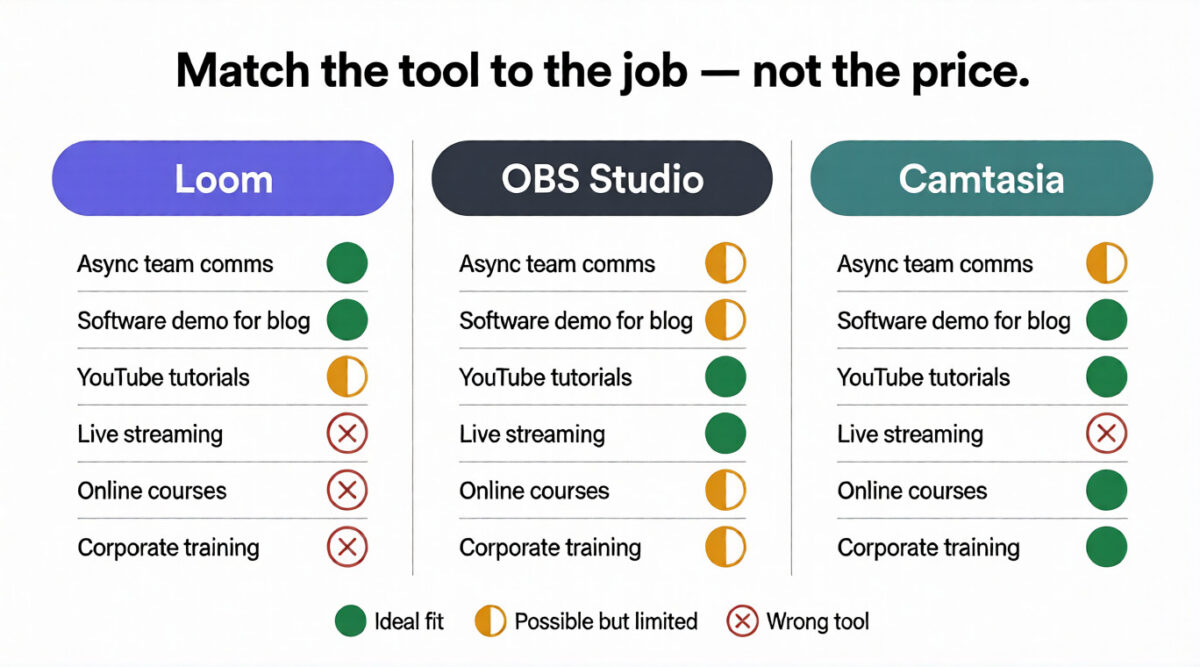
You primarily need to record quick videos for async team communication, replacing emails and meetings with short screen recordings. Also ideal for software demos embedded in blog posts and reviews. The free plan covers casual use; Starter is worth it for teams that use video communication regularly.
Choose OBS if:
You want the most powerful free screen recording and live streaming tool available and are willing to invest time learning the software. Essential for live streamers. Also the right choice for YouTubers who want maximum recording quality at zero cost and plan to edit in a separate tool like DaVinci Resolve.
Choose Camtasia if:
You create tutorial videos, online courses, or corporate training content where production quality and viewer guidance matter. The integrated editing timeline, callout system, and zoom-and-pan features make it the most efficient tool for producing polished, professional tutorial content without professional video editing expertise.
Choose Tight Studio if:
You use an Apple Silicon Mac and want polished product demos, software tutorials, or walkthroughs without spending time on complex editing. Tight Studio automatically zooms in on clicks and on-screen actions and includes captions, cursor animation, annotations, and multi-clip editing. It is especially useful for creators who want professional-looking recordings with less manual editing.
The Blogger and Content Creator Recommendation
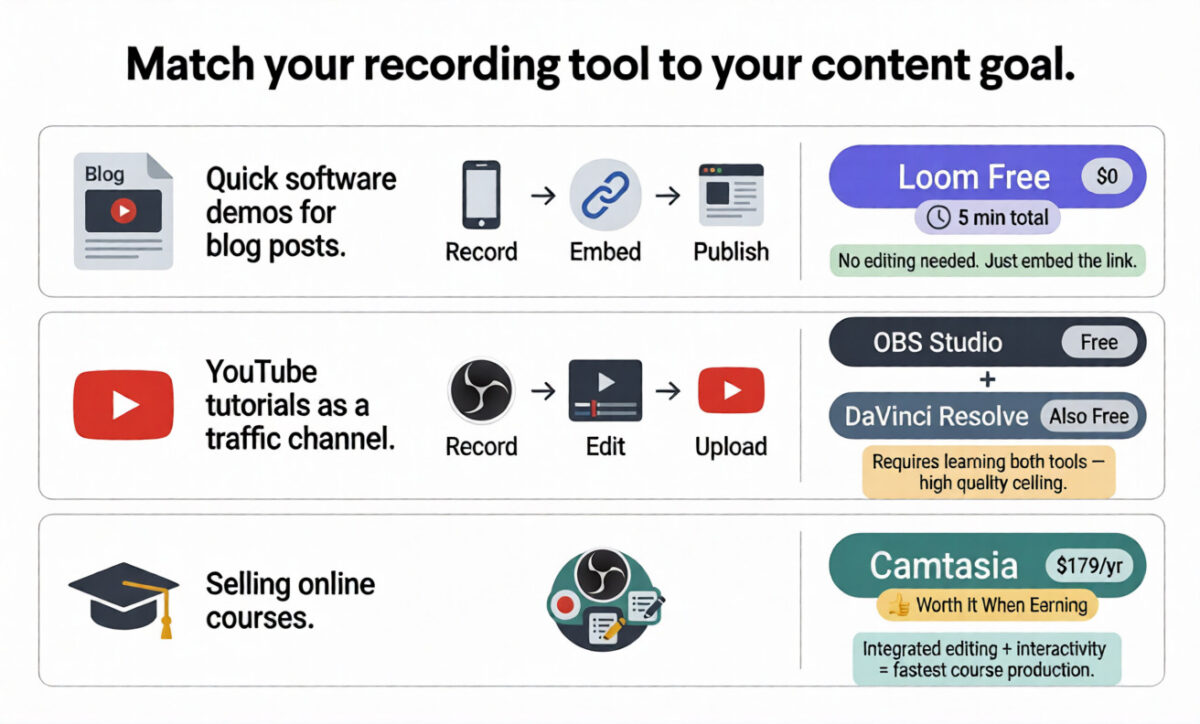
For bloggers specifically, the optimal setup depends on what you create:
Quick software demos for blog posts: Loom is free; record a 3-minute demo and embed the Loom link in your review. Takes 5 minutes, zero cost.
YouTube tutorials as a traffic channel: OBS for recording + DaVinci Resolve (free) for editing. Best quality at zero cost, but requires learning both tools.
Selling online courses: Camtasia’s integrated editing and interactivity features are worth the annual subscription when course revenue justifies it.
Team communication: Loom Starter replaces internal emails and meetings with async video for any team working remotely.
Final Verdict
Loom is the best screen recording tool for most beginners and busy professionals: the instant sharing, zero setup, and async communication features make it the most immediately useful tool for anyone who has never used screen recording software before.
OBS is the best free tool for power users, with unmatched recording quality and streaming capabilities at zero cost, with the trade-off of a significant learning curve.
Camtasia is the best tool for tutorial and course creators: the integrated editing, callout system, and production features make it the most efficient path to polished educational video content.
Tight Studio is ideal for Mac users creating polished product demos and tutorials. Its automatic zoom, captions, AI voiceover, and simple editing make recording easier, but it only works on Apple Silicon Macs.
Ratings:
– Loom: 4.6 / 5
– OBS Studio: 4.5 / 5
– Camtasia: 4.4 / 5
– Tight Studio: 4.6 / 5
Frequently Asked Questions
What is the best free screen recording software in 2026?
OBS Studio is the best completely free screen recording software; it records at up to 4K resolution with no limitations, watermarks, or time restrictions, and is used by professional streamers and YouTubers worldwide. For easier free screen recording with instant sharing, Loom’s free plan (25 videos, 5-minute limit) is the most beginner-friendly option.
Is Loom free to use?
Yes. Loom’s free plan allows up to 25 videos with a 5-minute limit per recording. Videos are stored in Loom’s cloud and shared via link; viewers don’t need an account. The free plan is sufficient for occasional use. Heavy users benefit from the Starter plan at $12.50/month for unlimited recordings and longer videos.
What screen recording software do YouTubers use?
Most YouTubers use OBS Studio for recording (free) combined with a separate video editor, DaVinci Resolve (free), Adobe Premiere Pro, or Final Cut Pro, for post-production. Camtasia is popular among tutorial-focused YouTubers who prefer an all-in-one recording and editing solution. Loom is generally not used for YouTube content due to its limited editing capabilities.
Is Camtasia worth the price?
Yes, for tutorial creators and course builders. Camtasia’s integrated editing timeline, callout system, zoom-and-pan effects, and interactive quiz features significantly reduce the time and expertise required to produce professional educational video content. If you produce regular tutorial videos for YouTube or sell online courses, the $179.88/year subscription pays for itself quickly in time saved. For casual or one-off screen recording, the free alternatives are sufficient.
Can OBS record a screen without streaming?
Yes. OBS can record your screen locally without streaming to any platform. Set your output to Recording instead of Streaming, and OBS saves the video as a local file. This is how most YouTubers use OBS, recording locally, then editing the footage before uploading to YouTube.
What is the difference between Loom and Zoom for screen recording?
Loom is a dedicated screen recording and async video communication tool; it records your screen and shares the video via a link, without requiring a live meeting. Zoom is a live video conferencing platform that also includes meeting recording as a secondary feature. Loom is better for async one-way communication. Zoom recording is better for capturing live meetings and calls.
Does screen recording software affect computer performance?
All screen recording software uses CPU and GPU resources for encoding. OBS and Camtasia can impact performance on lower-powered computers during recording. Loom is the lightest on system resources because it uses cloud-based encoding rather than local processing. For smoother recording on older computers, Loom or OBS with hardware encoding enabled (using your GPU) reduces CPU load.
What screen recording software is best for online courses?
Camtasia is the best screen recording software for online courses. Its integrated editing timeline, quiz and interactivity features, callout system, and professional template library make it the most efficient tool for creating polished course content. The ability to embed knowledge checks and clickable hotspots directly in videos without additional tools is unique to Camtasia among the three platforms tested.