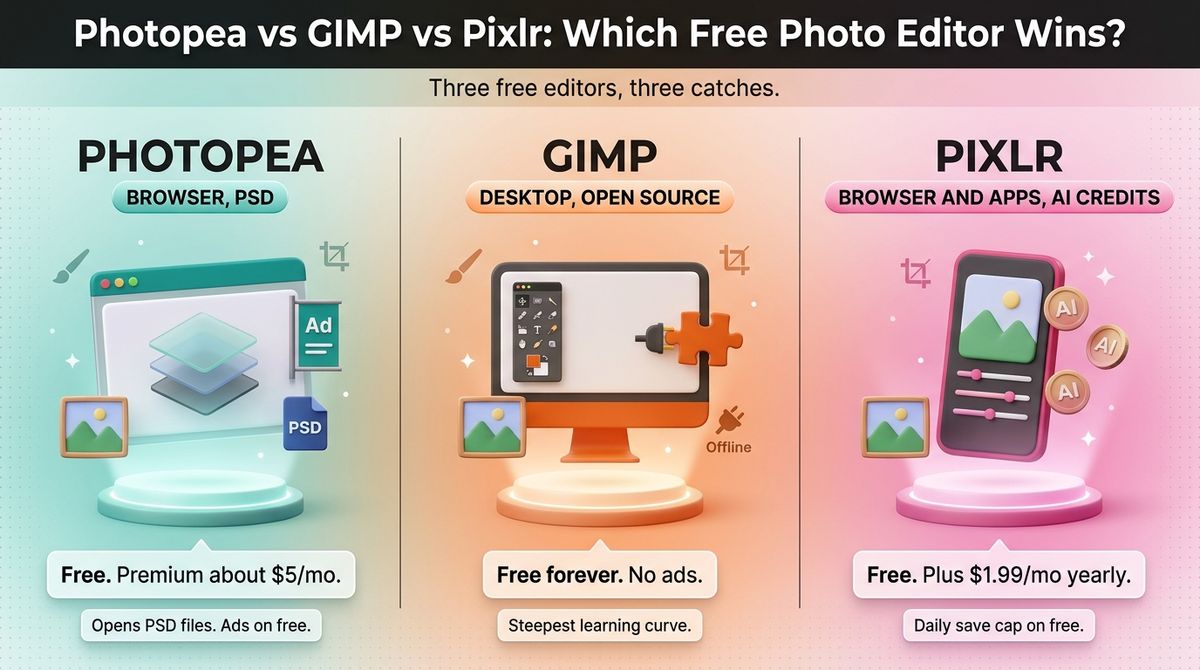
Every blog post needs images, and paying for Photoshop is hard to justify when you publish often. Free photo editors fill the gap, but each one hides a catch: ads, usage caps, or a steep learning curve. This guide compares Photopea vs GIMP vs Pixlr to show which catch you can live with.
The three tools take different routes. Photopea is a browser clone of Photoshop, GIMP is a free open-source desktop editor, and Pixlr is a browser editor with a growing set of AI tools. None needs a paid plan for basic editing, so the question is what you give up for free.
I tested Photopea vs GIMP vs Pixlr for 30 days, building the same five blog assets in each: a 1200×630 featured image, an annotated screenshot, a background removal, a layered PSD cleanup, and a batch of resized images. Here is the honest comparison. Two catches to know first: Pixlr’s free tier now caps daily saves and gives only 20 starter AI credits, and Photopea’s free plan allows about one AI action a day.
Table of Contents
How We Tested
I scored each editor on five criteria, using the same five assets throughout.
- Editing power. I checked layers, masks, selections, text, and retouching tools.
- File support and export. I opened PSD files and exported JPG and PNG files at blog sizes.
- Free-plan limits. I noted ads, save caps, storage, and AI allowances before any payment screen.
- Speed and learning curve. I timed how long each task took for someone who knows Photoshop basics.
- Cost to upgrade. I priced the cheapest way to remove ads and add AI over 12 months.
As a WordPress developer, I also checked how cleanly each tool exports files for the media library and whether it can be automated. After exporting your visuals, you can evaluate top image compression tools for bloggers to reduce page load times.
Photopea Review: The Closest Free Match to Photoshop
- Free plan: Yes; every editing tool is free, with ads beside the canvas
- Starting price: Free; Premium from about $5 a month
- Best plan for most users: Free
- Platforms: Web
- Affiliate program: None confirmed
Photopea is a browser-based image editor built and maintained by a single developer. It copies Photoshop’s layout and opens PSD, XD, Sketch, and Illustrator files. It needs no install, and the free tier needs no account.
What Photopea does best
Photopea is the closest free match to Photoshop. It opens PSD, XD, Sketch, and Illustrator files in a browser tab, with layers, masks, curves, and familiar shortcuts. If you know Photoshop, you can work in it within minutes.
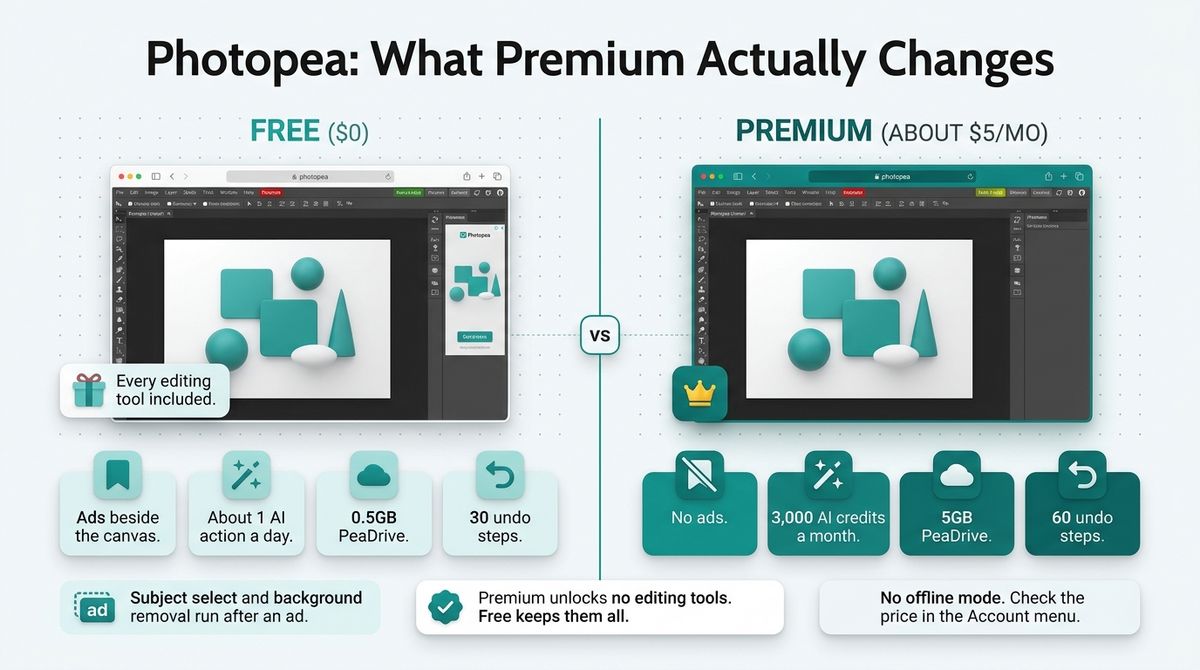
Every editing tool is free, and Premium only removes ads and adds extras. Your files stay on your device unless you save to its cloud or share them. For featured images and annotated screenshots, it covers everything a blog needs.
Where Photopea falls short
Ads sit beside the canvas on the free plan, and reviewers report they can slow the editor on older machines. Free AI is limited to about one generative action a day. Subject select and background removal run after you watch an ad.
PeaDrive cloud storage is 0.5GB on the free plan. There is no offline mode, and one developer maintains the product. Reported Premium prices range from $5 to $8 a month, and annual figures vary by source, so check the Account menu in the editor before you pay.
Photopea pricing
| Plan | Price | Storage | AI | Notes |
|---|---|---|---|---|
| Free | $0 | 0.5GB PeaDrive | About 1 generative action a day | All editing tools, ads, 30 undo steps |
| Premium | From about $5 a month | 5GB PeaDrive | 3,000 AI credits a month | No ads, 60 undo steps; billed for 30, 90, or 365 days |
Photopea: Pros and Cons
Pros:
- Every editing tool is free
- Opens PSD, XD, Sketch, and Illustrator files
- No install or account needed for the free tier
- Photoshop-style layout and shortcuts
- Files stay on your device unless you save or share them
Cons:
- Ads on the free plan can slow the editor
- Free AI is limited to about one action a day
- 0.5GB cloud storage on the free plan
- No offline mode
- Maintained by a single developer
Rating: 4.6 / 5, the closest free match to Photoshop.
GIMP Review: The Most Capable Free Desktop Editor
- Free plan: Free for everyone; open source with no ads, account, or caps
- Starting price: $0
- Best plan for most users: Free
- Platforms: Windows, macOS, Linux
- Affiliate program: None; GIMP is free and open source
GIMP is a free, open-source image editor first released in 1998. The current stable line is GIMP 3.2, released in March 2026, with 3.2.6 following in September 2026. It runs as a desktop app and supports plug-ins and scripting.
What GIMP does best
GIMP is free, open source, and has no ads, no account, and no usage caps. It runs on Windows, macOS, and Linux, so your files and edits stay on your computer. It also works offline.
GIMP 3.2 added non-destructive link layers that work like Photoshop’s Smart Objects, plus vector layers and a Vibrance filter. It supports plug-ins and scripting, which suits a WordPress developer who wants to automate image tasks.
Where GIMP falls short
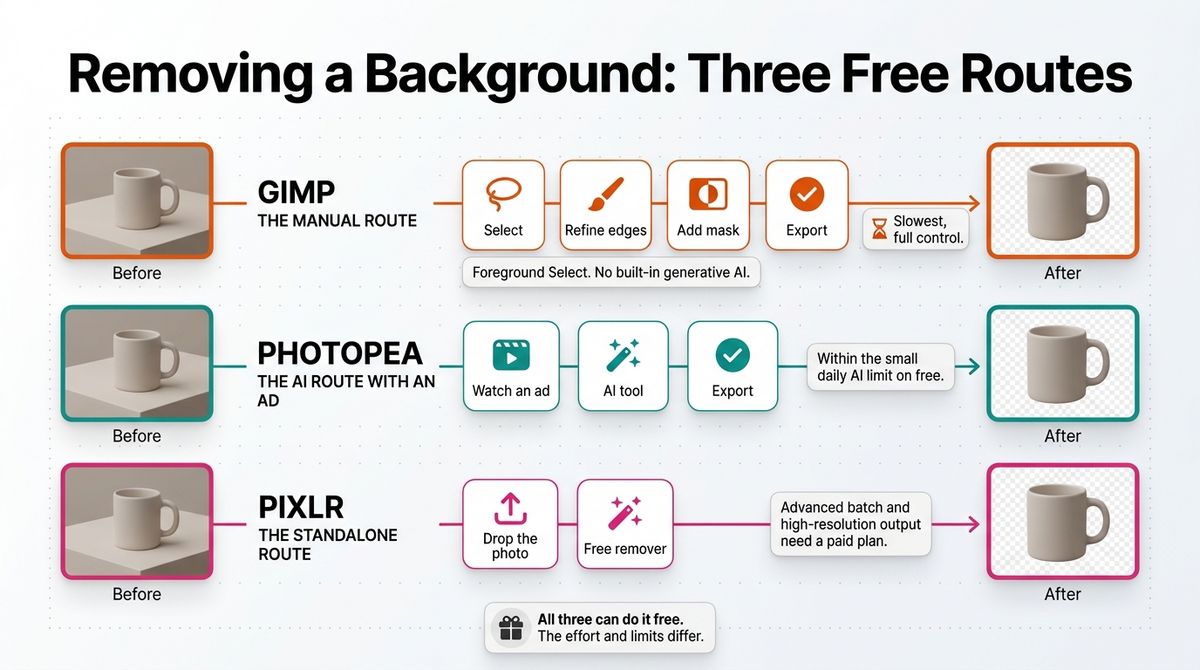
GIMP has the steepest learning curve of the three. The interface differs from Photoshop, and common tasks take longer to learn. It has no built-in generative AI, so background removal means manual selection with tools such as Foreground Select.
It is a desktop install, so you cannot open it on a borrowed laptop or a tablet. The 3.0 series was a major overhaul, and the GIMP team acknowledged growing pains and regressions after it shipped. GIMP 3.2 is also the last release to include a 32-bit Windows build.
GIMP pricing
| Item | Price | Notes |
|---|---|---|
| Software | $0 | Open source; no ads, account, or usage caps |
| Updates | $0 | 3.2 stable released in March 2026; 3.2.6 in September 2026 |
| Plug-ins and scripting | $0 | Community plug-ins and scripting for automation |
| AI and cloud storage | Not included | No built-in generative AI or cloud storage |
GIMP: Pros and Cons
Pros:
- Free forever, with no ads, account, or caps
- Non-destructive link and vector layers in 3.2
- Works offline on Windows, macOS, and Linux
- Plug-ins and scripting for automation
Cons:
- Steepest learning curve of the three
- No built-in generative AI
- Desktop install only
- The 3.0 overhaul brought growing pains and regressions
Rating: 4.3 / 5, the most capable free desktop editor, with the steepest learning curve.
Pixlr Review: Quick and Friendly, Limited by Saves and AI Credits
- Free plan: Yes; the editors are free, with ads, a daily save cap, and 20 starter AI credits
- Starting price: Free; Plus at $1.99 a month on yearly billing
- Best plan for most users: Free, or Plus to remove ads and the save cap
- Platforms: Web, iOS, Android
- Affiliate program: None confirmed
Pixlr is a browser-based editor with an AI layer on top. Pixlr Editor, formerly Pixlr E, handles layers, masks, and selections. Pixlr Express, formerly Pixlr X, handles quick edits, filters, and social templates. The old Pixlr Designer is gone as a separate product.
What Pixlr does best
Pixlr is the quickest to learn. Express handles one-click adjustments, filters, and social templates, and Editor adds layers, masks, and selections. Both run in the browser and in iOS and Android apps with one account.
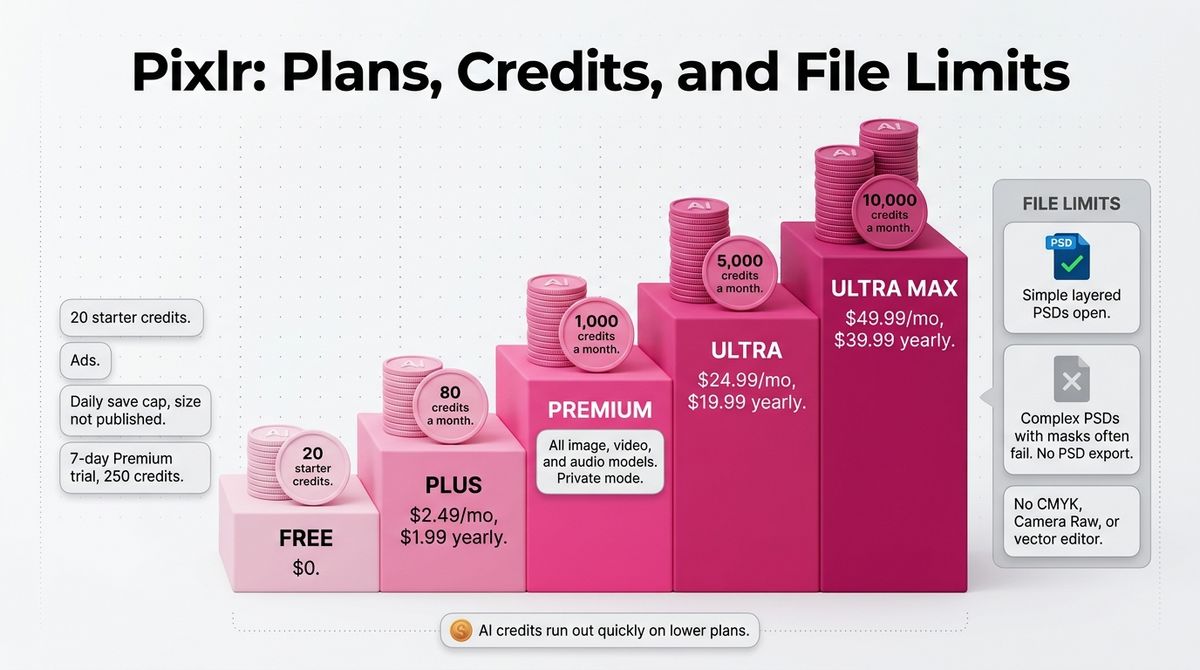
The editors are free, and Plus removes ads for $1.99 a month on yearly billing. The AI tools run on credits. They include generative fill, background and object removal, and upscaling. Premium at $7.99 a month adds 1,000 credits a month. If you need deeper automated retouching, check out the best AI photo editing software available today.
Where Pixlr falls short
The free tier has ads, a daily cap on saves, and only 20 starter AI credits. Pixlr does not publish the size of the save cap. A 7-day Premium trial with 250 credits is offered inside the app.
Pixlr is the weakest on file support. It opens simple layered PSD files, but complex ones with masks often fail, and there is no PSD export. It also has no CMYK, Camera Raw, or vector editor. Older guides quote lower prices, but the current ladder runs from $1.99 to $39.99 a month on yearly billing.
Pixlr pricing
| Plan | Monthly | Yearly, per month | AI credits | Notes |
|---|---|---|---|---|
| Free | $0 | $0 | 20 starter credits | Ads, daily save cap, 7-day Premium trial with 250 credits |
| Plus | $2.49 | $1.99 | 80 a month | Ad-free, unlimited saves |
| Premium | $9.99 | $7.99 | 1,000 a month | All image, video, and audio models, private mode, template library |
| Ultra | $24.99 | $19.99 | 5,000 a month | Unlimited fast image generations under fair use |
| Ultra MAX | $49.99 | $39.99 | 10,000 a month | Everything in Ultra with more credits |
Pixlr: Pros and Cons
Pros:
- Quickest to learn, especially Express
- Free editors with layers and masks
- Plus removes ads for $1.99 a month on yearly billing
- One account across web, iOS, and Android
- Free standalone background remover
Cons:
- Ads and an undisclosed daily save cap on the free tier
- Weak PSD support and no PSD export
- No CMYK, Camera Raw, or vector editor
- AI credits run out quickly on lower plans
Rating: 3.9 / 5, quick and friendly, but limited by saves and AI credits.
Head-to-Head Comparison Table
| Feature | Photopea | GIMP | Pixlr |
|---|---|---|---|
| Price | Free with ads; Premium from about $5 a month | Free, no ads | Free with ads; paid from $1.99 a month on yearly billing |
| Runs in | Browser | Desktop app on Windows, macOS, Linux | Browser, iOS, Android |
| Account required | No | No | No for basic editing |
| PSD support | Opens PSD with layers; also XD, Sketch, Illustrator | Opens PSD with layers; imports more layer styles in 3.2 | Simple layered PSDs only; no PSD export |
| Layers and masks | Yes | Yes, plus non-destructive link and vector layers | Yes, in Pixlr Editor |
| AI tools | About 1 free action a day; 3,000 credits on Premium | No built-in generative AI | 20 starter credits; 80 on Plus; 1,000 on Premium |
| Background removal | AI tool after watching an ad on the free plan | Manual selection tools | Free standalone remover; advanced output is paid |
| Ads | Yes on the free plan | None | Yes on the free plan |
| Works offline | No | Yes | No |
| Learning curve | Moderate; Photoshop-like | Steepest | Easiest |
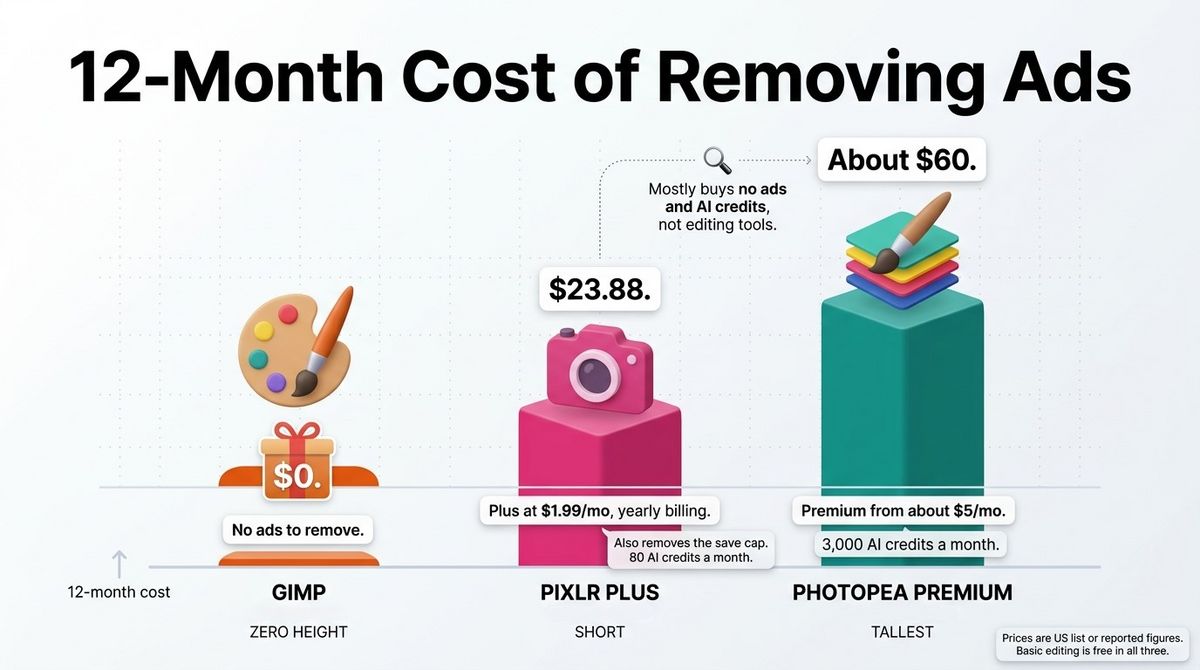
| Cost to remove ads for 12 months | About $60 | $0 | $23.88 on Plus, yearly billing |
| Affiliate program | None confirmed | None | None confirmed |
| Best for | Photoshop-style retouching and PSD files | Full control with no ads or caps | Quick edits and social graphics |
| Our rating | 4.6 / 5 | 4.3 / 5 | 3.9 / 5 |
Which Should You Choose?
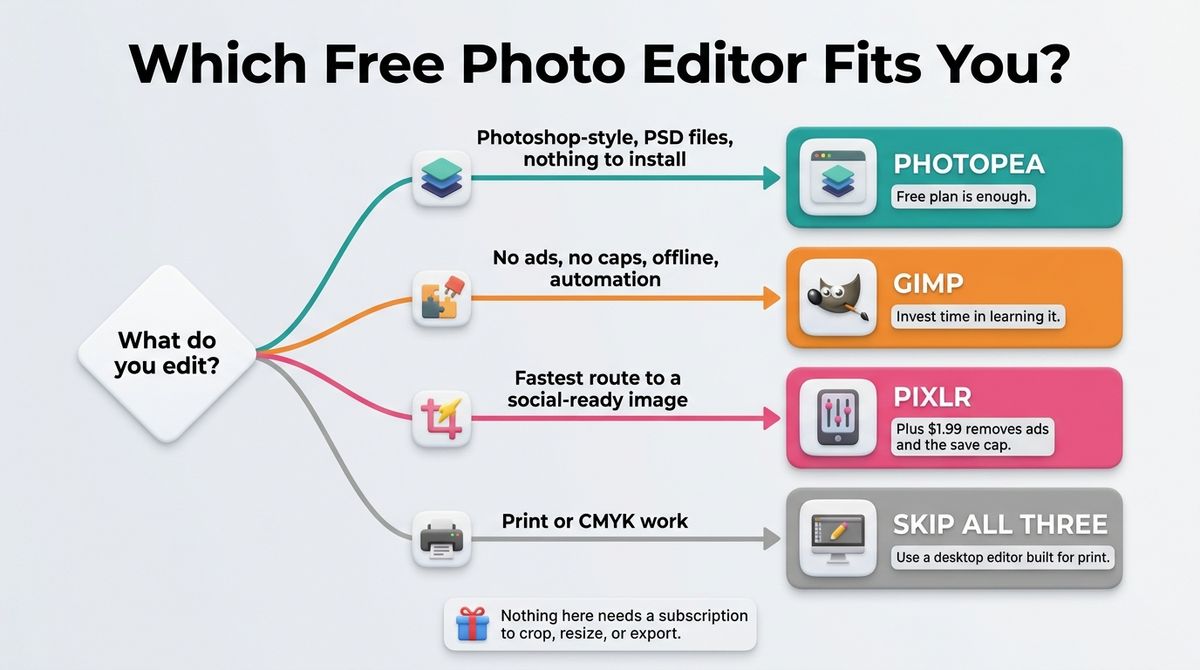
Choose Photopea if you want Photoshop-style editing with nothing to install. It handles PSD files, featured images, and annotated screenshots well, and the free plan is enough.
Choose GIMP if you want an editor with no ads, no account, and no caps, and you will invest time in learning it. It is also the best fit for automation and offline work.
Choose Pixlr if you want the fastest route to a cropped, filtered, social-ready image. Plus at $1.99 a month removes the ads and the save cap. Creators looking to build a full brand kit can compare top AI logo and brand identity generators alongside these editors.
All three are free for basic editing, so the paid plans are the real cost. Photopea and Pixlr paid plans mostly buy ad removal and AI credits, not editing tools. Nothing here needs a subscription to crop, resize, add text, or export a featured image.
Our Recommendations
- Solo blogger making featured images and screenshots: Photopea on the free plan, with Pixlr Express for quick social crops.
- Blogger who dislikes ads or works offline: GIMP, with no ads, no account, and no caps.
- Freelancer who receives PSD files from clients: Photopea, which opens PSD files with layers intact.
- WordPress developer automating image tasks: GIMP with plug-ins and scripting.
- Blogger who generates AI images regularly: Pixlr Premium at $7.99 a month on yearly billing, or Photopea Premium with 3,000 credits a month.
- Anyone producing print or CMYK work: None of the three fits well. Use a desktop editor built for print.
Final Verdict
For most readers comparing Photopea vs GIMP vs Pixlr, Photopea is the winner. It gives you Photoshop-style editing and PSD support free in a browser tab. GIMP is the best ad-free choice and the most capable free desktop editor, and Pixlr is the quickest for simple edits. Bloggers setting up a complete publishing stack should also review top writing apps for bloggers to speed up content creation.
- Photopea: 4.6 / 5, the closest free match to Photoshop.
- GIMP: 4.3 / 5, the most capable free desktop editor, with the steepest learning curve.
- Pixlr: 3.9 / 5, quick and friendly, but limited by saves and AI credits.
Frequently Asked Questions
What is the best free photo editor for bloggers?
Photopea is the best free photo editor for most bloggers because it offers layers, masks, and PSD support in a browser tab with no account. GIMP is the best ad-free option if you prefer a desktop app. Pixlr suits quick social graphics, though its free tier limits daily saves and AI credits.
Is Photopea really free?
Yes. Photopea’s editing tools are all free, supported by ads beside the canvas. Premium starts at about $5 a month and removes the ads, doubles undo history, raises PeaDrive storage from 0.5GB to 5GB, and adds 3,000 AI credits a month. It does not unlock any editing tools, so the free plan keeps them all.
Is GIMP better than Photopea?
GIMP is better if you want a free desktop editor with no ads, no account, and no usage caps, and you are willing to learn a new interface. Photopea is better if you want a Photoshop-like layout, PSD compatibility, and nothing to install. You can use Photopea for quick work and GIMP for larger projects.
Is Pixlr still free?
Yes, the Pixlr Editor and Express are free in the browser, with no account needed for basic editing. The free tier shows ads, caps daily saves, and gives new users 20 AI credits. Plus costs $1.99 a month on yearly billing, removes ads and the save cap, and adds 80 AI credits a month.
Which free editor opens PSD files best?
Photopea opens PSD files best, with layers intact, and also reads XD, Sketch, and Illustrator files. GIMP opens PSD files with layers and imports more layer styles since version 3.2. Pixlr opens only simple layered PSDs; complex files with masks often fail, and it has no PSD export.
What is the difference between Pixlr Editor and Pixlr Express?
Pixlr Editor, formerly Pixlr E, is the advanced editor with layers, masks, selections, and curves. Pixlr Express, formerly Pixlr X, is the quick editor for one-click adjustments, filters, and social templates. Both share one account and one free tier. The old Pixlr Designer is no longer a separate product.
Can these editors remove backgrounds for free?
Partly. Photopea offers AI background removal on the free plan after you watch an ad, within a small daily AI limit. Pixlr has a free standalone background remover, though advanced batch and high-resolution output need a paid plan. GIMP has no AI tool, so you remove backgrounds manually with selection tools.