If you are comparing ShortPixel vs Imagify vs TinyPNG, your blog images are probably slowing your pages down. One uncompressed hero photo can weigh 3 MB or more. Multiply that by every post and your PageSpeed score drops, Largest Contentful Paint slows, and mobile readers leave. Before choosing an optimizer, consider measuring page speed with top performance analyzers to identify exactly how much image weight hurts loading times.
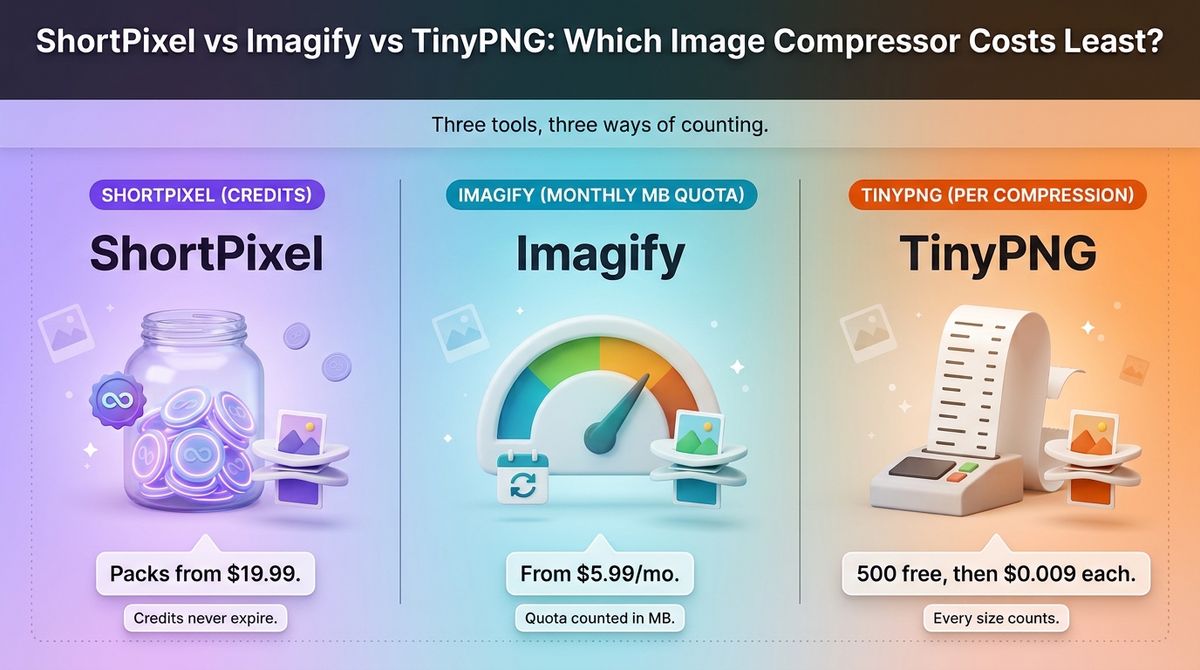
Image compression tools look alike on the surface, but they charge in three different ways. ShortPixel sells credits, Imagify sells a monthly data quota, and TinyPNG bills per compression. The same Media Library can cost almost nothing on one tool and a surprising amount on another.
I tested ShortPixel vs Imagify vs TinyPNG for 30 days on a WordPress blog. I bulk-optimized an existing Media Library, then tracked what each new upload cost against every limit. Here is the honest comparison, including one pricing catch you should understand first: every thumbnail size WordPress creates can count against your allowance.
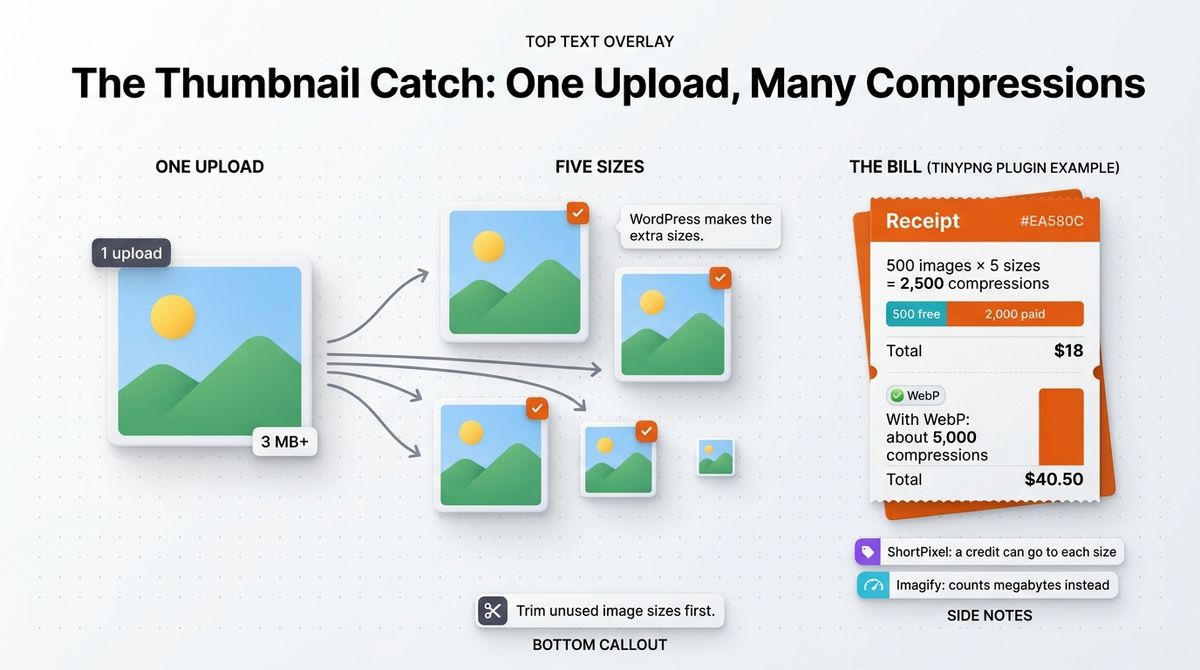
Table of Contents
How We Tested
Every tool was scored on the same five criteria.
- Compression quality. File size saved against visible quality loss on photos, screenshots, and PNG graphics.
- Pricing and limits. What each plan costs, what counts against the limit, and what happens when you run out.
- WordPress workflow. Automatic optimization on upload, bulk optimization of old images, and whether originals can be restored.
- Modern formats and delivery. WebP and AVIF conversion, plus CDN delivery.
- Cost over a full year. Total spend for a typical blog, not just the monthly headline price.
ShortPixel Review: Flexible Credits That Never Expire
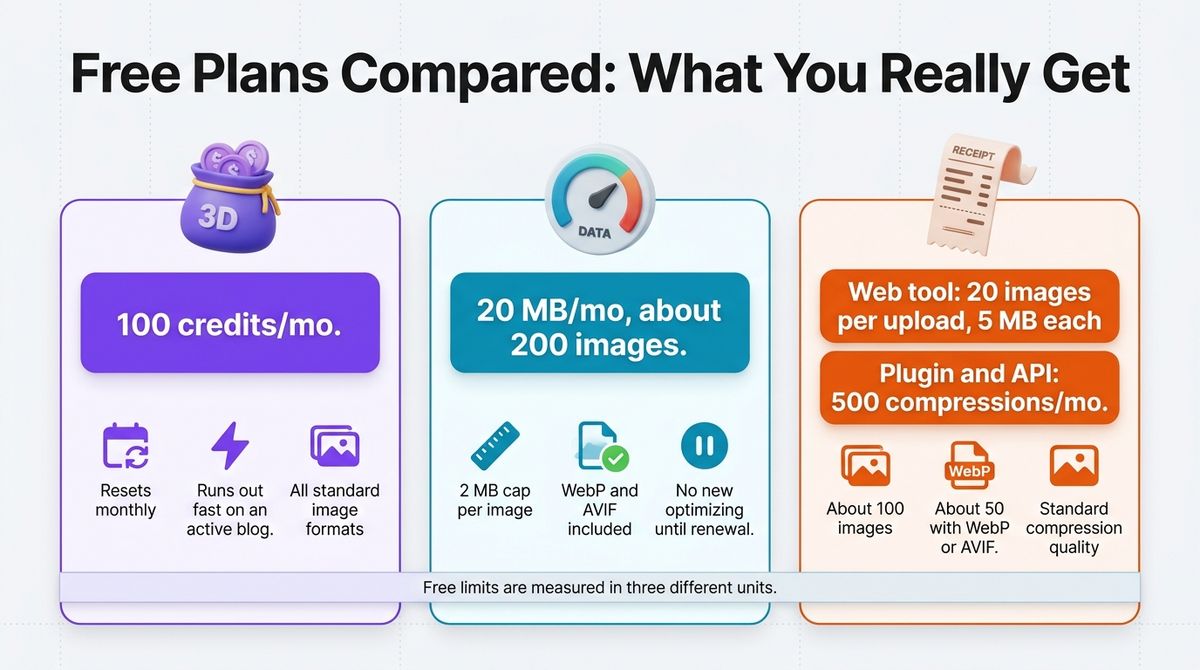
- Free plan: Yes, 100 credits per month
- Starting price: Unlimited from $9.99 per month ($8.33 per month billed yearly); one-time credit packs from $19.99
- Best plan for most users: One-time credit pack
- Platforms: WordPress plugin, web app, PHP website optimizer, API, Android app
- Affiliate program: Yes, commission rate unconfirmed
ShortPixel is an image optimization service with plugins for WordPress and a web app for everything else. It compresses images on upload, converts them to WebP and AVIF, and can serve them from its own CDN. One credit generally covers one image optimization.
What ShortPixel does best
Its credit model is the most flexible of the three. One-time packs never expire, so you buy once, clean up your Media Library, and keep the leftover credits for new uploads. If you cancel a subscription, unused credits convert to one-time credits instead of disappearing.
It also gives you the most control. You choose lossless, lossy, or glossy compression, and you can add AI-written alt text, captions, and SEO-friendly filenames. For a blogger, that last feature saves time on every post, because alt text is the chore most of us skip. Preparing clean visuals beforehand using advanced photo editing software with intelligent features ensures images look crisp before plugin compression takes place.
Where ShortPixel falls short
Credit counting takes attention. WordPress creates several sizes of every upload, and each size can use a credit, so a 500-image library can consume thousands. ShortPixel’s help center even has an article explaining why new plans show credits already used, so you are not the first to wonder.
The Unlimited plan covers one website. Ten small sites on Unlimited cost $99.90 a month, so agencies should run the numbers before choosing it. The free tier of 100 credits per month also runs out fast on an active blog.
ShortPixel pricing
| Plan | Price | What you get |
|---|---|---|
| Free | $0 | 100 credits per month |
| One-time credits | From $19.99 | 30,000 credits for $19.99; credits never expire; larger packs available |
| Unlimited, monthly | $9.99 per month | Unlimited optimization for one website, 500 GB CDN traffic per month |
| Unlimited, yearly | $99.90 per year ($8.33 per month) | Same as monthly, with two months free |
ShortPixel: Pros and Cons
Pros:
- One-time credits that never expire
- Free tier of 100 credits per month
- Lossless, lossy, and glossy compression modes
- WebP and AVIF conversion with optional CDN delivery
- AI alt text, captions, and SEO-friendly filenames
Cons:
- Each thumbnail size can use a credit
- Unlimited plan covers one website only
- More settings to configure than the other two
- Adaptive Images CDN is a separate product with its own traffic credits
Rating: 4.6 / 5, best value for most WordPress bloggers.
Imagify Review: Simple Setup With a Monthly Quota
- Free plan: Yes, 20 MB per month (about 200 images), 2 MB cap per image
- Starting price: Growth at $5.99 per month ($4.99 per month billed yearly)
- Best plan for most users: Growth, or Infinite for media-heavy sites
- Platforms: WordPress plugin, API
- Affiliate program: Yes, 20% commission through Awin
Imagify comes from WP Media, the team behind WP Rocket. It optimizes images on upload, bulk-optimizes your existing library, and converts to WebP and AVIF. It is priced by monthly data quota in megabytes, not by image count. RateTheTool runs Imagify on its own site, which is a bias you should know about.
What Imagify does best
Imagify is the easiest to set up. Install the plugin, create a free account, add the API key, and new uploads compress automatically. Its free plan includes WebP and AVIF conversion, which is a useful feature to get at no cost.
It keeps backups of your originals by default, so you can restore any image. Your images stay compressed even if you remove the plugin or delete your account. One API key works on unlimited websites, which suits developers managing client sites. Many agency designers pair this automated workflow alongside flexible WordPress page builders for content creators when launching fast portfolio layouts.
Where Imagify falls short
Imagify measures your quota in megabytes, so the ‘about 200 images’ estimate moves with file size. Photo-heavy blogs hit the limit sooner. On the free plan, you cannot optimize new images until the quota renews, and each file is capped at 2 MB.
There are no one-time packs, so ongoing optimization means an ongoing subscription. Prices have crept up as well. Older reviews list Infinite at $9.99 monthly, but that price now applies only when you pay yearly, and monthly billing is $11.99. Imagify also does not include CDN delivery; WP Media sells RocketCDN separately.
Imagify pricing
| Plan | Price | What you get |
|---|---|---|
| Free (Starter) | $0 | 20 MB per month (about 200 images), 2 MB per image, unlimited websites |
| Growth | $5.99 per month, or $4.99 per month billed yearly ($59.90 per year) | 500 MB per month (about 5,000 images) |
| Infinite | $11.99 per month, or $9.99 per month billed yearly ($119.90 per year) | Unlimited images, unlimited upload size, fair use policy |
Imagify: Pros and Cons
Pros:
- Fastest setup of the three
- WebP and AVIF conversion on the free plan
- Backups of original images by default
- One API key for unlimited websites
- 20% affiliate program, so it pays the site; the rating does not
Cons:
- Quota is measured in megabytes, which is hard to predict
- No one-time packs
- No CDN delivery in the plugin
- Free plan caps files at 2 MB
Rating: 4.5 / 5, the simplest choice if you already use WP Rocket.
TinyPNG Review: Best Free Web Tool, Expensive at Scale
- Free plan: Yes. Web tool: 20 images per upload, 5 MB each. WordPress plugin and API: 500 compressions per month
- Starting price: Web Pro at $39 per year; API at $0.009 per compression after the free 500
- Best plan for most users: Free web tool for occasional uploads
- Platforms: Web app, WordPress plugin, API
- Affiliate program: Not confirmed
TinyPNG, built by Tinify, is the best-known browser-based image compressor. Drag in your files and download smaller versions. It supports AVIF, WebP, PNG, JPEG, and JPEG XL, and sells a WordPress plugin and a developer API on the same engine.
What TinyPNG does best
The web tool needs no setup and no WordPress. Drop in 20 images, wait a few seconds, and download the results. For a blogger who adds a few images per post, it covers the job at no cost. This quick manual compression step works equally well for assets exported from automated logo and brand identity generators before publishing them online.
API pricing is also fair at small volumes. There is no base fee and no minimum, and you are charged only for successful compressions. After 10,000 compressions in a month, the price drops to $0.002 each.
Where TinyPNG falls short
The WordPress plugin counts every generated size as a compression. TinyPNG’s own plugin page says 500 free credits cover roughly 100 images a month, and about 50 with WebP or AVIF conversion turned on. This is the thumbnail catch in its sharpest form.
Here is the math. A 500-image library with five sizes each is 2,500 compressions. After the free 500, the other 2,000 cost $18. Turn on WebP conversion and the same library becomes about 5,000 compressions and $40.50. TinyPNG also uses lossy compression only, with no lossless setting.
TinyPNG pricing
| Plan | Price | What you get |
|---|---|---|
| Web Free | $0 | 20 images per upload, 5 MB per image |
| Web Pro | $39 per year | Unlimited images, 75 MB per image |
| Web Ultra | $149 per year | Unlimited images, 150 MB per image, unlimited format conversions |
| API and WordPress plugin | First 500 compressions free each month | $0.009 each for the next 9,500; $0.002 each after 10,000 |
TinyPNG: Pros and Cons
Pros:
- Free web tool with no account or setup
- Supports AVIF, WebP, PNG, JPEG, and JPEG XL
- Pay-per-use API with no base fee
- Web Pro is cheap at $39 per year for manual workflows
Cons:
- Plugin counts every thumbnail size as a compression
- WebP and AVIF conversion uses extra credits in the plugin
- Lossy compression only
- Costs climb quickly on large WordPress libraries
Rating: 4.2 / 5, an excellent free web tool that gets expensive for large libraries.
ShortPixel vs Imagify vs TinyPNG: Head-to-Head Comparison
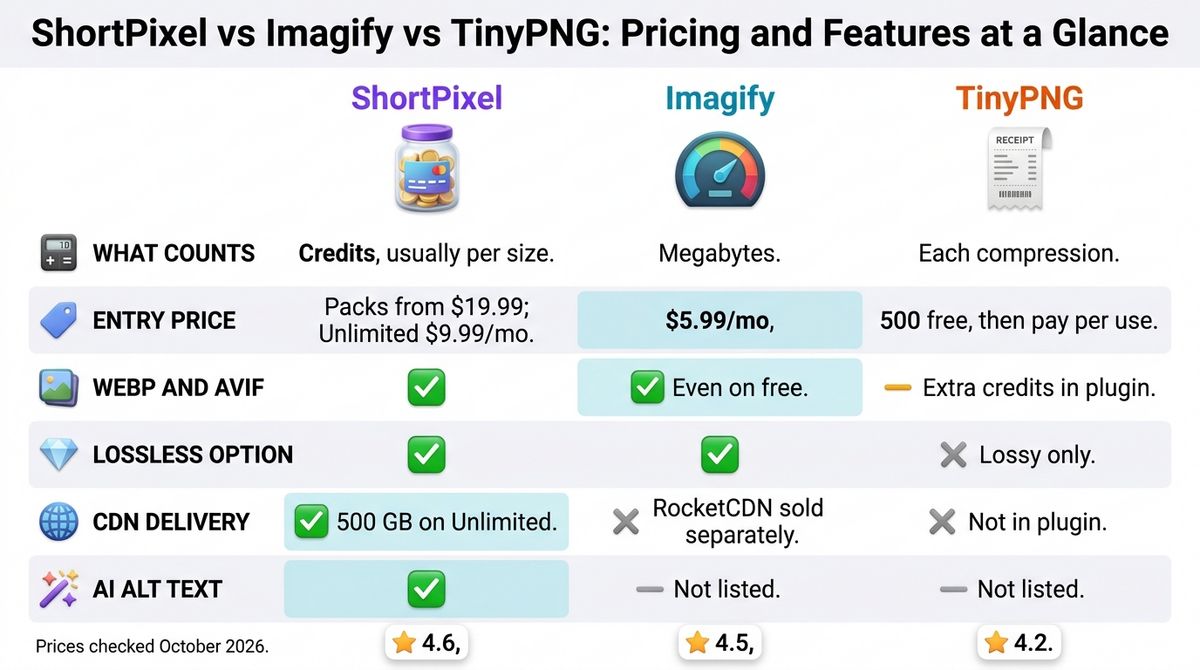
Head-to-head comparison of ShortPixel, Imagify, and TinyPNG (checked October 2026)
| Feature | ShortPixel | Imagify | TinyPNG |
|---|---|---|---|
| Free plan | 100 credits per month | 20 MB per month (about 200 images) | 500 compressions per month in plugin and API; web tool takes 20 images per upload |
| Entry paid price | One-time packs from $19.99; Unlimited $9.99 per month | $5.99 per month ($4.99 billed yearly) | Pay per use after 500 free; Web Pro $39 per year |
| What counts against your limit | Credits, generally one per image size | Megabytes of image data | Each compression, including each generated size |
| WebP and AVIF | Yes | Yes, including on the free plan | Yes, with extra credits in the plugin |
| Lossless option | Yes | Yes | No, smart lossy only |
| CDN delivery | Yes, 500 GB traffic on Unlimited | No, RocketCDN sold separately | Not in the plugin |
| AI alt text | Yes | Not listed | Not listed |
| Affiliate program | Yes, rate unconfirmed | Yes, 20% through Awin | Not confirmed |
| Best for | Existing libraries and flexible billing | Simple setup and multi-site use | Manual uploads and developers |
| Rating | 4.6 / 5 | 4.5 / 5 | 4.2 / 5 |
Which Should You Choose?
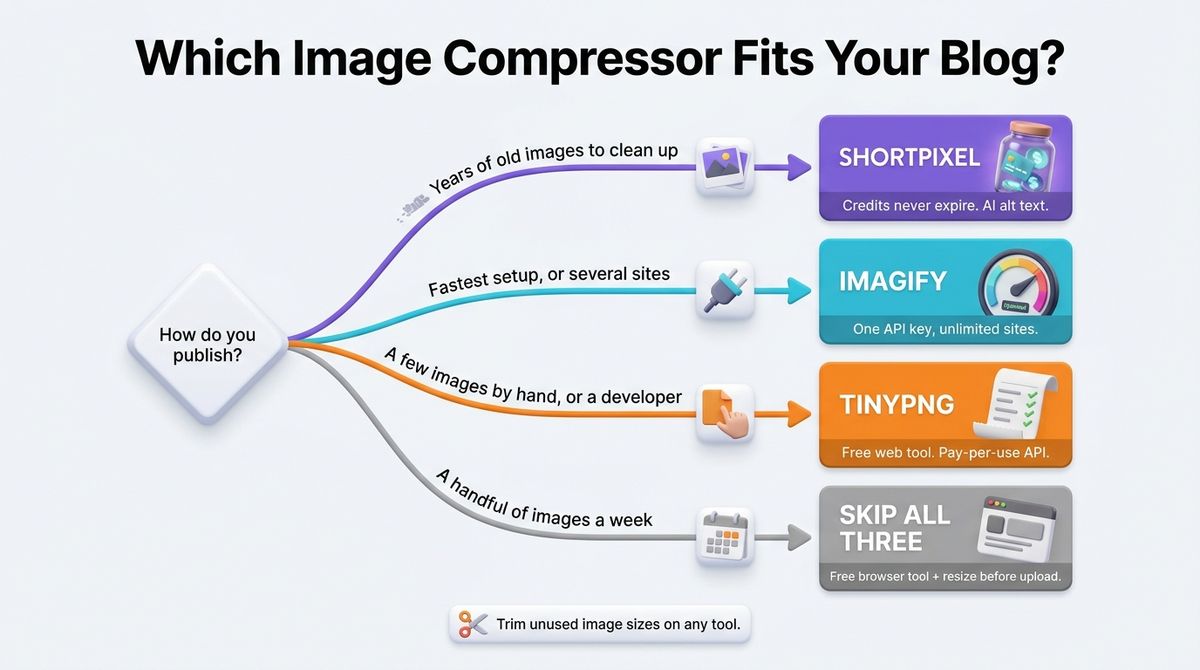
- Choose ShortPixel if you have years of old images to clean up, want credits that never expire, or want AI-written alt text.
- Choose Imagify if you want the quickest setup, already use WP Rocket, or manage several sites on one API key.
- Choose TinyPNG if you upload a few images per post by hand, or you are a developer adding compression to your own app.
- Skip all three if you publish a handful of images per week. Squoosh, an open-source browser tool from Google Chrome Labs, compresses and converts one image at a time with no account. Resizing images to their display width before upload also saves more space than any compressor.
One developer tip applies to every tool here. Trim the image sizes your theme registers, using remove_image_size() or the intermediate_image_sizes_advanced filter. Fewer sizes mean fewer credits, megabytes, or compressions on every upload.
Our Recommendations
- Solo blogger with a small library: Start on a free tier, either Imagify’s 20 MB or ShortPixel’s 100 credits, and upgrade only when the limit blocks you. TinyPNG’s free web tool works if you prefer to compress before uploading.
- Blogger with years of old posts: Buy one ShortPixel credit pack, bulk-optimize the Media Library once, and keep the leftover credits for new uploads.
- Small team or agency managing client sites: Imagify Infinite on one API key covers unlimited sites. Compare it against ShortPixel Unlimited, which is priced per website.
- Developer building compression into an app or build pipeline: Use the TinyPNG API. Pay-per-use pricing suits uneven volume, and there is no monthly minimum.
- Photographer posting large files: Imagify Infinite has no upload size limit, and TinyPNG Web Ultra allows files up to 150 MB.
Final Verdict
In the ShortPixel vs Imagify vs TinyPNG comparison, ShortPixel is the best pick for most WordPress bloggers. Its one-time credits never expire, and AI alt text saves time on every post. Imagify is close behind and is the simpler choice if you already run WP Rocket. TinyPNG’s free web tool is the right pick for hand uploads, and its API suits developers, but plugin costs climb quickly on large libraries.
- ShortPixel: 4.6 / 5
- Imagify: 4.5 / 5
- TinyPNG: 4.2 / 5
Check each vendor’s live pricing page before you buy. All prices above were checked in October 2026.
Frequently Asked Questions
Which is better, ShortPixel or Imagify?
ShortPixel suits most bloggers because its one-time credit packs never expire and it adds AI alt text. Imagify wins on setup simplicity, backups, and unlimited sites on one API key. If you already use WP Rocket, Imagify keeps everything with one vendor. Both convert to WebP and AVIF.
Is TinyPNG free?
Yes, within limits. The web tool is free for 20 images per upload at up to 5 MB each. The WordPress plugin and API include 500 free compressions per month, then charge $0.009 each. Web Pro costs $39 per year for unlimited web compression with a 75 MB file limit.
Does image compression reduce quality?
Lossless compression keeps every pixel and saves less space. Lossy compression discards detail the eye rarely notices and saves much more. ShortPixel offers lossless, lossy, and glossy modes, and Imagify offers lossless and two lossy levels. TinyPNG is lossy only. Check a few compressed photos at full size before bulk-optimizing your library.
Do thumbnails count against my limit?
Usually yes. WordPress generates several sizes per upload, and TinyPNG’s plugin counts each size as a compression. ShortPixel can also use a credit per size. Imagify measures megabytes instead. Remove unused sizes from your theme with remove_image_size() to cut usage on any of these tools.
Which of these tools convert images to WebP and AVIF?
All three. Imagify includes both formats even on its free plan. ShortPixel converts to both and can serve them from its CDN on Unlimited. TinyPNG supports AVIF and WebP, but its plugin charges an extra credit for each converted size, which roughly halves your free allowance.
What happens to my images if I cancel?
Images already compressed stay compressed on your server. Imagify confirms this even if you delete your account, and it keeps backups of originals while the plugin is active. ShortPixel converts unused credits to one-time credits when you cancel a subscription. New uploads stop being optimized once your quota ends.
Is there a free image compressor without a monthly limit?
Squoosh, an open-source browser tool from Google Chrome Labs, compresses and converts one image at a time with no account. Pair it with resizing images to their display width before upload. That covers a handful of images per week at no cost.
Do I need a plugin, or can I compress before uploading?
Compressing before upload works if you add a few images a week. A plugin is the better choice when you have an existing library, publish often, or want WebP and AVIF versions created automatically. It also compresses the extra sizes WordPress generates after upload.