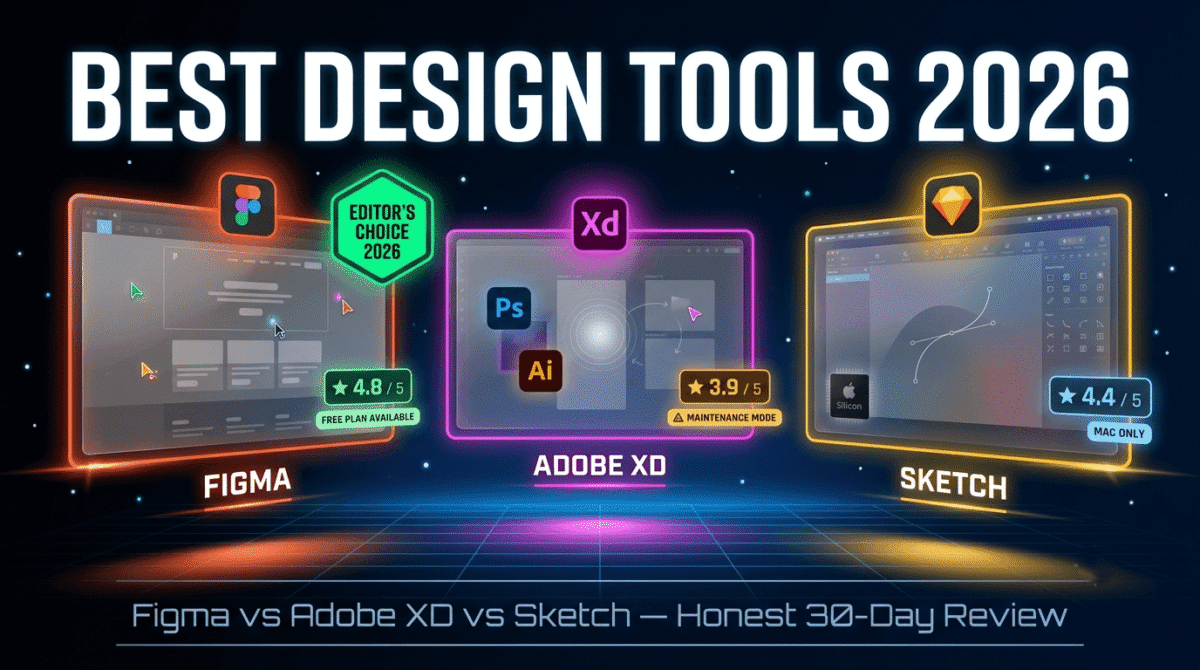
Design tools have become essential for far more people than just professional designers in 2026. Bloggers create featured images and social graphics. WordPress developers wireframe client sites before building them. Small business owners design landing pages, pitch decks, and marketing materials. Freelancers prototype app interfaces and website layouts for clients. Design tools are one piece of that broader content creator toolkit, see our full roundup for the rest of the stack.
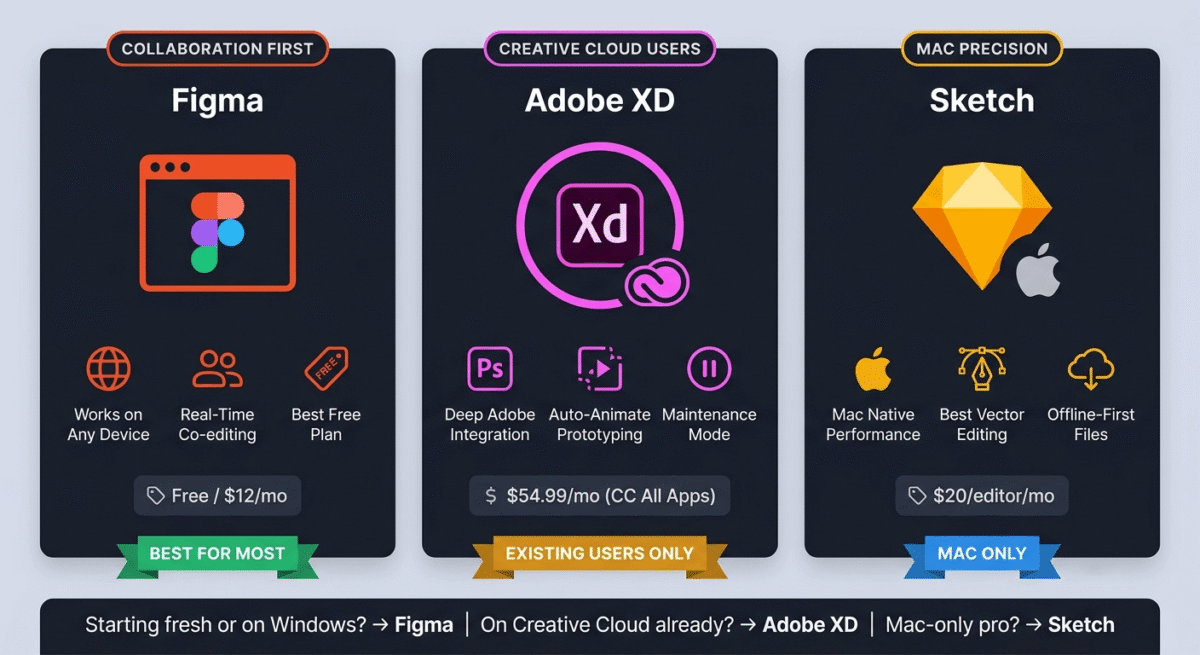
The three tools that dominate this space, Figma, Adobe XD, and Sketch, each take a fundamentally different approach to design. Figma is browser-based and collaborative. Adobe XD integrates with the Creative Cloud ecosystem. Sketch is Mac-native and developer-beloved.
I tested all three (Figma vs Adobe XD vs Sketch) for 30 days across real projects, website wireframes, UI design, social media templates, and client presentation mockups. Here is the honest comparison.
Table of Contents
How We Evaluated These Tools
Every platform was tested across five criteria:
– Ease of use, how quickly can a beginner produce professional-quality designs?
– Collaboration, how well does it support real-time teamwork and client feedback?
– Prototyping how effectively can you create interactive clickable prototypes?
– Developer handoff, how well does it communicate designs to developers?
– Value, free plan quality and paid plan pricing versus features offered
Why Design Tools Matter Beyond Professional Designers
Before comparing the tools, a note on why this matters for bloggers and WordPress developers specifically.
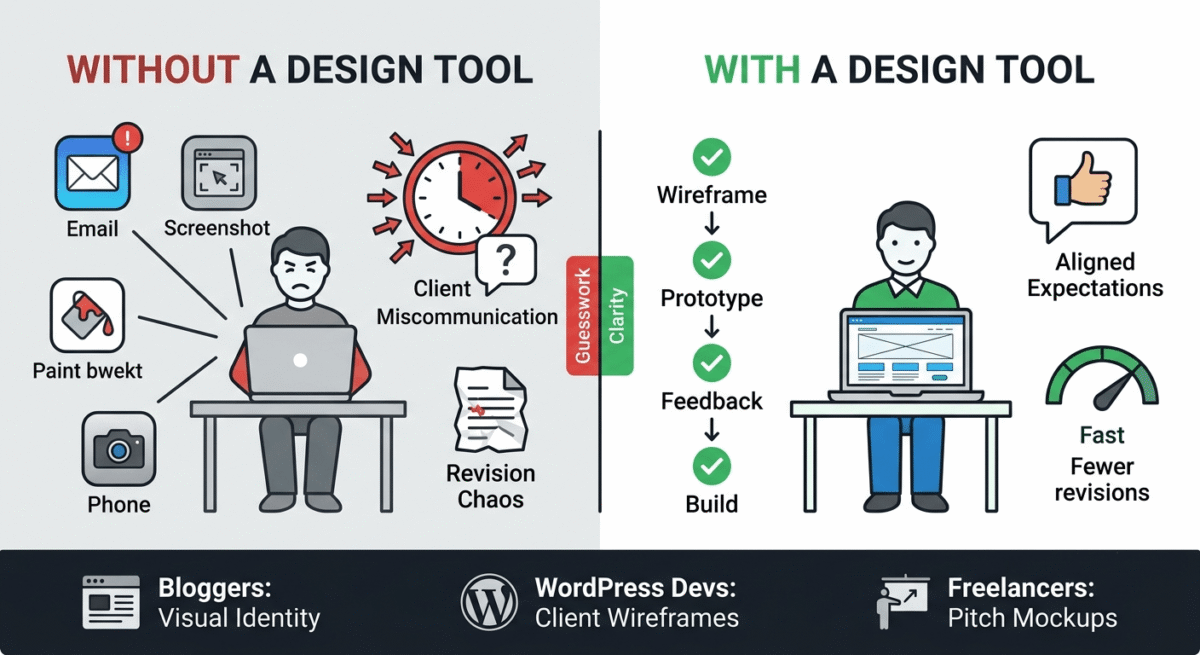
For bloggers: Your blog’s visual identity, featured images, social media graphics, email header designs, lead magnet ebook covers, and YouTube thumbnails, determines whether readers perceive you as a professional or an amateur. Whatever you design still needs real photography behind it, source your images here with our Shutterstock vs Getty Images vs Unsplash comparison. Design tools give you control over this visual identity without hiring a designer for every asset.
For WordPress developers: Wireframing and prototyping client sites before building them saves hours of revision cycles. Showing a client a clickable Figma prototype before writing a single line of code aligns expectations, surfaces requirement gaps, and produces better projects with fewer change requests.
For small business owners: Creating pitch decks, product mockups, and marketing materials without agency costs gives you faster iteration and more creative control over your brand.
Figma Review: Best Design Tool for Collaboration and Beginners
Free plan: Yes, 3 projects, unlimited personal files, unlimited collaborators
Starting paid price: $12/month/editor (Professional, billed annually)
Best plan for most users: Free plan or Professional, $12/month
Platforms: Web browser, Windows, Mac, Linux (via browser)
Affiliate program: Yes, Figma affiliate program
Figma is the most widely adopted design tool in the world in 2026, used by Google, Microsoft, Airbnb, Dropbox, and millions of independent designers and developers globally. Its browser-first architecture, real-time collaboration, and the most generous free plan of the three tools have made it the default choice for teams and individuals who want professional design capability without the traditional barriers of expensive software licences.
What Figma does best
Figma’s real-time collaboration is its defining feature, and the capability that fundamentally changed how design teams work. Multiple designers can work on the same file simultaneously, with each person’s cursor visible to all collaborators in real time. A designer in Asia and a client in the UK can review, comment on, and edit the same design simultaneously, as naturally as working in the same room.
The commenting system transforms client feedback. Share a Figma file link with a client and they can click anywhere on the design to leave a pinned comment, no more feedback in email threads describing “the button in the top right corner.” Comments are attached to specific design elements, resolved when addressed, and tracked in a conversation thread. For WordPress developers presenting designs to clients, this feedback workflow alone justifies using Figma over any local-only alternative.
Figma’s auto-layout feature, which automatically adjusts element positioning and sizing based on content, is the most powerful layout tool of the three platforms. Create a button component and Figma automatically adjusts its width as the label text changes, maintaining consistent padding. Build a card component and Figma automatically stacks new items as the content grows. Auto-layout enables designs that behave responsively, reflecting how real web interfaces work, rather than being static pixel arrangements.
The component system, creating reusable design elements that update everywhere when the master is edited, mirrors how component-based development frameworks (React, Vue) work. For WordPress developers, designing with components in Figma directly translates to how components are built in code, reducing the gap between design and implementation.
Variables and design tokens, introduced in Figma’s recent updates, allow defining colour, typography, and spacing values once and applying them globally, with support for multiple modes (light mode and dark mode switching with one click). This design systems capability was previously only available in expensive enterprise design tools.
The FigJam whiteboard, integrated with Figma, provides a digital whiteboard for brainstorming, user journey mapping, and design thinking exercises. For WordPress developers who facilitate client discovery sessions, FigJam replaces physical whiteboards with a shared digital space.
Figma’s plugin ecosystem covers over 1,000 community-built extensions, including plugins that pull real content from APIs, generate placeholder text and images, create accessibility checks, export design tokens to code, and connect to Airtable and Google Sheets for data-driven design. For custom visuals beyond what placeholder-image plugins generate, see our AI image generation comparison of Midjourney vs DALL-E vs Adobe Firefly. The plugin library extends Figma’s built-in capabilities significantly.
Figma for developers
Figma’s developer mode, available in the professional plan, presents designs in a developer-friendly view showing CSS properties, spacing measurements, asset export options, and code snippets. Developers can inspect any element and copy its exact CSS values without needing design software access or asking the designer for measurements. For solo WordPress developers who design and build their own projects, this handoff feature eliminates context switching.
Where Figma falls short
Figma’s free plan limits you to 3 projects, each project can contain multiple files, but the project cap becomes restrictive for freelancers managing more than three concurrent clients. The Professional plan at $12/month per editor is necessary for unlimited projects and more advanced features.
Figma requires an internet connection for full functionality, while it has offline capabilities, it is fundamentally a cloud-based tool. Users in areas with unreliable internet may experience disruption during active design sessions.
The vector editing tools, while functional, are less precise than Adobe Illustrator for complex illustration work. Figma is a UI/UX and web design tool first, detailed illustration and print design are not its strongest use cases.
Figma pricing
Plan | Price/editor/month (annual) | Projects | Key features |
Free | $0 | 3 | Unlimited collaborators, components, FigJam |
Professional | $12 | Unlimited | + Shared libraries, advanced prototyping, dev mode |
Organisation | $45 | Unlimited | + SSO, advanced permissions, analytics |
Enterprise | $75 | Unlimited | + Enhanced security, dedicated support |
Figma: Pros and Cons
Pros:
– Best real-time collaboration, multiple editors simultaneously
– Most generous free plan, 3 projects with unlimited collaborators
– Browser-based, works on Windows, Mac, Linux, Chromebook
– Auto-layout for responsive component design
– Variables and design tokens for scalable design systems
– 1,000+ community plugins
– Developer mode for clean code handoff
– FigJam whiteboard integrated
– Largest community, most tutorials, templates, and resources
Cons:
– Free plan limited to 3 projects
– Requires internet connection for full functionality
– Vector illustration less precise than dedicated tools
– Professional plan required for unlimited projects
– Can feel complex for complete beginners at first
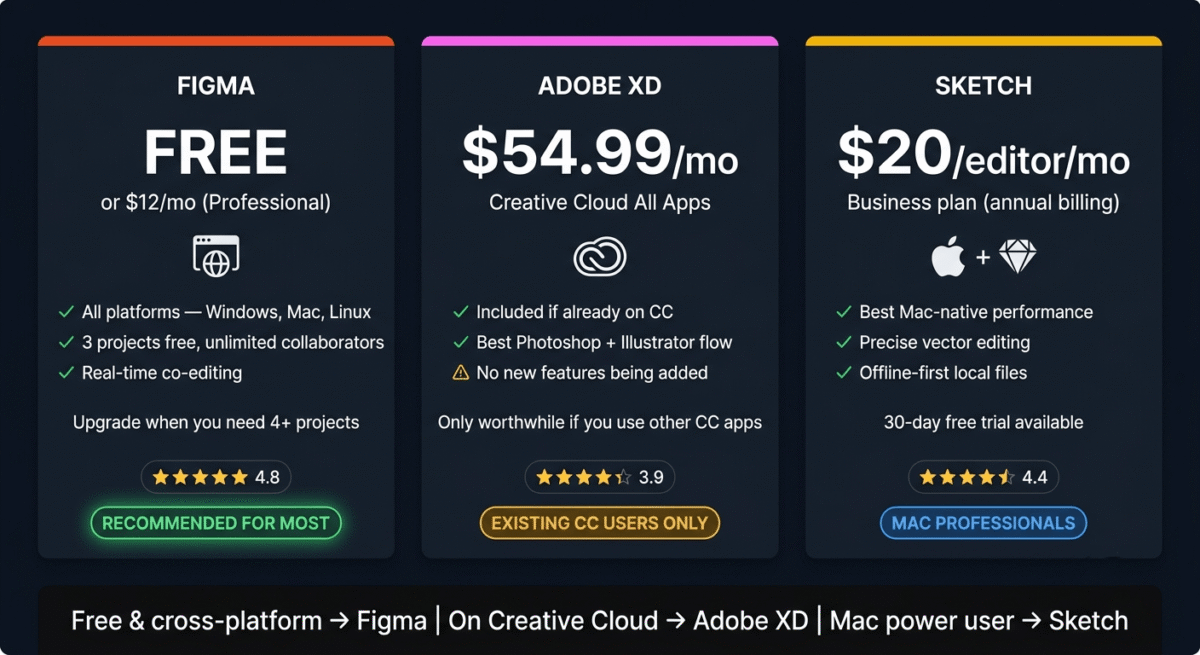
Rating: 4.8 / 5 – Best design tool for collaboration, web/UI design, and anyone who works with clients or teams. The free plan covers most individual needs.
Adobe XD Review: Best Design Tool for Adobe Creative Cloud Users
Free plan: Yes, limited starter plan (being phased out, see note below)
Starting paid price: Included with Adobe Creative Cloud ($54.99/month for All Apps)
Best plan for most users: Creative Cloud All Apps, $54.99/month
Platforms: Windows, Mac
Affiliate program: Yes, Adobe affiliate program, up to 85% commission on first month
Adobe XD is Adobe’s answer to Figma, a dedicated UI/UX design and prototyping tool integrated into the Creative Cloud ecosystem. For designers already paying for Adobe Creative Cloud who use Photoshop, Illustrator, or Premiere Pro regularly, XD provides design and prototyping capabilities without an additional subscription.
Important 2026 Update on Adobe XD
Adobe announced in late 2023 that it would stop developing new features for Adobe XD, following the collapse of its planned acquisition of Figma. In 2026, Adobe XD is still functional and actively maintained for existing users, but it is no longer receiving major feature updates. Adobe has stated that existing XD plans will continue to be honoured, but new users are being directed toward other Adobe design tools.
This is the most important context for evaluating Adobe XD in 2026: it is a capable tool in maintenance mode rather than active development. Existing Creative Cloud subscribers who are comfortable with XD can continue using it productively. New users choosing a design tool for the first time should consider Figma or Sketch instead.
What Adobe XD does best
Adobe XD’s integration with Photoshop and Illustrator is its strongest remaining advantage. Assets created in Photoshop, edited photos, complex compositions, and illustrations created in Illustrator can be imported directly into XD with full editability maintained. For designers who work across multiple Adobe tools, this asset flow between applications is genuinely valuable.
The prototyping capabilities in Adobe XD are strong, interactive prototypes with micro-animations, scroll behaviour, component states, and auto-animate transitions between artboards create presentation-ready prototypes that closely simulate the final product. The auto-animate feature, which smoothly transitions between artboard states based on matching element names, produces polished animations without keyframe animation knowledge.
Adobe XD’s sharing and stakeholder presentation features are polished, shareable prototype links allow non-designers to experience interactive prototypes in any browser without software, and the commenting system allows stakeholder feedback attached to specific elements.
For Windows users specifically, Adobe XD is one of the only professional-grade design tools available natively, Sketch is Mac-only, and Figma’s Windows desktop app is an Electron wrapper around the web application. XD’s native Windows performance has historically been better than Figma’s Windows desktop app, though Figma has significantly improved its Windows experience in recent updates.
Where Adobe XD falls short
As noted above, Adobe XD is in maintenance mode, new features are not being developed. The collaboration features, while functional, are less capable than Figma’s real-time multi-user editing. The plugin and template ecosystem is smaller than Figma’s and has stopped growing meaningfully.
For new users starting fresh in 2026, choosing a tool that is actively developed and gaining new capabilities is a better long-term investment than learning a tool in maintenance mode. Figma’s feature set has surpassed Adobe XD in most areas, and the gap will only widen.
Adobe XD pricing
Option | Price | Includes |
XD Starter | Being phased out | Limited features |
Creative Cloud Single App | $22.99/month | XD only |
Creative Cloud All Apps | $54.99/month | XD + Photoshop + Illustrator + Premiere + 20+ more |
Adobe XD: Pros and Cons
Pros:
– Included with Creative Cloud, no extra cost for existing subscribers
– Best Photoshop and Illustrator integration
– Strong auto-animate prototyping
– Native Windows application, good performance on Windows
– Shareable prototype links for stakeholder review
– Familiar Adobe interface for existing Creative Cloud users
Cons:
– In maintenance mode, no new features being developed
– Not recommended for new users starting fresh
– Collaboration features behind Figma
– Smaller and stagnant plugin ecosystem
– Adobe’s direction unclear for long-term design tool strategy
– Expensive if paying for Creative Cloud solely for XD
Rating: 3.9 / 5 – Functional for existing Creative Cloud users. Not recommended as a starting point for new users in 2026 given its maintenance-mode status.
Sketch Review: Best Design Tool for Mac-Native UI Design
Free plan: No (30-day free trial)
Starting paid price: $10/month/editor (billed annually) or $99/year per editor
Best plan for most users: Business, $20/editor/month (billed annually)
Platforms: Mac only (native app), web-based viewer for collaborators
Affiliate program: Yes, Sketch affiliate program
Sketch pioneered modern UI design software when it launched in 2010, before Figma existed, before Adobe XD existed, Sketch was the tool that professional UI designers used. In 2026, it remains a genuinely excellent Mac-native design application with a loyal professional user base, strong vector tools, and the most precise design capabilities of the three tools tested.
What Sketch does best
Sketch’s Mac-native performance is its most immediately noticeable advantage. Running natively on macOS with full Apple Silicon optimisation, Sketch opens instantly, handles large complex design files without the occasional lag that browser-based Figma can experience on older hardware, and integrates seamlessly with macOS features, drag and drop from Finder, system font access, macOS accessibility features, and native file management.
The vector editing tools in Sketch are the most precise of the three tools, Sketch was built from the ground up as a vector illustration and UI design tool, and the Bézier curve editing, boolean operations, and path manipulation tools reflect this heritage. For UI designers who need precise icon design, logo refinement, and detailed vector illustration alongside interface design, Sketch’s vector capabilities exceed Figma’s.
Sketch’s symbols system, the predecessor to Figma’s components, is mature, well-implemented, and flexible. Nested symbols, override-able text and image layers, and library management across multiple files provide a component system that scales well for large design systems.
The Sketch plugin ecosystem, while smaller than Figma’s, includes many professional-grade tools developed specifically for Mac workflows, runner utilities, icon sets, data population tools, and integration with Mac development tools like Xcode.
Sketch’s offline-first architecture is a significant practical advantage for designers who work in areas with unreliable internet or prefer to keep design files local. Files are stored on your Mac and opened instantly without cloud dependency, a meaningful difference from Figma’s cloud-first approach.
Sketch’s collaboration evolution
Sketch added web-based collaboration in recent years, designers can share documents to Sketch’s cloud, team members can view and comment on designs in a web browser, and changes sync across team members’ Mac apps. The collaboration is less seamless than Figma’s real-time simultaneous editing but functional for most team workflows.
Sketch also added a web-based design view, allowing non-Mac users (Windows, Linux) to view designs and leave comments through a browser. This partially addresses the Mac-only limitation for teams with mixed operating systems.
Where Sketch falls short
Sketch’s Mac-only limitation is its most significant competitive weakness. In 2026, many design and development teams work across Windows and Mac. A design tool that requires Mac for editing excludes Windows developers, Windows-using clients, and anyone whose primary machine is not a Mac.
The collaboration experience, while improved, still does not match Figma’s real-time simultaneous editing. Two designers cannot edit the same file simultaneously in Sketch the way they can in Figma, one person edits while others view, rather than true concurrent editing.
Sketch’s browser-based viewer allows commenting but not editing, collaborators on Windows or without a Sketch subscription can view and comment but cannot make changes. For teams that include non-designers who occasionally need to make minor copy changes or annotations, this is a workflow friction point.
Sketch pricing
Plan | Price/editor/month (annual) | Key features |
Business | $20 | Full Mac app, cloud storage, web viewer, collaboration |
Education | Free | For verified students and educators |
Sketch: Pros and Cons
Pros:
– Best Mac-native performance, fastest and smoothest on macOS
– Best vector editing precision, superior for icon and illustration work
– Offline-first, files stored locally, no internet dependency
– Mature symbols and library system
– Long-established professional ecosystem of plugins and resources
– 30-day free trial
– Competitive pricing at $20/editor/month
Cons:
– Mac only, excludes Windows and Linux users entirely
– Real-time simultaneous editing not as seamless as Figma
– Non-Mac collaborators limited to browser view only
– Smaller and less active community than Figma
– Less suitable for teams with mixed operating systems
– No Linux support whatsoever
Rating: 4.4 / 5 – Best design tool for Mac-focused teams who need offline-first design with precise vector capabilities. Wrong choice for Windows users or cross-platform teams.
Head-to-Head Comparison
Figma Free | Figma Professional | Adobe XD | Sketch Business | |
Price/month | $0 | $12/editor | $54.99 (CC All Apps) | $20/editor |
Free plan | Yes (3 projects) | — | Being phased out | No (30-day trial) |
Platforms | All (browser) | All (browser) | Windows, Mac | Mac only |
Real-time collaboration | Excellent | Excellent | Good | Limited |
Auto-layout | Excellent | Excellent | Good | Good |
Prototyping | Good | Excellent | Excellent | Good |
Vector editing | Good | Good | Good | Excellent |
Plugin ecosystem | Largest (1,000+) | Largest | Shrinking | Medium |
Developer handoff | Good | Excellent (Dev mode) | Good | Good |
Offline capability | Limited | Limited | Yes | Excellent |
Active development | Yes | Yes | No (maintenance) | Yes |
Community size | Largest | Largest | Declining | Medium |
Best for | Everyone | Teams/ professionals | Existing CC users | Mac professionals |
Affiliate commission | Standard | Standard | 85% first month | Standard |
Which Design Tool Should You Choose?
Choose Figma if:
You are starting fresh, work with clients or collaborators, use Windows or Linux, or want the most actively developed tool with the largest community. Figma’s free plan covers most individual needs, the browser-based access works on any device, and the collaboration features are unmatched. For WordPress developers who need to share wireframes with clients for feedback, Figma is the clear recommendation.
Choose Adobe XD if:
You are already an Adobe Creative Cloud subscriber, are comfortable with XD’s current feature set, and do not need real-time collaboration. Do not choose XD as a new user starting fresh, its maintenance-mode status means you will be learning a tool that is falling behind Figma’s capabilities over time.
Choose Sketch if:
You work exclusively on Mac, prefer offline-first local file management, need precise vector editing capabilities, and either work solo or with a Mac-only team. Sketch’s native performance and vector tools are genuinely superior on macOS for the right use cases.
The WordPress Developer Design Workflow
As a WordPress developer, here is the recommended design workflow using Figma:
Phase 1 – Discovery (FigJam):
Create a FigJam board for each client project. Map user journeys, list site requirements, and sketch rough layouts in the whiteboard before touching design tools. Share the FigJam link with clients for async review.
Phase 2 – Wireframes (Figma):
Create low-fidelity wireframes showing page structure, content hierarchy, and navigation. Share via Figma link, clients click to view and leave comments on specific elements. Align on structure before adding visual design.
Phase 3 – Visual design (Figma):
Apply brand colours, typography, and visual elements. Use auto-layout and components for consistency. Share interactive prototype link with client, they click through the design as if using the real site.
Phase 4 – Developer handoff (Figma Dev Mode):
Switch to developer mode, inspect any element for exact CSS values, spacing, colours, and exportable assets. Build the WordPress site directly from the Figma specs without asking “what font size is this heading?” repeatedly.
Phase 5 – Client review (Figma comments):
Share the live WordPress staging site URL and the original Figma file. Clients compare design to implementation, leaving Figma comments for discrepancies. Resolve systematically before launch.
This workflow, entirely within Figma, eliminates the back-and-forth that kills freelance project profitability.
Final Verdict
Figma is the best design tool for 2026 for individuals, teams, WordPress developers, and bloggers alike. The free plan covers most individual needs, the browser-based access works on every platform, the collaboration features are unmatched, and the active development means it keeps getting better. Start with Figma free and upgrade to Professional when you need unlimited projects.
Sketch is the best choice for Mac-focused professional UI designers who value offline capability and vector precision over cross-platform collaboration. A legitimate tool with a loyal professional user base just not suitable for Windows users or cross-platform teams.
Adobe XD is only recommended for existing Creative Cloud subscribers already comfortable with the tool. Do not start with XD in 2026, its maintenance-mode status makes it a poor long-term investment of your learning time.
Ratings:
– Figma: 4.8 / 5
– Sketch: 4.4 / 5
– Adobe XD: 3.9 / 5
Frequently Asked Questions
What is the best free design tool in 2026?
Figma is the best free design tool, its free plan includes 3 projects with unlimited collaborators, full access to auto-layout and components, FigJam whiteboard, and browser-based access on any operating system. Canva (reviewed separately) is the best free design tool for non-designers who need templates for social media and marketing graphics rather than UI/UX design. See our Canva Pro vs Adobe Express comparison if you want a simpler design option than Figma for templated social graphics.
Is Figma replacing Adobe XD?
Effectively, yes, Adobe’s abandonment of active XD development following the failed Figma acquisition signals that Figma has won the UI design tool market. Most designers who previously used Adobe XD have migrated to Figma, and Adobe’s own guidance directs new users to Figma rather than XD for UI design work.
Can I use Figma on Windows?
Yes. Figma works in any web browser on Windows, and there is a Windows desktop application. Browser-based access means Figma works on Windows, Mac, Linux, Chromebook, and any other device with a modern browser, unlike Sketch (Mac only) or Adobe XD (Windows and Mac).
What is the difference between Figma and Canva?
Figma is a professional UI/UX design tool for creating website designs, app interfaces, wireframes, and interactive prototypes, primarily used by designers and developers. Canva is a template-based graphic design tool for creating social media graphics, presentations, marketing materials, and documents, primarily used by non-designers. Figma requires design knowledge to use effectively; Canva is designed for anyone regardless of design experience.
Is Sketch worth learning in 2026?
Yes, if you exclusively use Mac and want the best native macOS design experience. Sketch has a loyal professional user base, strong vector capabilities, and active development. However, for anyone using Windows, working with remote teams, or starting their design tool journey fresh, Figma’s cross-platform support and superior collaboration make it the better investment of learning time.
Do I need to pay for Figma?
Not initially. Figma’s free plan includes 3 projects with unlimited collaborators, sufficient for most individual designers and small freelance operations. Upgrade to the Professional plan ($12/month) when you need more than 3 projects, advanced prototyping features, or developer mode for precise CSS handoff.
Which design tool do most professional designers use?
Figma has become the dominant professional design tool, the majority of product designers, UX designers, and web designers at technology companies use Figma as their primary tool. Sketch retains a loyal user base among Mac-focused UI designers. Adobe XD’s professional adoption has declined significantly since Adobe announced it would stop developing new features.
Can Figma be used for print design?
Figma is primarily a screen design tool, it works with pixels and is optimised for web and app interfaces. Print design (requiring CMYK colour support, precise bleed settings, and high-resolution print-ready file export) is better handled by Adobe InDesign or Illustrator. For basic print pieces (business cards, simple flyers) that do not require professional print preparation, Figma is functional but not ideal.